ご注意!

この記事には PHP コードが含まれており、開発者を対象としています。このコードは便宜上提供していますが、コードのカスタマイズやサードパーティの開発についてはサポートを提供していません。

追加のガイダンスについては、WPBeginner の カスタムコードの追加方法に関するチュートリアル を参照してください。

閉じる

How to Change CSV Export Delimiter

Would you like to change the CSV export delimiter from a comma to something else? WPForms makes this super simple and all you need is a bit of PHP. This tutorial will walk you through how you would change the default , to something else for exporting your form entries.

By default, exported CSVs of WPForms entries will be separated by a comma. However, some systems that accept CSV data may require an alternate delimiter format.

セットアップ

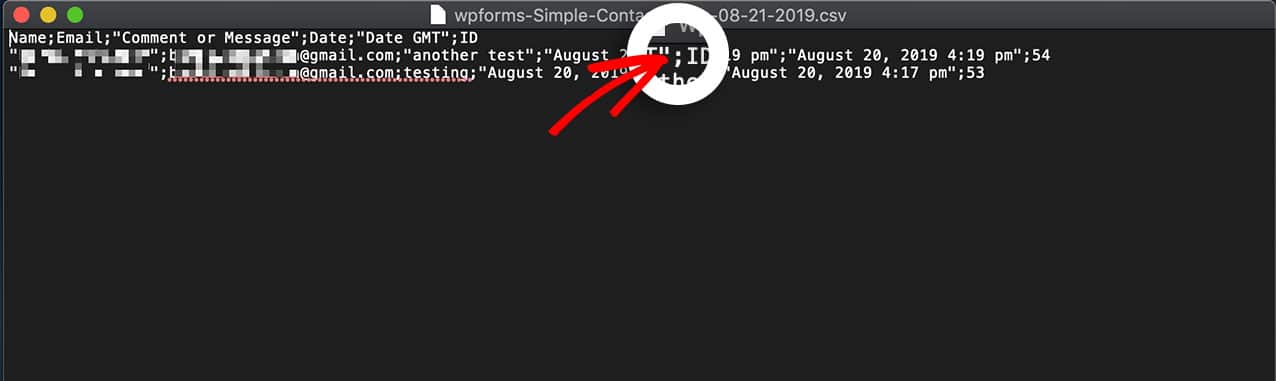
In the example below, we’ll be modifying the CSV separator symbol to be a semicolon instead of a comma.

To add this snippet to your site, you can review this documentation.

For the purpose of this specific snippet, we recommend that you add the snippet by either creating a site-specific custom plugin or using the Insert Headers and Footers – Code Snippets by WPCode plugin as mentioned in this documentation.

Changing the CSV delimiter from a comma to a semicolon

For best results, avoid using spaces or text for the separator.

And that’s it! You’ve successfully changed the delimiter! Would you like to know how to display a count of how many visitors have completed your form? Take a look at our article on How to Display Entry Submissions Count for a Specific Form.

Filter reference: wpforms_pro_admin_entries_export_configuration