


Resumen de IA
Introducción
¿Deseas desactivar el editor WYSIWYG que aparece en la configuración de Confirmación? Por defecto, cuando estás dentro del constructor de formularios, verás el editor WYSIWYG estándar que utiliza WordPress. Pero si quisieras desactivar este campo, puedes hacerlo fácilmente añadiendo unas pocas líneas de PHP. En este tutorial, te guiaremos a través de los pasos sobre cómo desactivar este editor.
¿Qué es un editor WYSIWYG de todos modos? Esto es lo que se conoce típicamente como un Editor Visual o campo de texto enriquecido. Cuando entras por primera vez en la pestaña de configuración de Confirmación desde el constructor de formularios, normalmente verás dos pestañas. Una es para el editor de texto Visual (WYSIWYG) y la otra es una pestaña de Texto plano.
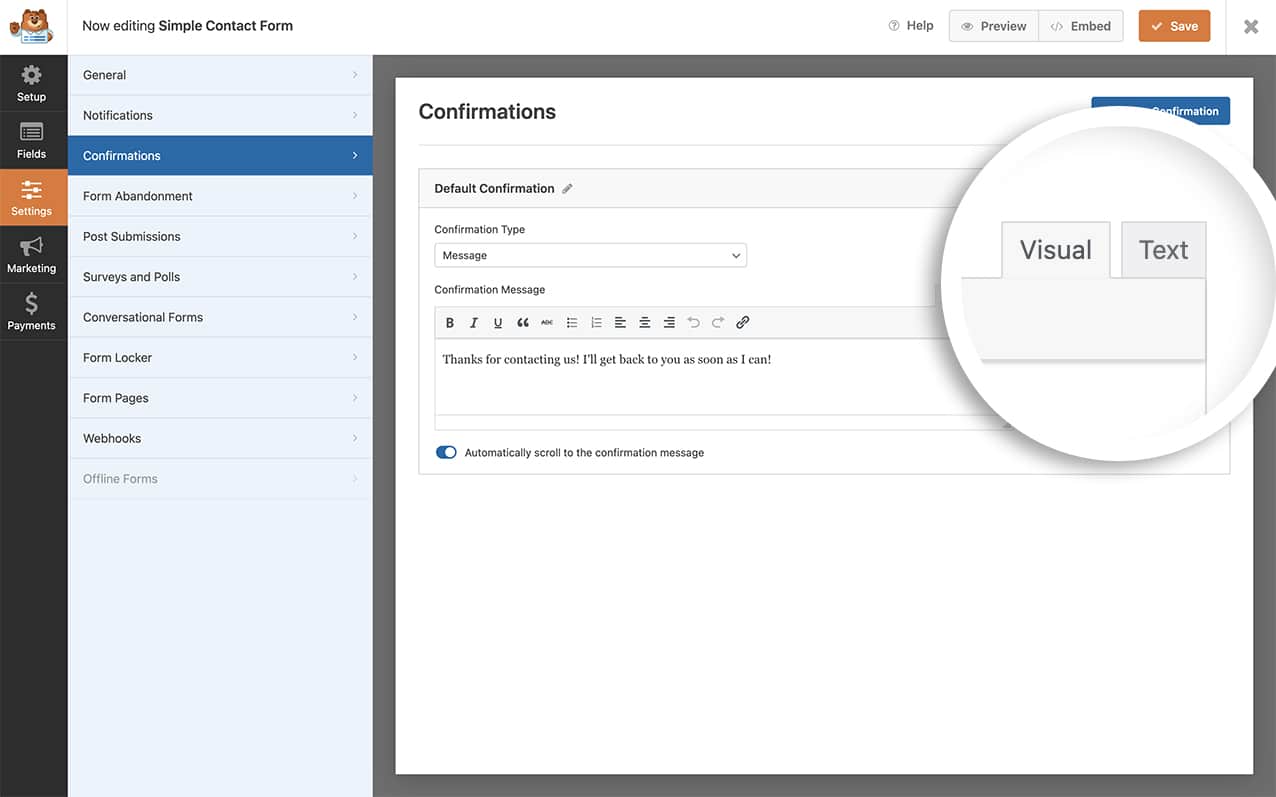
El editor de Texto plano suele ser utilizado con más frecuencia por usuarios que se sienten cómodos escribiendo HTML.
Añadir el fragmento para desactivar el editor WYSIWYG
Antes de crear el formulario, primero añadamos el fragmento que desactivará este editor. Para ello, simplemente copia y pega este fragmento en tu sitio.
Si necesitas ayuda para añadir fragmentos a tu sitio, consulta este tutorial.
/**
Disable the WYSIWYG editor in the Confirmation settings.

@link https://wpforms.com/developers/how-to-disable-the-wysiwyg-editor-inside-the-confirmation-settings/
 */
function wpf_dev_builder_enqueues( $view ) {
 wp_add_inline_script(
 'wpforms-builder',
 '(function( $ ) {

     // Prevent crash: module reads tinymceDefaults.tinymce.toolbar1 before
     // calling wp.editor.initialize — needs a valid object, not false.
     // This runs synchronously so WPFormsBuilder is guaranteed to exist.
     if ( typeof WPFormsBuilder !== "undefined" && WPFormsBuilder.settings ) {
         WPFormsBuilder.settings.tinymceDefaults.tinymce = { toolbar1: "" };
     }

     $( document ).ready( function() {

         // Layer 1: wp.editor.initialize intercept.
         // Prevents tmce-active class + TinyMCE init flow for confirmation editors.
         if ( typeof wp !== "undefined" && wp.editor && wp.editor.initialize && ! wp.editor.initialize.wpfPatched ) {
             var wpInit = wp.editor.initialize;
             wp.editor.initialize = function( id, settings ) {
                 if ( typeof id === "string" && /^wpforms[-]panel[-]field[_-]confirmations/.test( id ) ) {
                     settings = Object.assign( {}, settings, { tinymce: false } );
                 }
                 return _wpInit.call( this, id, settings );
             };
             wp.editor.initialize.wpfPatched = true;
         }

         // Layer 2: tinymce.init intercept.
         // Belt-and-suspenders — catches TinyMCE even if wp.editor.initialize
         // is called from a path our Layer 1 missed.
         if ( typeof tinymce !== "undefined" && ! tinymce.init.wpfPatched ) {
             var mceInit = tinymce.init;
             tinymce.init = function( settings ) {
                 if ( settings && settings.selector && /wpforms[-]panel[-]field[-]confirmations/.test( settings.selector ) ) {
                     return;
                 }
                 return _mceInit.apply( this, arguments );
             };
             tinymce.init._wpfPatched = true;
         }

         // Layer 3: event fallback — re-init any editor that slipped through.
         $( "#wpforms-builder" ).on( "wpformsBuilderConfirmationsReady", function() {
             if ( typeof wp === "undefined" || ! wp.editor ) return;
             $( ".wpforms-panel-field-confirmations-message" ).each( function() {
                 var id = $( this ).attr( "id" );
                 if ( ! id ) return;
                 wp.editor.remove( id );
                 wp.editor.initialize( id, { tinymce: false, quicktags: true } );
             } );
         } );

     } );

 } )( jQuery );'
 );

}
add_action( 'wpforms_builder_enqueues', 'wpf_dev_builder_enqueues', 10, 1 );
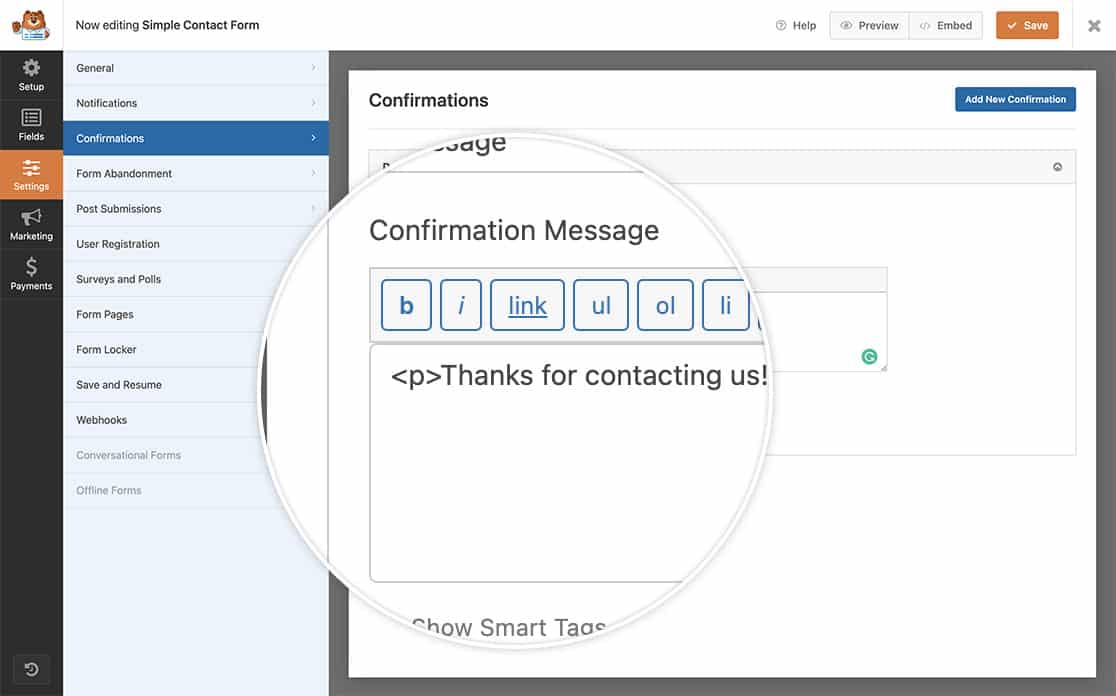
Esto desactivará completamente el editor Visual (el editor WYSIWYG) y solo verás el editor Texto.
¿Deseas también desactivar el desplazamiento automático cuando hay errores en el formulario? Echa un vistazo a nuestro artículo sobre Cómo desactivar el efecto de desplazamiento en los errores de validación de campos.


