


Resumen de IA
¿Tienes curiosidad por modificar el texto del límite de caracteres que se muestra debajo de los campos de tu formulario, especialmente cuando utilizas el Límite de caracteres en los campos de formulario de Texto de línea única o Texto de párrafo?
Por defecto, notarás un mensaje debajo del campo del formulario que indica el recuento actual de caracteres sobre el límite máximo, como 0 de 50 caracteres máx. o 0 de 50 palabras máx., dependiendo de la configuración de tu formulario. Puedes personalizar este mensaje para incluir el recuento de caracteres restantes. Este ajuste se realiza fácilmente con un simple fragmento de PHP. En este tutorial, te mostraremos cómo utilizar PHP para modificar este mensaje.
Creación del formulario
Primero, necesitaremos crear nuestro formulario y añadir nuestros campos.
Si necesitas ayuda para crear tu formulario, consulta esta documentación.
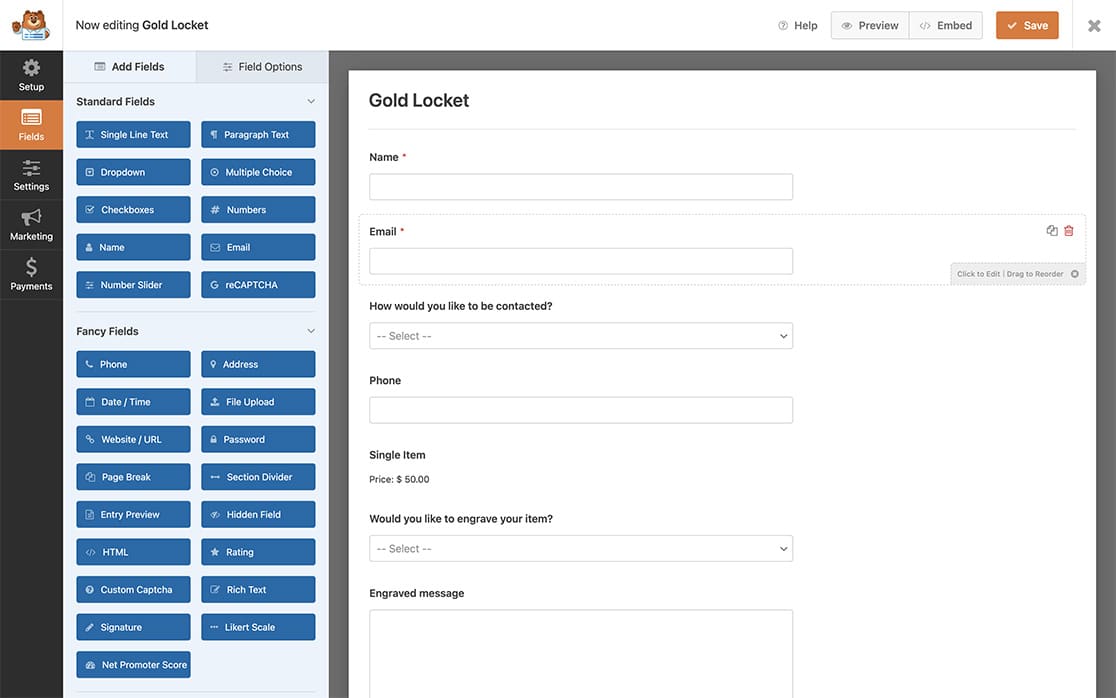
Hemos añadido un campo de formulario de Texto de párrafo para alojar nuestro mensaje grabado.
Establecer el límite de caracteres
A continuación, selecciona el Texto de párrafo que añadiste y haz clic en la pestaña Avanzado para habilitar la opción Limitar longitud y establecer el límite en 100 y seleccionar Carácter en el menú desplegable.
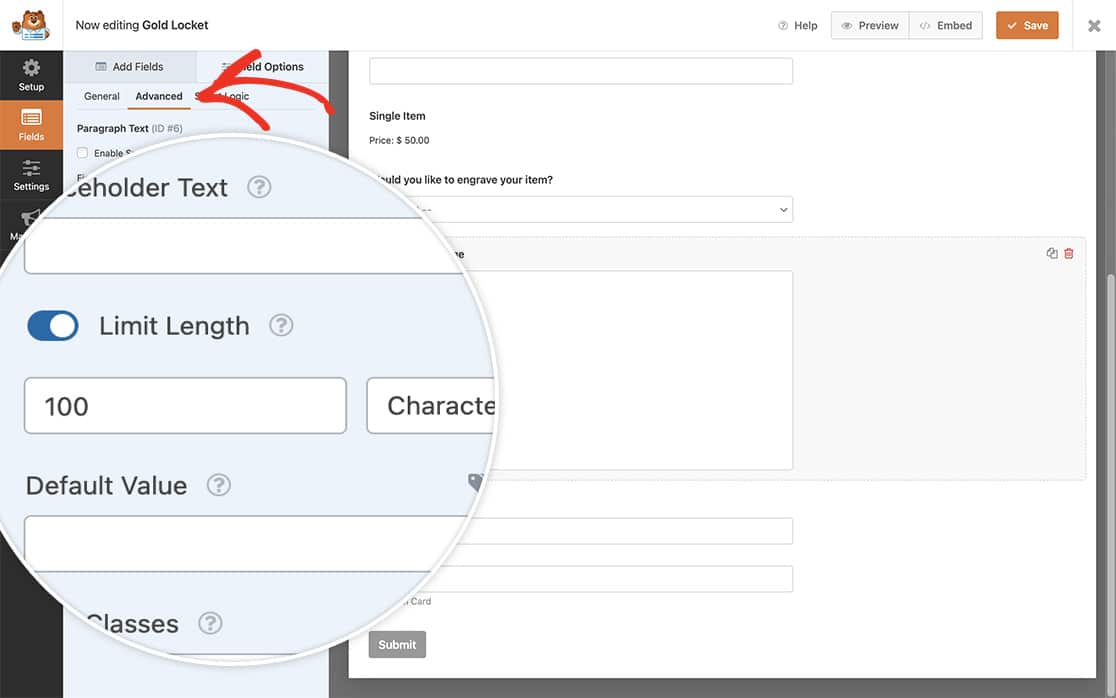
Para más información sobre la opción Limitar longitud, revisa esta documentación.
Cambiar el texto de validación del límite de caracteres
Ahora es el momento de añadir el fragmento a su sitio.
Si no estás seguro de cómo o dónde añadir fragmentos a tu sitio, consulta este tutorial.
/**
 * Change the text for the character limit.
 *
 * @link https://wpforms.com/developers/how-to-change-the-limit-character-validation-text/
 */

function wpf_dev_frontend_strings( $strings ) {

    // val_limit_words when using words
    // val_limit_characters when using characters

    // Change the message that will appear to your visitors after the = sign below
    $strings[ 'val_limit_characters' ] = __( 'You have used {count} characters out of allotted {limit}. You have {remaining} remaining.', 'plugin-domain' );

	return $strings;
}

add_filter( 'wpforms_frontend_strings' , 'wpf_dev_frontend_strings', 10, 1 );
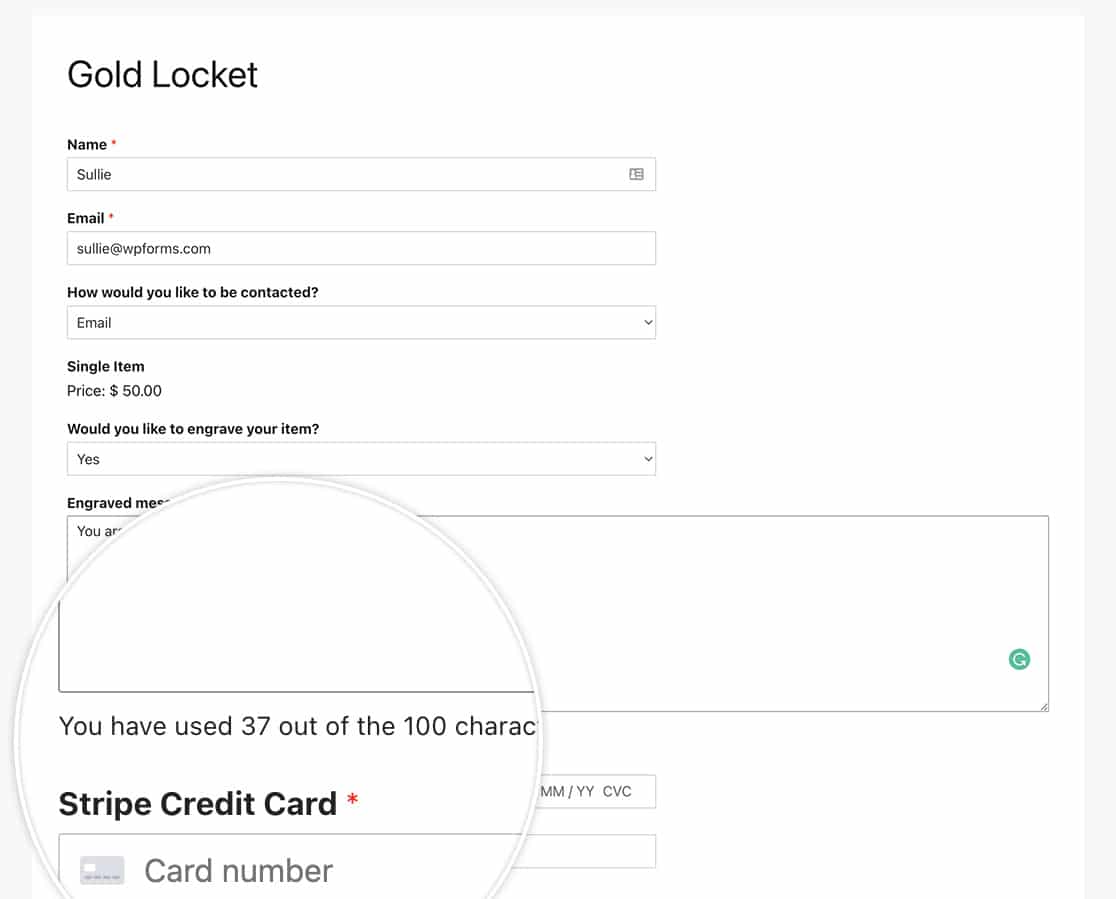
¡Y eso es todo! Has cambiado con éxito el texto del límite de caracteres que se muestra debajo del campo del formulario al usar el límite de caracteres o palabras. ¿Te gustaría también establecer un número mínimo de caracteres para tu campo de formulario? Echa un vistazo a nuestro tutorial sobre Cómo establecer un número mínimo de caracteres en un campo de texto de formulario.
Filtro de Referencia
Preguntas frecuentes
P: ¿Cómo cambiaría el texto cuando uso el límite de palabras y no el límite de caracteres?
R: Para cambiar el texto del límite de palabras, utiliza el siguiente fragmento de código:
/**
 * Change the text for the character limit.
 *
 * @link https://wpforms.com/developers/how-to-change-the-limit-character-validation-text/
 */

function wpf_dev_frontend_strings( $strings ) {

    // val_limit_words when using words
    // val_limit_characters when using characters

    // Change the message that will appear to your visitors after the = sign below
    $strings[ 'val_limit_words' ] = __( 'You have used {count} words out of allotted {limit}. You have {remaining} remaining.', 'plugin-domain' );
	return $strings;
}

add_filter( 'wpforms_frontend_strings' , 'wpf_dev_frontend_strings', 10, 1 );
P: ¿Puedo cambiar esto tanto para palabras como para caracteres en una sola función?
R: ¡Absolutamente! Puedes cambiar este texto tanto para palabras como para caracteres en una sola función utilizando este fragmento.
/**
 * Change the text for the character and word limit.
 *
 * @link https://wpforms.com/developers/how-to-change-the-limit-character-validation-text/
 */

function wpf_dev_frontend_strings( $strings ) {

    // val_limit_words when using words
    // val_limit_characters when using characters

    // Change the message that will appear to your visitors after the = sign below
    $strings[ 'val_limit_words' ] = __( 'You have used {count} words out of allotted {limit}. You have {remaining} remaining.', 'plugin-domain' );
    $strings[ 'val_limit_characters' ] = __( 'You have used {count} characters out of allotted {limit}. You have {remaining} remaining.', 'plugin-domain' );
    return $strings;
}

add_filter( 'wpforms_frontend_strings' , 'wpf_dev_frontend_strings', 10, 1 );
P: ¿Puedo eliminar completamente el texto que se muestra?
R: Por supuesto, puedes eliminar este mensaje. Pero ten en cuenta que si tus visitantes están escribiendo y de repente no pueden escribir más debido al límite, esto podría causar confusión al completar el formulario. Recomendamos dejar algún tipo de mensaje que explique el límite. Sin embargo, si aún deseas eliminar el mensaje que aparece por completo, utiliza este fragmento en su lugar.
/**
 * Remove the text for the character and word limit.
 *
 * @link https://wpforms.com/developers/how-to-change-the-limit-character-validation-text/
 */

function wpf_dev_frontend_strings( $strings ) {

    // val_limit_words when using words
    // val_limit_characters when using characters

    // Change the message that will appear to your visitors after the = sign below
    $strings[ 'val_limit_words' ] = '';
    $strings[ 'val_limit_characters' ] = '';
    return $strings;
}

add_filter( 'wpforms_frontend_strings' , 'wpf_dev_frontend_strings', 10, 1 );


