


AI要約
はじめに
確認設定内に表示されるWYSIWYGエディターを無効にしますか?デフォルトでは、フォームビルダー内にいる場合、WordPressが使用する標準のWYSIWYGが表示されます。しかし、このフィールドを無効にしたい場合は、少量のPHPを追加するだけで簡単に実行できます。このチュートリアルでは、このエディターを無効にする方法をステップバイステップで説明します。
そもそもWYSIWYGエディターとは何ですか?これは通常、ビジュアルエディターまたはリッチテキストフィールドと呼ばれるものです。フォームビルダーから確認設定タブに初めて入ると、通常2つのタブが表示されます。1つはビジュアルテキストエディター(WYSIWYG)用で、もう1つはプレーンなテキストタブです。
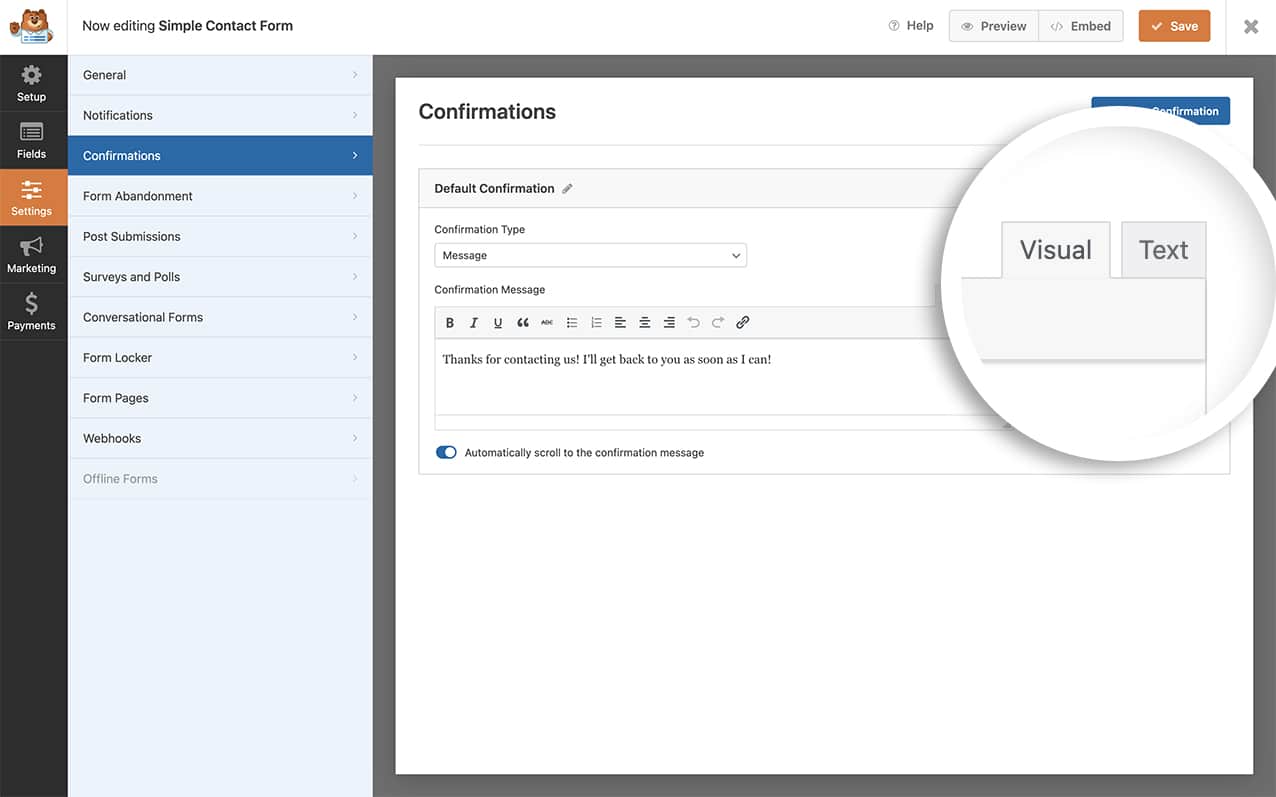
プレーンなテキストエディターは、通常、HTMLの記述に慣れているユーザーがより頻繁に使用します。
WYSIWYGエディターを無効にするスニペットの追加
フォームを作成する前に、まずこのエディターを無効にするスニペットを追加しましょう。これを行うには、このスニペットをコピーしてサイトに貼り付けるだけです。
サイトにスニペットを追加する方法についてサポートが必要な場合は、こちらのチュートリアルをご覧ください。
/**
Disable the WYSIWYG editor in the Confirmation settings.

@link https://wpforms.com/developers/how-to-disable-the-wysiwyg-editor-inside-the-confirmation-settings/
 */
function wpf_dev_builder_enqueues( $view ) {
 wp_add_inline_script(
 'wpforms-builder',
 '(function( $ ) {

     // Prevent crash: module reads tinymceDefaults.tinymce.toolbar1 before
     // calling wp.editor.initialize — needs a valid object, not false.
     // This runs synchronously so WPFormsBuilder is guaranteed to exist.
     if ( typeof WPFormsBuilder !== "undefined" && WPFormsBuilder.settings ) {
         WPFormsBuilder.settings.tinymceDefaults.tinymce = { toolbar1: "" };
     }

     $( document ).ready( function() {

         // Layer 1: wp.editor.initialize intercept.
         // Prevents tmce-active class + TinyMCE init flow for confirmation editors.
         if ( typeof wp !== "undefined" && wp.editor && wp.editor.initialize && ! wp.editor.initialize.wpfPatched ) {
             var wpInit = wp.editor.initialize;
             wp.editor.initialize = function( id, settings ) {
                 if ( typeof id === "string" && /^wpforms[-]panel[-]field[_-]confirmations/.test( id ) ) {
                     settings = Object.assign( {}, settings, { tinymce: false } );
                 }
                 return _wpInit.call( this, id, settings );
             };
             wp.editor.initialize.wpfPatched = true;
         }

         // Layer 2: tinymce.init intercept.
         // Belt-and-suspenders — catches TinyMCE even if wp.editor.initialize
         // is called from a path our Layer 1 missed.
         if ( typeof tinymce !== "undefined" && ! tinymce.init.wpfPatched ) {
             var mceInit = tinymce.init;
             tinymce.init = function( settings ) {
                 if ( settings && settings.selector && /wpforms[-]panel[-]field[-]confirmations/.test( settings.selector ) ) {
                     return;
                 }
                 return _mceInit.apply( this, arguments );
             };
             tinymce.init._wpfPatched = true;
         }

         // Layer 3: event fallback — re-init any editor that slipped through.
         $( "#wpforms-builder" ).on( "wpformsBuilderConfirmationsReady", function() {
             if ( typeof wp === "undefined" || ! wp.editor ) return;
             $( ".wpforms-panel-field-confirmations-message" ).each( function() {
                 var id = $( this ).attr( "id" );
                 if ( ! id ) return;
                 wp.editor.remove( id );
                 wp.editor.initialize( id, { tinymce: false, quicktags: true } );
             } );
         } );

     } );

 } )( jQuery );'
 );

}
add_action( 'wpforms_builder_enqueues', 'wpf_dev_builder_enqueues', 10, 1 );
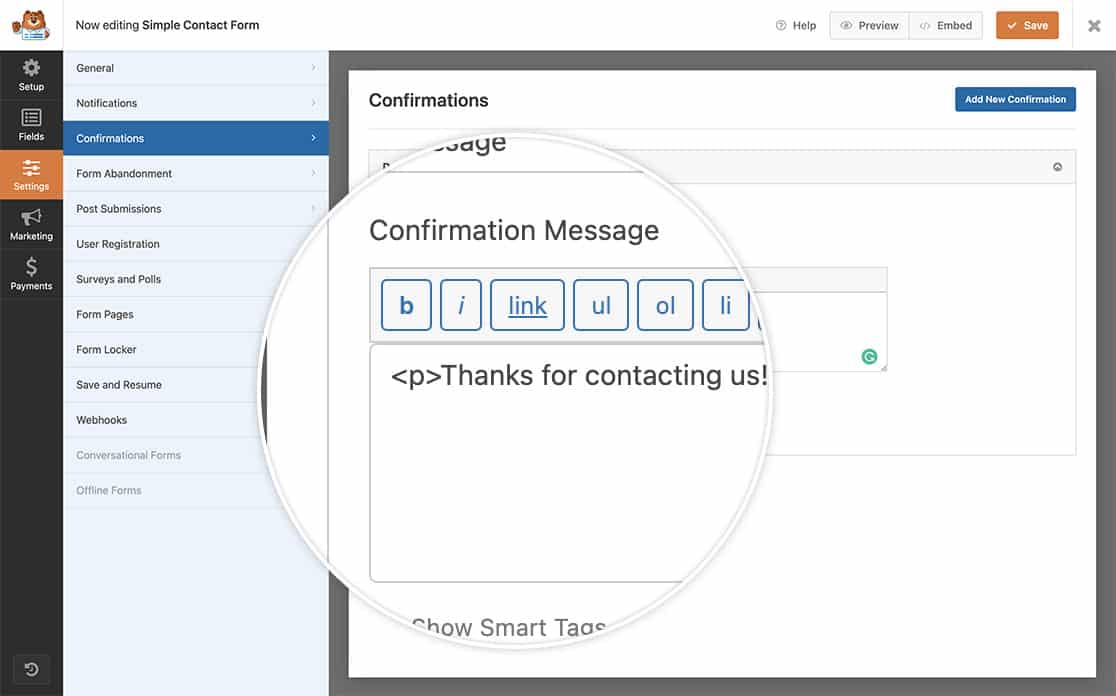
これにより、ビジュアルエディター(WYSIWYGエディター)が完全に無効になり、テキストエディターのみが表示されるようになります。
フォームにエラーがある場合に自動スクロールを無効にすることもできますか?フィールド検証エラー時のスクロール効果を無効にする方法の記事をご覧ください。


