


Resumen de IA
¿Le gustaría establecer una bandera predeterminada en el campo Teléfono inteligente cuando GDPR esté habilitado? Al usar el campo de formulario Teléfono inteligente, se intentará establecer la bandera del país predeterminada según la dirección IP del usuario. Cuando la configuración de GDPR esté habilitada, esta configuración se bloqueará y, por lo tanto, sus visitantes deberán establecer la bandera manualmente.
Usando un pequeño fragmento de código JavaScript, puede establecer la bandera en un país predeterminado por un número para no infringir su acuerdo GDPR, pero ahorrando un paso al usuario al mismo tiempo. Le mostraremos cómo lograr esto con este tutorial.
Configuración del formulario
Primero, para el propósito de este tutorial, asumiremos que ya ha habilitado la configuración GDPR de WPForms. Si necesita más ayuda con esto, revise esta documentación.
Una vez que la configuración de GDPR esté habilitada, es hora de agregar un Teléfono inteligente a su formulario.
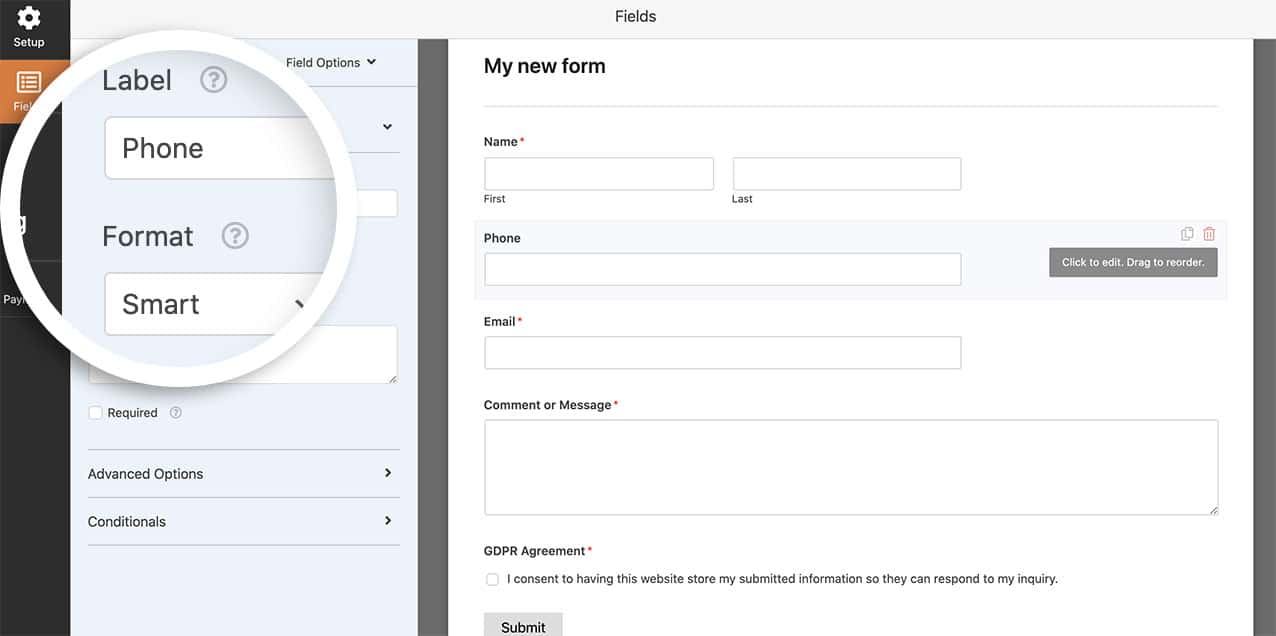
Ahora que se ha agregado el campo, también puede agregar su campo de formulario Acuerdo GDPR.
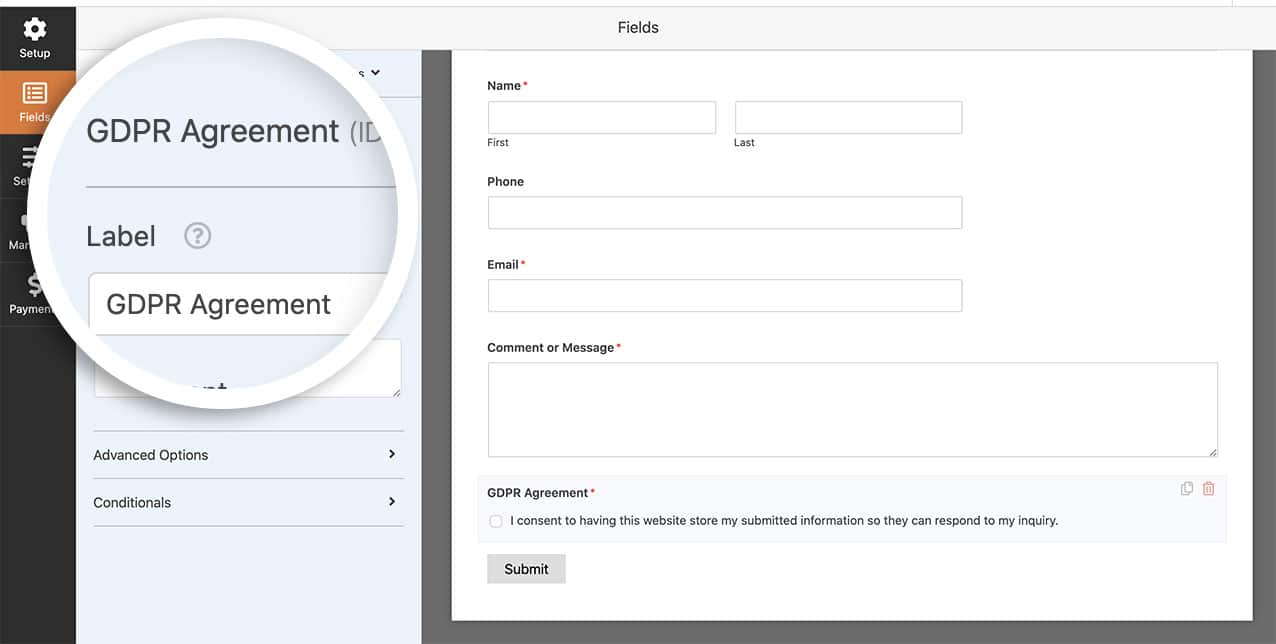
Establecer la bandera predeterminada
Ahora es el momento de agregar el siguiente fragmento de código a su sitio. Si no está seguro de dónde y cómo agregar fragmentos a su sitio, revise este tutorial.
/**
 * Set the country code on Smart Phone form field country flag
 *
 * @link   https://wpforms.com/how-to-set-a-default-flag-on-smart-phone-field-with-gdpr/
 */

function wpf_dev_smart_phone_field_initial_country() {
    ?>
    <script type="text/javascript">
        jQuery( document ).on( 'wpformsReady', function() {
            jQuery( '.wpforms-smart-phone-field' ).each(function(e){
                var $el = jQuery( this ),
                    iti = $el.data( 'plugin_intlTelInput' ),
                    options;
                // Options are located in different keys of minified and unminified versions of jquery.intl-tel-input.js.
                if ( iti.d ) {
                    options = Object.assign( {}, iti.d );
                } else if ( iti.options ) {
                    options = Object.assign( {}, iti.options );
                }
                if ( ! options ) {
                    return;
                }
                $el.intlTelInput( 'destroy' );
                $el.off( 'validate' );

                // Put a country code here according to this list: https://en.wikipedia.org/wiki/ISO_3166-1_alpha-2
                options.initialCountry = 'SZ'.toLowerCase();

                $el.intlTelInput( options );

                // Restore hidden input name after intlTelInput is reinitialized.
                $el.siblings( 'input[type="hidden"]' ).each(function() {
                    const $hiddenInput = jQuery( this );
                    $hiddenInput.attr( 'name', $hiddenInput.attr( 'name' ).replace( 'wpf-temp-', '' ) );
                });
            });
        } );
    </script>
    <?php
}
add_action( 'wpforms_wp_footer_end', 'wpf_dev_smart_phone_field_initial_country', 30 );
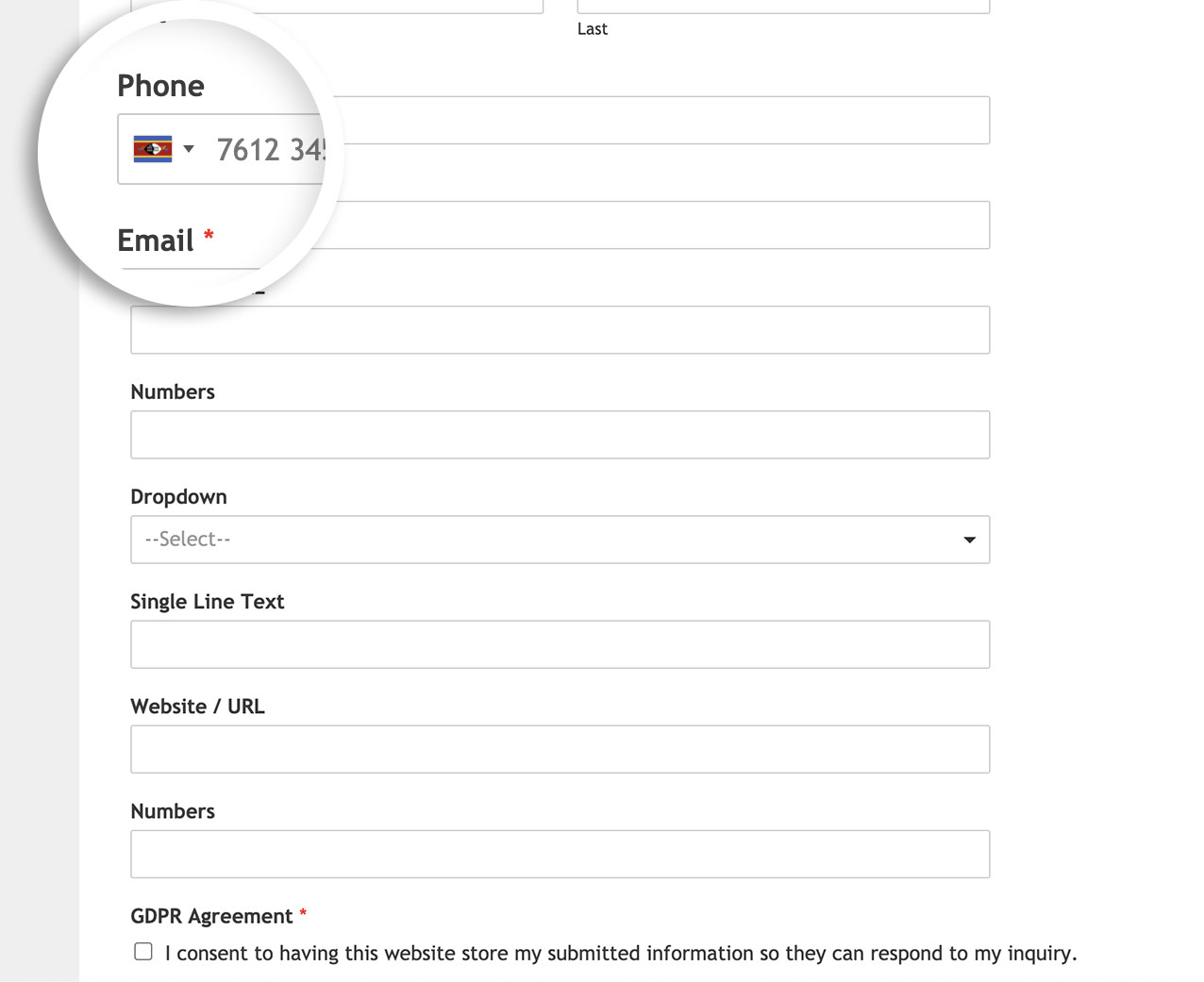
Este código anterior buscará `options.initialCountry = 'SZ';` y establecerá la bandera de ese país.
Si necesita ayuda para encontrar el código de país correcto al que desea establecer su bandera, consulte esta página para encontrar el número correcto.
Ahora, cuando la página se cargue, se establecerá automáticamente la bandera en el campo.
¿Le gustaría también restringir países para un campo de Teléfono inteligente? Consulte nuestro tutorial sobre Cómo restringir países dentro de los campos de formulario de teléfono inteligente.
Acción de referencia
Preguntas frecuentes
P: ¿Funcionará esto en un formulario con saltos de página?
R: Si su formulario tiene los campos de formulario Salto de página, entonces también querrá usar el fragmento de este tutorial también.
P: ¿Cómo puedo limitar solo a ciertos países?
R: Si solo desea aceptar ciertos países, usaría este fragmento. En nuestro ejemplo, hemos verificado el código de país de dos letras para los códigos correctos de EE. UU. y Gran Bretaña y los hemos colocado dentro de la línea de código `options.onlyCountries`.
/**
 * Restrict countries to only on Smart Phone form field country flag
 *
 * @link   https://wpforms.com/how-to-set-a-default-flag-on-smart-phone-field-with-gdpr/
 */

function wpf_dev_smart_phone_field_restrict_countries() {
    ?>
    <script type="text/javascript">
        jQuery( document ).on( 'wpformsReady', function() {
            jQuery( '.wpforms-smart-phone-field' ).each(function(e){
                var $el = jQuery( this ),
                    iti = $el.data( 'plugin_intlTelInput' ),
                    options;
                // Options are located in different keys of minified and unminified versions of jquery.intl-tel-input.js.
                if ( iti.d ) {
                    options = Object.assign( {}, iti.d );
                } else if ( iti.options ) {
                    options = Object.assign( {}, iti.options );
                }
                if ( ! options ) {
                    return;
                }
                $el.intlTelInput( 'destroy' );
                $el.off( 'validate' );

                // Set the initial country
                options.initialCountry = 'gb'.toLowerCase();

                // Put a country code here according to this list: https://en.wikipedia.org/wiki/List_of_ISO_3166_country_codes
                options.onlyCountries = [ 'gb','us' ];

                $el.intlTelInput( options );

                // Restore hidden input name after intlTelInput is reinitialized.
                $el.siblings( 'input[type="hidden"]' ).each(function() {
                    const $hiddenInput = jQuery( this );
                    $hiddenInput.attr( 'name', $hiddenInput.attr( 'name' ).replace( 'wpf-temp-', '' ) );
                });
            });
        } );
    </script>
    <?php
}
add_action( 'wpforms_wp_footer_end', 'wpf_dev_smart_phone_field_restrict_countries', 30 );
P: ¿Cómo puedo habilitar mis "países preferidos en la parte superior de la lista?"
R: Para mostrar los países que prefiere en la parte superior de la lista, use este fragmento en su lugar.
/**
 * Show preferred countries inside the Smart Phone form field
 *
 * @link   https://wpforms.com/developers/how-to-set-a-default-flag-on-smart-phone-field-with-gdpr/
 */

function wpf_dev_smart_phone_field_preferred_countries() {
    ?>
    <script type="text/javascript">
        jQuery( document ).on( 'wpformsReady', function() {
            jQuery( '.wpforms-smart-phone-field' ).each(function(e){
                var $el = jQuery( this ),
                    iti = $el.data( 'plugin_intlTelInput' ),
                    options;
                // Options are located in different keys of minified and unminified versions of jquery.intl-tel-input.js.
                if ( iti.d ) {
                    options = Object.assign( {}, iti.d );
                } else if ( iti.options ) {
                    options = Object.assign( {}, iti.options );
                }
                if ( ! options ) {
                    return;
                }

                $el.intlTelInput( 'destroy' );
                $el.off( 'validate' );

                // Put a country code here according to this list: https://en.wikipedia.org/wiki/ISO_3166-1_alpha-2
                options.initialCountry = 'in'.toLowerCase();

                // the countries at the top of the list. defaults to united states and united kingdom
                options.preferredCountries = ["de", "in"]; //your preferred country

                $el.intlTelInput( options );

                // Restore hidden input name after intlTelInput is reinitialized.
                $el.siblings( 'input[type="hidden"]' ).each(function() {
                    const $hiddenInput = jQuery( this );
                    $hiddenInput.attr( 'name', $hiddenInput.attr( 'name' ).replace( 'wpf-temp-', '' ) );
                });
            });
        } );
    </script>
    <?php
}
add_action( 'wpforms_wp_footer_end', 'wpf_dev_smart_phone_field_preferred_countries' );


