Resumen de IA
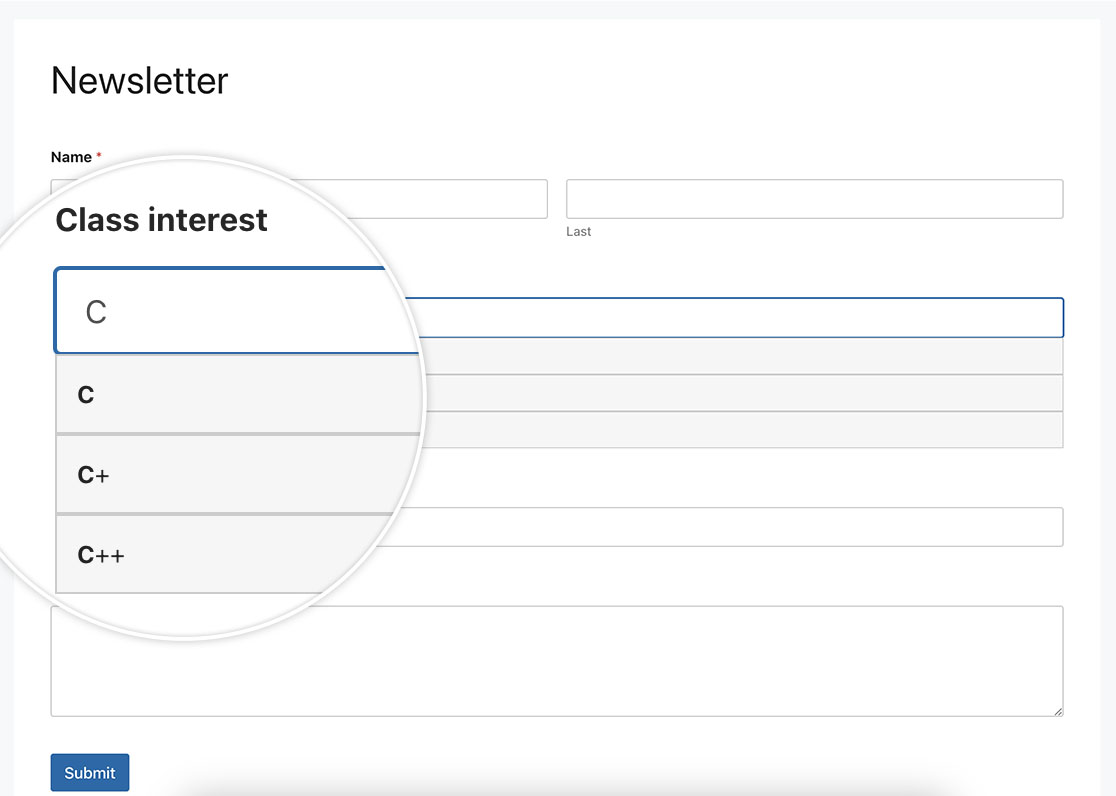
¿Te gustaría crear un campo de autocompletado en tu formulario? La funcionalidad de autocompletado puede mejorar significativamente la experiencia del usuario al proporcionar sugerencias mientras los usuarios escriben, ahorrando tiempo y garantizando la coherencia de los datos. En este artículo, demostraremos cómo usar JavaScript para implementar el autocompletado para un campo de entrada de texto con una lista de respuestas preaprobadas.
Creación del formulario
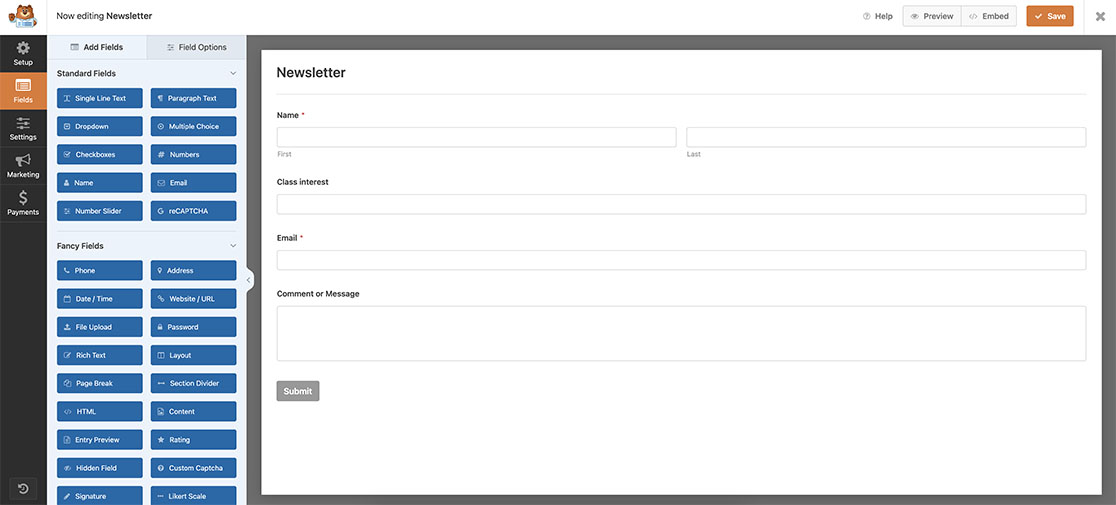
Comenzaremos creando un nuevo formulario y agregando nuestros campos, que incluirán al menos un campo de formulario de Texto de una sola línea. Si necesitas ayuda para crear tu formulario, revisa esta útil guía.
Creación de un campo de autocompletado
Ahora es el momento de agregar este fragmento a tu sitio. Si necesitas ayuda sobre dónde y cómo agregar un fragmento personalizado a tu sitio, consulta este tutorial.
/**
 * Turn any Single Line Text field into an autocomplete field
 *
 * @link https://wpforms.com/developers/how-to-create-an-autocomplete-field-in-your-form/
 */

function wpf_dev_text_autocomplete( ) {
?>

<script>
function autocomplete(inp, arr) {

  /*the autocomplete function takes two arguments,
  the text field element and an array of possible autocompleted values:*/
  var currentFocus;

  /*execute a function when someone writes in the text field:*/
  inp.addEventListener("input", function(e) {
      var a, b, i, val = this.value;

      /*close any already open lists of autocompleted values*/
      closeAllLists();
      if (!val) { return false;}
      currentFocus = -1;

      /*create a DIV element that will contain the items (values):*/
      a = document.createElement("DIV");
      a.setAttribute("id", this.id + "autocomplete-list");
      a.setAttribute("class", "autocomplete-items");

      /*append the DIV element as a child of the autocomplete container:*/
      this.parentNode.appendChild(a);

      /*for each item in the array...*/
      for (i = 0; i < arr.length; i++) {

        /*check if the item starts with the same letters as the text field value:*/
        if (arr[i].substr(0, val.length).toUpperCase() == val.toUpperCase()) {

          /*create a DIV element for each matching element:*/
          b = document.createElement("DIV");

          /*make the matching letters bold:*/
          b.innerHTML = "<strong>" + arr[i].substr(0, val.length) + "</strong>";
          b.innerHTML += arr[i].substr(val.length);

          /*insert a input field that will hold the current array item's value:*/
          b.innerHTML += "<input type='hidden' value='" + arr[i] + "'>";

          /*execute a function when someone clicks on the item value (DIV element):*/
          b.addEventListener("click", function(e) {

              /*insert the value for the autocomplete text field:*/
              inp.value = this.getElementsByTagName("input")[0].value;

              /*close the list of autocompleted values,
              (or any other open lists of autocompleted values:*/
              closeAllLists();
          });
          a.appendChild(b);
        }
      }
  });

  /*execute a function presses a key on the keyboard:*/
  inp.addEventListener("keydown", function(e) {
      var x = document.getElementById(this.id + "autocomplete-list");
      if (x) x = x.getElementsByTagName("div");
      if (e.keyCode == 40) {

        /*If the arrow DOWN key is pressed,
        increase the currentFocus variable:*/
        currentFocus++;

        /*and and make the current item more visible:*/
        addActive(x);
      } else if (e.keyCode == 38) { //up

        /*If the arrow UP key is pressed,
        decrease the currentFocus variable:*/
        currentFocus--;

        /*and and make the current item more visible:*/
        addActive(x);
      } else if (e.keyCode == 13) {

        /*If the ENTER key is pressed, prevent the form from being submitted,*/
        e.preventDefault();
        if (currentFocus > -1) {

          /*and simulate a click on the "active" item:*/
          if (x) x[currentFocus].click();
        }
      }
  });

  function addActive(x) {

    /*a function to classify an item as "active":*/
    if (!x) return false;

    /*start by removing the "active" class on all items:*/
    removeActive(x);
    if (currentFocus >= x.length) currentFocus = 0;
    if (currentFocus < 0) currentFocus = (x.length - 1);

    /*add class "autocomplete-active":*/
    x[currentFocus].classList.add("autocomplete-active");
  }

  function removeActive(x) {

    /*a function to remove the "active" class from all autocomplete items:*/
    for (var i = 0; i < x.length; i++) {
      x[i].classList.remove("autocomplete-active");
    }
  }

  function closeAllLists(elmnt) {

    /*close all autocomplete lists in the document,
    except the one passed as an argument:*/
    var x = document.getElementsByClassName("autocomplete-items");
    for (var i = 0; i < x.length; i++) {
      if (elmnt != x[i] && elmnt != inp) {
        x[i].parentNode.removeChild(x[i]);
      }
    }
  }

  /*execute a function when someone clicks in the document:*/
  document.addEventListener("click", function (e) {
      closeAllLists(e.target);
  });
}

/*An array containing all the programming class names*/
var classes = ["JavaScript","HTML/CSS","Python","C","C+","C++","Java","TypeScript","Pearl","R","SQL","PHP"];

/*initiate the autocomplete function on the "myInput" element, and pass along the countries array as possible autocomplete values:*/
autocomplete(document.getElementById("wpforms-3241-field_6"), classes);
</script>

<?php
}

add_action( 'wpforms_wp_footer_end', 'wpf_dev_text_autocomplete', 30 );
El autocomplete(document.getElementById(“wpforms-3241-field_6”), classes); se dirigirá específicamente al ID del formulario 3241 y al ID del campo 6 y, cuando se haga clic en ese campo, activará este fragmento e intentará realizar un autocompletado basado en los caracteres que se escriben en el campo mientras se busca dentro de la lista classes que tenemos aquí en el fragmento.
var classes = ["JavaScript","HTML/CSS","Python","C","C+","C++","Java","TypeScript","Pearl","R","SQL","PHP"];
Deberás actualizar la lista classes para que coincida con lo que necesitas para tu campo. También deberás actualizar wpforms-3241-field_6 para que coincida con tus propios IDs. Para obtener ayuda para encontrar tus IDs, revisa este tutorial.
Añadir el CSS
Nuestro último paso es agregar algo de CSS. Copia y pega este CSS en tu sitio. Para obtener ayuda sobre cómo y dónde agregar CSS personalizado, consulta este tutorial.
.autocomplete-items div {
  padding: 10px;
  cursor: pointer;
  background-color: #f6f6f6;
  border: 1px solid #cccccc;
  font-size: 12px;
}

/*when hovering an item:*/
.autocomplete-items div:hover {
  background-color: #e9e9e9;
}

/*when navigating through the items using the arrow keys:*/
.autocomplete-active {
  background-color: #1E90FF !important;
  color: #ffffff;
}
¡Y eso es todo! Hemos convertido con éxito un campo de Texto de una sola línea en un campo de autocompletado. ¿Te gustaría agregar un campo selector de color a tu formulario? Consulta nuestro tutorial sobre Cómo agregar un selector de color a tu formulario.