### [Creating a Custom Login Form](https://wpforms.com/docs/creating-a-custom-login-form/)
**Published:** May 24, 2024
**Author:** David Ozokoye
**Excerpt:** Learn how to create a custom login form with the User Registration addon.
**Content:**
Would you like to create a custom form to allow users to log in to your site? Our User Registration addon provides special options for using the User Login Form template as a login form.
This tutorial explains the steps to create a user login form in WPForms.
**Note:** To use our User Login Form template, you’ll need to have the [User Registration addon](https://wpforms.com/docs/how-to-install-and-use-user-registration-addon-with-wpforms/) installed and activated on your site.
---
### Accessing the Login Form Template
After activating and setting up the User Registration addon, go to **WPForms » Add New**. On the Setup page, search for “User Login.” Then hover over the **User Login Form** template and click **Use Template**.
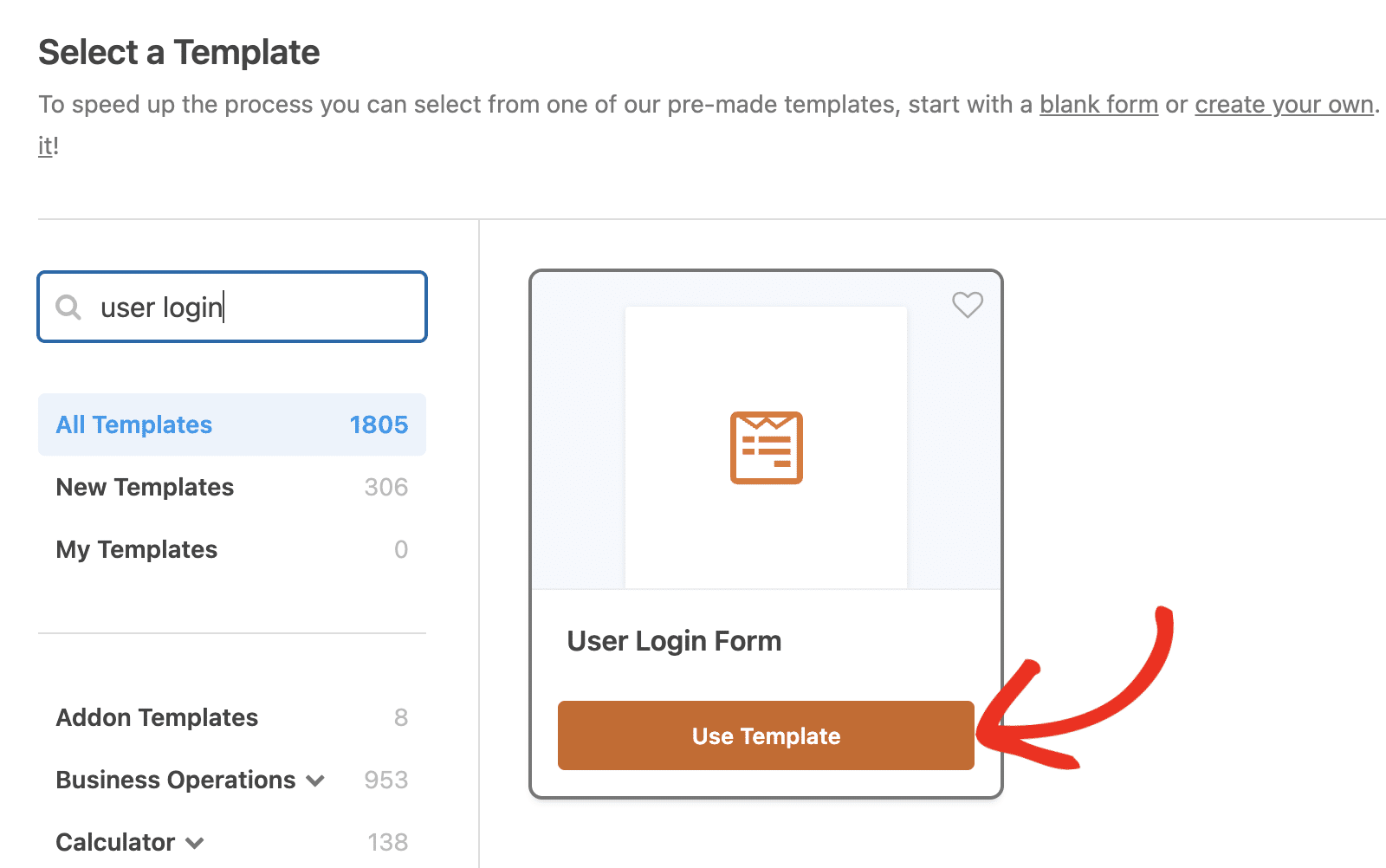
The template is ready to go as is, so you don’t need to customize the form. However, we’ll show you how to customize the login form below.
### Customizing the Login Form
For this, go to **Settings » User Registration** in the form builder. Here, you’ll see the **Hide form if user is logged in** option.
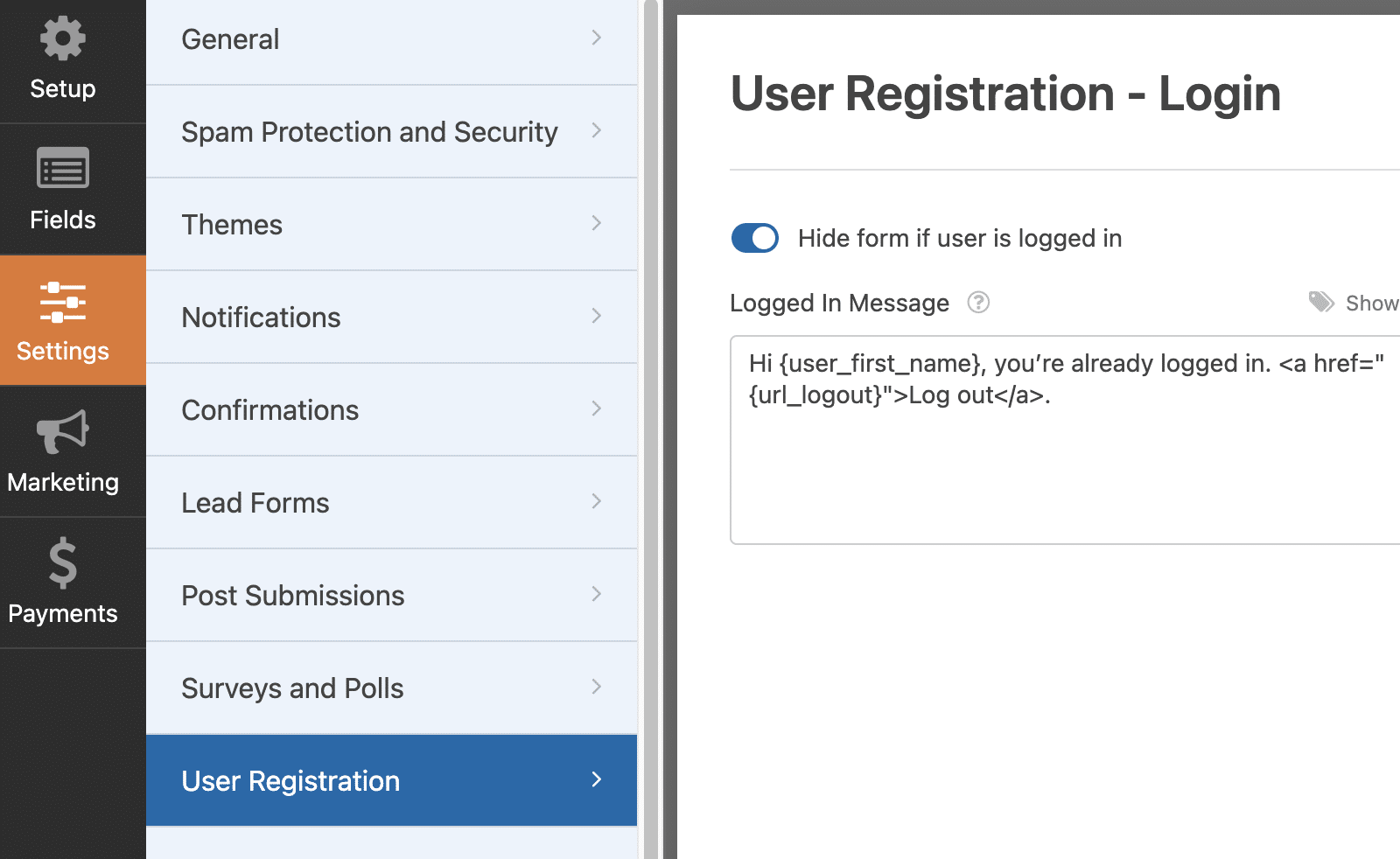
Hiding the login form for logged-in users is a great way to improve user experience as it helps reduce confusion.
In the **Logged In Message** field, you’ll be able to customize the message logged-in users will see if they try to access your login form.
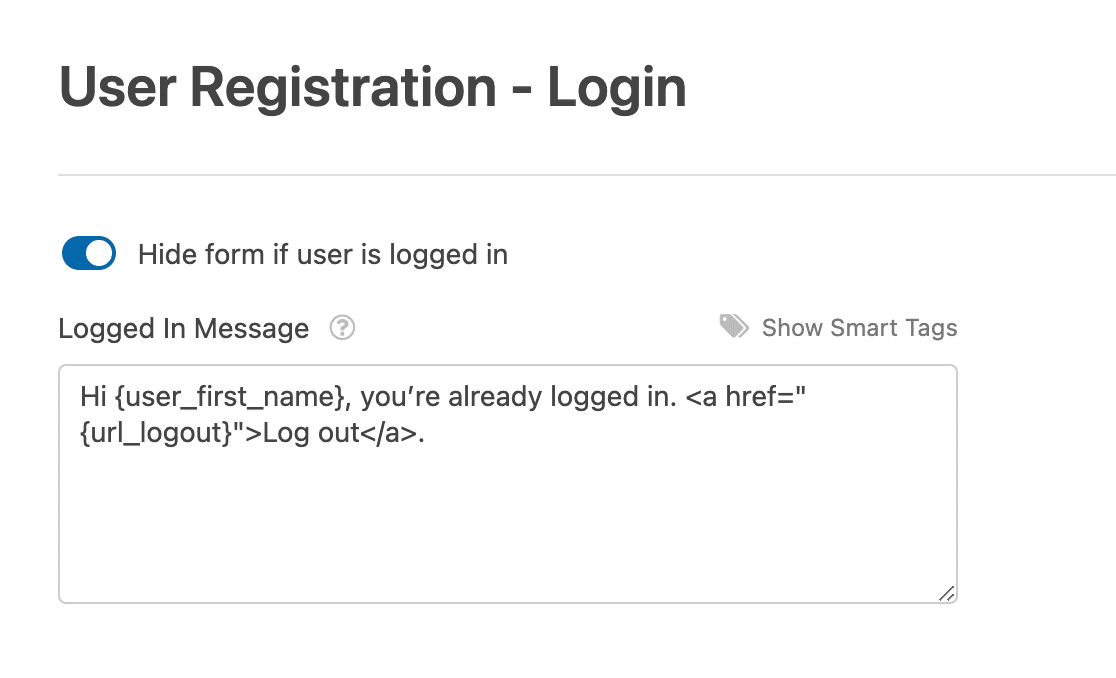
Here’s an example of what this message looks like on the frontend.

When you’re happy with your login form, remember to save it before exiting the form builder and [embedding it on a page](https://wpforms.com/docs/displaying-forms-on-your-site/).
**Note:** For more ideas and details on how to customize your login form, check out our blog post on [creating a custom Login Page](https://wpforms.com/how-to-create-custom-wordpress-login-form/).
That’s it! Now you know how to create a custom login form in WPForms.
Next, would you like to allow users to reset their passwords if they forget it? Be sure to check our tutorial on [creating a password reset form](https://wpforms.com/docs/creating-a-custom-password-reset-form/) to learn how.
**Categories:** Advanced Form Features
---