### [Creating Additional Formats for the Date Time Field Time Picker](https://wpforms.com/developers/how-to-create-additional-formats-for-the-date-time-field-time-picker/)
**Published:** March 18, 2020
**Author:** David Ozokoye
**Excerpt:** This tutorial will walk you through how to use PHP to create additional formats for the time field when using the Date / Time form field with WPForms.
**Content:**
Would you like to create additional formats for the time interval when using the Date / Time form field? By default, WPForms uses the 12H and 24H intervals. However, you can extend it to support more formats with a custom PHP filter.
In this tutorial, we’ll show you how to add extra time intervals for the Date / Time field in WPForms.
---
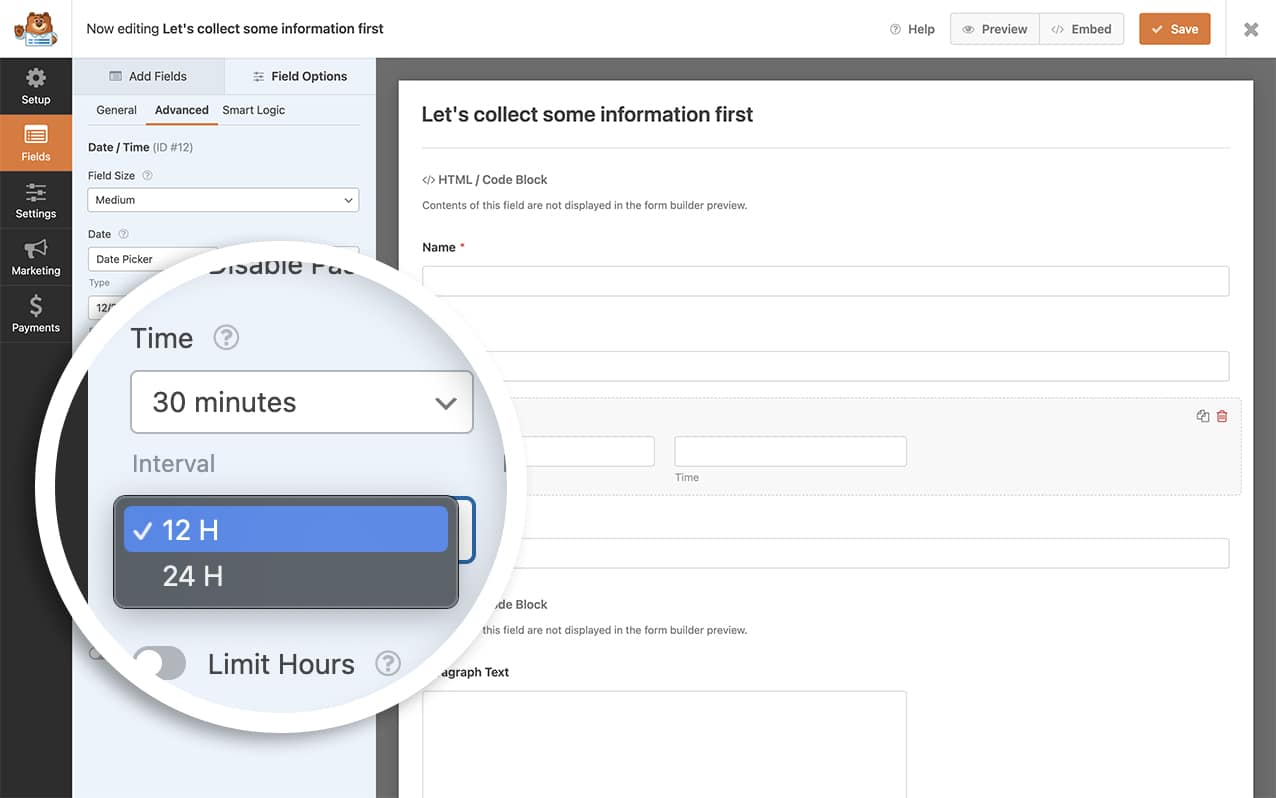
Like we mentioned earlier, WPForms provides two formats for the **Time** field. a **12 H** and a **24 H**.
## Adding the Snippet
For this tutorial, we’re going to add a new format for the time. First, we’ll add this snippet to our site.
**Note:** If you need help adding code snippets to your site, [please see this tutorial](https://wpforms.com/developers/how-to-add-custom-php-or-javascript-for-wpforms/ "How to Add Custom PHP or JavaScript for WPForms").
This time format will allow us to enter a longer format for 2-digit hours, 2-digit minutes, and 2-digit seconds. To add more formats, you’ll need to create a new function similar to the one in the code above and the specify the format in the `$time_formats` parameter.
**Note:** To find more formats such as this, [please see all the functions available from the official PHP.net documentation](https://www.php.net/manual/en/function.date.php "PHP.net: date").
## Using the New Time Format
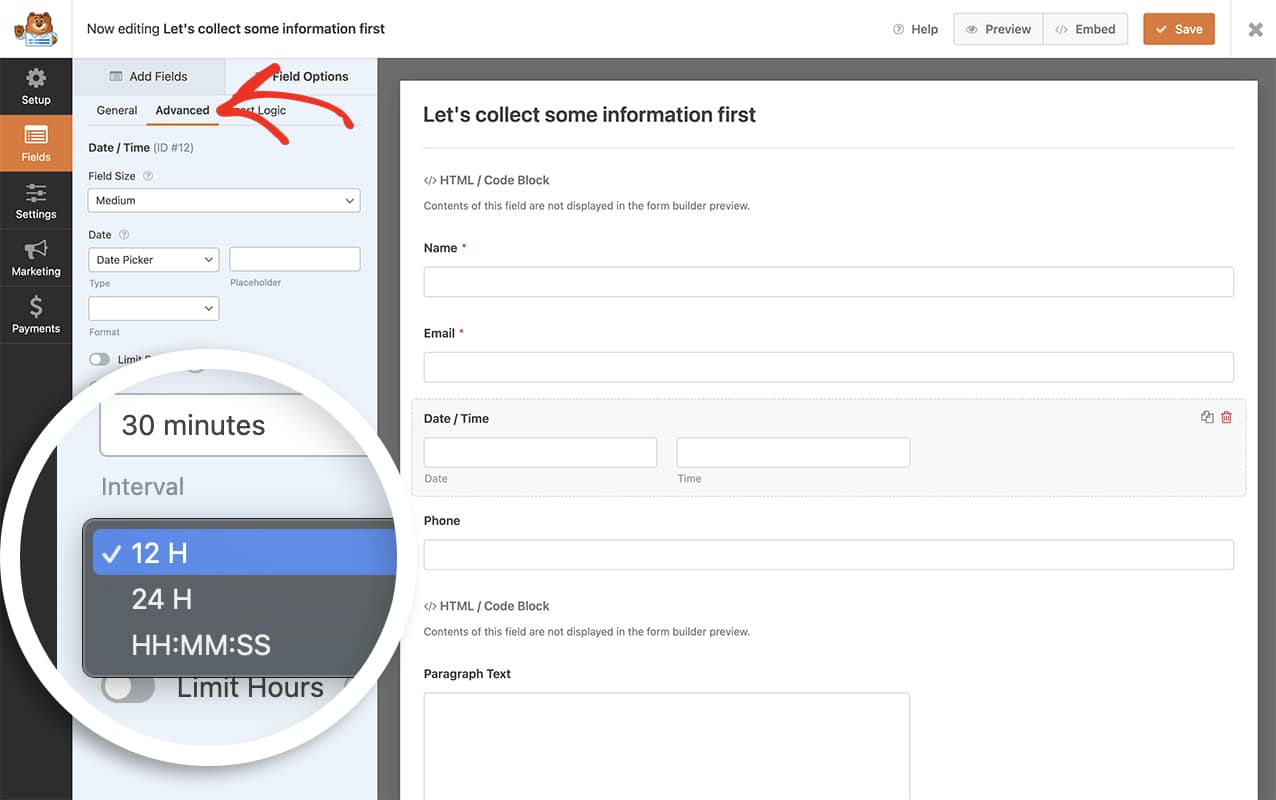
To use this new format, [create a new form](https://wpforms.com/docs/creating-first-form/) or edit an existing one to access the form builder. In the form builder, be sure to include the Date / Time field.
Now, click the **Date / Time** field to open its **Field Options** panel and then navigate to the **Advanced** tab. Under the **Time** section, you’ll now be able to select the new time format you just added with the snippet.
## Frequently Asked Questions
These are answers to some of the top questions we see about adding additional time format for the Date / Time field.
#### Can I display the time in the French format?
Simply copy this snippet to your site for the French time format.
That’s it! You’ve now learned how to add additional date format for the Date / Time field in WPForms.
Next, would you like to limit the times available inside this dropdown? See our guide on [customizing the Date / Time field Time Picker](https://wpforms.com/developers/customize-the-date-time-field-time-picker/ "How to Customize the Date Time Field Time Picker").
## Related
Filter Reference: [wpforms\_datetime\_time\_formats](https://wpforms.com/developers/wpforms_datetime_time_formats/ "Using the wpforms_datetime_time_formats filter")
**Categories:** Tutorials
**Tags:** PHP
---