### [Google Drive vs Dropbox: Which WordPress Form File Storage Is Better?](https://wpforms.com/google-drive-vs-dropbox/)
**Published:** June 4, 2026
**Author:** Hamza Shahid
**Excerpt:** You've added a file upload to a WordPress form, and now those files are stacking up somewhere you don't love. Every submission either lands on your web server or buries itself inside an email notification.
Neither spot is built for storing real files and two of the most popular fixes for such issues are Google Drive and Dropbox. Both can catch every file your form collects and tuck it into a cloud folder for you automatically.
Both Google Drive and Dropbox connect to WPForms as addons, and both lean on the same File Upload field to do their work. That makes for a clean comparison, as you can point the exact same form at either service and watch how each one stores what comes in.
**Content:**
You’ve added a file upload to a WordPress form, and now those files are stacking up somewhere you don’t love. Every submission either lands on your web server or buries itself inside an email notification.
Neither spot is built for storing real files and two of the most popular fixes for such issues are Google Drive and Dropbox. Both can catch every file your form collects and tuck it into a cloud folder for you automatically.
### Why Store WordPress Form Uploads in the Cloud at All?
When you add a [File Upload field](https://wpforms.com/features/file-uploads/) to a form, every file a visitor sends gets saved to your WordPress media library by default.
That works fine for a handful of small files, but once you’re collecting dozens of resumes or high-resolution photos a week, your hosting storage fills up and your backups get slower and heavier.
There’s also the problem of finding things later, as files attached to email notifications get lost in inboxes, and digging through the media library for one applicant’s resume is nobody’s idea of a good time.
Sending uploads straight to Google Drive or Dropbox keeps them in folders you already know how to search, and your team can grab them without ever logging into WordPress. A few kinds of forms run into this fast:
- **Job applications** that collect resumes and cover letters
- **Photo and video contests** where the entries are large media files
- **ID verification** forms that gather sensitive personal documents
- **Client intake** forms for agencies juggling files across many projects
- **Support requests** that come with screenshots or log files attached
If your server limits are the main headache, you can also [change the maximum upload size](https://wpforms.com/how-to-change-max-file-upload-size-in-wordpress/) allowed in WordPress. But moving files off your server entirely is the cleaner long-term fix, and that’s exactly what these two addo
## Google Drive vs Dropbox for WordPress Form File Storage
Before you pick one, it helps to know what you’re really comparing. When a form collects files, those files show up one submission at a time and need to land somewhere tidy without you lifting a finger. So what matters is how each service handles that job once it’s wired into a WordPress form.
Both Google Drive and Dropbox connect to WPForms as addons, and both lean on the same File Upload field to do their work. That makes for a clean comparison, as you can point the exact same form at either service and watch how each one stores what comes in.
- [The Core Differences Between Google Drive and Dropbox](#the-core-differences-between-google-drive-and-dropbox)
- [Free Storage and Pricing](#free-storage-and-pricing)
- [Sync and File Handling](#sync-and-file-handling)
- [Security and Access](#security-and-access)
- [How They Fit Your Other Tools](#how-they-fit-your-other-tools)
- [How WPForms Sends Form Uploads to Google Drive and Dropbox](#how-wpforms-sends-form-uploads-to-google-drive-and-dropbox)
- [Connect Your Account](#connect-your-account)
- [Where Your Files Land](#where-your-files-land)
- [Organize Uploads Into Folders](#organize-uploads-into-folders)
- [Conditional Logic and Server Space](#conditional-logic-and-server-space)
- [Which Should You Choose for Your Forms?](#which-should-you-choose-for-your-forms)
- [Choose Google Drive If](#choose-google-drive-if)
- [Choose Dropbox If](#choose-dropbox-if)
**The Quick Verdict (Google Drive or Dropbox?)**
For most WordPress forms, Google Drive is the better default. It saves uploads anywhere in your account, comes with more free storage, and sits right next to the rest of Google Workspace.
Pick Dropbox instead if you already work in Dropbox, handle large media files, or want each form field sorted into its own folder.
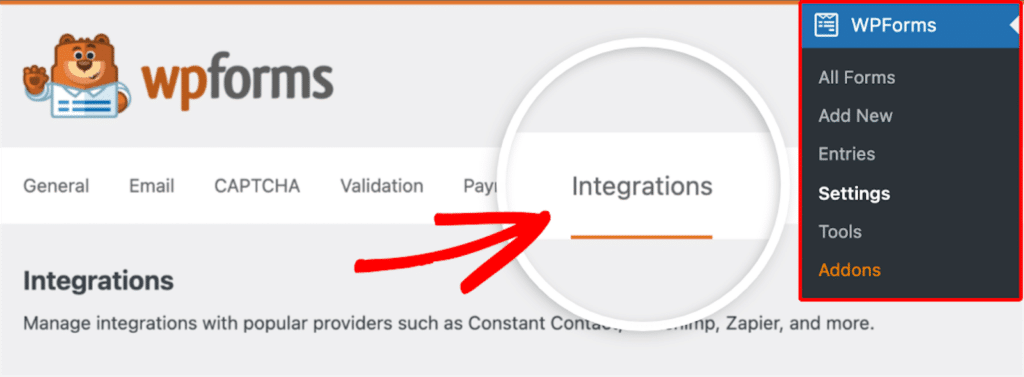
Your situationBetter pickYou already use Gmail, Google Docs, or SheetsGoogle DriveYou want uploads saved anywhere in your accountGoogle DriveYou need more free storage to startGoogle DriveYou already store your work in DropboxDropboxYou collect large video or design filesDropboxYou want each upload field in its own folderDropboxBoth addons are part of WPForms Pro, so you can connect either one or switch between them by going to **WPForms » Settings** and clicking on the **Integrations** tab.
[Upgrade to WPForms Pro Now! 🙂](https://wpforms.com/pricing/)
### The Core Differences Between Google Drive and Dropbox
Before we get to the WordPress side, the two services differ in a few ways on their own. Those differences carry over once a form is feeding them files, so they shape which one is the right home for your uploads.
#### Free Storage and Pricing
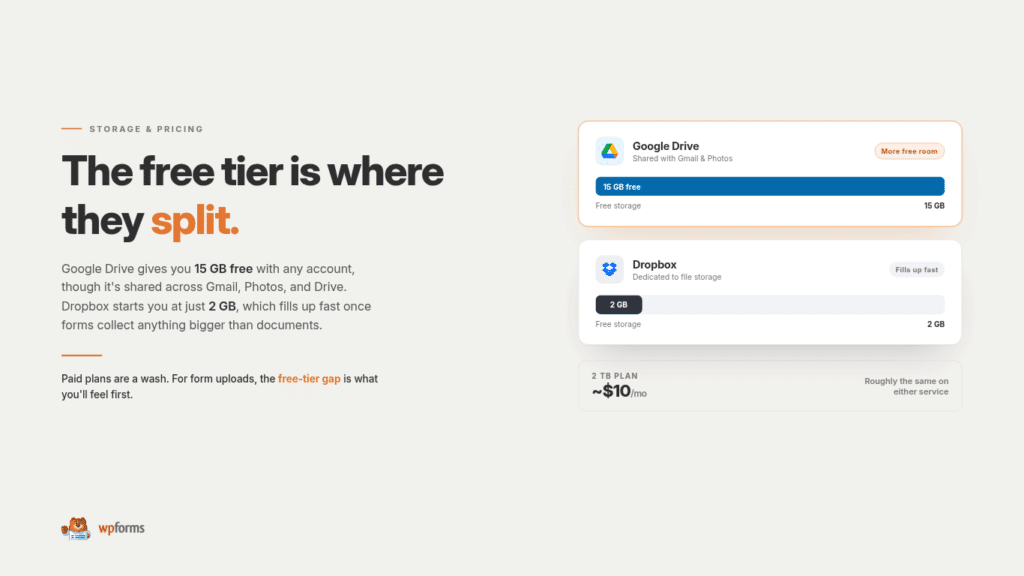
Google Drive gives you 15 GB free with any Google account, though that space is shared across Gmail, Google Photos, and Drive. Dropbox starts you at just 2 GB free, which fills up fast if your forms collect anything bigger than documents.
Paid plans land in similar territory, with 2 TB costing around $10 monthly on either service. For form uploads, that free tier gap matters most, since Google Drive gives you far more room before you ever have to pay.
#### Sync and File Handling
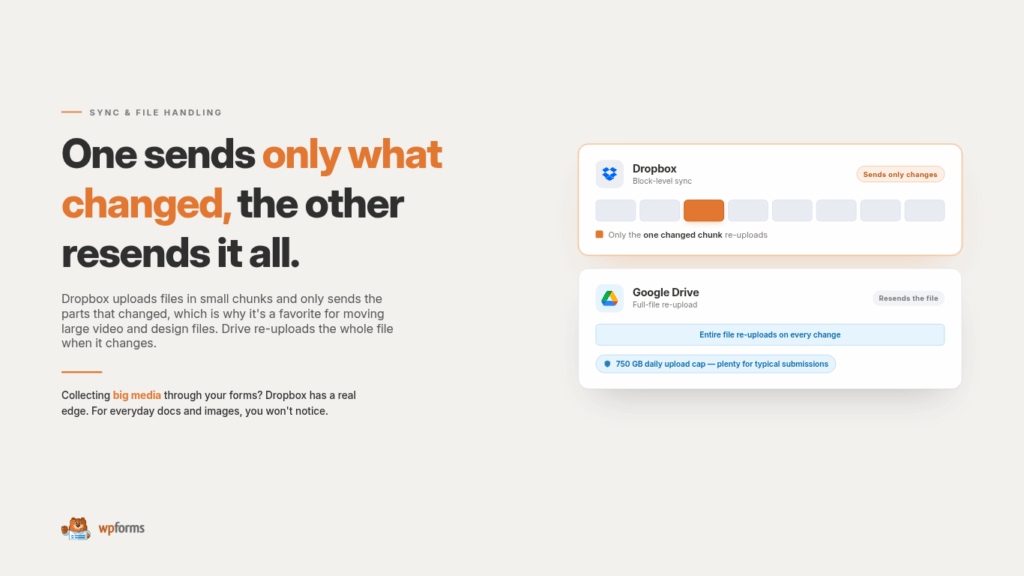
Dropbox built its reputation on fast, reliable syncing. It uploads files in small chunks and only sends the parts that changed, which makes it a favorite for people moving large video and design files around.
Google Drive re-uploads a whole file when it changes and caps daily uploads at 750 GB, which is plenty for typical form submissions.
If your forms collect big media files, Dropbox has a real edge. For everyday documents and images, you won’t notice the difference.
#### Security and Access
Both services encrypt your files and let you control who can open a shared folder, so neither is the clear safety winner. The practical difference is how sharing works.
Drive is built around Google accounts and link permissions, while Dropbox uses shared folders and links that work for anyone, Google account or not.
If your forms collect sensitive material like ID documents, you’ll want to lock down folder access on either platform. It’s also smart to [keep file uploads secure](https://wpforms.com/file-upload-security-top-tips-for-online-forms/) on the WordPress side before they ever reach the cloud.
#### How They Fit Your Other Tools
This is where Google Drive pulls ahead for a lot of WordPress users. If you already live in Gmail, Google Docs, and Sheets, your form uploads land right beside everything else you touch during the day.
WPForms even has a separate [Google Sheets addon](https://wpforms.com/features/google-sheets-addon/), so you can route entry data to a spreadsheet and the uploaded files to Drive at the same time.
Dropbox doesn’t plug into a productivity suite the same way, but it connects to just about every app through its own integrations, so it’s rarely a dealbreaker.
### How WPForms Sends Form Uploads to Google Drive and Dropbox
WPForms connects to both services through their dedicated addons and both rely on the File Upload field to gather what gets sent.
If you want to fine-tune that field first, the [complete guide to the File Upload field](https://wpforms.com/docs/a-complete-guide-to-the-file-upload-field/) covers file types, sizes, and limits. Once a file comes in, the addon hands it off to your cloud account on its own.
#### Connect Your Account
Both connections begin in **WPForms » Settings » Integrations**. For Google Drive, you click **Continue with Google**, choose your account, and grant access.
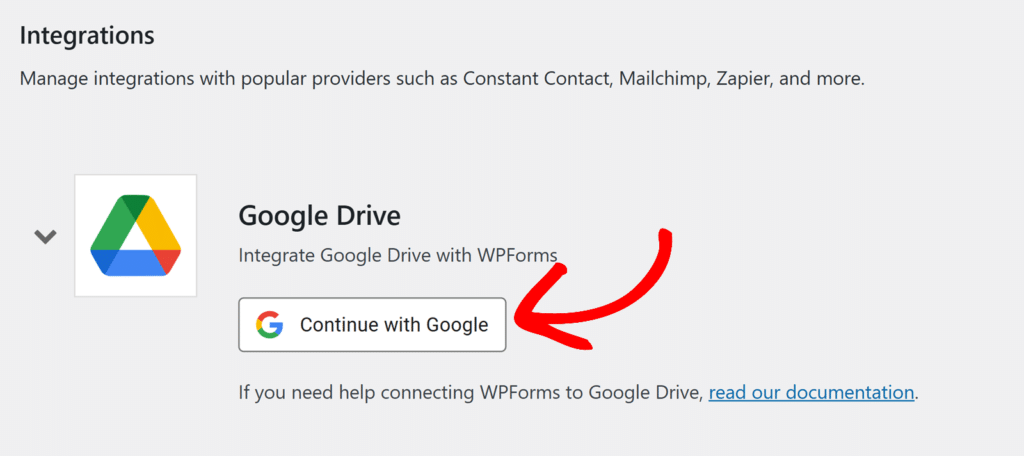Google adds one odd extra step where you pick any file from your Drive to finish authorizing, which feels strange the first time but takes a second.
For Dropbox, you click **Add New Account**, sign in with your email, Google, or Apple login, then click **Allow**. Both then show a green **Connected** status.
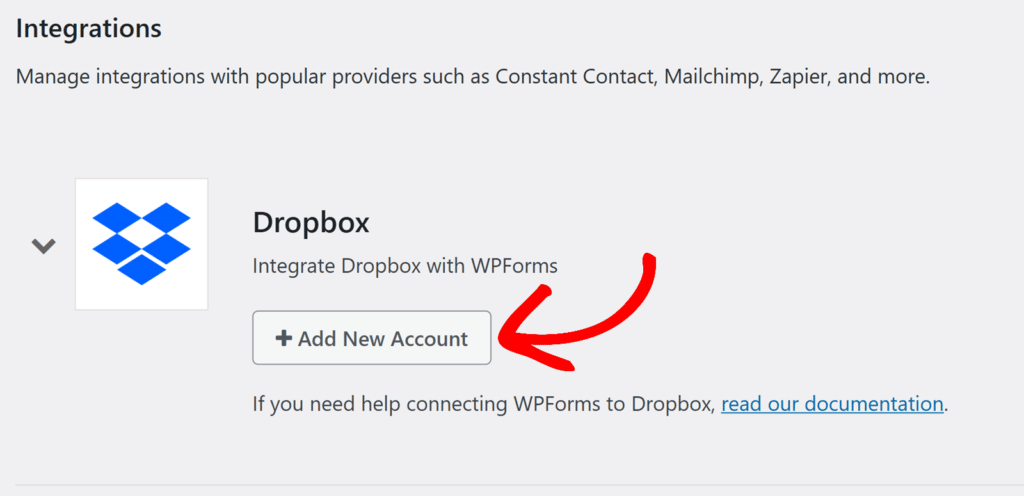The [Google Drive addon](https://wpforms.com/features/google-drive-addon/) lets you connect more than one Google account, which is handy if you keep work and client files separate, and the [Dropbox addon](https://wpforms.com/features/dropbox-addon/) links your account just as quickly.
#### Where Your Files Land
With Google Drive, you can send files anywhere in your account. When you add the connection in your form’s **Settings » Google Drive**, you either create a new folder or pick an existing one by browsing your Drive.
Dropbox works differently, as it saves everything inside a single **Apps/WPForms** folder that it creates for you, and you name a folder within that path. You can’t drop files just anywhere in your Dropbox the way you can with Drive.
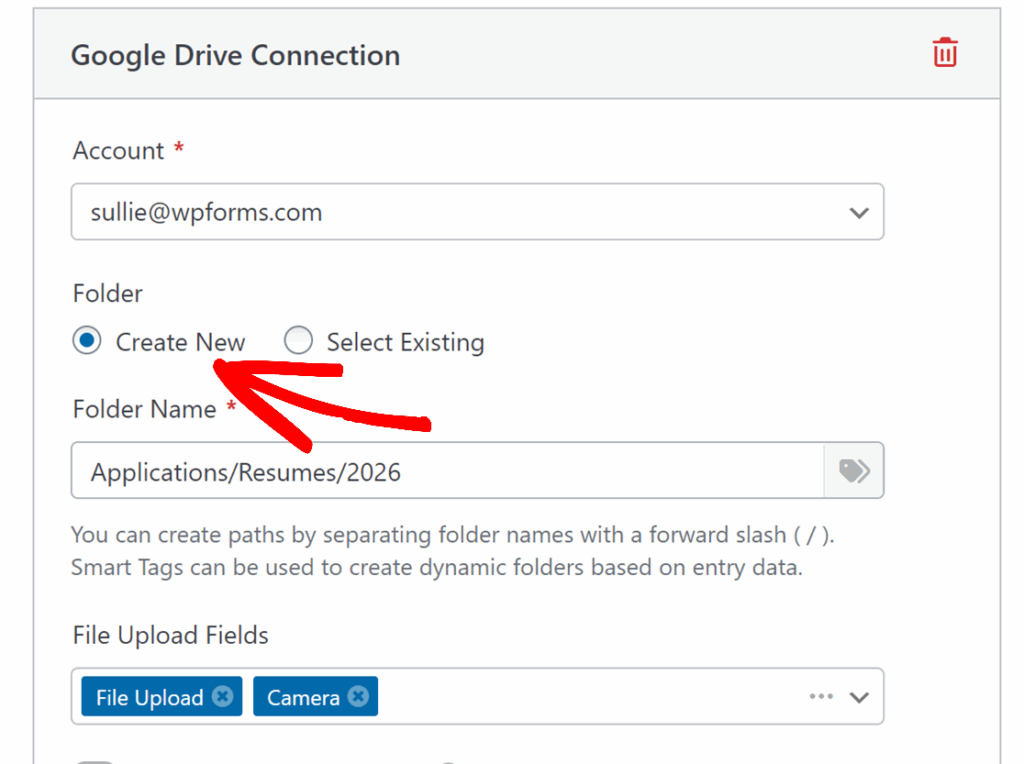That sounds like a limitation, and sometimes it is, but it’s also tidy. The integration only ever touches its own corner of your account, which a lot of people prefer for peace of mind.
#### Organize Uploads Into Folders
Both addons let you sort uploads automatically with Smart Tags, so you don’t end up staring at one giant folder of mystery files. You can build dynamic folder names out of form data, like a separate folder per applicant or a fresh folder for each year.
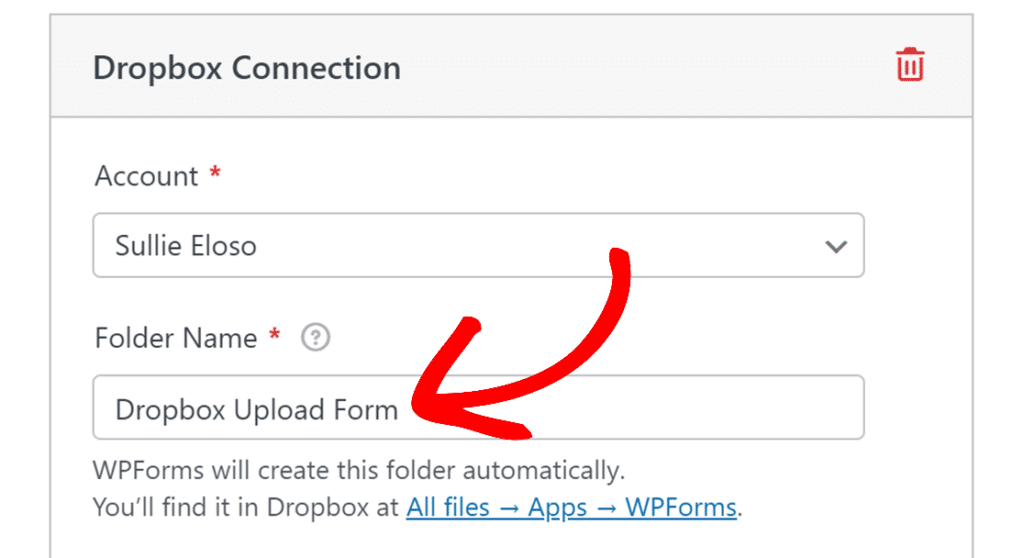Google Drive and Dropbox each take their own approach to folders. With Drive, you write a full folder path using Smart Tags, so something like a Clients folder, then a subfolder named after the value in a specific field, then a unique subfolder for every entry, all gets built on the fly.
#### Conditional Logic and Server Space
Both addons support [conditional logic](https://wpforms.com/features/conditional-logic/), so you decide when a file actually gets sent to the cloud. You might only upload to Dropbox when someone checks a box agreeing to store their files, or only send to Drive when an application is for a particular role.
The rule runs at submission, so nothing reaches your cloud account unless the conditions match. Each one also has a **Delete Local Files After Upload** toggle. Turn it on, and the file is removed from your WordPress server once it’s safely in the cloud, which is how you genuinely free up hosting space.
WPForms then updates the links in your [form entries](https://wpforms.com/docs/complete-guide-to-form-entries/) and email notifications to point at the cloud copy, so nothing breaks for you or your team. Google Drive adds one more nice touch here, a per-entry reupload option, so if a single upload ever fails you can retry it from that entry without making the visitor submit again.
### Side-by-Side Comparison for WordPress Form Uploads
The table below lines up the two addons on the things that matter for form uploads. The general storage specs are in the earlier section, so this focuses on the WordPress side of the story.
FeatureGoogle Drive addonDropbox addonWPForms tierProProNeeds the File Upload fieldYesYesWhere files are storedAnywhere in your DriveInside an Apps/WPForms folderPick an existing folderYes, browse and selectWithin the app folder onlyDynamic folders with Smart TagsYes, full folder pathsYes, up to 3 levels deepMap multiple upload fieldsAll fields or one per connectionEach field to its own subfolderConditional logicYesYesDelete local files after uploadYesYesRetry a failed uploadYes, per entryNot availableFree storage to start15 GB2 GBBest suited forGoogle Workspace usersDropbox users and large media### Which Should You Choose for Your Forms?
Both work well, and since they both come with WPForms Pro, you’re not locked into one choice. You can even use Drive on one form and Dropbox on another. That said, here’s how I’d decide for any given form.
#### Choose Google Drive If
Google Drive is the easier yes for most people, especially when Google is already part of your workday. Go with Drive in these cases.
- You already use Gmail, Google Docs, or Google Sheets
- You want uploads saved alongside your other files, not in a separate app folder
- You’re just getting started and want more free storage
- You also want form data flowing into a spreadsheet through the Google Sheets addon
- You’d like the option to retry a failed upload from a single entry
#### Choose Dropbox If
Dropbox makes more sense when files are the heavy part of your work. Reach for it in these situations.
- You already store and share your work in Dropbox
- Your forms collect large video, audio, or design files
- You want each upload field sorted into its own folder automatically
- You like that the integration stays inside one contained app folder
If you’re genuinely torn, start with Google Drive. It fits more setups, and switching later is just a matter of connecting the other addon.
### How to Set Up Cloud Storage for Your WordPress Forms
Either one takes just a few minutes to set up once you’re on WPForms Pro. The flow is the same for both services. Install and activate the **Google Drive** or **Dropbox** addon from **WPForms » Addons**.
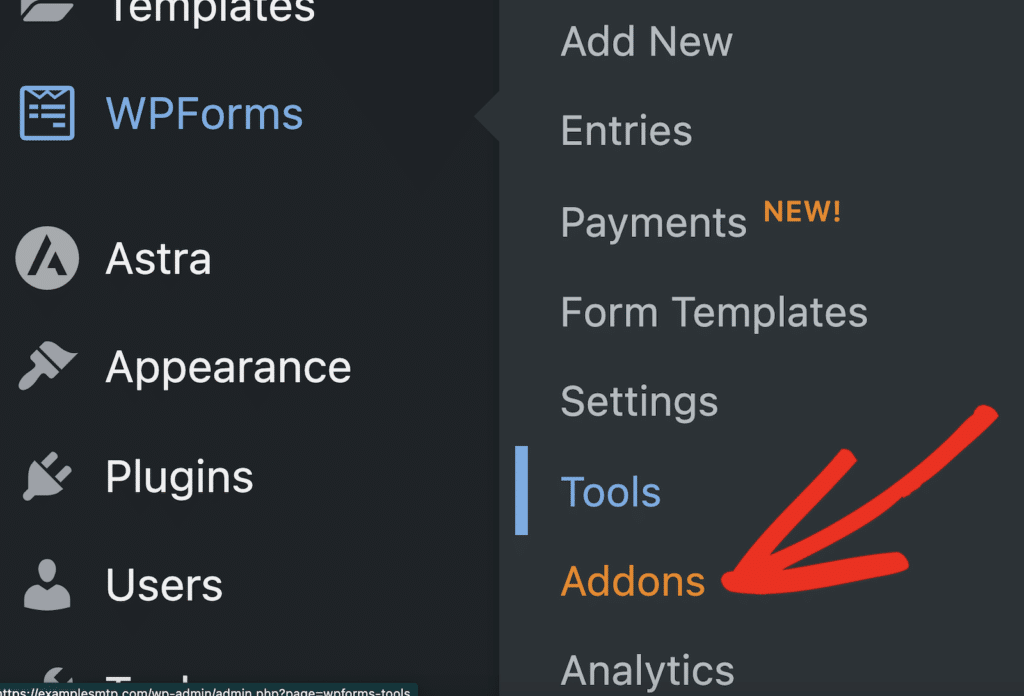Next, connect your account under **WPForms » Settings » Integrations**. After that, add a **File Upload** field to your form, since the addons only move files that field collects.
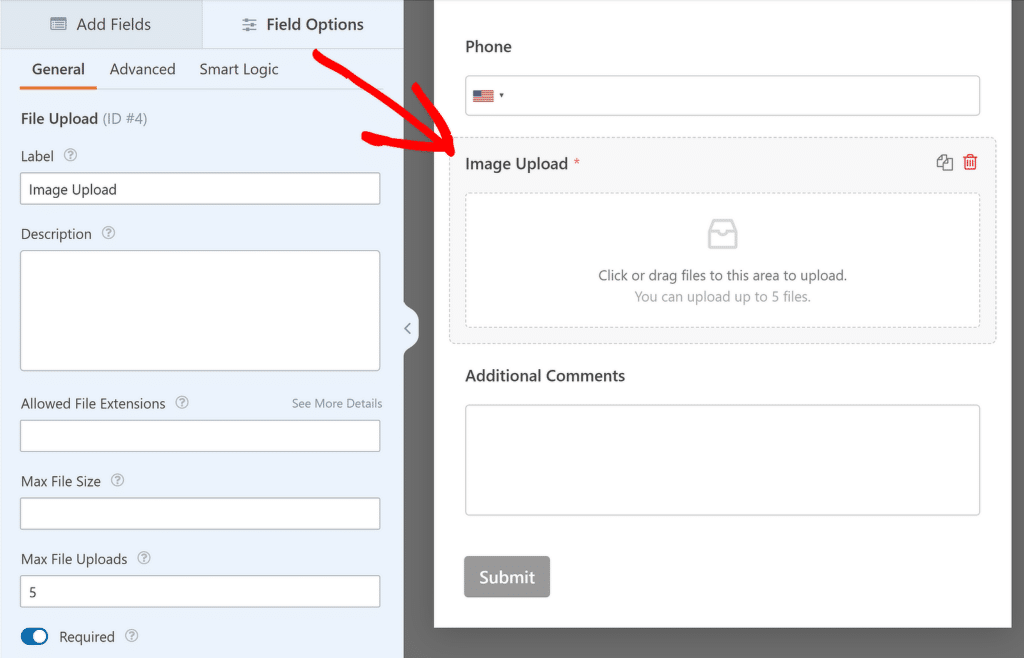Open **Settings** in the form builder, pick your cloud service, and add a new connection. Choose your folder, map your upload fields, and add conditional logic if you need it.
For a full walkthrough with screenshots, WPForms has step-by-step guides for both services. You can follow along to [set up the Google Drive addon](https://wpforms.com/docs/google-drive-addon/) or [set up the Dropbox addon](https://wpforms.com/docs/dropbox-addon/).
There are also complete tutorials on building a [step-by-step Google Drive upload form](https://wpforms.com/how-to-create-a-wordpress-google-drive-upload-form/) and a [simple Dropbox upload form](https://wpforms.com/how-to-create-a-simple-dropbox-upload-form-in-wordpress/) from scratch.
### FAQs on Google Drive vs Dropbox for WordPress Forms
Still weighing Google Drive against Dropbox for your WordPress forms? These are the questions that come up most often when people set up cloud storage for their form uploads.
#### Can WordPress forms upload files directly to Google Drive or Dropbox?
Yes. With WPForms Pro and the Google Drive or Dropbox addon, any file your form collects can be sent straight to your cloud account the moment the form is submitted. You don’t need Zapier or a separate connector sitting in between.
#### Do I need the File Upload field to use these addons?
You do. Both addons work by grabbing files from a **File Upload** field on your form and sending them to the cloud. That field is available on the Basic plan and up, while the cloud storage addons themselves require Pro.
#### Is Google Drive or Dropbox more secure for form uploads?
Both encrypt your files and let you restrict who can open a folder, so neither is clearly safer than the other.
Dropbox keeps form uploads inside a single app folder, which some people find reassuring, while Drive gives you more say over where files sit.
On the WordPress side, your File Upload field settings matter just as much, so limit the file types and sizes you accept.
#### Can I use both Google Drive and Dropbox on the same site?
Yes. Since both come with WPForms Pro, you can connect both and use whichever fits each form. One contact form might send to Drive while a separate contest form sends to Dropbox.
#### Does this work with the free version of WPForms?
No. The Google Drive and Dropbox addons both require a WPForms Pro license. The free Lite version includes form building and basic fields, but file uploads and cloud storage connections are paid features.
#### Will sending uploads to the cloud free up space on my server?
It can but you can use the **Delete Local Files After Upload** option in the addon settings, and WPForms removes each file from your server after it reaches Drive or Dropbox. Your entries and notification emails still link to the file in the cloud, so you lose nothing but the storage load.
### Next, Create a File Upload Form in WordPress
Now that you know which cloud service fits your forms, the next step is making sure the upload field itself is set up well.
If you’re still building the form that will feed Drive or Dropbox, our guide on how to [create a file upload form](https://wpforms.com/how-to-create-a-file-upload-form-in-wordpress/) walks through the whole process, from adding the field to controlling which file types and sizes you accept.
[Get WPForms Pro](https://wpforms.com/pricing/)
Ready to build your form? Get started today with the easiest WordPress form builder plugin. [WPForms Pro](https://wpforms.com/pricing) includes lots of free templates and offers a 14-day money-back guarantee.
If this article helped you out, please follow us on [Facebook](https://facebook.com/wpforms) and [Twitter](https://twitter.com/easywpforms) for more free WordPress tutorials and guides.
**Categories:** Marketing
**Tags:** dropbox addon, file storage, file upload field, google drive addon, wpforms pro
---