### [How to Display Shortcodes Inside the HTML Field](https://wpforms.com/developers/how-to-display-shortcodes-inside-the-html-field/)
**Published:** November 11, 2019
**Author:** Editorial Team
**Excerpt:** This tutorial will show you how to display shortcodes inside your HTML form field using a PHP filter.
**Content:**
Would you like to display shortcodes inside the **HTML** form field? By default, form fields will not accept shortcodes. In this tutorial, we’ll show you how to use PHP to enable adding a shortcode to the **HTML** form field.
## Installing Shortcodes Ultimate plugin
In this example, we’re going to add an accordion shortcode to an **HTML** form field using a free plugin. This step is of course optional as you may already have a shortcodes plugin installed or built-in shortcodes available to you. Feel free to use what you need, just remember the optional CSS below is specific to this plugin.
If you choose to use the plugin suggested in this tutorial, please [download the plugin](https://wordpress.org/plugins/shortcodes-ultimate/ "Shortcodes Ultimate") and install it on your WordPress site.
For assistance on how to add a plugin to your site, you may want to check out[ WPBeginner’s guide on how to install a plugin](http://www.wpbeginner.com/beginners-guide/step-by-step-guide-to-install-a-wordpress-plugin-for-beginners/ "How to Install a Plugin").
## Creating the shortcode
To create the accordion shortcode needed to go into your **HTML** field, you’ll need to [follow their documentation on how to create your accordion shortcode](https://getshortcodes.com/docs/accordion/ "Documentation on creating an accordion shortcode").
We’re going to be creating a size chart explanation for our accordion using the **Simple** style. So our shortcode looks like this.
```
Size chart explained
[su_accordion]
[su_spoiler title="X Small" open="no" style="simple"] Size Alpha: XS. Size Numeric: 0-2. Bust(IN): 28-30. Waist(IN): 23-24. [/su_spoiler]
[su_spoiler title="Small" style="simple"] Size Alpha: S. Size Numeric: 4-6. Bust(IN): 30-32. Waist(IN): 25-26. [/su_spoiler]
[su_spoiler title="Medium" style="simple"] Size Alpha: M. Size Numeric: 8-10. Bust(IN): 32-34. Waist(IN): 27-28. [/su_spoiler]
[su_spoiler title="Large" style="simple"] Size Alpha: L. Size Numeric: 12-14. Bust(IN): 36-38. Waist(IN): 30-32. [/su_spoiler]
[su_spoiler title="X Large" style="simple"] Size Alpha: XL. Size Numeric: 16-18. Bust(IN): 40-42. Waist(IN): 33-35. [/su_spoiler]
[su_spoiler title="XX Large" style="simple"] XXL. Size Numeric: 20-22. Bust(IN): 44-46. Waist(IN): 36-38. [/su_spoiler]
[/su_accordion]
```
## Display shortcode inside HTML field
Before we create our form, we’re going to add the snippet to our site.
For help on how and where to add snippets to your site, [please check out this tutorial](https://wpforms.com/developers/how-to-add-custom-php-or-javascript-for-wpforms/ "How to Add Custom PHP or JavaScript for WPForms").
```
/**
* Run shortcodes on HTML field content.
*
* @link https://wpforms.com/developers/how-to-display-shortcodes-inside-the-html-field/
*
*/
function wpf_dev_html_field_shortcodes( $field, $field_atts, $form_data ) {
if ( ! empty( $field[ 'code' ] ) ) {
$field[ 'code' ] = do_shortcode( $field[ 'code' ] );
}
return $field;
}
add_filter( 'wpforms_html_field_display', 'wpf_dev_html_field_shortcodes', 10, 3 );
```
This snippet will allow for any **HTML** form field in **all** of your WPForms and to use shortcodes.
## Creating the form
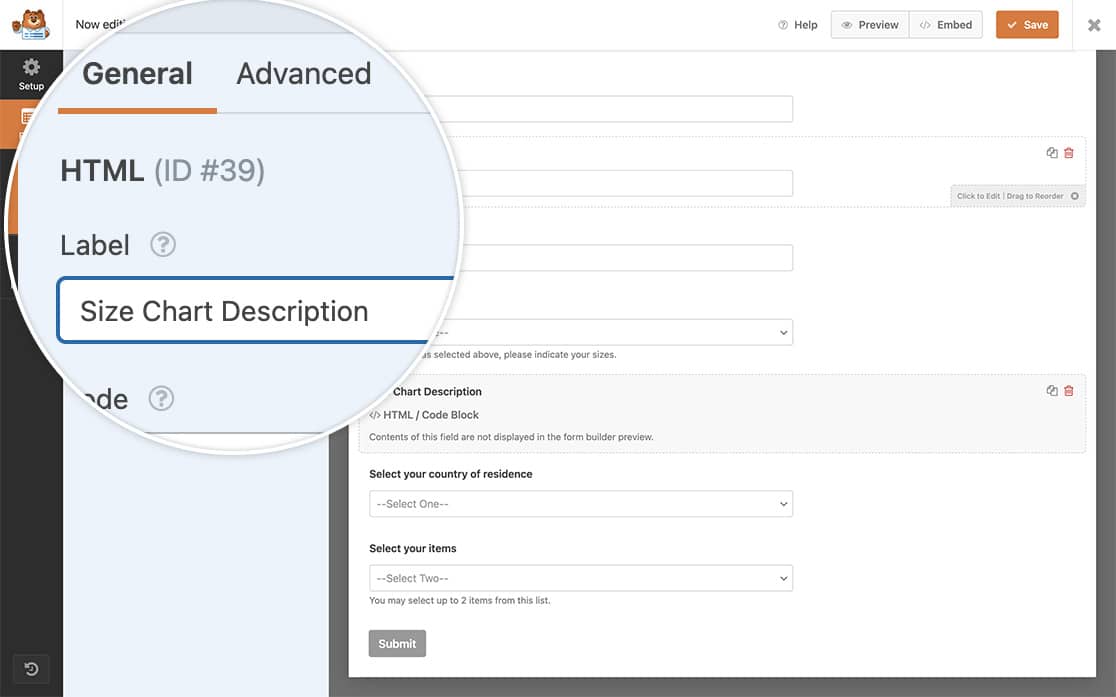
Now it’s time to create our form and add an **HTML** form field.
If you need any help in how to create a form with WPForms, [please review our documentation](https://wpforms.com/docs/creating-first-form/ "https://wpforms.com/docs/creating-first-form/").
## Adding the shortcode to your HTML field
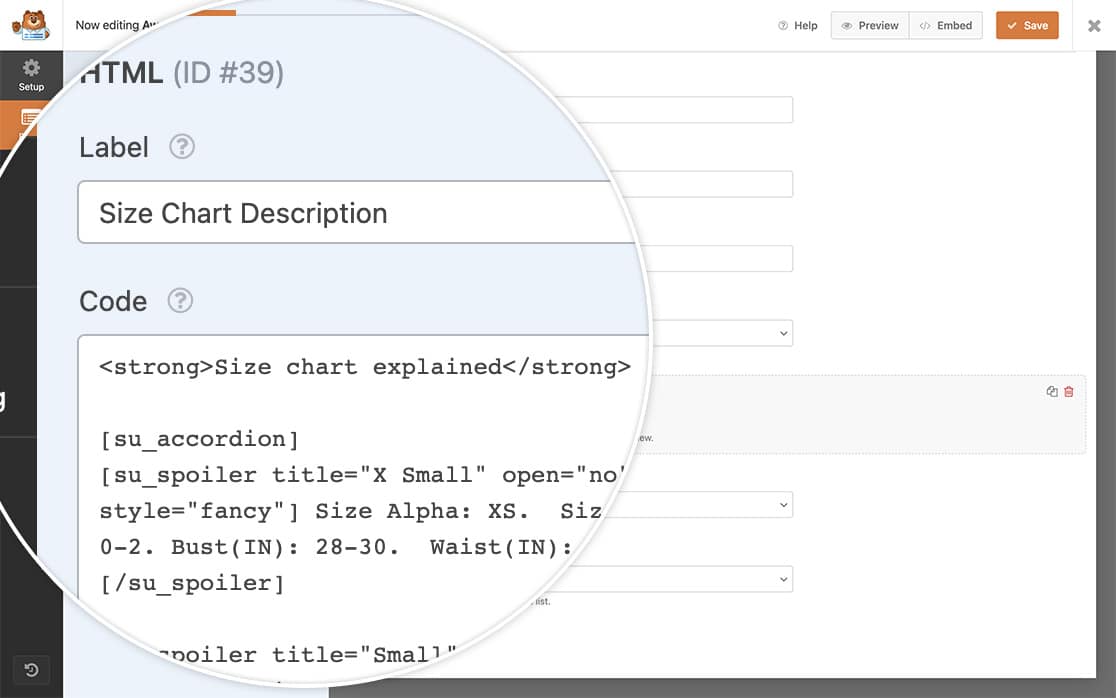
Now we’re going to copy and paste the shortcode from the previous step into the **HTML** field.
```
Size chart explained
[su_accordion]
[su_spoiler title="X Small" open="no" style="simple"] Size Alpha: XS. Size Numeric: 0-2. Bust(IN): 28-30. Waist(IN): 23-24. [/su_spoiler]
[su_spoiler title="Small" style="simple"] Size Alpha: S. Size Numeric: 4-6. Bust(IN): 30-32. Waist(IN): 25-26. [/su_spoiler]
[su_spoiler title="Medium" style="simple"] Size Alpha: M. Size Numeric: 8-10. Bust(IN): 32-34. Waist(IN): 27-28. [/su_spoiler]
[su_spoiler title="Large" style="simple"] Size Alpha: L. Size Numeric: 12-14. Bust(IN): 36-38. Waist(IN): 30-32. [/su_spoiler]
[su_spoiler title="X Large" style="simple"] Size Alpha: XL. Size Numeric: 16-18. Bust(IN): 40-42. Waist(IN): 33-35. [/su_spoiler]
[su_spoiler title="XX Large" style="simple"] XXL. Size Numeric: 20-22. Bust(IN): 44-46. Waist(IN): 36-38. [/su_spoiler]
[/su_accordion]
```
The shortcode output appearance may be altered by form styles. Be sure to test the styling of the shortcode that you use.
## Adding the CSS (optional)
As we mentioned above, some of the styles for shortcodes can be different than you would expect due to WPForms default styling. For this particular example, we’re going to add some additional CSS to style and position the accordion open icon.
```
.wpforms-field .su-accordion {
margin-bottom: 1.5em;
}
.wpforms-field .su-spoiler-style-simple {
border-top: 1px solid #ccc !important;
border-bottom: 1px solid #ccc !important;
}
.wpforms-field .su-spoiler {
margin-bottom: 1.5em !important;
}
.wpforms-field .su-accordion .su-spoiler {
margin-bottom: 0.5em !important;
}
.wpforms-field .su-u-trim>:first-child {
margin-top: 0 !important;
}
.wpforms-field .su-spoiler-style-simple>.su-spoiler-title {
padding: 5px 10px;
background: #f0f0f0;
color: #333;
font-size: .9em;
}
.wpforms-field .su-spoiler-title {
position: relative !important;
cursor: pointer;
min-height: 20px;
line-height: 20px;
padding: 7px 7px 7px 34px !important;
font-weight: 700;
font-size: 13px !important;
}
.wpforms-field .su-spoiler-icon {
position: absolute !important;
left: 7px;
top: 7px;
display: block !important;
width: 20px !important;
height: 20px !important;
line-height: 21px;
text-align: center;
font-size: 14px !important;
font-family: ShortcodesUltimateIcons;
font-weight: 400;
font-style: normal;
-webkit-font-smoothing: antialiased;
}
.wpforms-field .su-spoiler-style-simple>.su-spoiler-content {
padding: 1em 10px !important;
background: #fff;
color: #333;
}
.su-spoiler.su-spoiler-closed>.su-spoiler-content {
height: 0;
margin: 0;
padding-top: 0 !important;
padding-bottom: 0 !important;
overflow: hidden;
border: none;
opacity: 0;
pointer-events: none;
}
.wpforms-field .su-spoiler-content {
padding: 14px !important;
transition: padding-top .2s !important;
-ie-transition: padding-top .2s !important;
}
```
When your visitors now see the form, they’ll now see an accordion with product features inside the form’s **HTML** field.
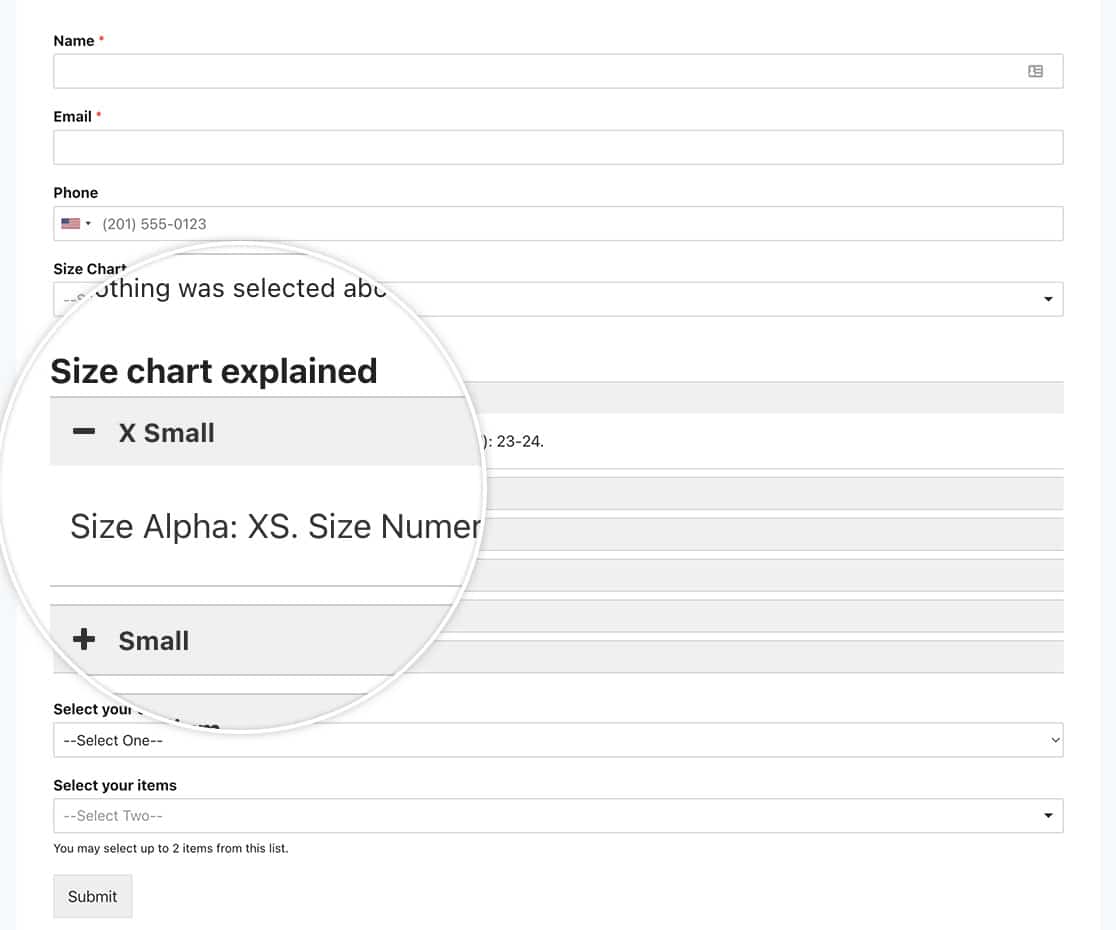
And that’s all you need to display any shortcode inside an **HTML** form field. Would you like to display Smart Tags in the **HTML** field? Take a look at our article on [How to Process Smart Tags in HTML Fields](https://wpforms.com/developers/how-to-process-smart-tags-in-html-fields/ "How to Process Smart Tags in HTML Fields").
## Filter Reference
**Categories:** Fields
**Tags:** HTML, PHP
---