### [Sending Numerical Values Through Webhooks](https://wpforms.com/developers/how-to-send-the-numerical-values-through-webhooks/)
**Published:** August 17, 2021
**Author:** David Ozokoye
**Excerpt:** This snippet will show you how to send numerical values using webhooks.
**Content:**
## Overview
Would you like to send numerical values through webhooks? By default, when you pass values through webhooks, they are sent as strings and not numbers. With a simple snippet, you can effortlessly convert these strings into numerical values.
In this guide, we’ll share the snippet that allows you to send values as numbers when using the Webhooks addon.
---
## Setup
To ensure the numbers are sent through as numerical values, please copy and paste this code snippet to your site.
If you need assistance in adding snippets to your site, [please see this tutorial](https://wpforms.com/developers/how-to-add-custom-php-or-javascript-for-wpforms/ "How to Add Custom PHP or JavaScript for WPForms").
In the code snippet above, we’re specifying an array of numbers and passing two variables: **experience** and **form\_id**. Then, we loop through the array and assign a type integer to all the variables in the array.
**Note:** You can add as many variables as you need to the function. Just make sure to wrap each in single quotes and separate them with commas.
After adding the snippet, you’ll need to map the variables to fields in your form. To get started, [create a new form](https://wpforms.com/docs/creating-first-form/ "Creating Your First Form") or edit an existing one to access the form builder.
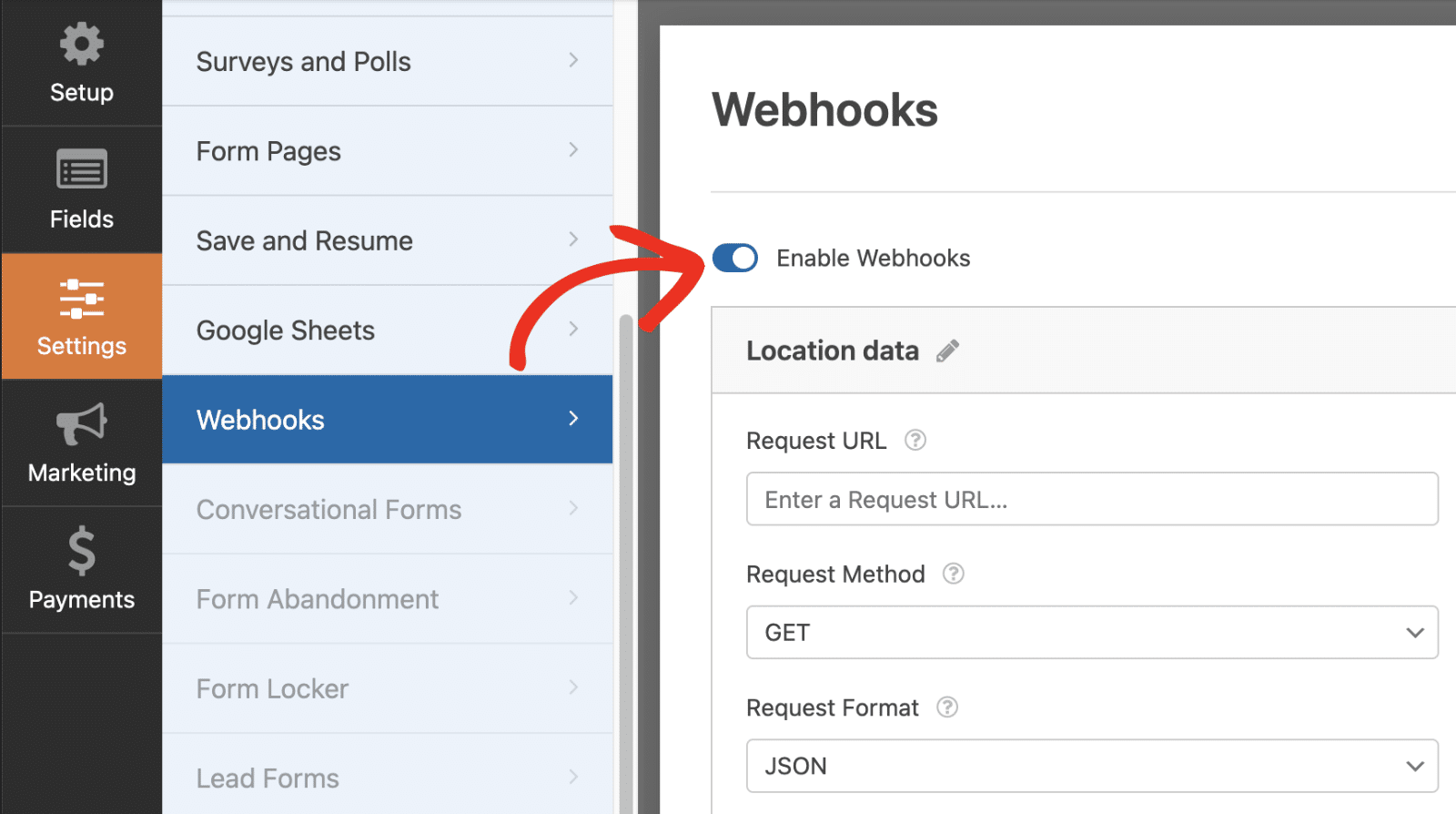
In the form builder, make sure your form fields map to the variable name(s) you specified in the snippet. To access the Webhooks settings, go to **Webhooks » Settings** in the form builder. Then, toggle the **Enable Webhooks** option to the on position.
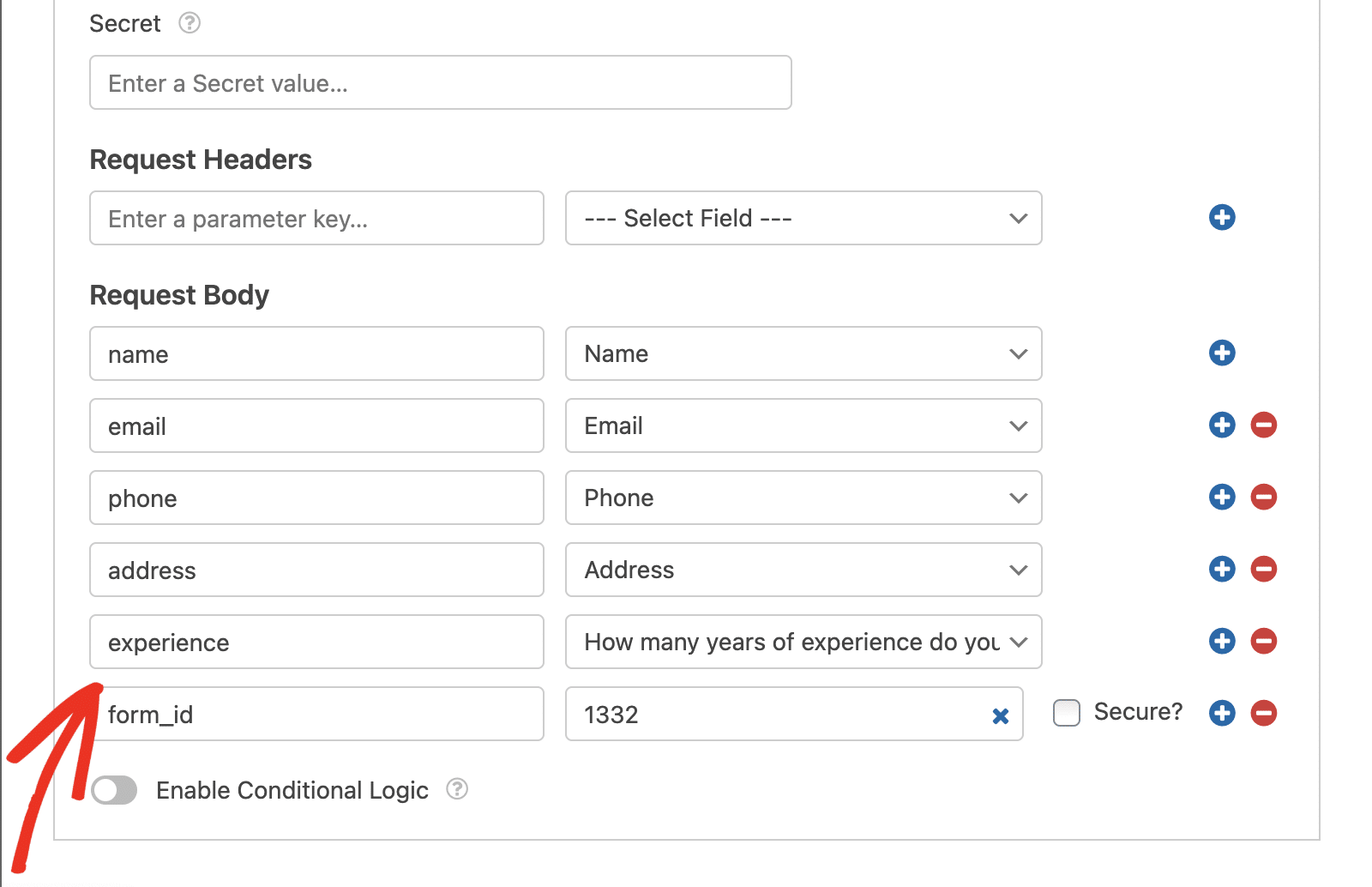
For this tutorial, we’re passing through two variables. One is **experience**, and the other is **form\_id**. These variables correspond to the ones specified in the code snippet above.
**Note:** For details on how to set up and use the Webhooks addon in WPForms, be sure to check our guide to [using the Webhooks addon](https://wpforms.com/docs/how-to-install-and-use-the-webhooks-addon-with-wpforms/ "Webhooks Addon").
Make sure to include each variable name in the snippet above wrapped in single quotes and separated by a comma for each variable you want to convert from a string to a number.
That’s it! You can now pass webhooks data as numbers in WPForms.
Next, would you also like to include the Entry ID in your webhook? See our tutorial to learn [how to send the entry ID through webhooks](https://wpforms.com/developers/how-to-send-the-entry-id-through-webhooks/ "How to Send the Entry ID Through Webhooks").
**Categories:** Snippets
**Tags:** PHP, Webhooks
---