### [Announcing an Important Mailchimp Addon Update for WPForms](https://wpforms.com/new-announcing-an-important-mailchimp-addon-update/)
**Published:** March 30, 2017
**Author:** Jared Atchison
**Content:**
Are you using Mailchimp and WPForms for your [email marketing](http://optinmonster.com/beginners-guide-to-email-marketing/ "Beginner's Guide to Email Marketing")?
The WPForms [Mailchimp addon](https://wpforms.com/addons/mailchimp-addon/) makes it incredibly easy to create signup forms with our drag and drop form builder.
Recently Mailchimp released a more powerful integration API, v3.0.
In order to make sure that this release doesn’t affect your signup forms, we’ve updated our Mailchimp addon to work with the new API.
We’re asking that our Mailchimp addon users please **update the addon and register the new Mailchimp integration** so that your signup forms continue to work as expected.
We renamed the old integration to Mailchimp (Legacy). The new integration is called Mailchimp. The process for creating a new Mailchimp integration is exactly like the previous one.
Here’s how you can update your integration.
### Connect to the New Mailchimp API
The first thing you’ll need to do is update your WPForms Mailchimp addon by opening **Dashboard » Updates**. For more details see this guide on [how to install updates in WordPress](http://www.wpbeginner.com/glossary/updates/).
Once the update has completed, you’ll need to go to **WPForms » Settings**, then select the **Integrations** tab.
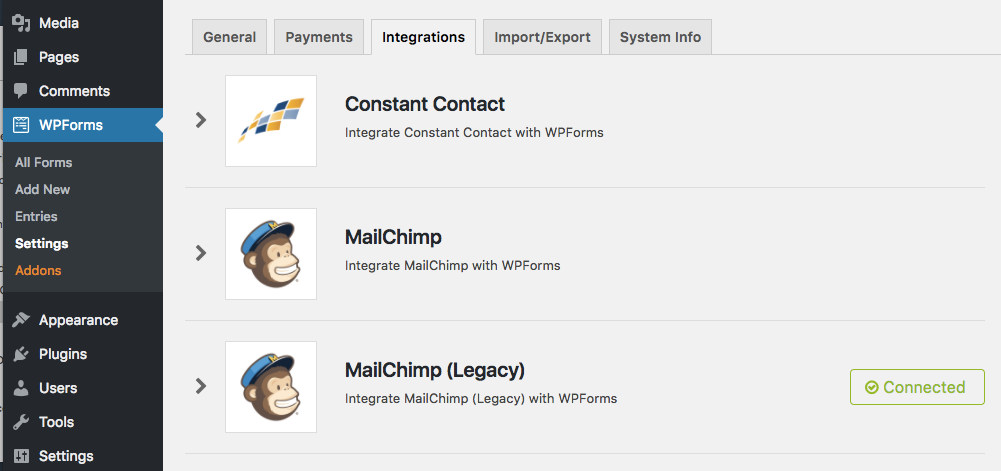
On this page, you’ll notice that there are two Mailchimp listings: Mailchimp, which uses the new API, and Mailchimp (Legacy), which uses the old API.
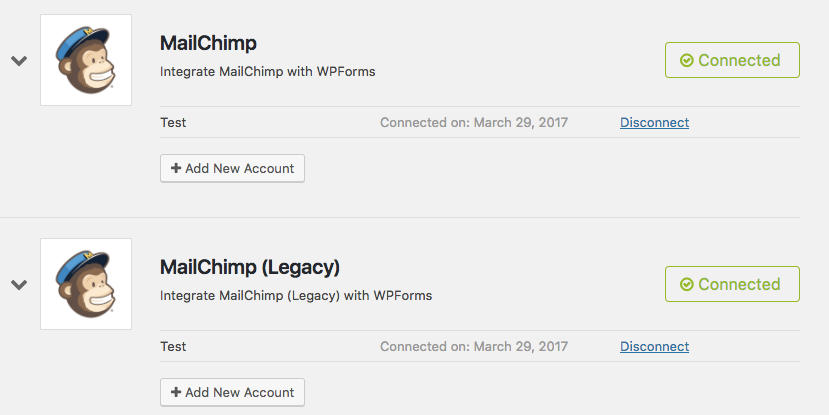
To connect your account though the new API, you’ll need to open the Mailchimp listing and click on the **+ Add New Account** button. To find your Mailchimp API key, [follow these steps](https://wpforms.com/docs/install-use-mailchimp-addon-wpforms/#mc-api-key).
After you’ve added your account, you’ll get a green box that says “Connected”. It’s best to also leave the Mailchimp (Legacy) account connected for now, as we will need to transfer extra information inside your forms next.
### Transfer Form’s Mailchimp Settings to New API
Now that you’ve connected the addon to Mailchimp’s new API, you’ll need to copy the settings within individual forms to a new section so they can use the new API as well.
To do this, open the form builder for any form utilizing the Mailchimp addon and go to **Marketing**. You’ll notice that there are now two Mailchimp connections, Mailchimp and Mailchimp (Legacy).
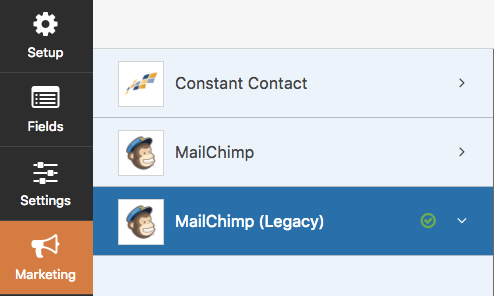
Mailchimp (Legacy) contains all of your existing settings for the old API. To transfer these to the new API, select **Mailchimp** and **Add New Connection**.
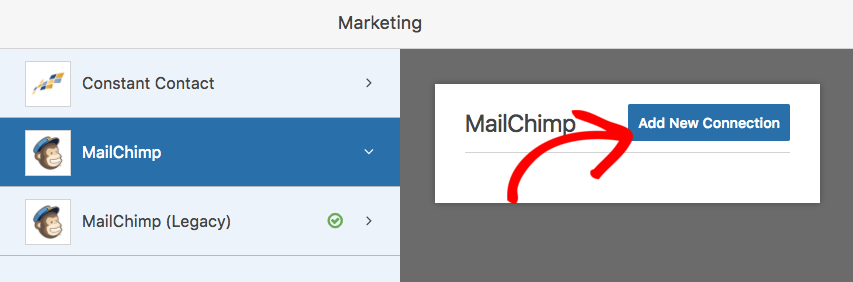
You’ll be prompted to enter a nickname for the form, and then you’ll be taken to the settings page. From here, you can click back to **Mailchimp (Legacy)** to copy any settings you had set up for this form.
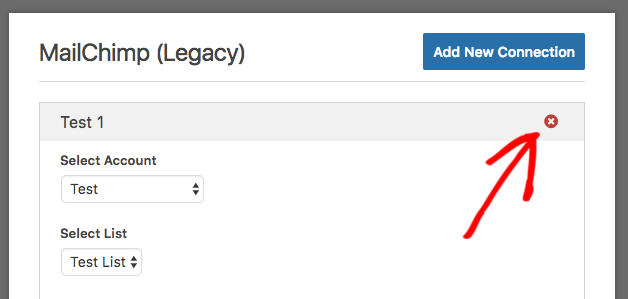
Once you’ve copied any existing settings from **Mailchimp (Legacy)** to **Mailchimp**, you can delete the settings for the deprecated API. To do this, return to **Mailchimp (Legacy)** and click on the red ‘x’.
Be sure to save your form, then go ahead and repeat this process for any forms that have a Mailchimp connection.
Now that all of your form settings have been transferred to the new API, we can delete the deprecated connection. To do this, return to **WPForms** » **Settings**, then once again select the **Integrations** tab. If you open Mailchimp (Legacy), you’ll see a **Disconnect** link next to your account.
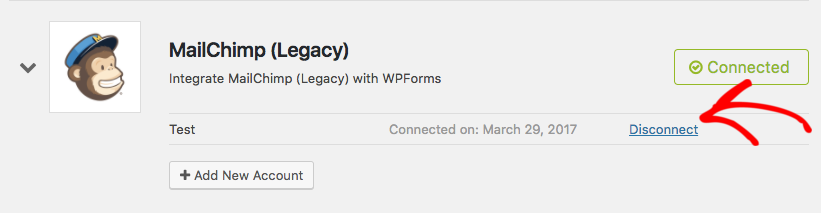
After clicking this link, your site will be disconnected from Mailchimp’s deprecated API. The **Mailchimp (Legacy)** option should disappear from this page (you may need to refresh the browser page).
That’s it! You’ve now transferred your forms to Mailchimp’s new API.
That’s all for this update, but there’s more coming soon. Don’t forget to subscribe to our email newsletter to be the first to know.
Thanks once again for all your support and feedback in making WPForms the [best drag & drop form builder](https://wpforms.com).
*Jared and the WPForms Team*
**Categories:** Announcement
**Tags:** mailchimp, newsletter, optin, signup
---