### [How to Use AI Choices to Generate Dropdown Options in WordPress Forms](https://wpforms.com/how-to-use-ai-choices-to-generate-dropdown-options-in-wordpress-forms/)
**Published:** June 2, 2026
**Author:** Kacie Cooper
**Excerpt:** WPForms has a built-in feature called AI Choices that lets you generate dropdown options, multiple choice answers, and checkbox lists from a single sentence.
In this guide, I'll walk you through exactly how AI Choices works, how to use it on your forms, and a bunch of prompt ideas you can steal for your own site.
**Content:**
You’re building a form and you need a dropdown with every country in the world. Or every U.S. state. Or a list of industries. Or college degree levels. Or dietary restrictions for an event RSVP.
So you open a new tab, Google the list, and start typing each option into your form builder one by one. Halfway through, you realize you misspelled “Massachusetts,” you’re not sure if you already added “Marketing” to the industry list, and you’ve been at this for twenty minutes on what should have been a two-minute task.
There’s a faster way. WPForms has a built-in feature called AI Choices that lets you generate dropdown options, multiple choice answers, and checkbox lists from a single sentence. You type something like “U.S. states in alphabetical order” and the full list appears in seconds. You can tweak it, reorder it, refine it with follow-up instructions, and then drop it into your form with one click.
In this guide, I’ll walk you through exactly how AI Choices works, how to use it on your forms, and a bunch of prompt ideas you can steal for your own site.
## How to Use AI Choices to Generate Dropdown Options
- [What Are AI Choices?](#aioseo-what-are-ai-choices-6)
- [Step 1: Add a Field That Supports AI Choices](#aioseo-step-1-add-a-field-that-supports-ai-choices-16)
- [Step 2: Write Your Prompt](#aioseo-step-2-write-your-prompt-26)
- [Step 3: Refine Your List](#aioseo-step-3-refine-your-list-35)
- [Step 4: Insert the Choices Into Your Field](#aioseo-step-4-insert-the-choices-into-your-field-51)
- [Step 5: Style and Publish Your Form](#aioseo-step-5-style-and-publish-your-form-62)
- [Prompt Ideas You Can Use Right Now](#aioseo-prompt-ideas-you-can-use-right-now-73)
### What Are AI Choices?
AI Choices is a built-in [WPForms AI feature](https://wpforms.com/features/wpforms-ai/) that generates options for your form fields using natural language prompts. Instead of manually typing each choice into a Dropdown, Multiple Choice, or Checkboxes field, you describe the list you want and WPForms builds it for you.
It works on three field types:
- **Dropdown** — single-select or multi-select menus
- **Multiple Choice** — radio button options
- **Checkboxes** — “select all that apply” options
And it’s available on every WPForms plan, including Lite. You don’t need a paid upgrade to use it.
The interface is chat-based, which means you can go back and forth with it. Generate a list, ask it to reorder, add descriptions, remove a few items, translate to another language — whatever you need. When the list looks right, hit one button and it’s in your form.
[Build Your WordPress Form Now](https://wpforms.com/pricing/)
### Step 1: Add a Field That Supports AI Choices
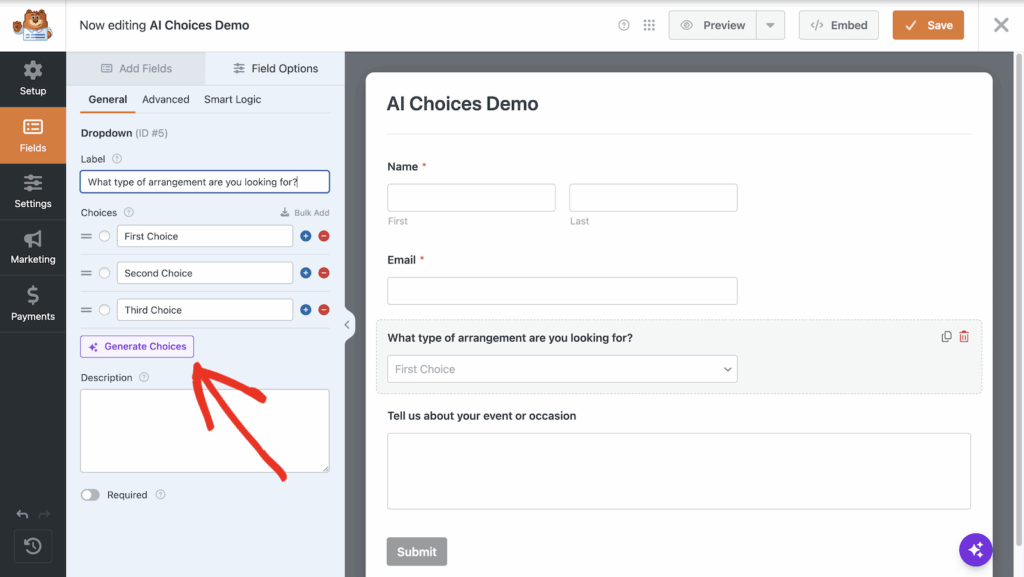
Open the WPForms builder (either create a new form or edit an existing one) and drag in a **Dropdown**, **Multiple Choice**, or **Checkboxes** field. These are the three field types that support AI Choices.
If you’re not sure which one to use:
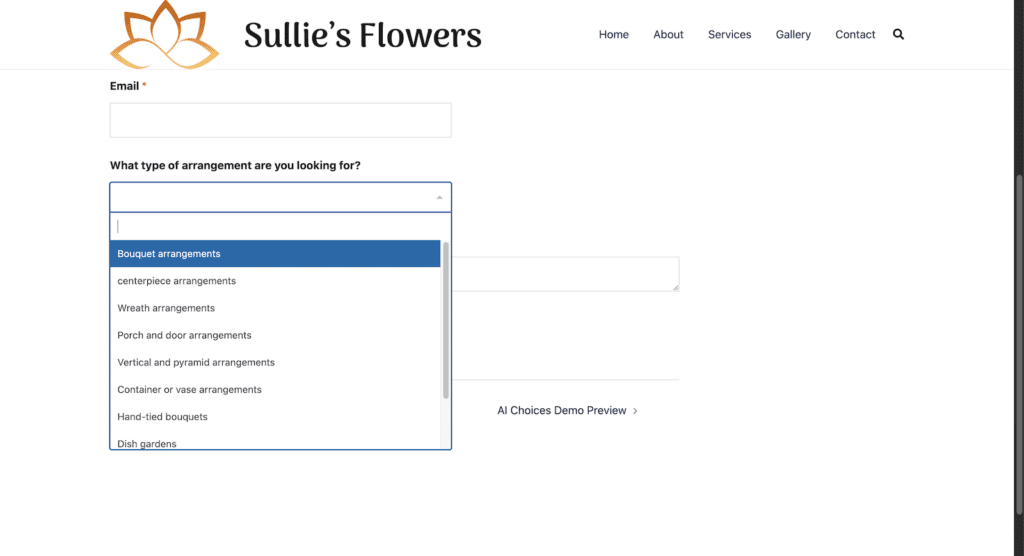
- **Dropdown** is ideal when you have a long list (countries, states, industries) and want to save space on the page. The [Modern style](https://wpforms.com/docs/how-to-customize-the-dropdown-field-in-wpforms/) even adds a search bar so visitors can type to filter.
- **Multiple Choice** works best when there are a handful of options and you want them all visible at once (think: “How did you hear about us?”).
- **Checkboxes** are for when visitors can pick more than one answer (“Which services are you interested in?”).
Click on the field you just added to open its settings. You’ll see your usual options — label, description, required toggle — and below the Choices section, a **Generate Choices** button.
That button is your shortcut.
### Step 2: Write Your Prompt
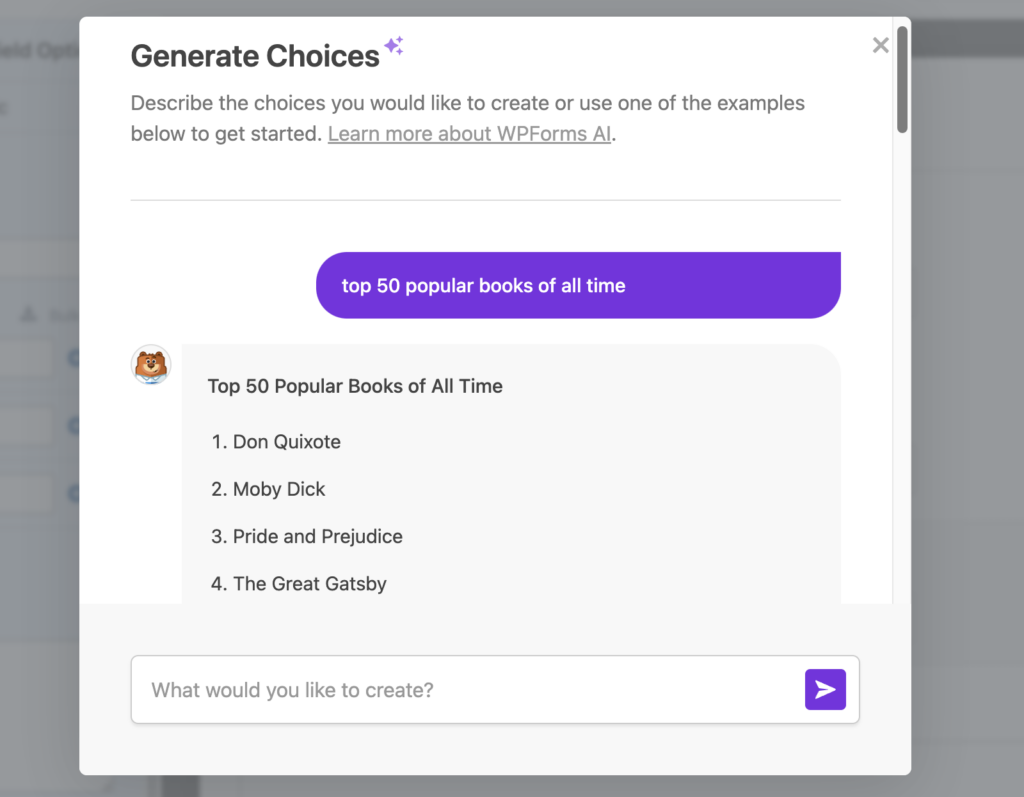
Click **Generate Choices** and a chat-style popup will open. If this is your first time using WPForms AI, you’ll see a quick prompt to enable the feature — just click through it once and you’re set.
You’ve got two ways to start:
**Use a pre-made prompt:** The popup shows a few example prompts to get you going, like “American public holidays” or “Top 5 social networks.” Click one and the list generates instantly. These are handy when they match what you need, but the real value is in custom prompts.
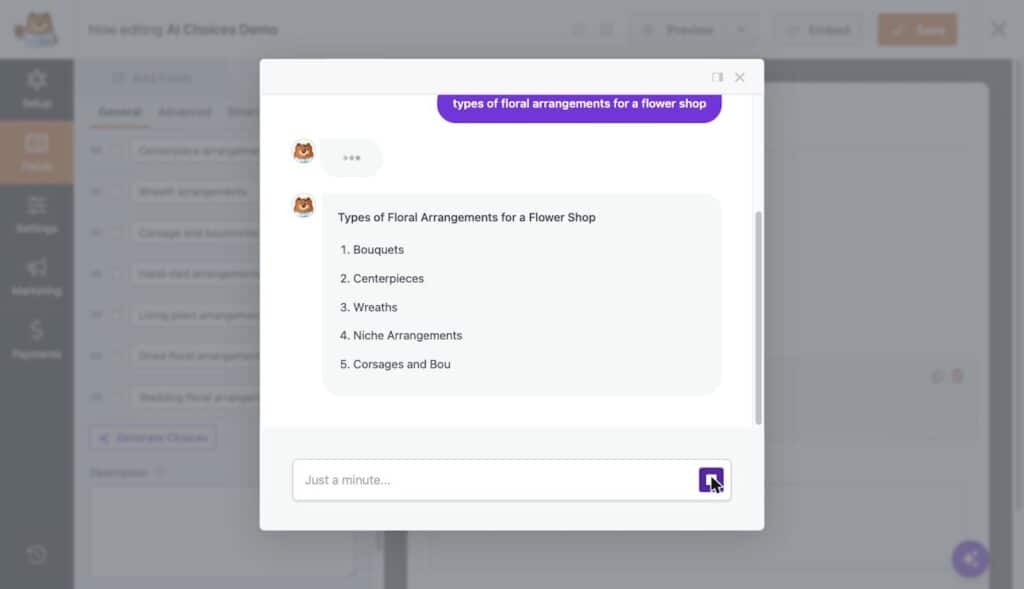
**Write your own:** Type a description of the list you want into the text field at the bottom of the chat window. Be specific — the more detail you give, the better the result.
Here are a few examples of what you can type:
What you needPrompt to tryGeographic list“All 50 U.S. states in alphabetical order”Sorted data“Countries ranked by population, top 20”Industry options“Common industries for a B2B contact form”Education levels“Academic degree levels from high school to doctorate”Event planning“Dietary restrictions and food allergies for an event RSVP”Age brackets“Age ranges in 10-year increments from 18 to 65+”Time slots“Appointment times every 30 minutes from 9 AM to 5 PM”Department list“Departments for a company contact form (sales, support, billing, etc.)”Hit Enter or click the send icon, and the list appears in the chat window.
### Step 3: Refine Your List
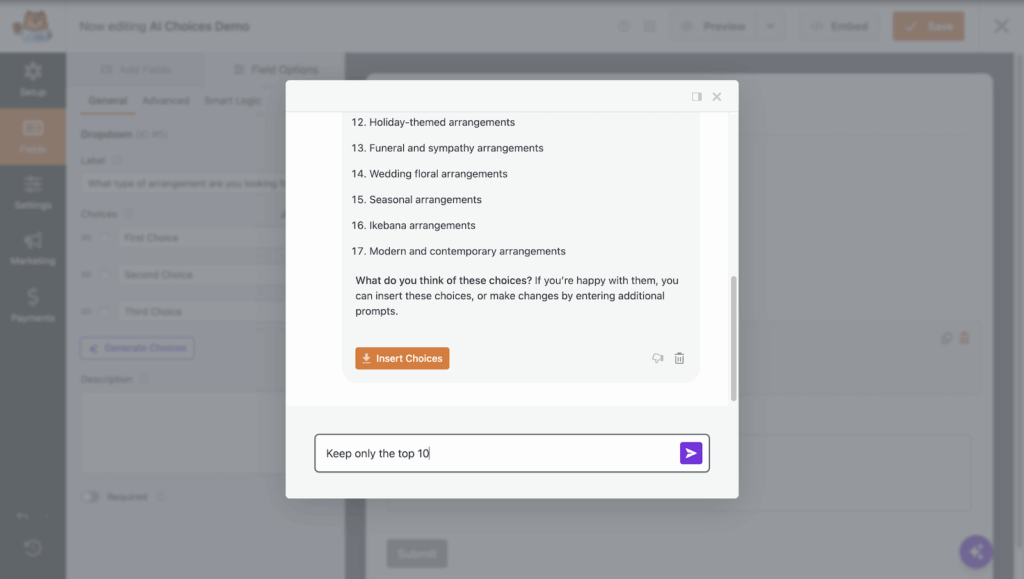
Here’s where AI Choices gets interesting. The chat interface isn’t one-and-done — you can send follow-up messages to adjust the list without starting over.
Some things you can ask it to do:
- **Reorder:** “Sort these alphabetically” or “Put the most common options first”
- **Add context:** “Add a short description next to each option”
- **Trim:** “Remove the last five items” or “Keep only the top 10”
- **Expand:** “Add 5 more options” or “Include an ‘Other’ option at the end”
- **Translate:** “Translate this list to Spanish”
- **Rephrase:** “Make each option shorter” or “Use formal language”
For example, say you generated a list of degree levels and the result came back as:
> High School Diploma, Associate’s Degree, Bachelor’s Degree, Master’s Degree, Doctoral Degree
You could type: “Add ‘Some College (No Degree)’ after High School Diploma and add ‘Professional Degree (MD, JD, etc.)’ before Doctoral Degree.”
The AI updates the list in the same conversation. Keep refining until it looks right.
### Step 4: Insert the Choices Into Your Field
When you’re happy with the list, click the **Insert Choices** button at the bottom of the chat window. The generated options transfer directly into your form field.
**One thing to know:** inserting new AI-generated choices will overwrite any existing choices in that field. If you already had a few options typed in manually, they’ll be replaced. So if you want to keep existing choices and just add to them, either note them down first or generate your full list (including the ones you already had) in one go.
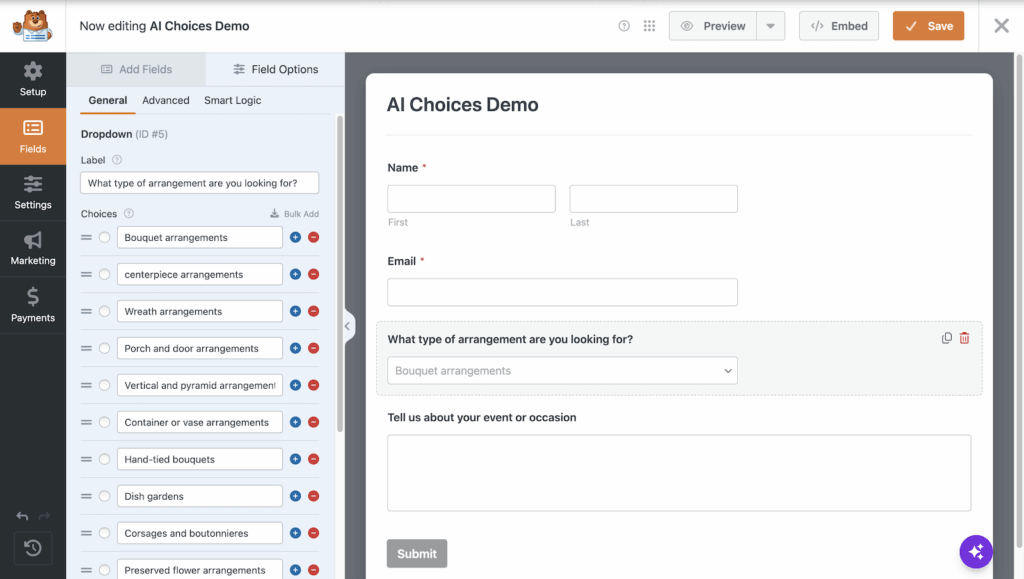
After insertion, the choices behave exactly like manually-entered options. You can:
- Drag to reorder them
- Click to edit individual labels
- Delete any you don’t want
- Set a default/preselected option
- Add new ones manually on top of the AI-generated list
### Step 5: Style and Publish Your Form
With your choices populated, take a minute to fine-tune the field itself.
If you’re using a **Dropdown** field, decide between the two available styles:
- **Modern** — adds a search bar visitors can type into (great for long lists like countries or states), supports multi-select with clear X buttons
- **Classic** — the standard HTML dropdown look
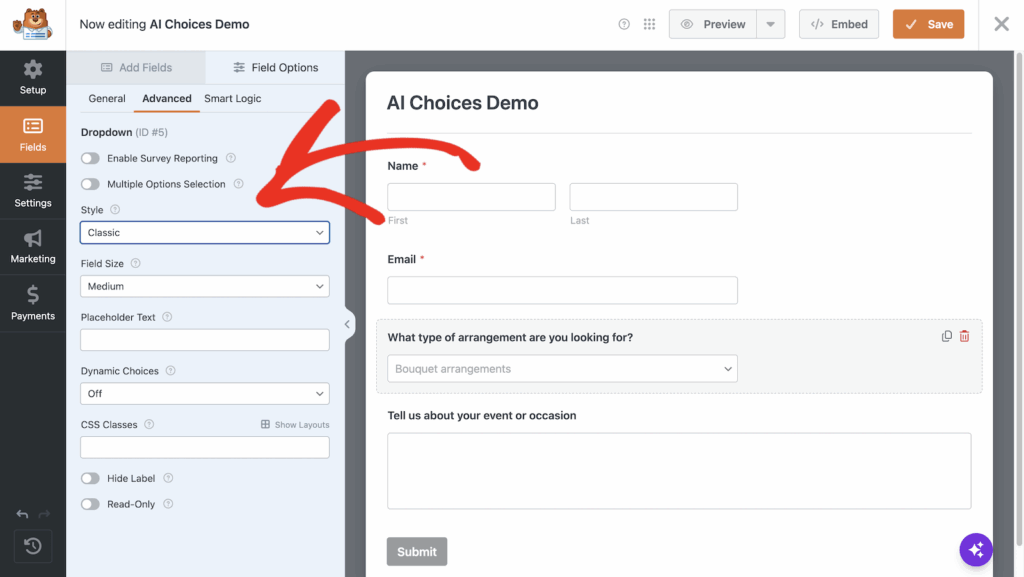You can also add a placeholder (like “Select your state…”) to guide visitors before they make a selection.
For **Multiple Choice** and **Checkboxes** fields, you can adjust the layout — inline or stacked — depending on how many options you have and how you want them to display.
Once the field looks good, embed your form on any page or post using the WPForms block in the WordPress editor and you’re live.
### Prompt Ideas You Can Use Right Now
One of the best things about AI Choices is that it handles the research step for you. Instead of Googling “list of industries” or “all countries in Africa” and formatting the results yourself, you describe what you need and the list shows up ready to insert.
Here are prompts organized by form type to get you started:
#### Contact and Lead Forms
- “Common industries for a B2B lead generation form”
- “Company size ranges (1-10, 11-50, 51-200, etc.)”
- “Referral source options for a ‘How did you hear about us?’ question”
- “Job titles commonly used in marketing departments”
- “Budget ranges for a project inquiry form ($1K-$5K, $5K-$10K, etc.)”
#### Event and Registration Forms
- “Dietary restrictions including common allergies”
- “T-shirt sizes from XS to 3XL”
- “Session tracks for a marketing conference”
- “Languages spoken in the European Union”
#### Surveys and Feedback
- “Likert scale options from Strongly Disagree to Strongly Agree”
- “Satisfaction levels for a customer feedback form”
- “Age ranges for a demographic survey (18-24, 25-34, etc.)”
- “Reasons someone might cancel a subscription”
#### E-Commerce and Order Forms
- “Common product categories for a home goods store”
- “Shipping speed options with estimated delivery times”
- “Colors available for a custom apparel order”
- “Gift wrapping options with descriptions”
#### Education and Training
- “Academic degree levels from GED to PhD”
- “Grade levels for a K-12 school registration”
- “Subject areas offered at a university”
- “Certification types in the IT industry”
The variety is basically unlimited. If you can describe the list in a sentence, AI Choices can generate it.
### Good to Know
A few notes to keep in mind as you use AI Choices:
- **Daily limits:** There’s a daily rate limit on AI-generated choices. If you hit it, the counter resets the next day. For most form builders, you won’t come close — but if you’re building a batch of forms in one sitting, it’s worth knowing.
- **Chat history clears on refresh.** If you leave the form builder or refresh the page, the conversation resets. So finalize and insert your choices before navigating away.
- **Overwrite warning:** As mentioned, inserting AI choices replaces whatever was in the field. Be intentional about when you insert.
- **Still want the manual route?** You can always use the [Bulk Add feature](https://wpforms.com/docs/how-to-bulk-add-choices-for-multiple-choice-checkbox-and-dropdown-fields/) to paste in a list or use preset options like Countries, U.S. States, and Days of the Week. AI Choices and Bulk Add complement each other — use whichever fits the moment.
- **Want to turn it off?** If you’d rather not see AI features in the builder, go to **WPForms » Settings » Misc** and toggle “Hide AI Features” on. It’s a site-wide setting.
### Start Building Smarter Forms
That’s the full walkthrough. AI Choices takes the most tedious part of building a form — manually researching and typing long lists of options — and turns it into a conversation. Describe what you need, refine it, and insert it. The whole thing takes less time than it would to Google the list and format it yourself.
And because it works on every WPForms plan, you can start using it on your next form today.
### Next, Get More with WPForms AI
**Want to explore more WPForms AI features?** Check out the full guide on [how to use AI to create forms in WordPress](https://wpforms.com/how-to-use-ai-to-create-forms-in-wordpress/) for a look at the AI Form Builder and other time-saving tools.
[Build Your WordPress Form Now](https://wpforms.com/pricing/)
Ready to build your form? Get started today with the easiest WordPress form builder plugin. [WPForms Pro](https://wpforms.com/pricing) includes lots of free templates and offers a 14-day money-back guarantee.
If this article helped you out, please follow us on [Facebook](https://facebook.com/wpforms) and [Twitter](https://twitter.com/easywpforms) for more free WordPress tutorials and guides.
**Categories:** WordPress Tutorials
**Tags:** ai choices, wordpress, wpforms lite
---