### [Viewing and Managing Coupons](https://wpforms.com/docs/viewing-and-managing-coupons/)
**Published:** March 1, 2024
**Author:** Umair Majeed
**Excerpt:** Learn how to view and manage your coupons.
**Content:**
Coupons Addon is a Pro Feature
Unlock Coupons Addon and other powerful features to grow your business.
[ Get WPForms Pro ](https://wpforms.com/pricing/)
Wondering how to track and manage discount codes on your forms? WPForms makes it easy to view and control your coupon usage directly from the WordPress admin dashboard.
This tutorial will cover how to view and manage coupons with WPForms.
- [Viewing and Managing Coupons](#viewing-coupons)
- [Viewing Coupon Usage](#coupon-usage)
**Requirements**:
- You’ll need a [Pro license level or higher](https://wpforms.com/pricing/ "WPForms Pricing Page") to access the Coupons addon.
- Ensure that you’ve installed the latest version of WPForms to meet the [minimum required version](https://wpforms.com/docs/why-you-should-always-use-the-latest-version-of-wpforms/#version-requirements) for the Coupons addon.
---
## Viewing and Managing Coupons
You can access all WPForms Coupons in your WordPress admin area. To get there, navigate to **WPForms** » **Payments** and select the **Coupons** tab. This will display a table with all your created coupons, their details, and the forms they’re associated with.
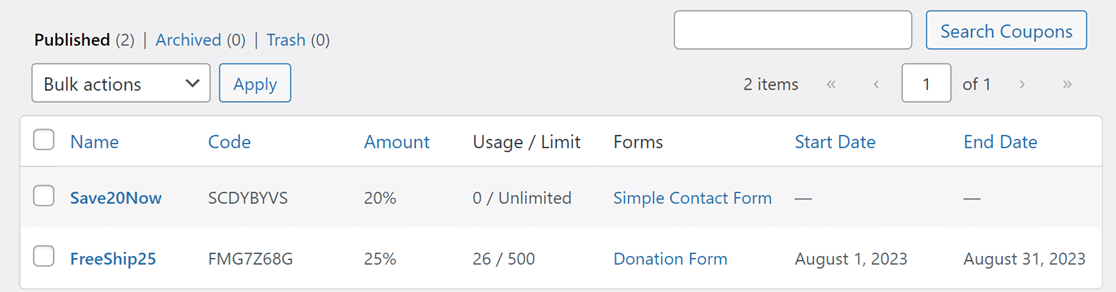The table contains these fields:
- **Name**: The name you gave the coupon.
- **Code**: The main code customers use.
- **Amount**: The discount value.
- **Usage/Limit**: How many times it’s been used and the total use limit.
- **Forms**: The form(s) the coupon is linked to.
- **Start Date**: When the coupon becomes valid.
- **End Date**: When the coupon is no longer valid.
### Editing and Deleting Coupons
To edit a coupon, simply click on the name of the coupon you want to modify.
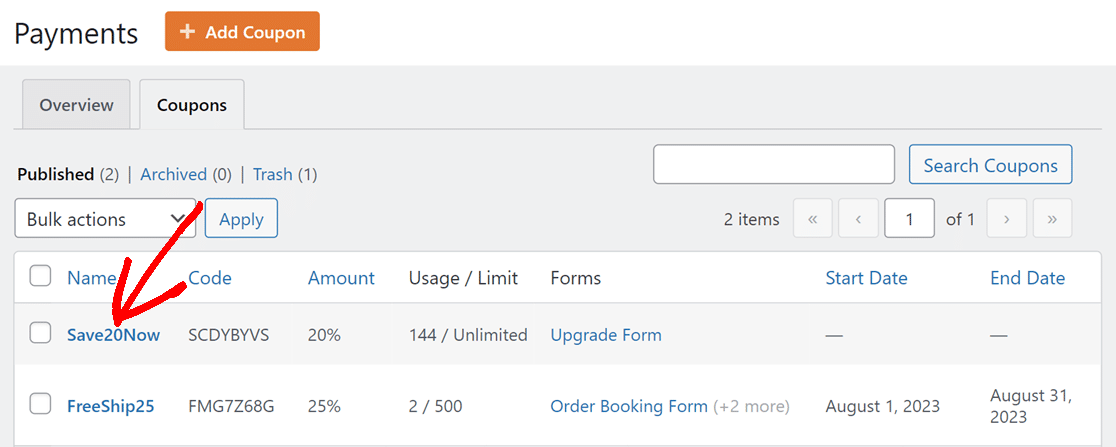You’ll then be directed to a detailed view of the coupon, where you can make your changes.
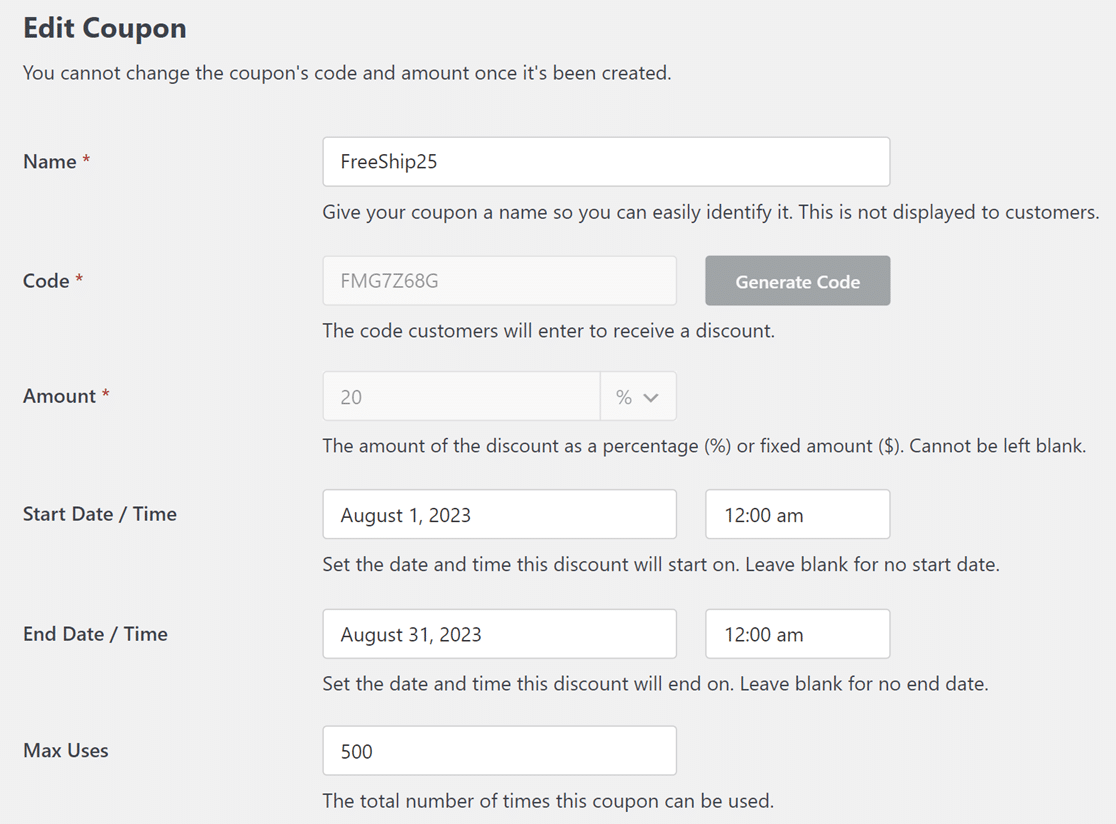**Note:** The **Code** and **Amount** fields are locked and can’t be changed. But you can modify all other fields as you wish.
After making your changes, don’t forget to hit the **Update Coupon** button.
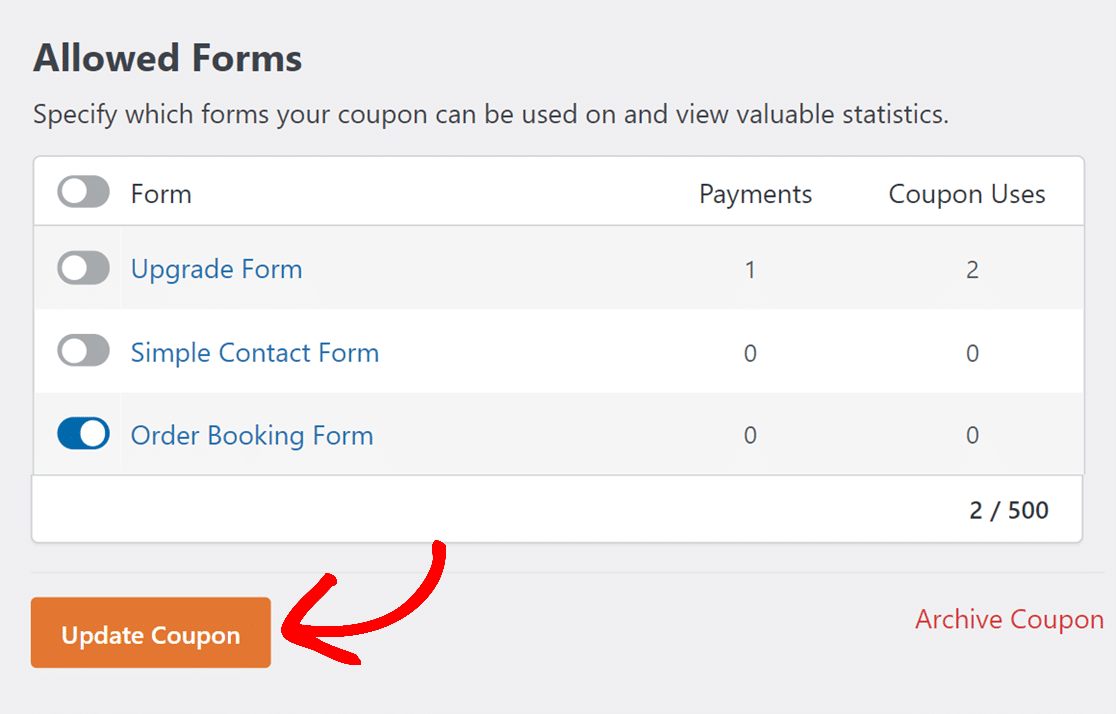If you need to delete a coupon, simply click on the coupon’s name to access the Edit Coupon page. Then scroll down to the bottom of the page and click **Delete Coupon**.
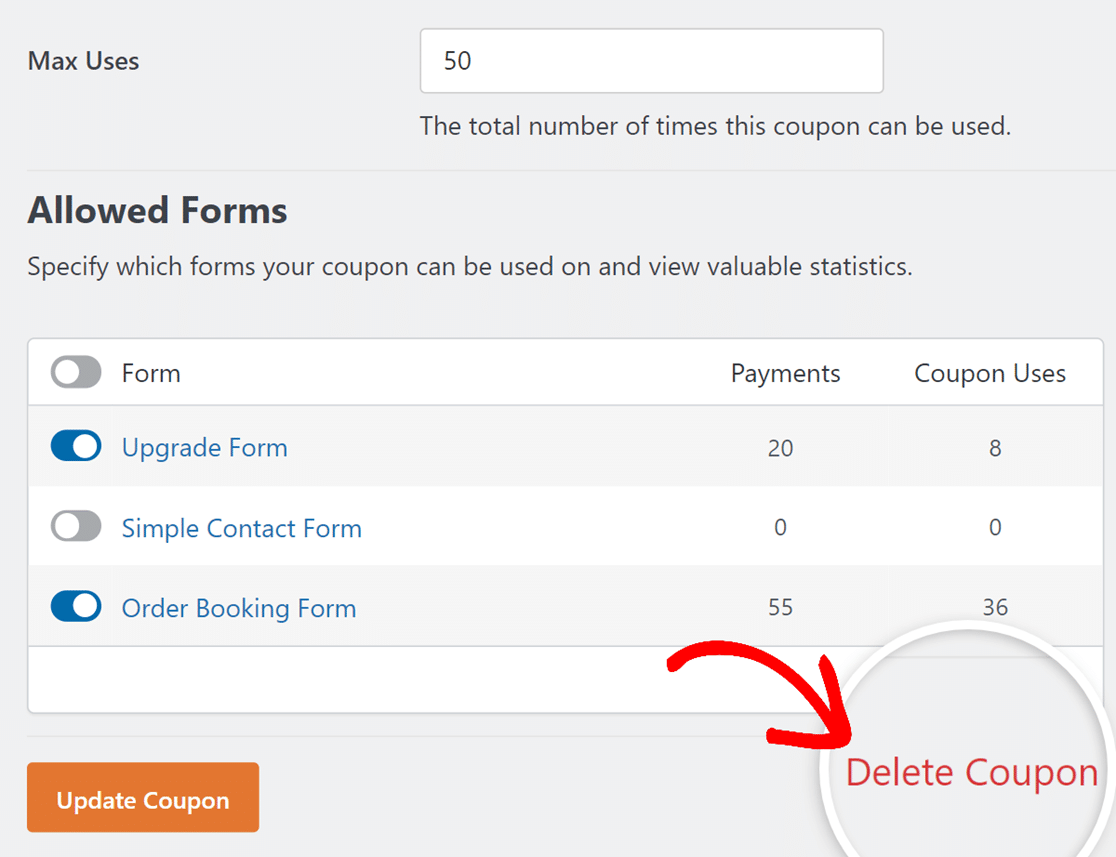**Note:** If a coupon has already been used by a customer, you won’t be able to delete it. In such cases, the **Delete Coupon** button changes to **Archive Coupon**. This option disables the coupon but doesn’t delete it from your site.
## Viewing Coupon Usage
To track coupon usage on your site, go to **WPForms » Payments** and select the **Overview** tab.
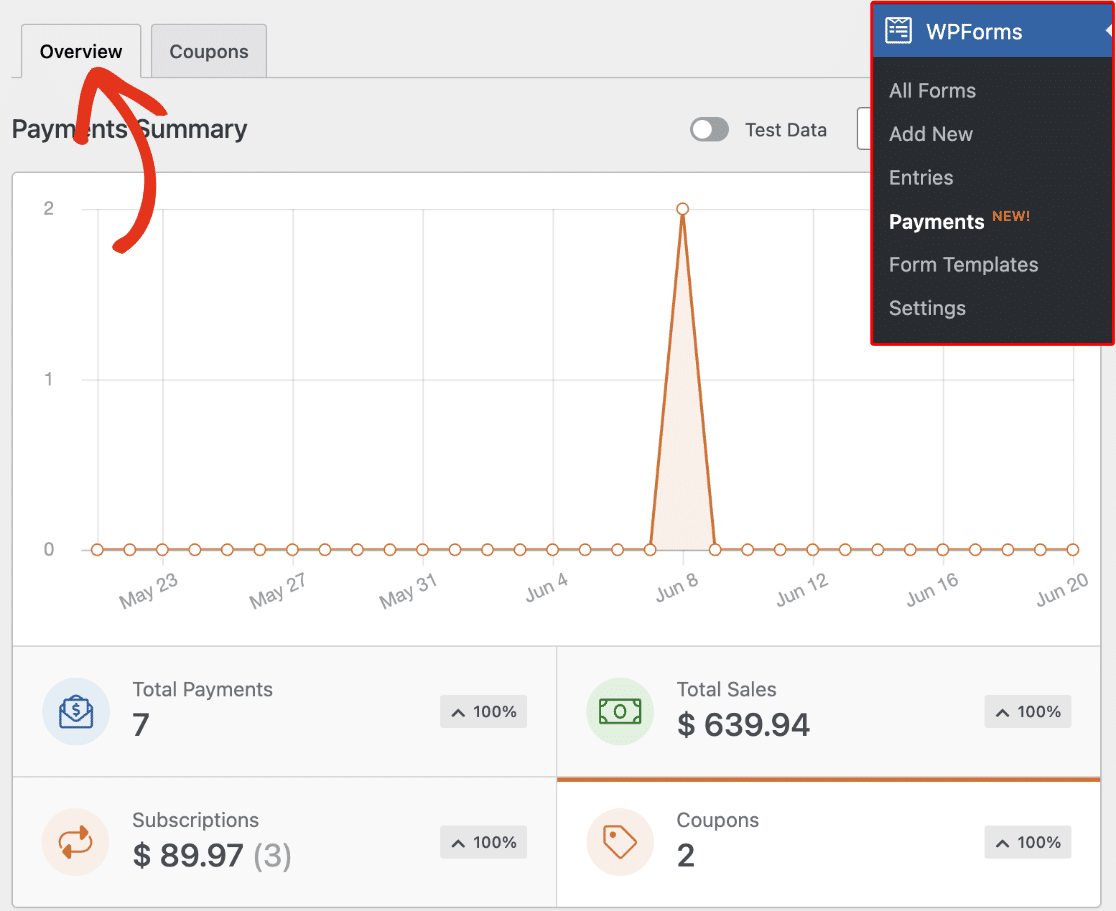Here, you’ll see the total number of coupons used over a period. Clicking the **Coupons** option will change the **Payments Summary** graph to show the coupon code usage.
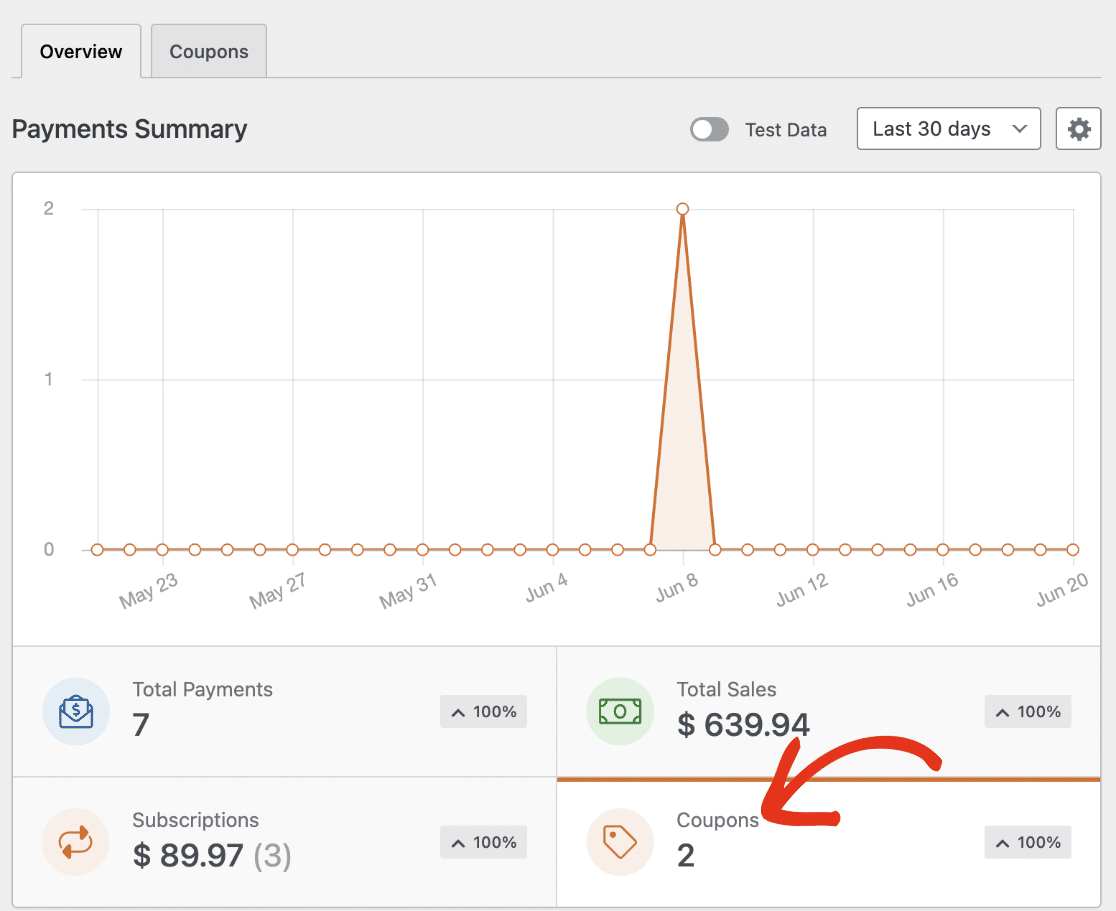From the payments entry table, you’ll be able to track the specific coupon that was used and the form it was applied. To learn more about viewing coupon usage, check out our [viewing and managing payments](https://wpforms.com/docs/viewing-and-managing-payments/#manage-coupons) tutorial.
If you’d like to learn more about creating and using coupons with WPForms, be sure to check our guide to [installing and using the Coupons addon.](https://wpforms.com/docs/coupons-addon/)
**Note:** To see how these coupons appear in action from a user’s perspective, take a look at our [Signup Coupon Form Template](https://wpforms.com/templates/signup-coupon-form-template/), which shows an implementation of the Coupon addon in a registration form.
That’s it! Now you know how to view and manage coupons with WPForms.
Next, would you like to learn how to manage all payments submitted through your WordPress forms? Be sure to check out our guide to [viewing and managing payments](https://wpforms.com/docs/viewing-and-managing-payments/) for more details.
**Categories:** Payments, Payment Management
---