### [Using WPForms Code Snippets](https://wpforms.com/docs/using-wpforms-code-snippets/)
**Published:** November 7, 2023
**Author:** Umair Majeed
**Excerpt:** Learn how to enhance WPForms using WPCode's code snippets.
**Content:**
Would you like a simple, one-click solution to add custom code snippets to your forms? With WPForms and the WPCode plugin, you can easily use code snippets for your forms without editing your theme’s `function.php` file.
In this guide, we’ll show you how to install and use the WPCode plugin with just a few clicks, enhancing your WPForms with additional functionalities effortlessly.
---
### Getting Started With WPCode
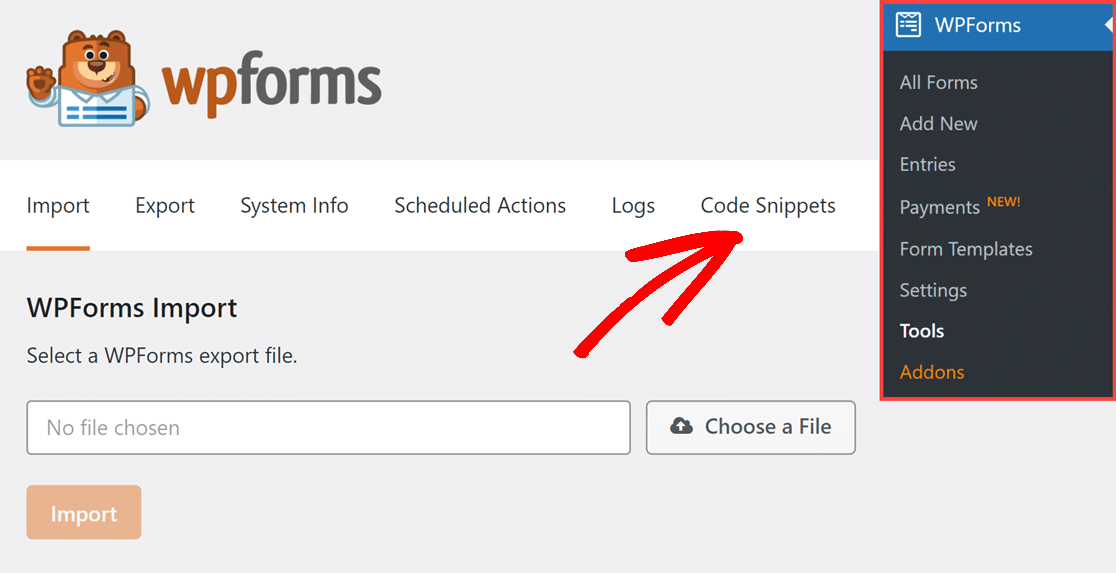
To get started, go to **WPForms » Tools**. Once you’re there, select the **Code Snippets** tab.
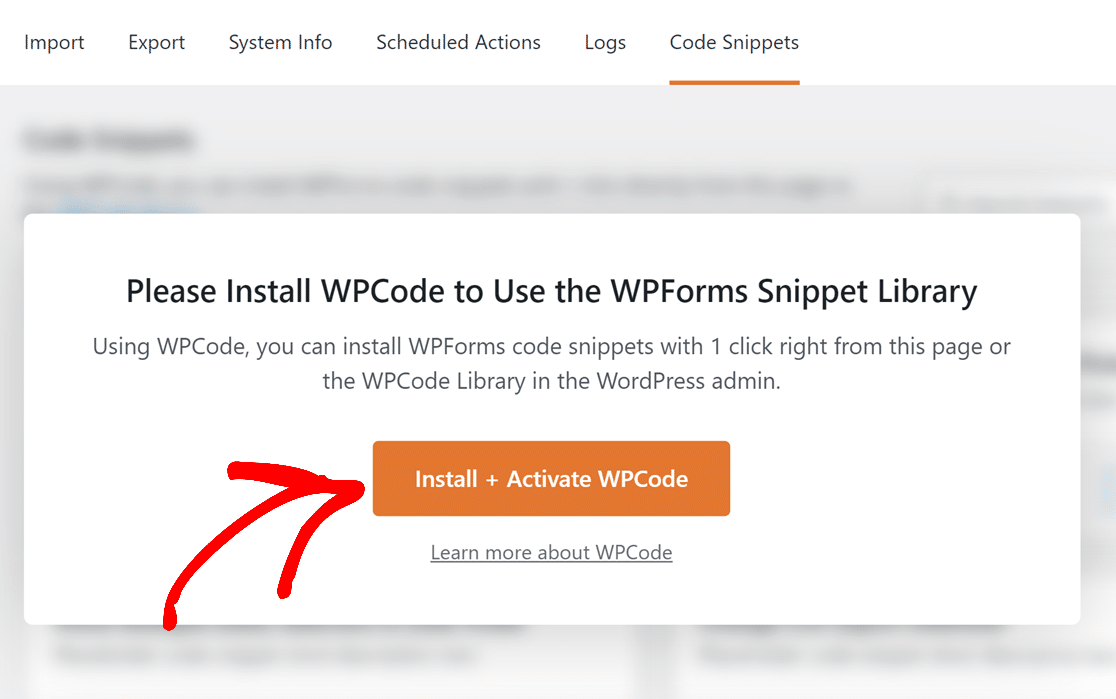
When you navigate to the Code Snippets tab, you’ll see a prompt asking you to install and activate the WPCode plugin.
Simply click on the **Install + Activate WPCode** button to access all WPForms code snippets through the WPCode plugin.
### Adding WPForms Code Snippets
Once WPCode is installed, you’ll see all the available WPForms code snippets. Installing them will activate their functionality across all your forms.
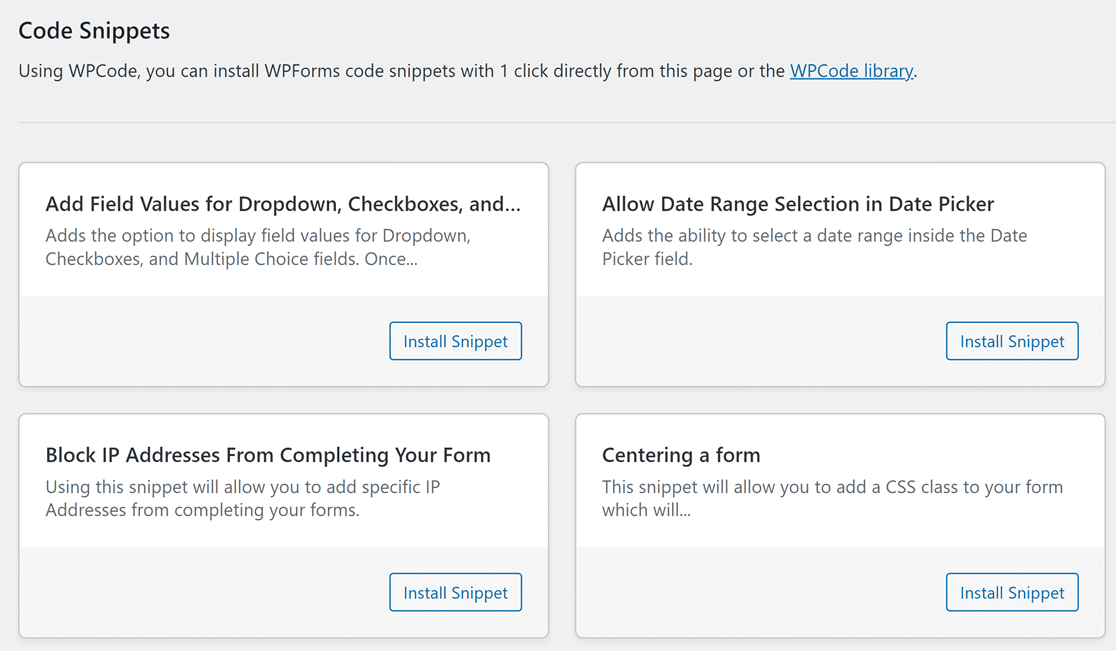
All code snippets are displayed with a title and a brief description outlining their functionality or the changes they will introduce to the forms.
To implement a desired feature, simply review its details and click on the **Install Snippet** button corresponding to that snippet.
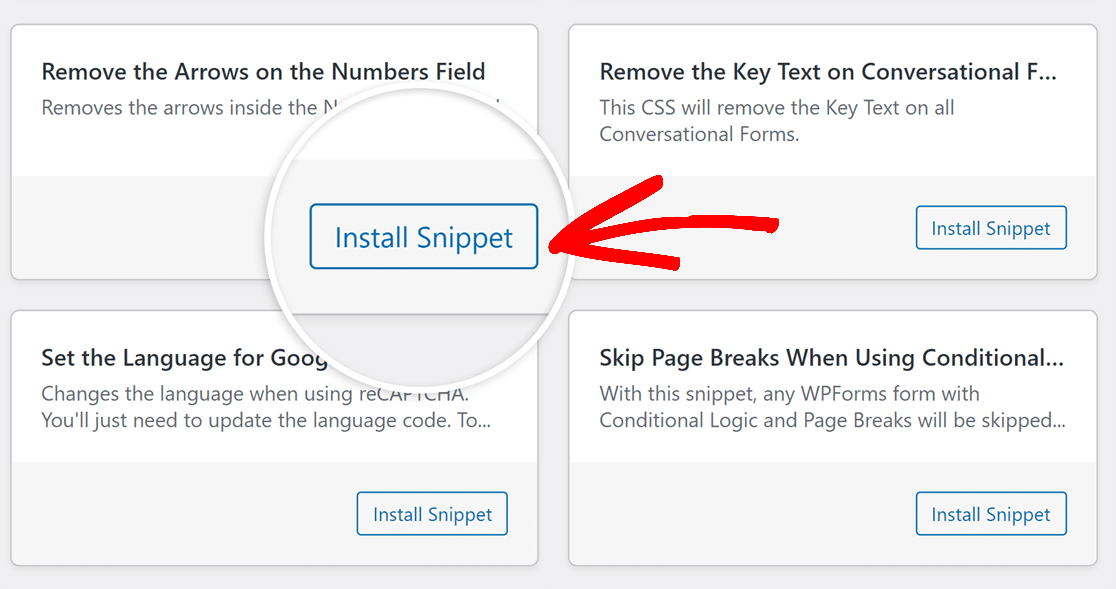
After selecting Install Snippet, you’ll be redirected to the WPCode page displaying the snippet details.
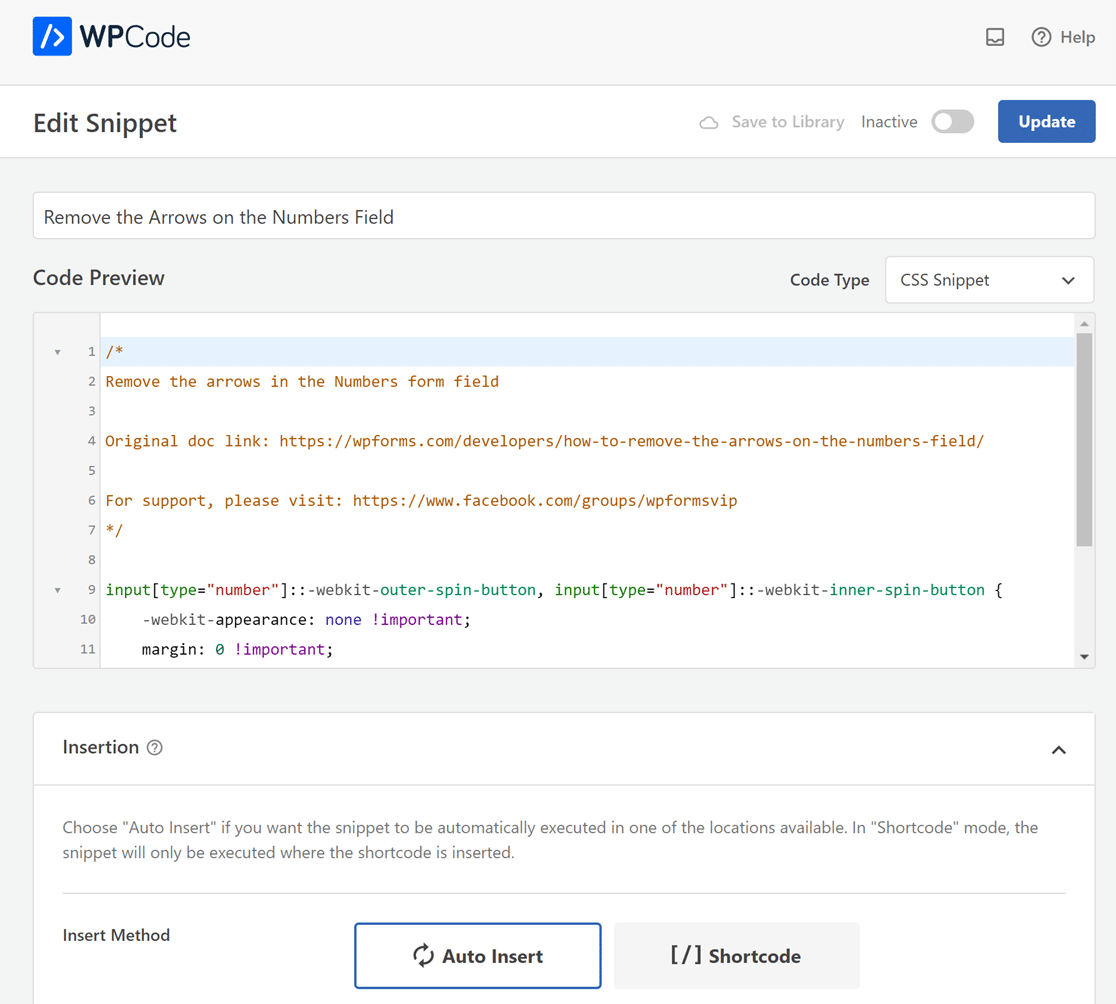
Here, you can view the code preview, adjust insertion settings, and specify the device type on which the snippet should run. Additionally, you can utilize smart conditional logic to determine specific pages for auto-insertion.
**Note:** For a deeper understanding of the available settings and detailed functionality, refer to [WPCode’s official documentation](https://wpcode.com/docs/).
For your convenience, the best settings suited for your site have been applied by default. While there’s no need to make changes, you have the flexibility to adjust any settings if desired.
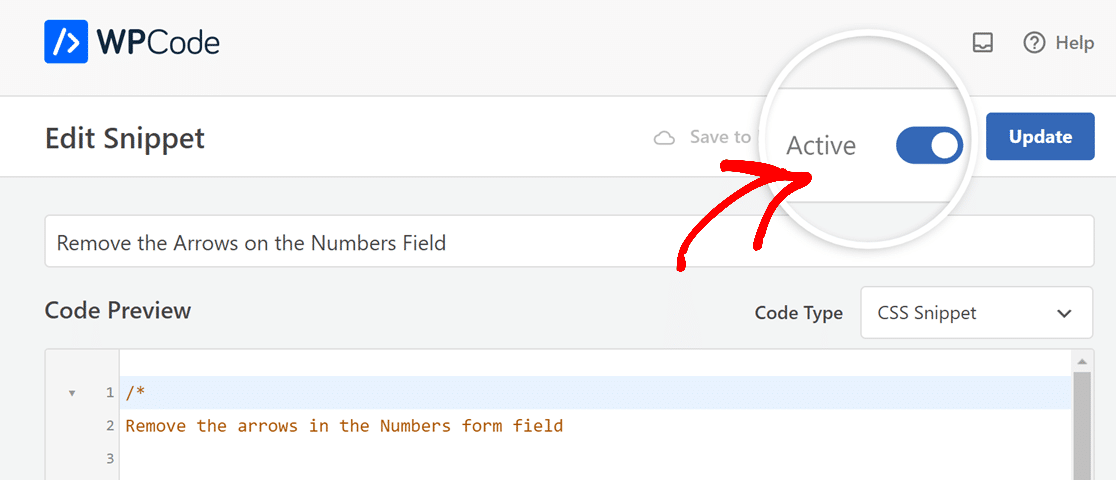
After making changes, make sure to toggle the **Active** option on.
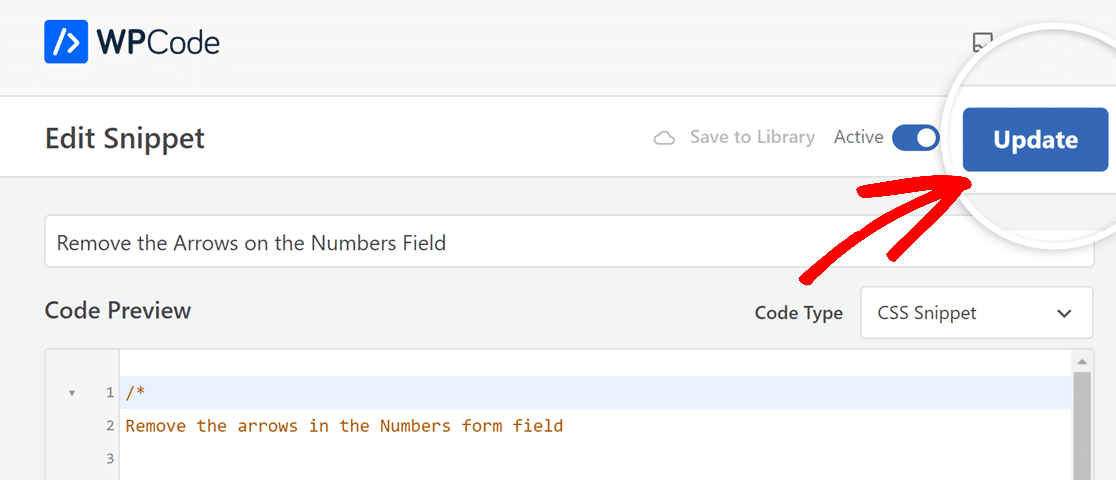
Then, simply click on the **Update** button to activate the snippet on your site, applying the specified modifications to your forms.
### Editing or Deleting a Code Snippet
With WPForms, you have streamlined access to WPCode’s snippets. Managing these snippets is effortless, and you can easily edit or delete them as needed.
#### Editing a Code Snippet
To edit an installed code snippet, go to the **Code Snippets** tab and click on the **Edit Snippet** button corresponding to the snippet you want to adjust.
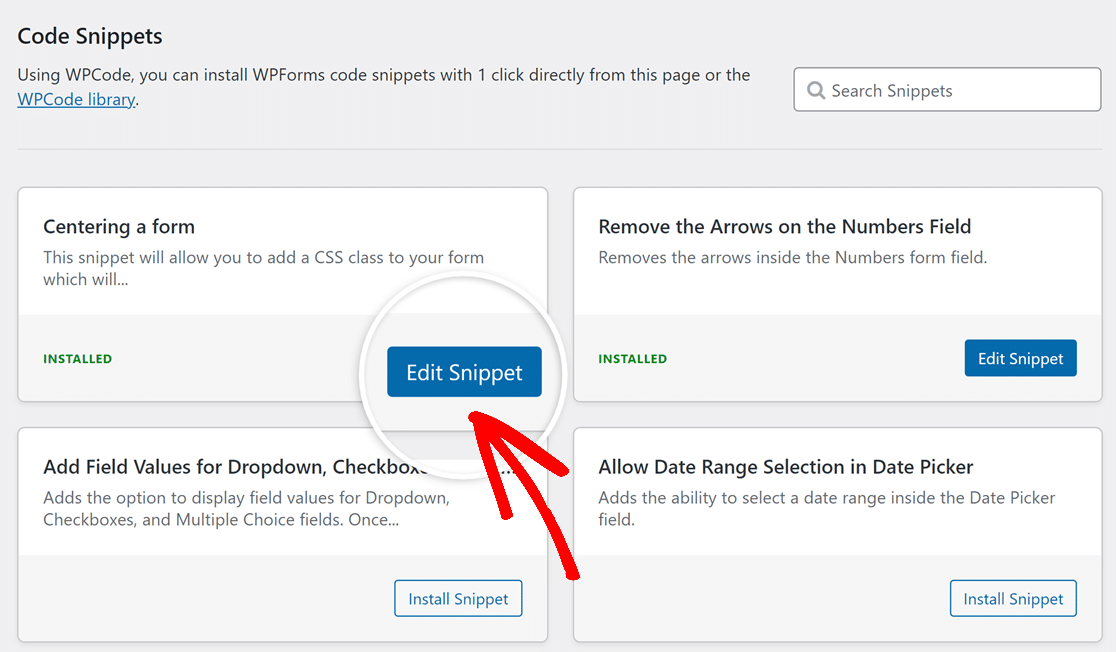
This will take you to its detailed page, where you can make modifications to the snippet as needed.
#### Deleting a Code Snippet
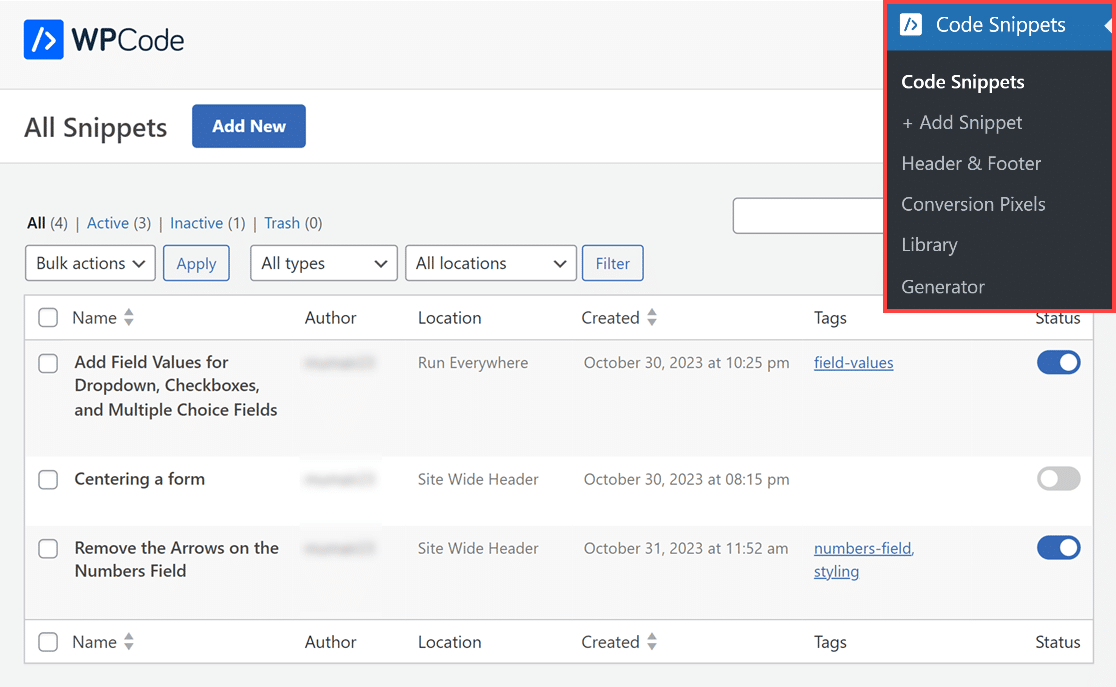
To delete a code snippet, click on **Code Snippets** **»** **Code Snippets** in your WordPress sidebar menu. This will display a list of all installed snippets, indicating which ones are active.
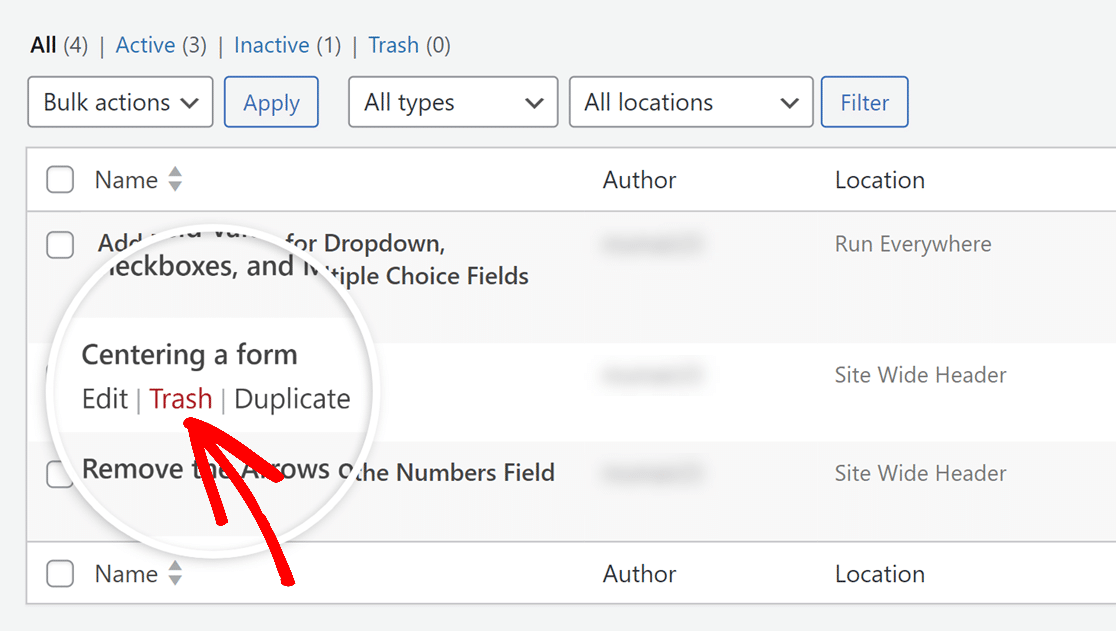
To remove a snippet, hover over it and click on **Trash**. This will remove the snippet along with its functionality from your site.
That’s it! Now you know how WPForms makes it straightforward to use the WPCode plugin and apply code snippets for better form functionalities
Next, would you like even more customization options? Be sure to check out our tutorial on [customizing the submit button](https://wpforms.com/docs/how-to-customize-the-submit-button/ "How to Customize the Submit Button").
**Categories:** Functionality, Extending Functionality
---