### [Installing the WPForms Plugin](https://wpforms.com/docs/install-wpforms-plugin/)
**Published:** November 23, 2023
**Author:** Umair Majeed
**Excerpt:** Learn how to install and activate the WPForms plugin on your WordPress site.
**Content:**
Are you ready to install the WPForms plugin on your WordPress site? After you’ve purchased a license, the next step is to install the plugin so you can start building forms for your website.
This step-by-step guide will walk you through how to install and activate the WPForms plugin.
- [Downloading the WPForms Plugin](#download)
- [Installing WPForms on Your Site](#installation)
- [Activating Your License](#activate)
**Note:** This tutorial is intended for brand new installs of WPForms. If you are upgrading from WPForms Lite, please see our tutorial on [how to upgrade to our paid plugin from WPForms Lite](https://wpforms.com/docs/upgrade-wpforms-lite-paid-license/) for more details.
---
## Downloading the WPForms Plugin
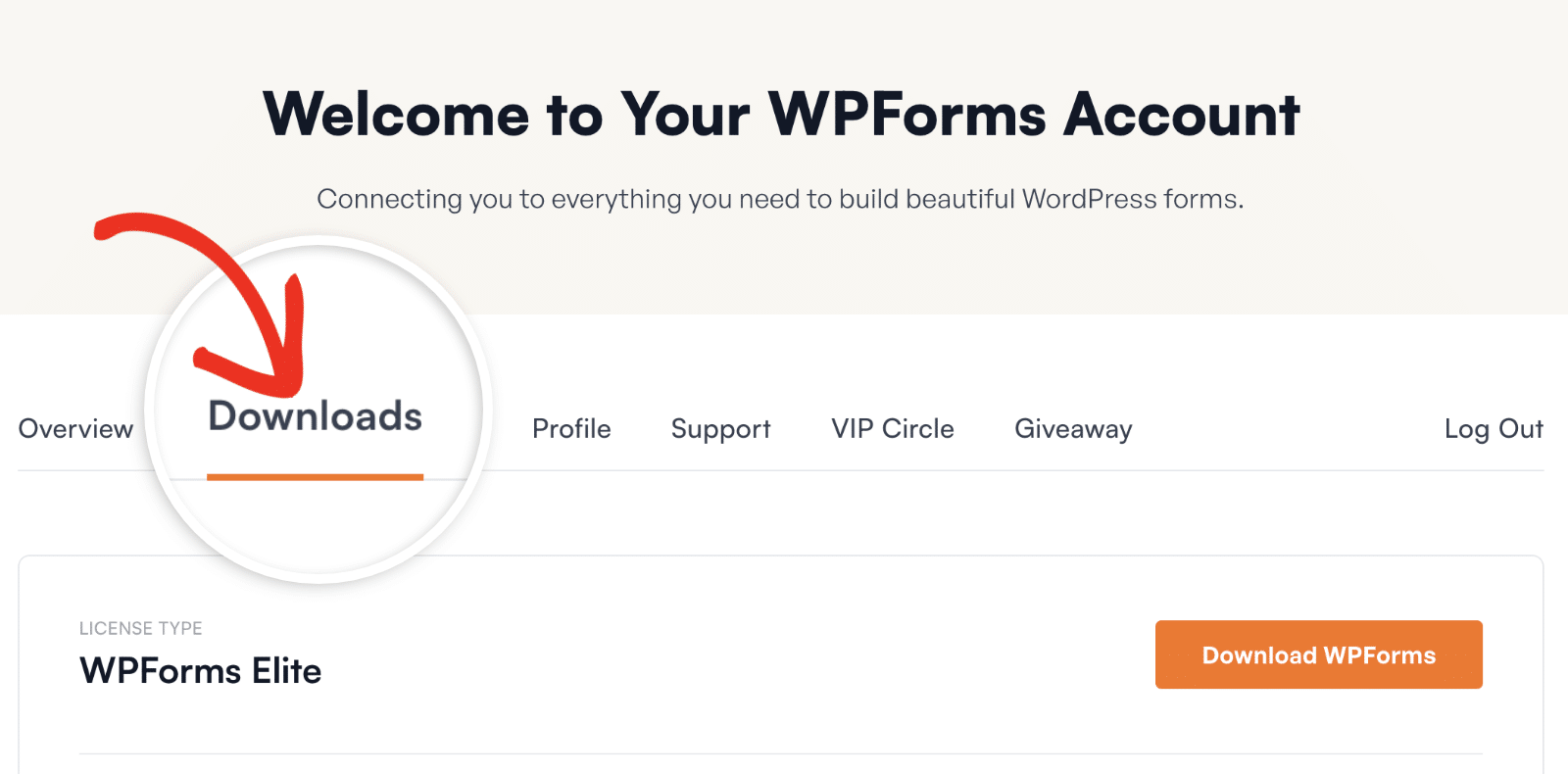
To get started, first [log in to your WPForms account](https://wpforms.com/account/). Once you’ve logged in, click on the **Downloads** tab.
This will show you a page with all of your available licenses. To download the plugin, click on the **Download WPForms** button next to one of your licenses. This will save a zipped file of the WPForms plugin to your computer.
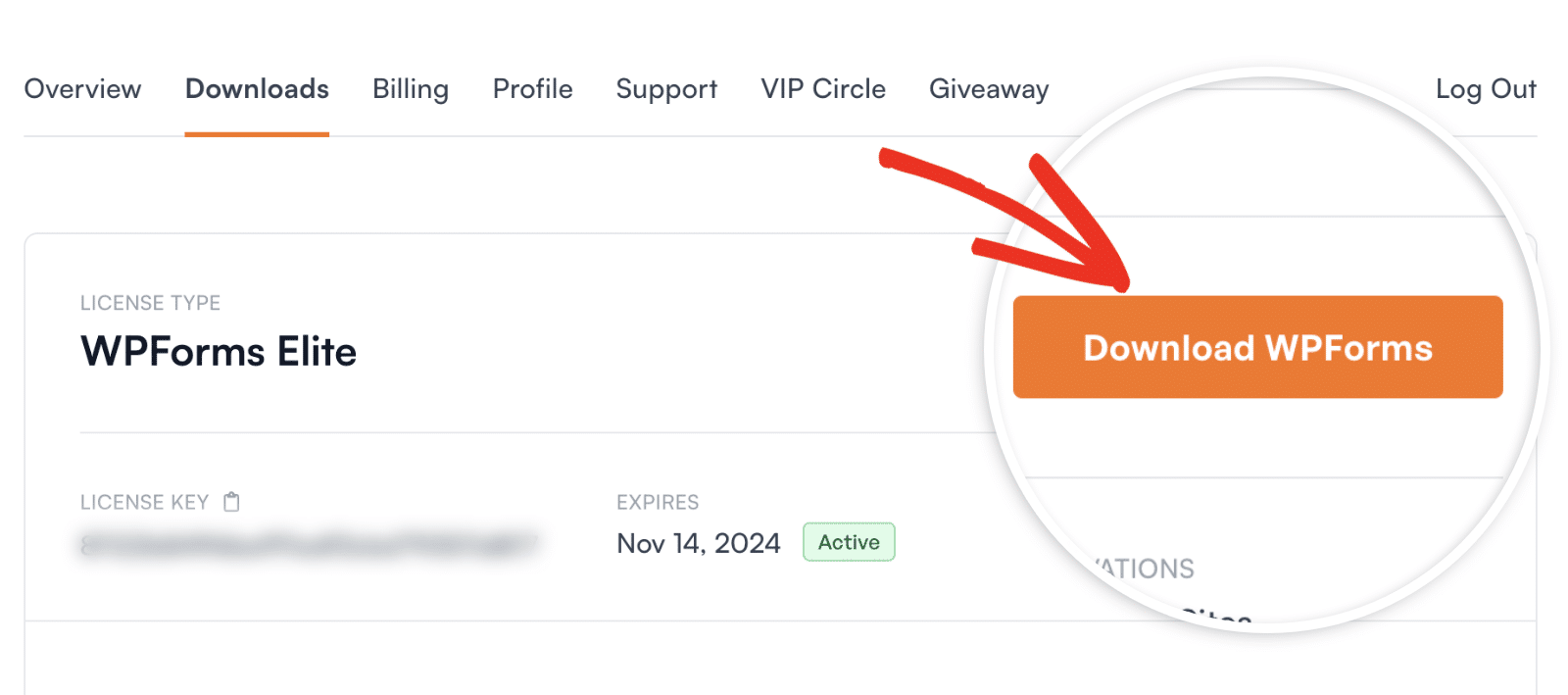**Note:** In some cases, this file may unzip as you download it, and instead appear as a regular folder. However, the folder must be zipped to use the WordPress plugin uploader.
For more details on how to zip and unzip files, be sure to check out these guides for [Windows](https://support.microsoft.com/en-us/help/14200/windows-compress-uncompress-zip-files) and [Mac](https://support.apple.com/kb/PH25411?locale=en_US) operating systems.
For now, you don’t have to download any of the addons, since you’ll be able to easily [install and activate addons](https://wpforms.com/docs/install-activate-wpforms-addons/) from inside your WordPress dashboard later.
## Installing WPForms on Your Site
**Note:** You’ll need WordPress version 5.5 or higher to install WPForms on your site. See our [supported WordPress version](https://wpforms.com/docs/supported-php-version/) tutorial for more details.
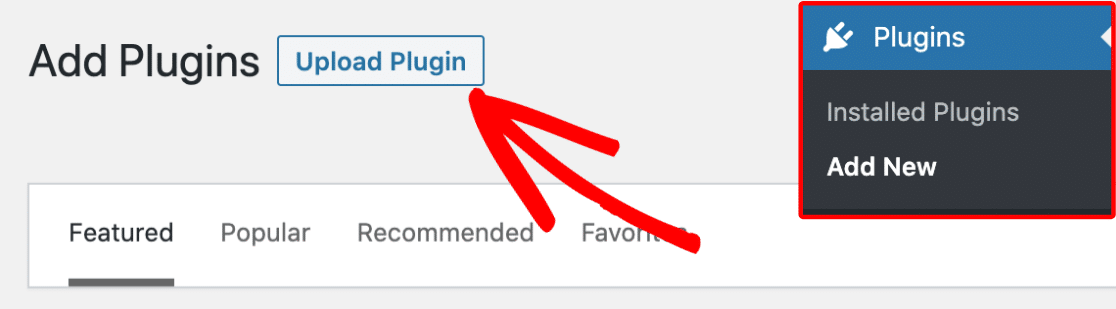
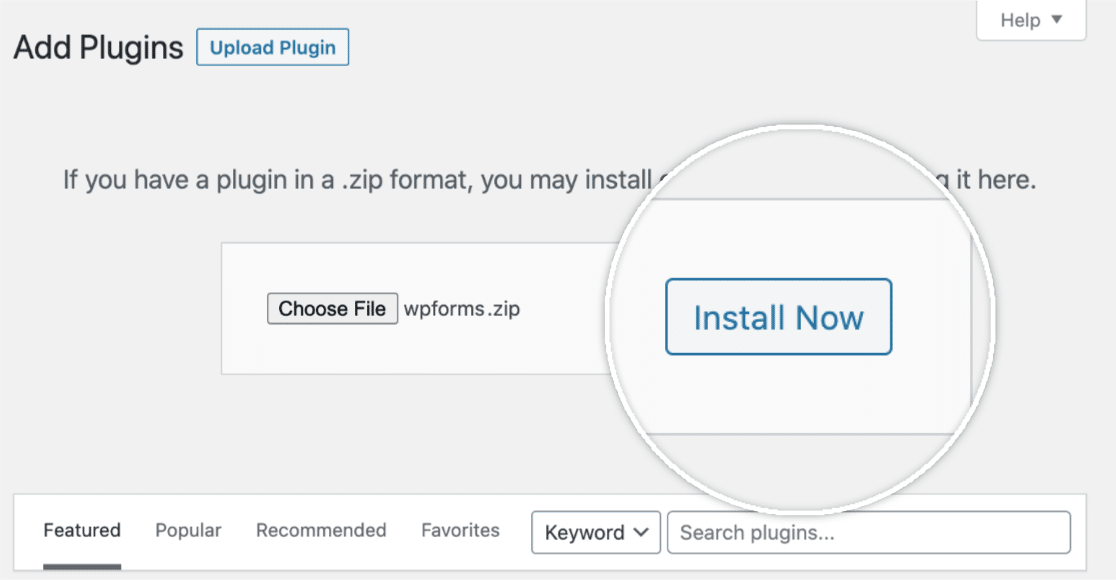
Once you’ve downloaded your zip file, go ahead and navigate to the site where you’d like to install WPForms. Then, inside the admin dashboard, go to **Plugins » Add New** and click the **Upload Plugin** button.
From here, you’ll see the option to upload the plugin. Click on the **Choose File** button and select the WPForms zip file you just downloaded.
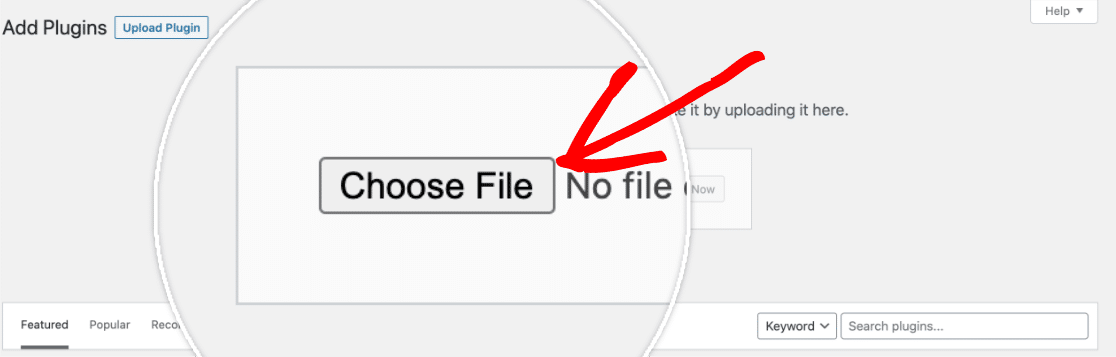After your file is uploaded, click on the **Install Now** button.
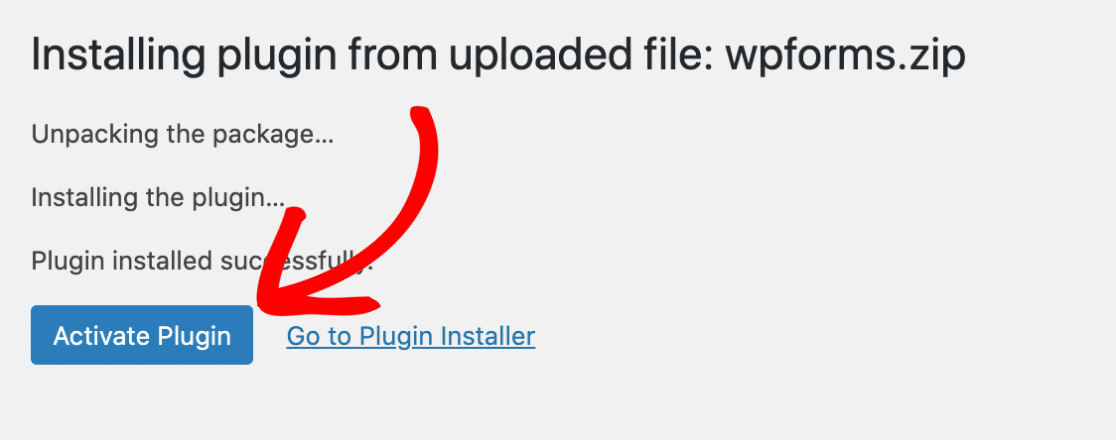
This will begin the installation process for you. Once the plugin is installed, click on the **Activate Plugin** button to activate WPForms on your site.
## Activating Your License
Once WPForms is installed and activated, the next step is activating your license. This unlocks automatic updates, plugin support, and the ability to [install WPForms addons](https://wpforms.com/install-activate-wpforms-addons/) directly from your WordPress dashboard, so it’s an important part of completing your setup.
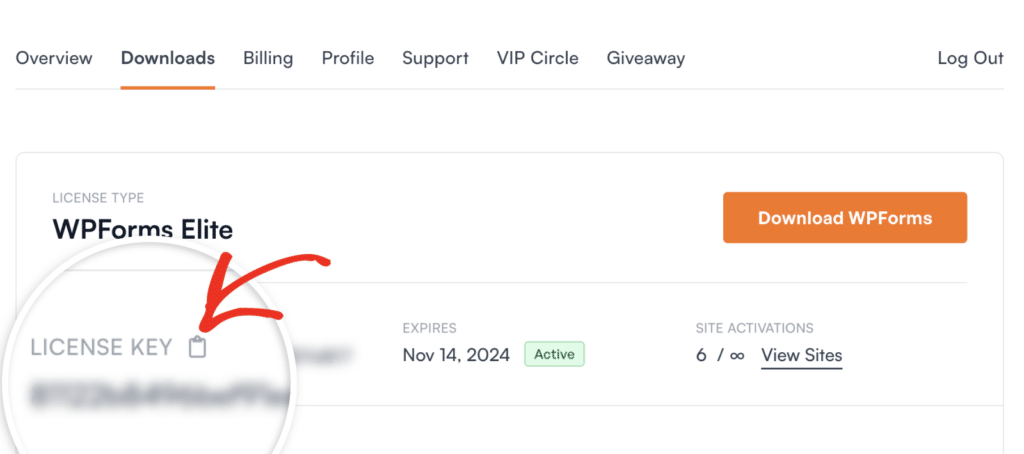
To get started, log in to your [WPForms account](https://wpforms.com/account/licenses/) and open the **Downloads** tab. Then click the clipboard icon next to your license key to copy it.
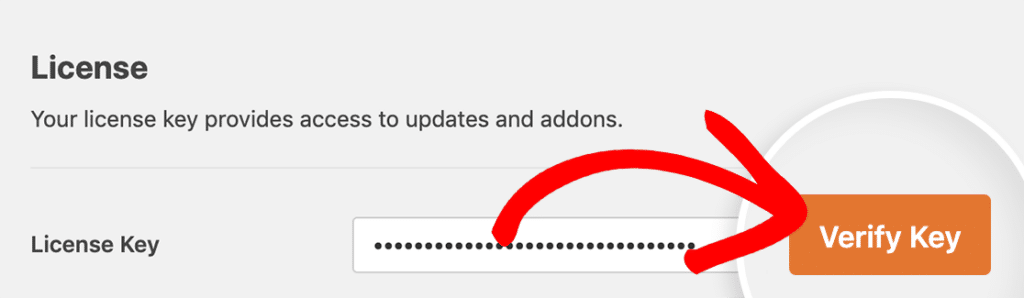
Next, in your WordPress dashboard, go to **WPForms » Settings**. Paste the key into the **License Key** field, then click the **Verify Key** button.
Once your license is verified, you’ll see a confirmation notice that your site is receiving automatic updates. Your license level will appear below the License Key field.
**Note:** For details on site limits, using your license on subdomain or staging sites, and troubleshooting verification issues, see our guide on [verifying your WPForms license](https://wpforms.com/docs/verify-wpforms-license/).
That’s it! You can now begin using the WPForms plugin on your WordPress site.
Next, would you like guidance on how to create your first form? Be sure to check out our tutorial on [how to create your first form in WPForms](https://wpforms.com/docs/creating-first-form/) for more details.
**Categories:** Getting Started
---