### [Limiting the Number of Checkbox Selections](https://wpforms.com/docs/how-to-limit-the-number-of-checkboxes-selections/)
**Published:** November 21, 2023
**Author:** Umair Majeed
**Excerpt:** Learn how to limit how many checkboxes a user can select within a Checkboxes field.
**Content:**
Would you like to limit how many checkboxes a user can select within a Checkboxes field? Normally, a Checkboxes field will allow any number of boxes to be checked, but in some situations, you might want to limit the number of allowed selections.
This tutorial will show you how to easily limit the number of checkboxes that can be selected.
- [Adding a Checkbox Limit](#add-limit)
- [Testing Your Form](#test-form)
Please enable JavaScript in your browser to complete this form.
### Try this Form Demo!
Please select the 2 subjects you are most interested in:- Mathematics
- Art
- Science
- Social Studies
Submit
Check out our [Community Garden Plot Application Form Template](https://wpforms.com/templates/community-garden-plot-application-form-template/) to see a live preview of this feature. You can easily import it to your site if you’d like to use the template.
---
Before getting started, you’ll first need to make sure WPForms is [installed and activated](https://wpforms.com/docs/install-wpforms-plugin/ "How to Install the WPForms Plugin") on your WordPress site, and that you’ve [verified your license](https://wpforms.com/docs/verify-wpforms-license/ "How to Verify Your WPForms License"). Then, you can [create a new form](https://wpforms.com/docs/creating-first-form/ "How to Create Your First Form") or edit an existing one to access the form builder.
## Adding a Checkbox Limit
Once the form builder is open, go ahead and add a **Checkboxes** field to your form.
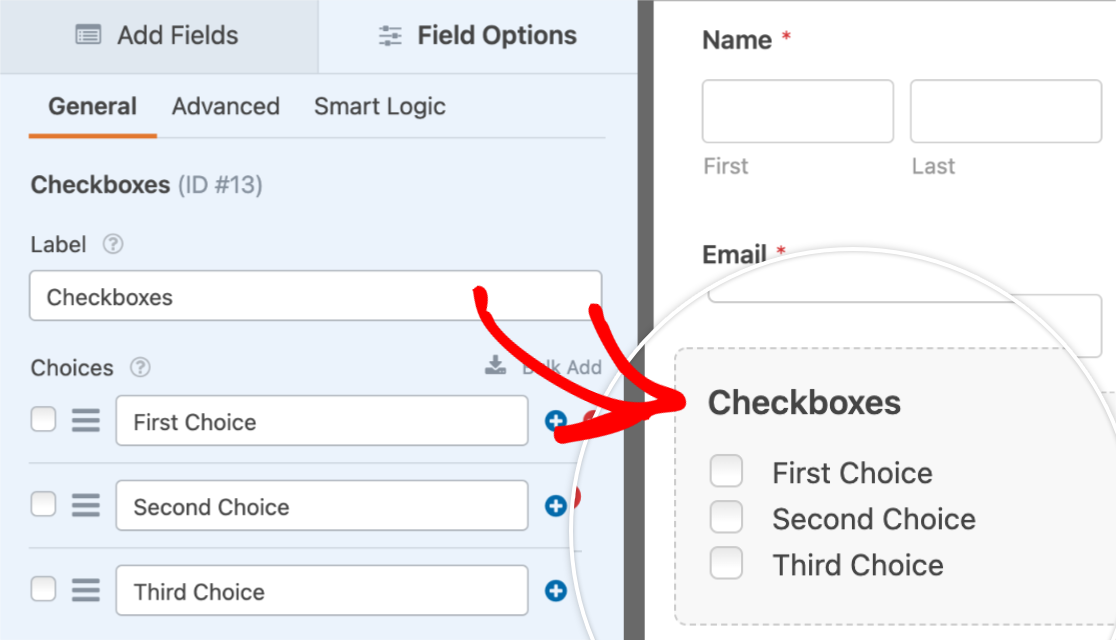
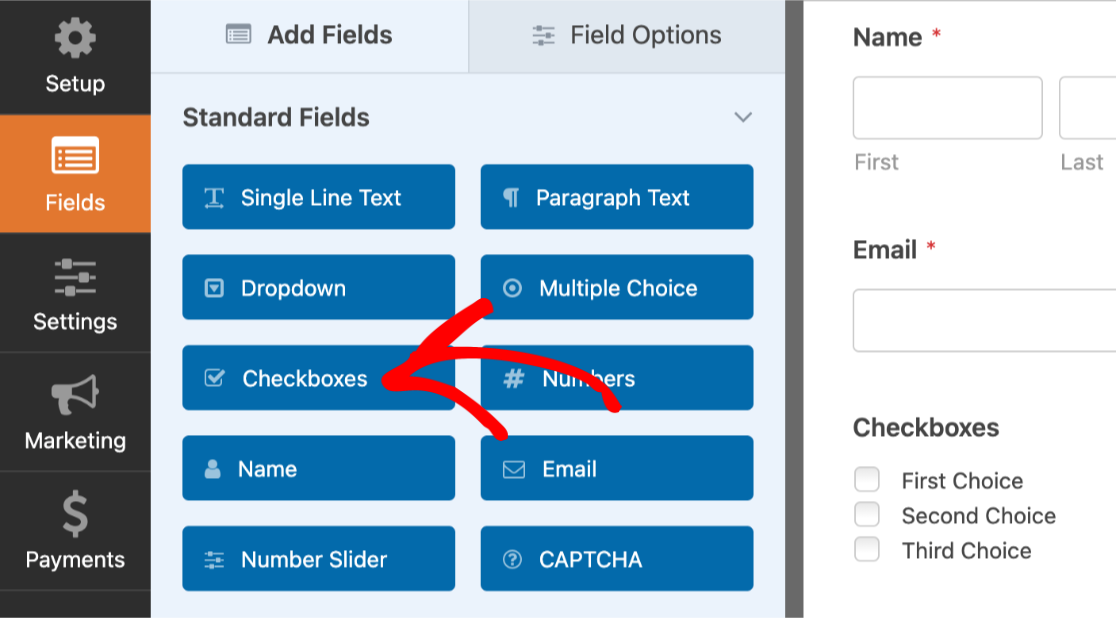Now, click on this field in the preview area to open its **Field Options**.
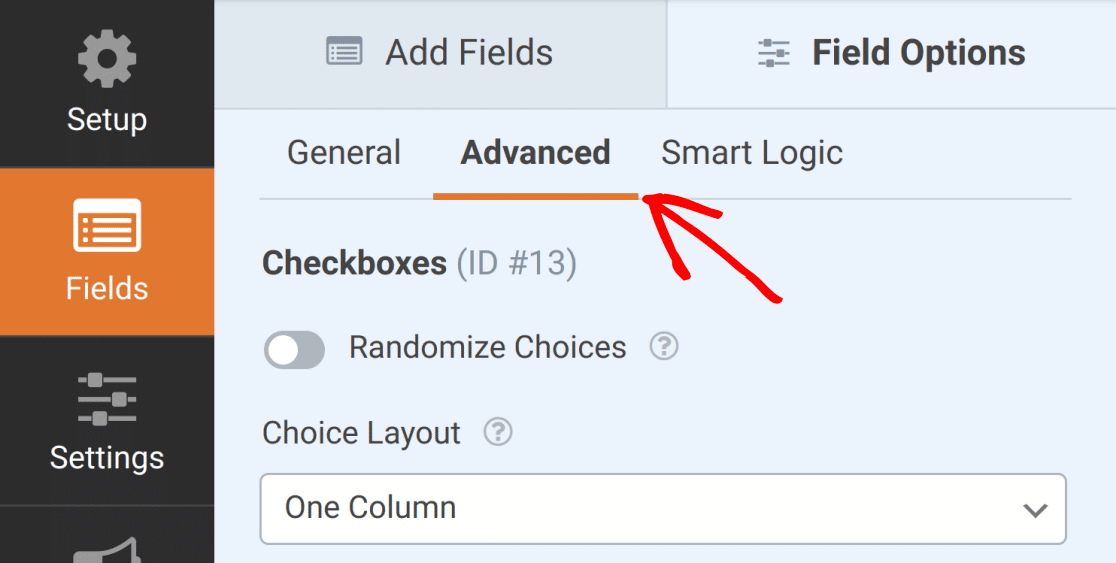
Next, within the Field Options panel, click on the **Advanced** tab to open the field’s advanced options.
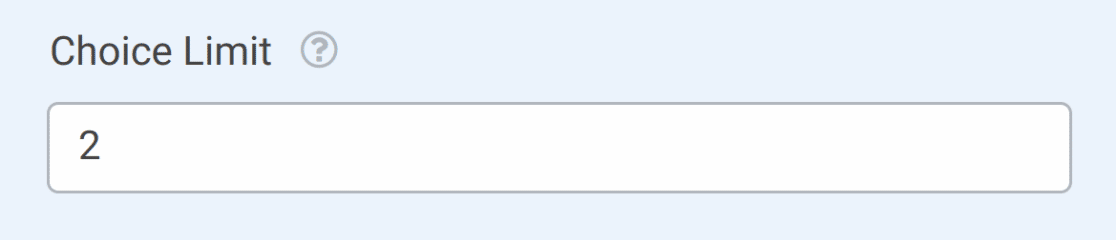
Then, within the **Choice Limit** field, add the maximum number of checkboxes you’d like your users to be able to select. For our example, we’ll limit our users to only 2 choices.
Once you’ve added your choice limit, be sure to save your form.
If you’d like your users to only be able to select one option at a time, we recommend using the Multiple Choice field. See our guide to [using the Multiple Choice field](https://wpforms.com/docs/how-to-customize-the-multiple-choice-field-in-wpforms/) for more details.
## Testing Your Form
For the last step in this setup, we recommend testing your form so you can check that it looks and works how you’d like. Our detailed guide on [testing forms](https://wpforms.com/docs/how-to-properly-test-your-wordpress-forms-before-launching-checklist/ "How to Properly Test Your WordPress Forms Before Launching [Checklist]") shares a checklist of recommended steps to consider before publishing your forms.
For this particular feature, the main thing you should notice when testing your form is the [validation message](https://wpforms.com/docs/customize-wpforms-validation-messages/ "How to Change WPForms Validation Messages"). This message appears when a user has exceeded the number of allowed selections. The user will not be able to submit the form until they select the correct number of boxes.
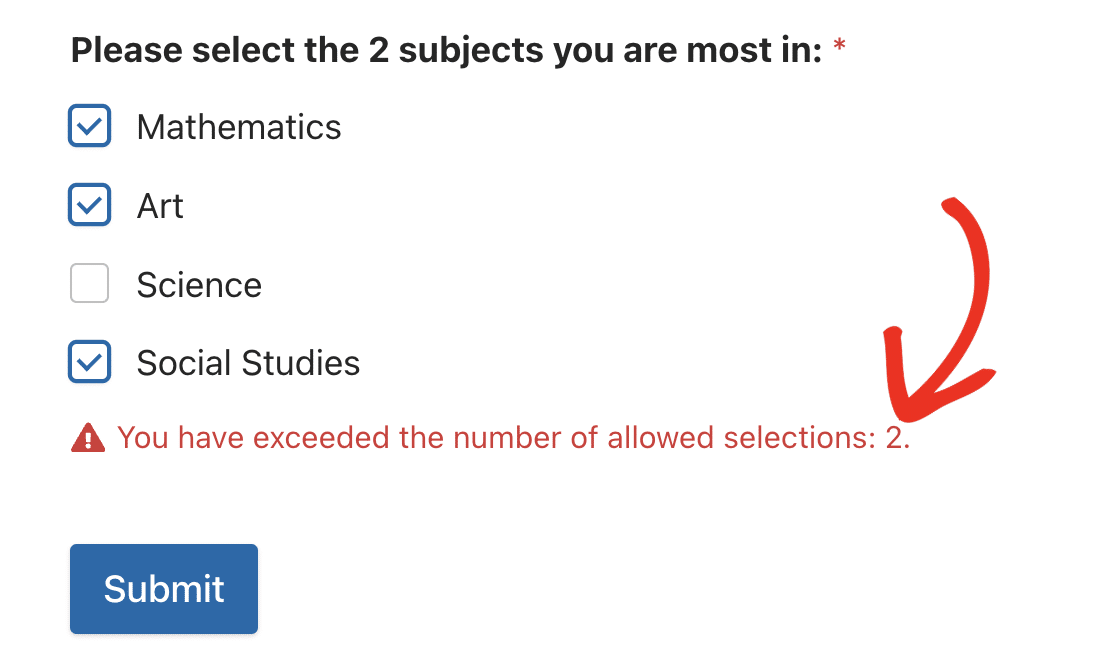That’s it! You can now limit the number of boxes that a user can check in a Checkboxes field.
Next, would you like to try some of the other customization options for the Checkboxes field? Be sure to check out our tutorials on [randomizing checkbox options](https://wpforms.com/docs/how-to-randomize-checkbox-and-multiple-choice-options/ "How to Randomize Checkbox and Multiple Choice Options"), [creating multi-column layouts](https://wpforms.com/docs/how-to-create-a-multi-column-layout-for-radio-buttons-and-checkboxes/ "How to Create a Multi-Column Layout for Radio Buttons and Checkboxes"), and [enabling survey reports](https://wpforms.com/docs/how-to-install-and-use-the-surveys-and-polls-addon/ "How to Install and Use the Surveys and Polls Addon").
**Categories:** Fields, Field Customizations
---