### [Displaying Fields in a Single Column on Mobile](https://wpforms.com/docs/how-to-display-fields-in-a-single-column-on-mobile/)
**Published:** November 23, 2023
**Author:** David Ozokoye
**Excerpt:** Learn how to use layout CSS classes to display your forms in a single column on mobile devices.
**Content:**
Do you want to convert a multi-column form layout to a single column when viewed on mobile? While using multiple columns can look great on larger screens, changing to a single-column form layout on smaller screens will let your forms look professional and easy to use.
This tutorial will show you how to turn your multi-column layouts into a single column only for users visiting your site on a mobile device.
- [Creating a Multi-Column Form Layout](#multi-column)
- [Displaying Fields in a Single Column on Mobile](#single-column-mobile)
**Note:** We recommend using the [Layout field](https://wpforms.com/docs/how-to-use-the-layout-field-in-wpforms/) for a simpler, drag-and-drop approach to building advanced form layouts that automatically adjust to the users’ screen size. However, the layout CSS classes covered in this tutorial are still supported.
---
Before getting started, you’ll first need to make sure WPForms is [installed and activated](https://wpforms.com/docs/install-wpforms-plugin/ "How to Install the WPForms Plugin") on your WordPress site and that you’ve [verified your license](https://wpforms.com/docs/verify-wpforms-license/ "How to Verify Your WPForms License"). Then, you can [create a new form](https://wpforms.com/docs/creating-first-form/ "How to Create Your First Form") or edit an existing one to access the form builder.
Check out our customizable [Multi-Column Request a Quote Form Template](https://wpforms.com/templates/multi-column-request-a-quote-form-template/) to get started easily.
## Creating a Multi-Column Form Layout
With WPForms, you can easily [create forms with multiple columns.](https://wpforms.com/docs/how-to-create-multi-column-form-layouts-in-wpforms/ "How to Create Multi-Column Form Layouts in WPForms") For this example, let’s create a two-column layout using the following CSS class: `wpforms-one-half`. Here’s an example of how our multi-column form will look.
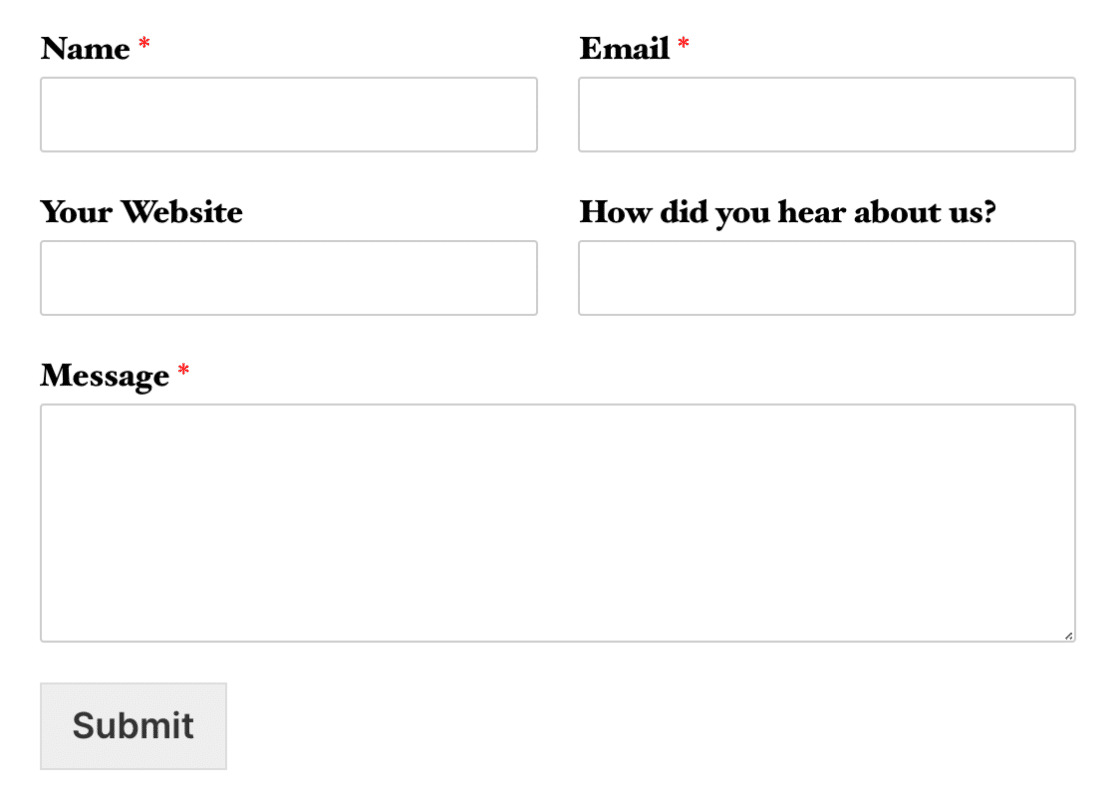**Note:** The first field in each row in the image above also uses the `wpforms-first` class (i.e. `wpforms-one-half wpforms-first`. This class tells the field that it needs to start a new row.
After creating a two-column form layout, we want to make sure that the form fields are displayed in a single column only for users that visit your site on a mobile device.
## Displaying Fields in a Single Column on Mobile
To display fields in a single column on mobile, we’ll need to use a preset CSS class. In the form builder, click on a field to display the **Field Options**. Then, under the **Advanced** section, add the `wpforms-mobile-full` class to the **CSS Classes** field.
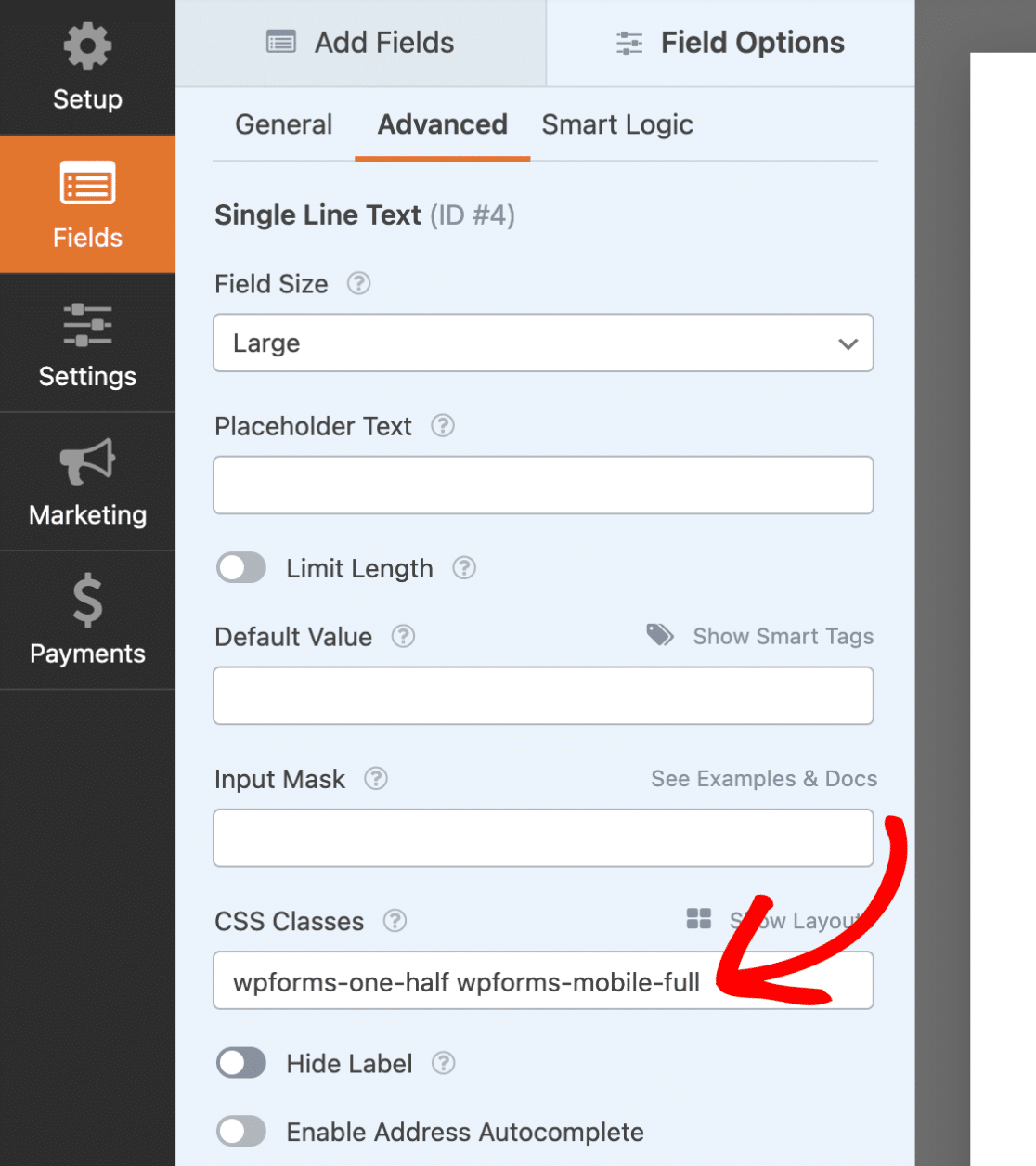Finally, do the same for the other fields in the form, and remember to click the **Save** button to keep the changes.
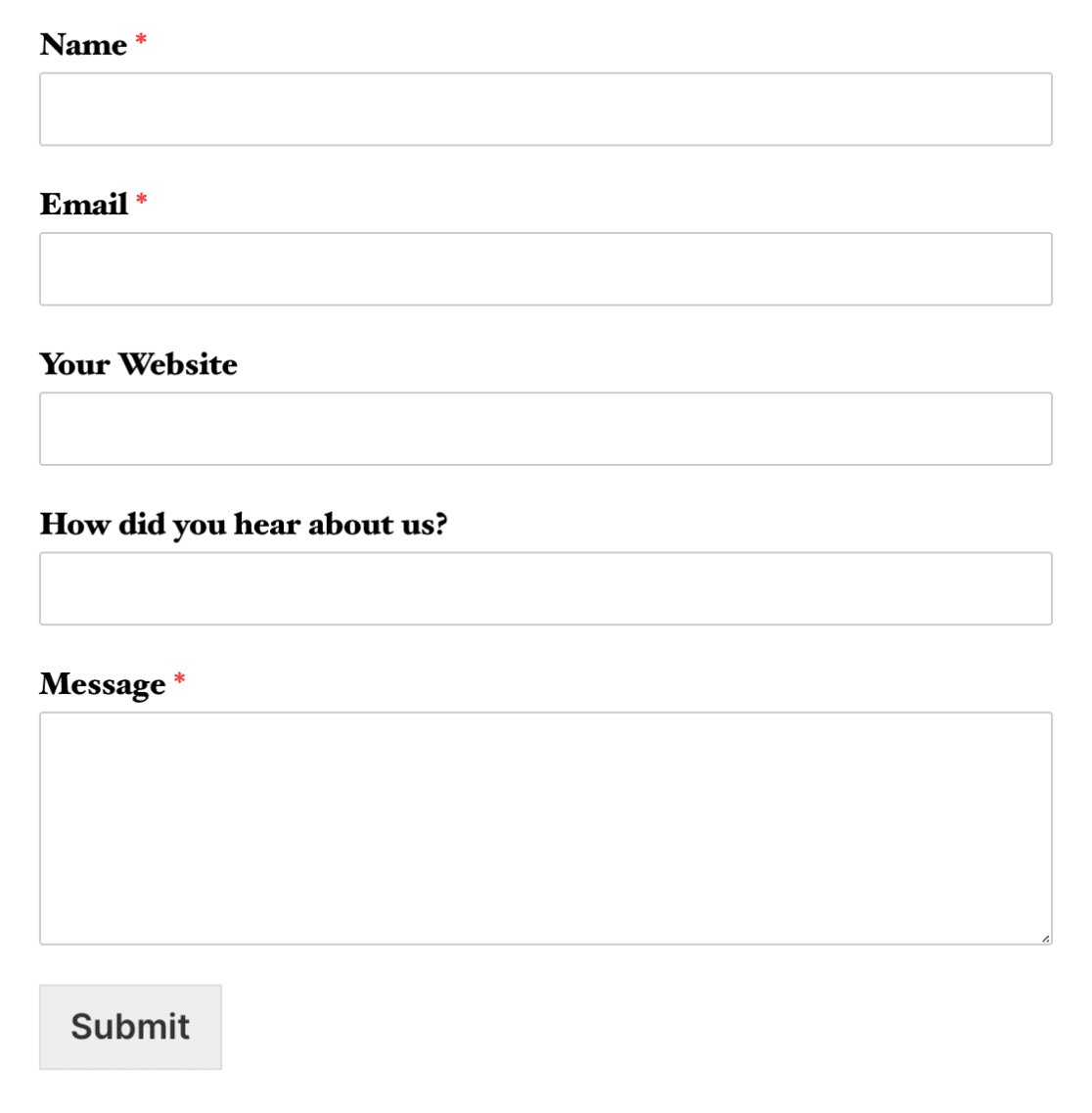
Now, for mobile visitors, your multi-column form layout will be shown as a single column. Here’s an example of how the form would look on a mobile device:
That’s it! You can now create forms that change from multi-column layouts to a single column on mobile devices.
Next, do you want to further customize the appearance of your form? Then be sure to check out our tutorial on [adding custom CSS](https://wpforms.com/docs/how-to-add-custom-css-to-your-wpforms/ "How to Add Custom CSS to Your WPForms") to your form.
**Categories:** Styling, Styling and Customization
---