### [Adding Image Choices](https://wpforms.com/docs/how-to-add-image-choices-to-fields/)
**Published:** November 25, 2023
**Author:** David Ozokoye
**Excerpt:** Learn how to add images to Multiple Choice, Checkboxes, Multiple Items, or Checkbox Items fields.
**Content:**
Would you like to add image options to your forms? WPForms makes it easy to add images to your Multiple Choice, Checkboxes, Multiple Items, and Checkbox Items fields so that your users can see the option or item you’ve listed.
This tutorial will show you how to add image choices to existing or new fields in WPForms.
- [Setting Up Image Choices](#setup)
- [Adding Images](#adding-images)
- [Customizing Image Options](#customize)
Please enable JavaScript in your browser to complete this form.
##### Flower Order Form Demo!
Choose a flower to order \*- Rose Flower – $4.99
- Sun Flower – $7.99
- Sullie’s Special – $14.99
Shipping Address \*Address Line 1
City
— Select state —AlabamaAlaskaArizonaArkansasCaliforniaColoradoConnecticutDelawareDistrict of ColumbiaFloridaGeorgiaHawaiiIdahoIllinoisIndianaIowaKansasKentuckyLouisianaMaineMarylandMassachusettsMichiganMinnesotaMississippiMissouriMontanaNebraskaNevadaNew HampshireNew JerseyNew MexicoNew YorkNorth CarolinaNorth DakotaOhioOklahomaOregonPennsylvaniaRhode IslandSouth CarolinaSouth DakotaTennesseeTexasUtahVermontVirginiaWashingtonWest VirginiaWisconsinWyomingState
Total \*$0.00
Order Now
Want to preview and use a customizable form template to speed up your form creation process? Check out our [Sample Shirt Order Form Template](https://wpforms.com/templates/sample-shirt-order-form-template/).
---
## Setting Up Image Choices
Before getting started, you’ll first need to make sure WPForms is [installed and activated](https://wpforms.com/docs/install-wpforms-plugin/ "How to Install the WPForms Plugin") on your WordPress site and that you’ve [verified your license](https://wpforms.com/docs/verify-wpforms-license/ "How to Verify Your WPForms License"). Then you can [create a new form](https://wpforms.com/docs/creating-first-form/ "How to Create Your First Form") or edit an existing one to access the form builder.
Once the form builder is open, you’ll be able to add image choices to any of the following field types:
- Multiple Choice
- Checkboxes
- Multiple Items
- Checkbox Items
Additionally, you can add images to both new and existing fields of these field types.
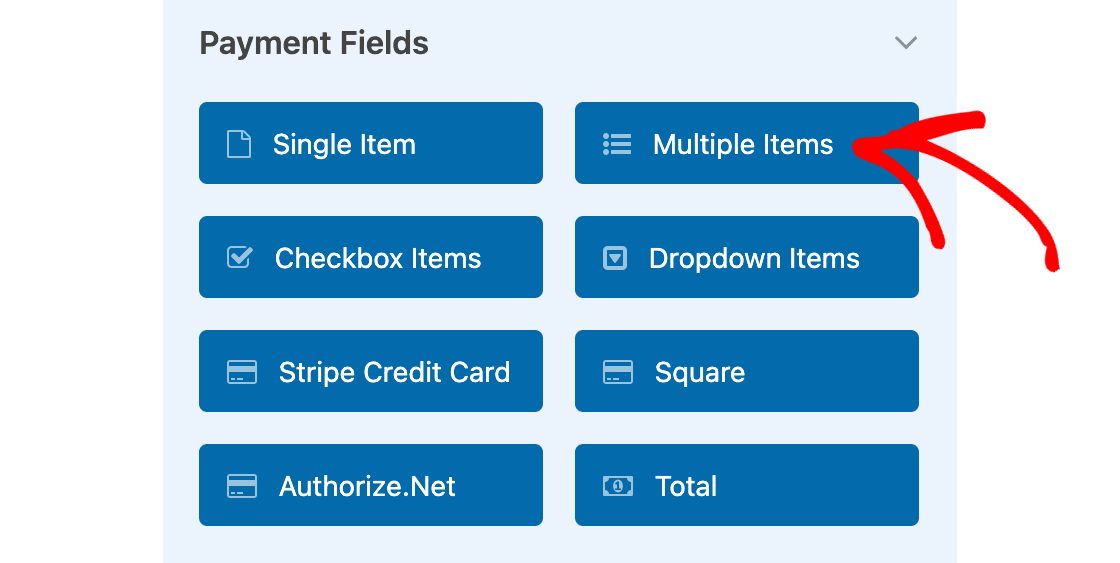
For our example, we want to show images for item options in [an order form](https://wpforms.com/how-to-create-a-simple-order-form-in-wordpress/ "How To Create an Order Form in WordPress [+Free Templates]"). To do this, we’ll first add a **Multiple Items** field to our form.
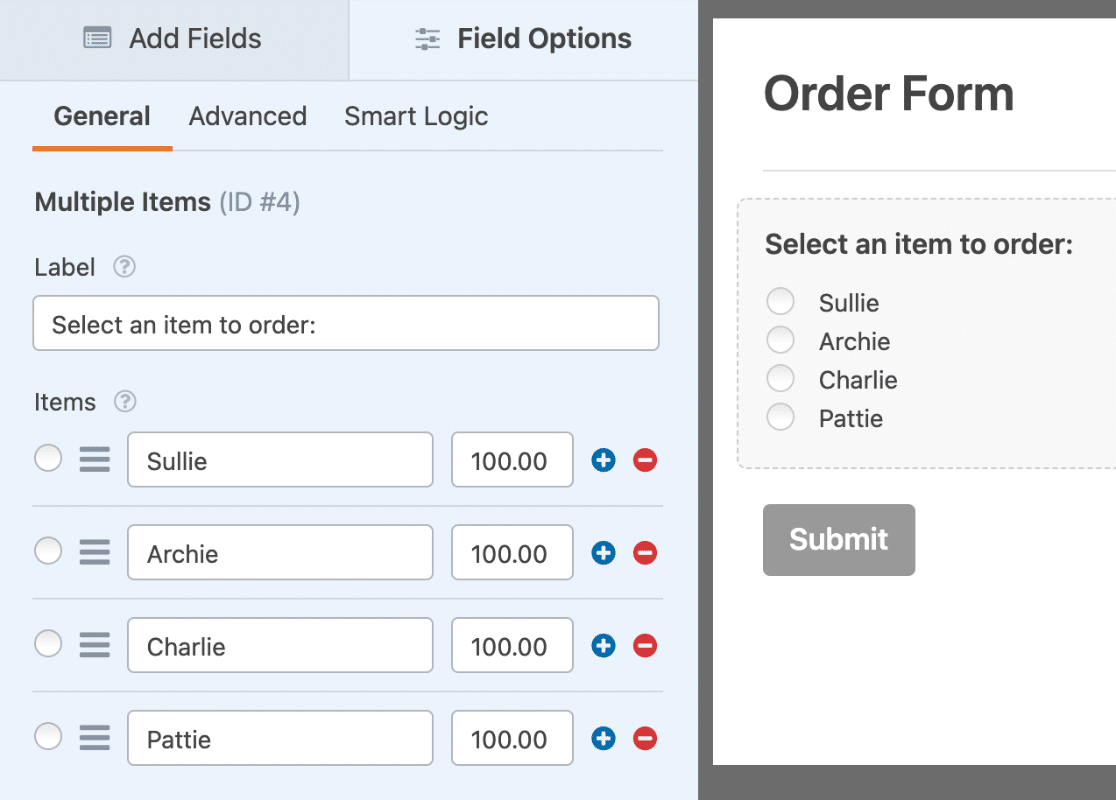
Now that we’ve added our field, the next step is to change the field label and add text for available options. Since we’re using a Multiple Items field, we also need to add prices for each item.
Once this basic setup is ready to go, we’ll select the **Use image choices** option.
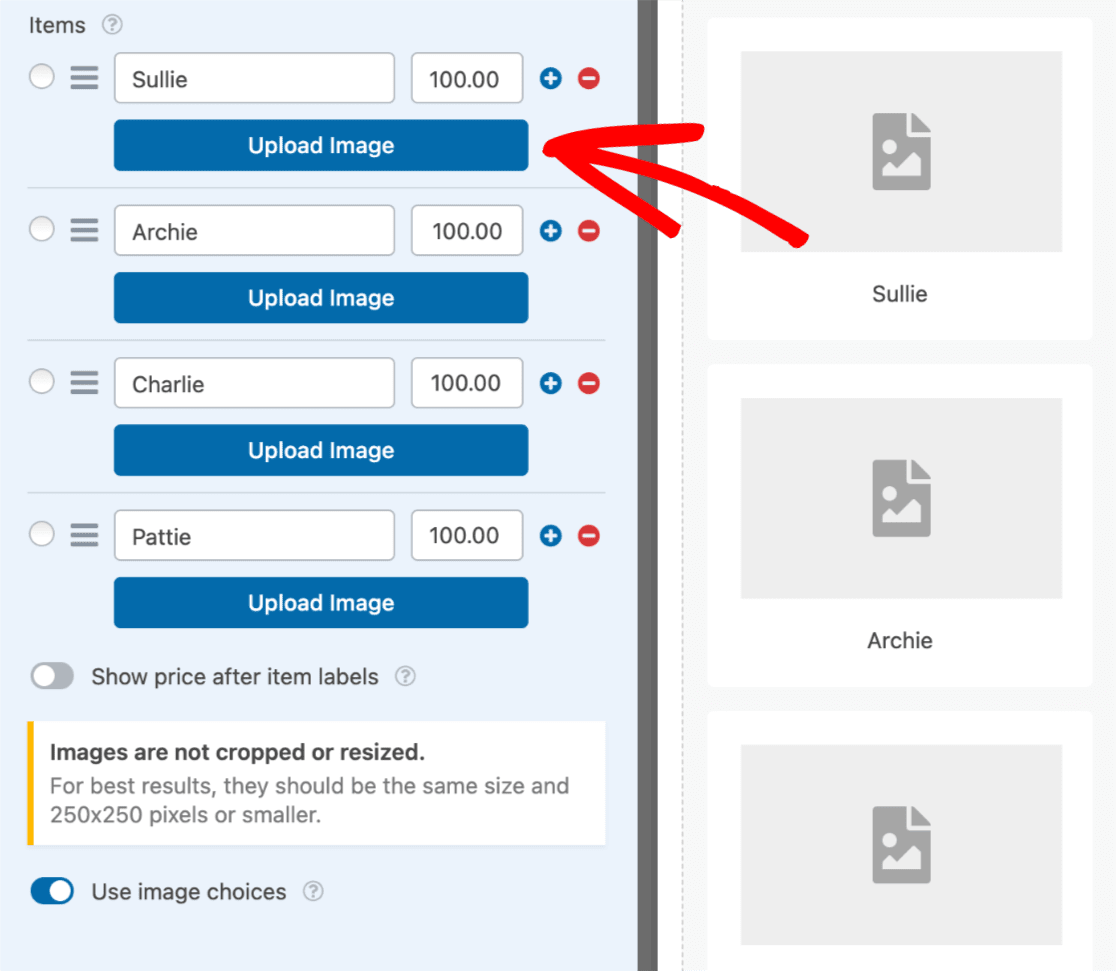
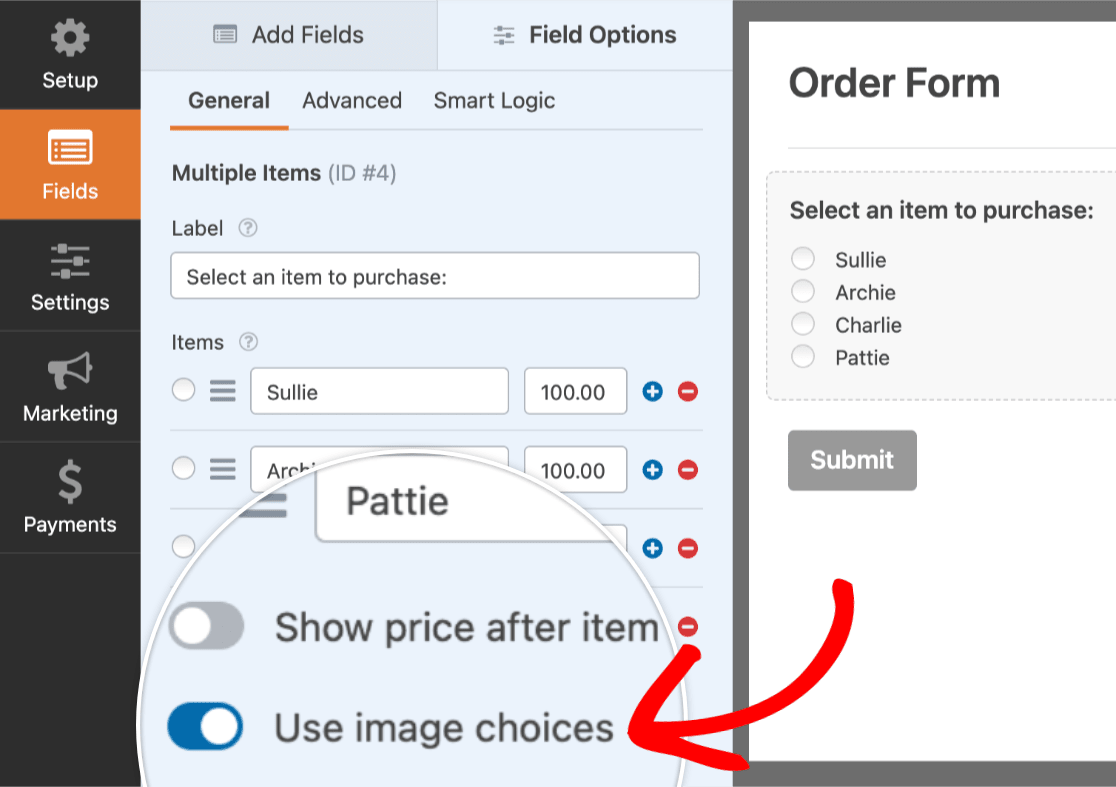As soon as this option is enabled, an **Upload Image** button will be added to each option. Also, a placeholder image will be displayed for each option in the preview area.
The placeholder images are meant to guide the form building process and only display in the preview area. These placeholder images will not be shown when the form is embedded on your site.
## Adding Images
To add an image to an option, go ahead and click the **Upload Image** button.
If you’re trying to upload an image format that isn’t accepted (such as .svg files), you’ll first need to enable support for that file type. Be sure to check out our guide on [allowing additional file upload types](https://wpforms.com/docs/how-to-allow-additional-file-upload-types/) for more details.
This will open the WordPress Media Library. From here, you can select a file that has already been added to your site or upload a new image. Once you’ve chosen the image you’d like to use, click the **Use Image** button.
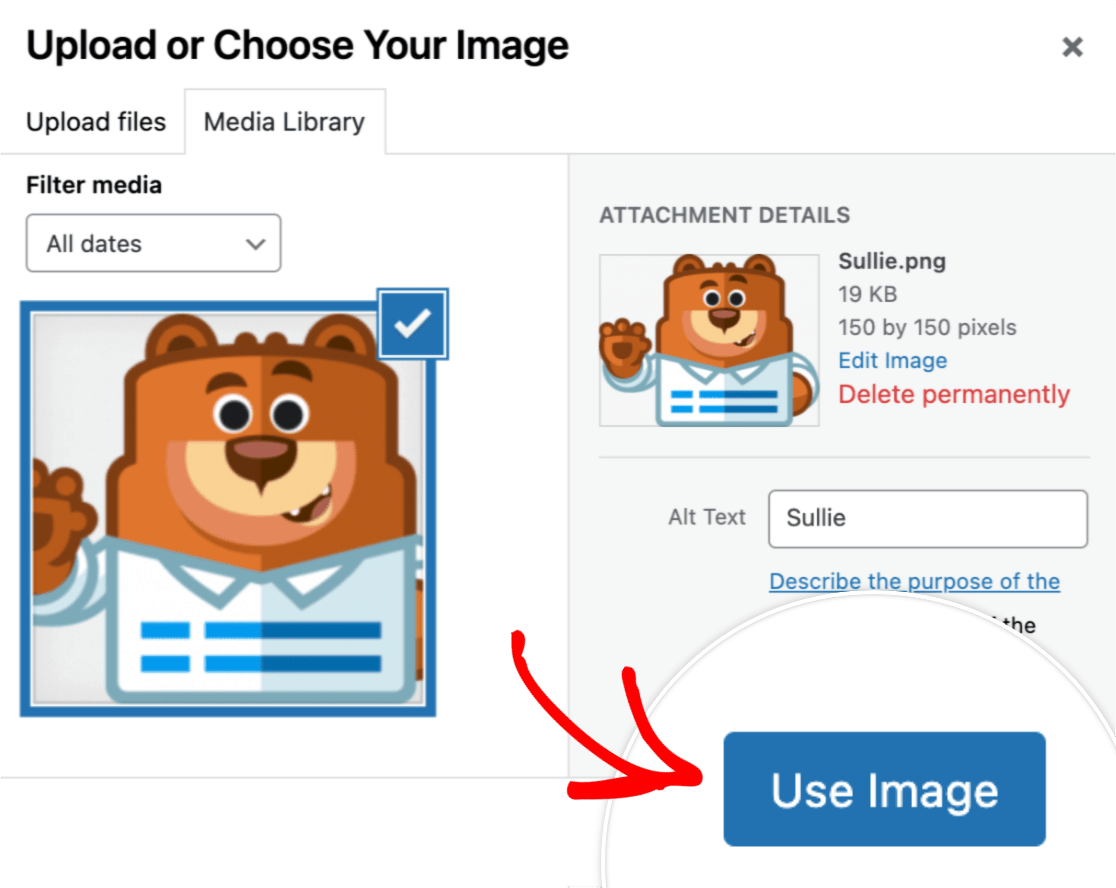For this example, we’ve already edited all images to be 150 by 150 pixels in size. This will help our image options to look more uniform and professional.
Images will not be cropped or resized when added to your form. For best results, we recommend making all image choices the same size and 250 by 250 pixels or smaller.
For details on basic image editing options built into the WordPress Media Library, including scaling and cropping, please see [WPBeginner’s tutorial](http://www.wpbeginner.com/beginners-guide/how-to-crop-rotate-scale-and-flip-images-in-wordpress/).
Here’s how our image choices will appear to our users:
If you prefer a cleaner look by hiding the labels beneath the image choices, our [developer documentation](https://wpforms.com/developers/how-to-hide-image-choice-labels-with-wpforms/) provides a quick CSS snippet to do just that.
## Customizing Image Options
WPForms also includes several built-in options for customizing your image choices. To view these options, open the **Advanced** tab within the Field Options.
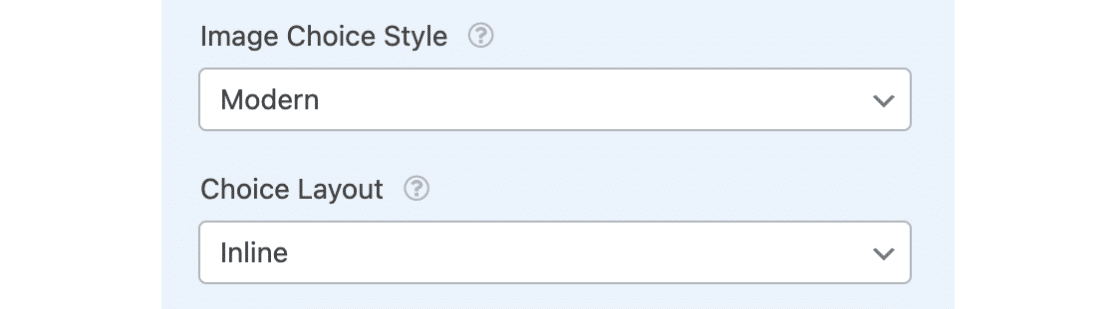
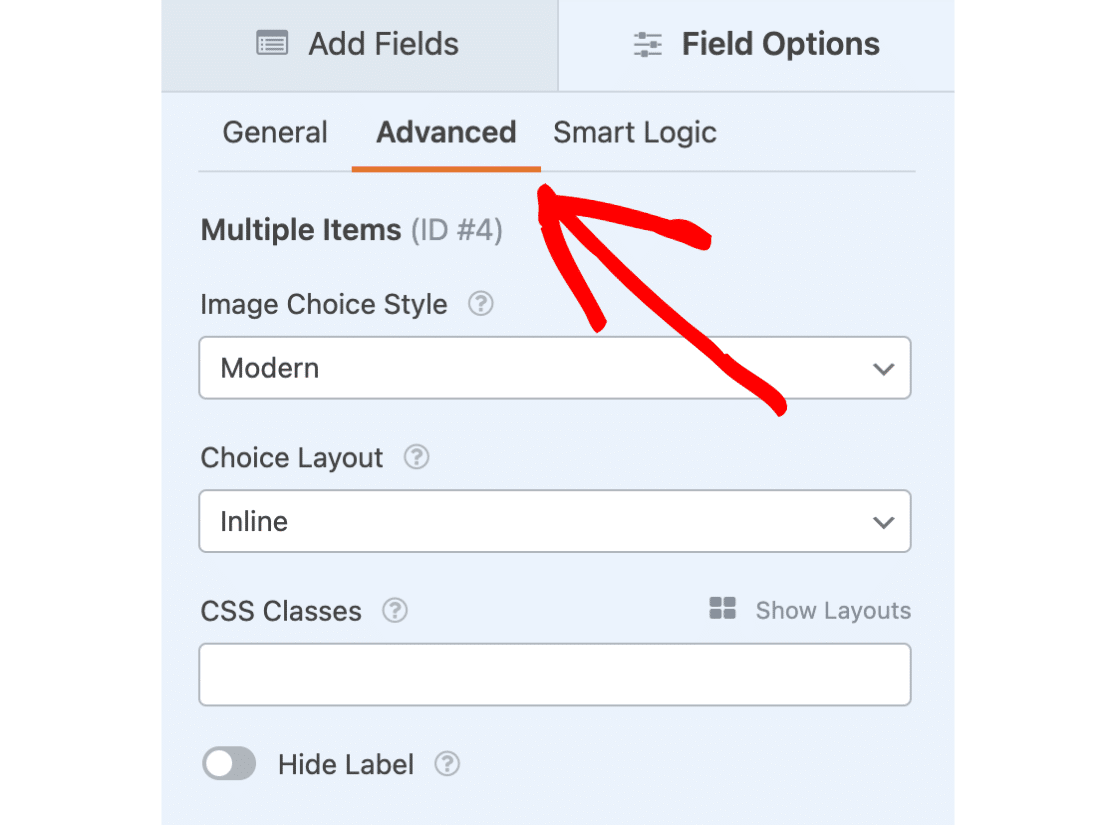In addition to any other customization options available for the field you’re using, two options are added when the **Use image choices** option is selected: Image Choice Style and Choice Layout.
### Image Choice Style
There are three options available for image choice styling: Modern, Classic, and None.
We’ll go over each of these options below:
#### Modern Style
The **Modern** option will display any selected options within a shadowed box, and also add a green and white checkmark to the center of the selected option.
#### Classic Style
The **Classic** option will simply add a thick, dark grey border around any selected options.
#### None
If you’d prefer to not add any special styling, select the **None** option. This option will display regular checkboxes or radio buttons next to the text for each option.
Looking to remove whitespace around image choices in your forms? Check our [developer documentation](https://wpforms.com/developers/how-to-remove-whitespace-from-around-image-choices/) for a CSS snippet that streamlines the appearance of your image choices.
### Choice Layout
For any field where image choices are allowed, you’ll have several layout options. This will determine how many columns are used to display the choices within this field.
The **Choice Layout** options include One Column, Two Columns, Three Columns, and Inline.
By default, the **Inline** option will be selected when the Add image choices option is enabled. This will automatically place as many choices as possible within each row.
In most cases, we recommend keeping the default **Inline** choice layout for image choice fields. This will allow the layout to automatically adapt to various screen sizes.
That’s it! You can now add images to any Multiple Choice, Checkboxes, Multiple Items, and Checkbox Items fields in your forms. If you used a Multiple Items field and plan to accept payments, don’t forget to set up an integration with [Stripe](https://wpforms.com/docs/how-to-install-and-use-the-stripe-addon-with-wpforms/ "How to Install and Use the Stripe Addon with WPForms"), [PayPal](https://wpforms.com/docs/install-use-paypal-addon-wpforms/ "How to Install and Use the PayPal Addon with WPForms"), [Authorize.Net](https://wpforms.com/docs/how-to-install-and-use-the-authorize-net-addon-with-wpforms/ "How to Install and Use the Authorize.Net Addon with WPForms"), or [Square](https://wpforms.com/docs/how-to-install-and-use-the-square-addon-with-wpforms/ "How to Install and Use the Square Addon with WPForms").
Next, would you like to test out your forms before adding them to your site? Be sure to check out [our pre-launch checklist](https://wpforms.com/docs/how-to-properly-test-your-wordpress-forms-before-launching-checklist/ "How to Properly Test Your WordPress Forms Before Launching [Checklist]") for all of our tips and recommendations before launching a form.
**Categories:** Fields, Field Customizations
---