### [Disconnecting Google Sheets Addon](https://wpforms.com/docs/disconnecting-google-sheets-addon/)
**Published:** June 28, 2024
**Author:** David Ozokoye
**Excerpt:** Learn how to disconnect Google Sheets integration in WPForms.
**Content:**
Would you like to disconnect Google Sheets integration from your WordPress forms? WPForms provides the option to remove your connection from the Google Sheets addon.
This tutorial explains how to disconnect your Google Sheets connection for a specific form or completely from your site.
---
**Note:** The [Google Sheets addon](https://wpforms.com/docs/google-sheets-addon/) needs to be installed and set up on your site to follow along with this guide.
### Removing Connection for Individual Forms
If you’d like to disable Google Sheets connection for a single form without disconnecting your account, you can do so from the form builder.
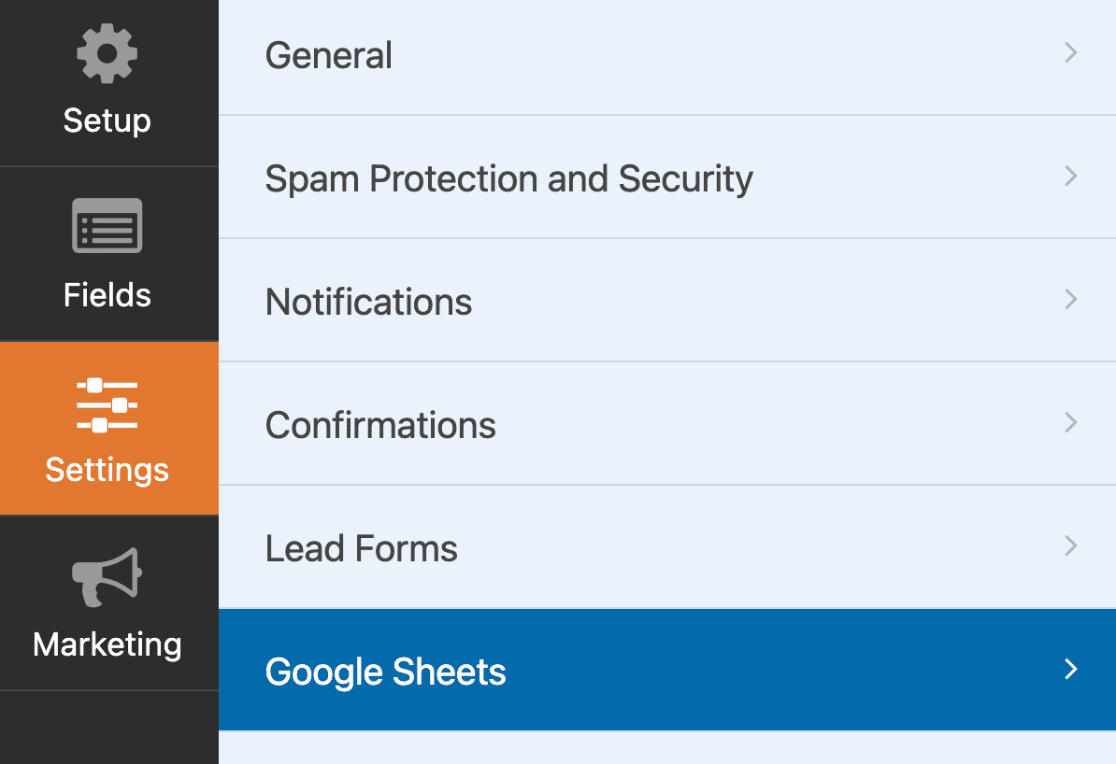
For this, open the form you wish to remove its connection. In the form builder, go to **Settings » Google Sheets** to access the addon’s settings page.
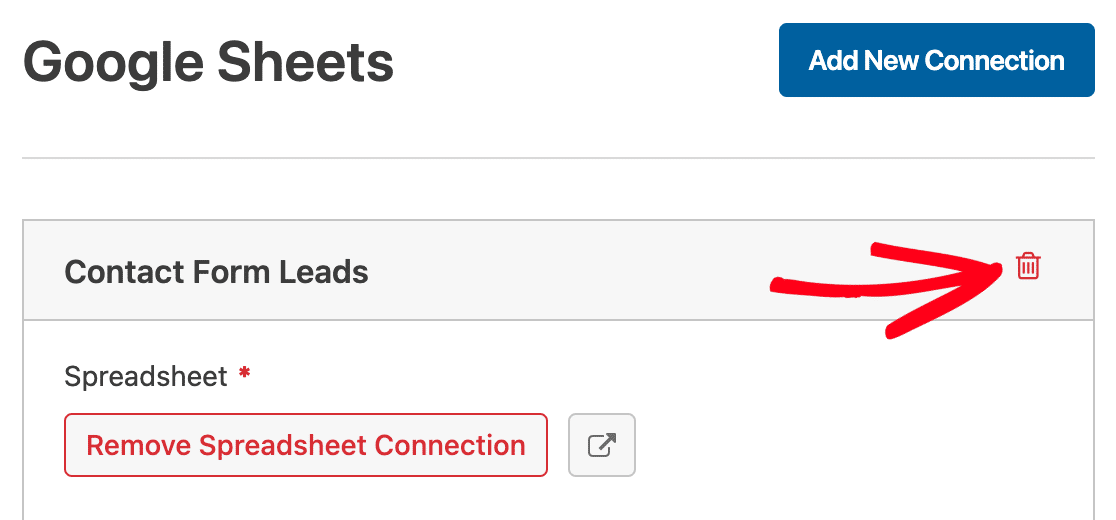
To remove a connection, click on the **trash** icon next to the connection name.
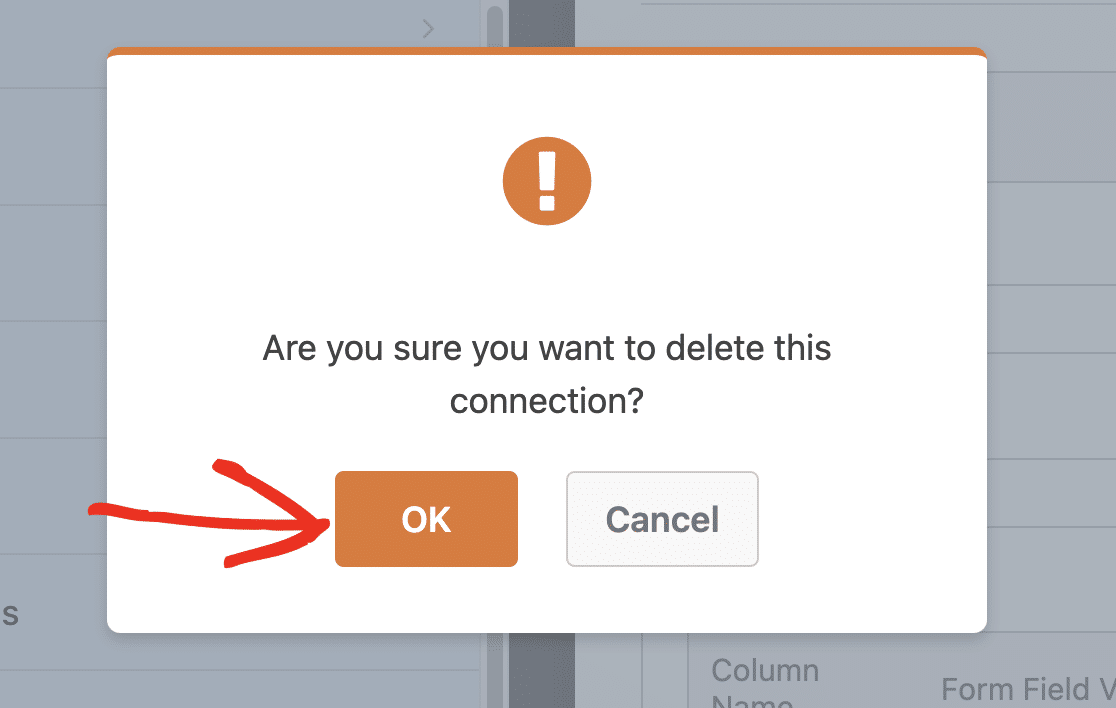
An overlay will appear, prompting you to confirm your selection. Click **OK** to continue and delete the connection.
### Removing Your Google Sheets Connection
If you’d like to disconnect the Google Sheets addon from your WordPress site, go to **WPForms » Settings**. Then select the **Integrations** tab.
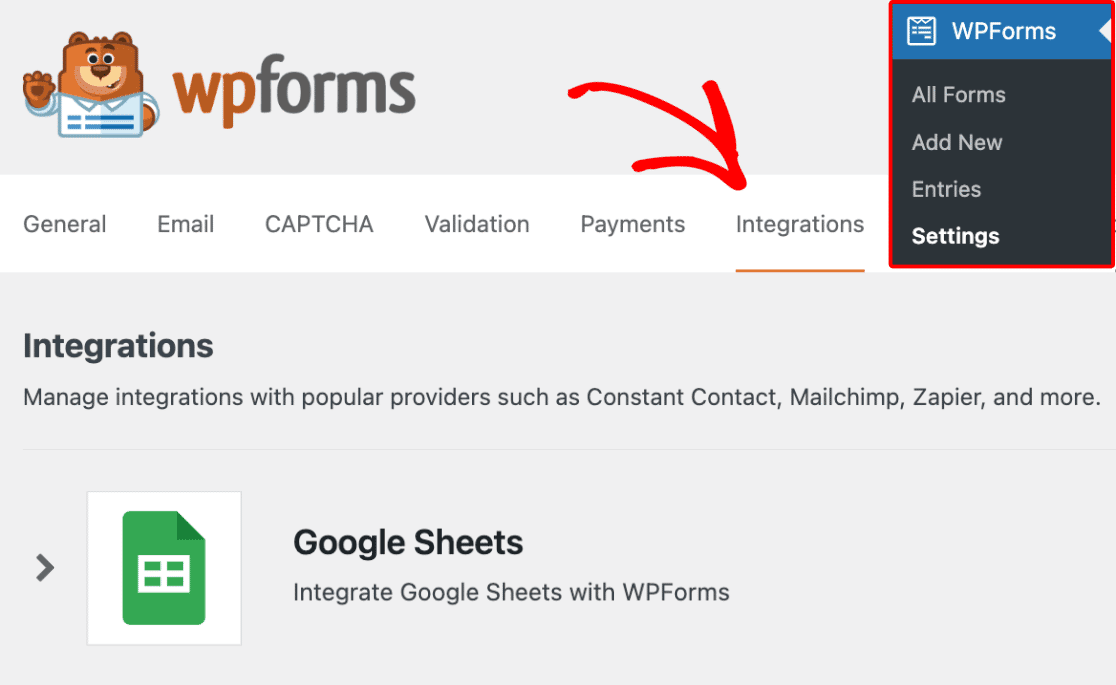
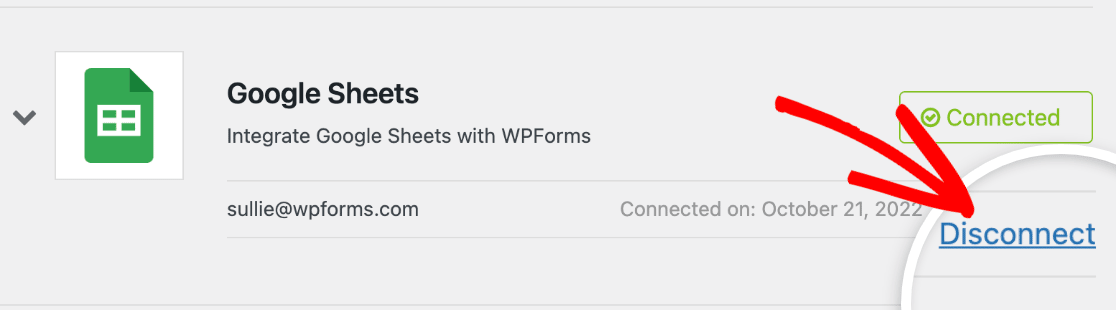
Next, click on the Google Sheets addon to open its options. To remove your connection, click the **Disconnect** link.
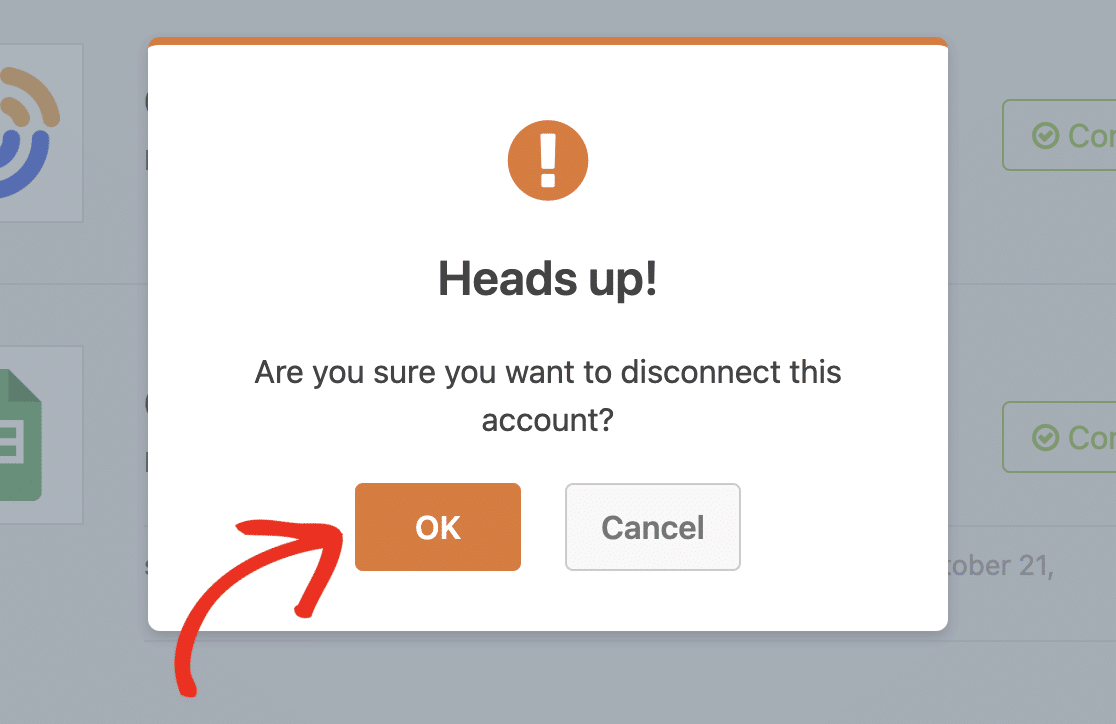
An overlay will appear, prompting you to confirm your selection. Go ahead and click **OK** to disconnect your account.
**Note:** After disconnecting your account from the Google Sheets addon, all connections you’ve set up on individual forms will also be deleted.
That’s it! Now you know how to disconnect your Google Sheets connection in WPForms.
Next, would you like to add users who fill out your form to your email newsletter? Our [marketing integration tutorials](https://wpforms.com/categories/docs/marketing-integrations/) contain details for various email service providers.
**Categories:** Advanced Form Features
---