### [Creating a Reply-All Notification With a CC Field](https://wpforms.com/docs/creating-a-reply-all-notification-with-a-cc-field/)
**Published:** November 23, 2023
**Author:** Umair Majeed
**Excerpt:** Learn how to allow notification email recipients to use the Reply-All feature.
**Content:**
Would you like to allow recipients of email notifications to reply to multiple people using the reply-all feature of their email provider? If so, you’ll need to use the WPForms Carbon Copy (CC) email option because this feature is not available by default.
In this tutorial, we’ll show you how to create a reply-all notification with a CC field.
Before getting started, you’ll need to [create a new form](https://wpforms.com/docs/creating-first-form/) or edit an existing one to access the form builder. Then, make sure to complete the [basic form notification setup](https://wpforms.com/docs/setup-form-notification-wpforms/).
---
By default, email notification recipients are not able to use their email provider’s reply-all feature. If you would like to enable recipients to reply to multiple people from your email notifications, you’ll need to use the WPForms Carbon Copy (CC) email option.
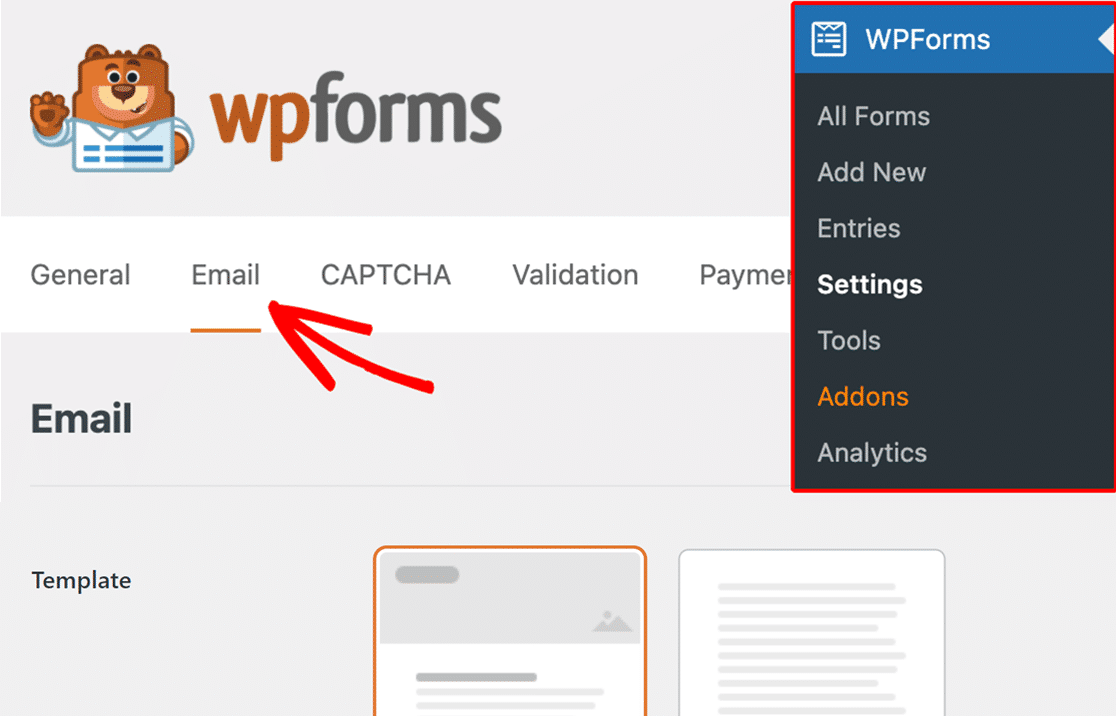
To add a CC field, you first have to navigate to **WPForms » Settings** and click on the **Email** tab.
Next, scroll to the bottom of this page and toggle on the **Carbon Copy** option to enable the CC field.
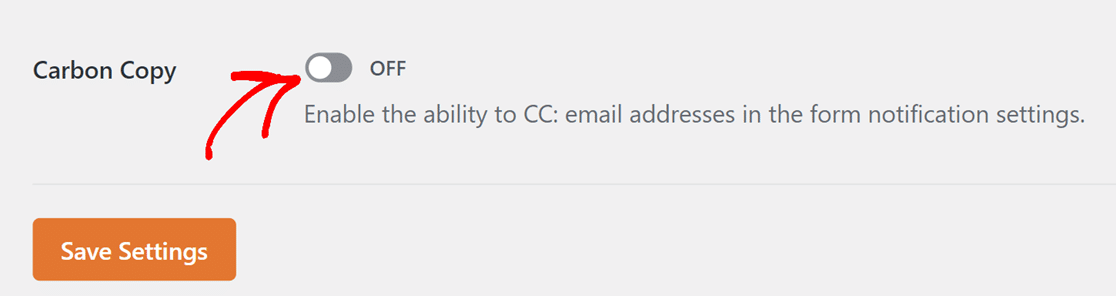
After saving these settings, return to the form builder. You should see a new CC field in your notification settings where you can enter additional email addresses.

If you enter multiple email addresses in this field, be sure to separate them with commas.
**Note:** When using the CC field, please be sure to only include one email in the **Send To Email Address** field. Otherwise, each additional email address you enter will result in an extra copy of the notification sent to each address in the CC field.
That’s it! Now you know how to create a reply-all notification with a CC field.
Be sure to explore our [other tutorials on form notifications](https://wpforms.com/categories/docs/form-notifications/) to learn how you can get the most out of them.
**Categories:** Form Notifications
---