### [Configuring Optimization Settings for WPForms in WP Fastest Cache](https://wpforms.com/docs/configuring-optimization-settings-for-wpforms-in-wp-fastest-cache/)
**Published:** June 17, 2024
**Author:** Umair Majeed
**Excerpt:** Learn how to adjust WP Fastest Cache settings to prevent conflicts with WPForms.
**Content:**
Are you encountering issues with WPForms due to WP Fastest Cache’s optimization settings? WP Fastest Cache offers powerful caching and optimization features, but these can sometimes interfere with WPForms functionality.
This guide will show you how to adjust WP Fastest Cache settings to ensure WPForms runs smoothly.
- [Adjusting WP Fastest Cache Settings](#wp-fastest-cache)
- [Excluding WPForms Assets](#exclude-assets)
- [Disabling JavaScript Optimization](#disable-javascript)
---
## Adjusting WP Fastest Cache Settings
[WP Fastest Cache](https://wordpress.org/plugins/wp-fastest-cache/) offers caching and optimization features, which can both cause potential issues when used with WPForms.
If this plugin is active on your site, and you’ve [identified a JavaScript issue](https://wpforms.com/docs/how-to-troubleshoot-javascript-issues-in-wpforms/#identifying-js-issues), please try the following steps:
#### Excluding WPForms Assets
To exclude WPForms assets from WP Fastest Cache, go to **WP Fastest Cache**, and click the **Exclude** tab.
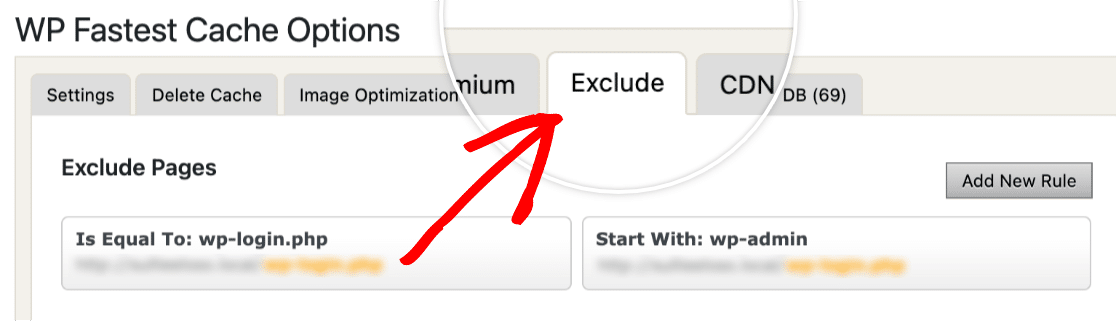Then, scroll to the **Exclude JS** section, and click the **Add New Rule** button.
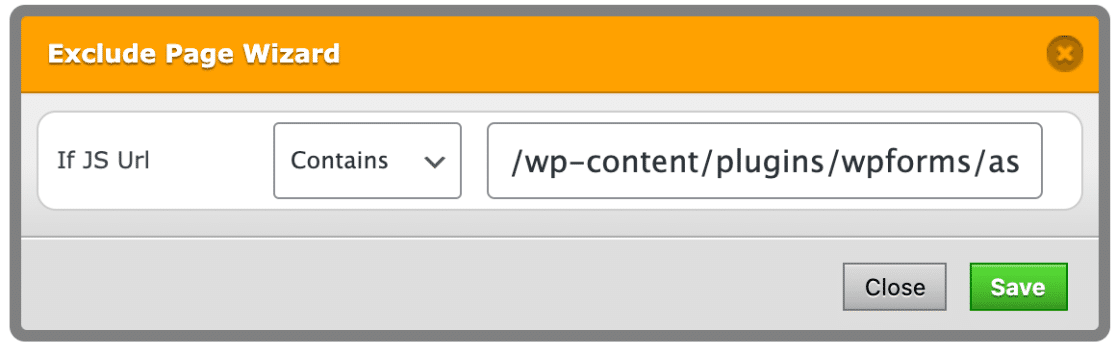
An **Exclude Page Wizard** overlay will now be displayed. Within the input field, add the following script, then click the **SAVE** button:
`/wp-content/plugins/wpforms/assets/js/frontend/wpforms.min.js`
If the JavaScript issue still persists, please proceed with the following steps.
#### Disabling JavaScript Optimization
To disable JavaScript optimization, navigate to **WP Fastest Cache** and click on the **Settings** tab.
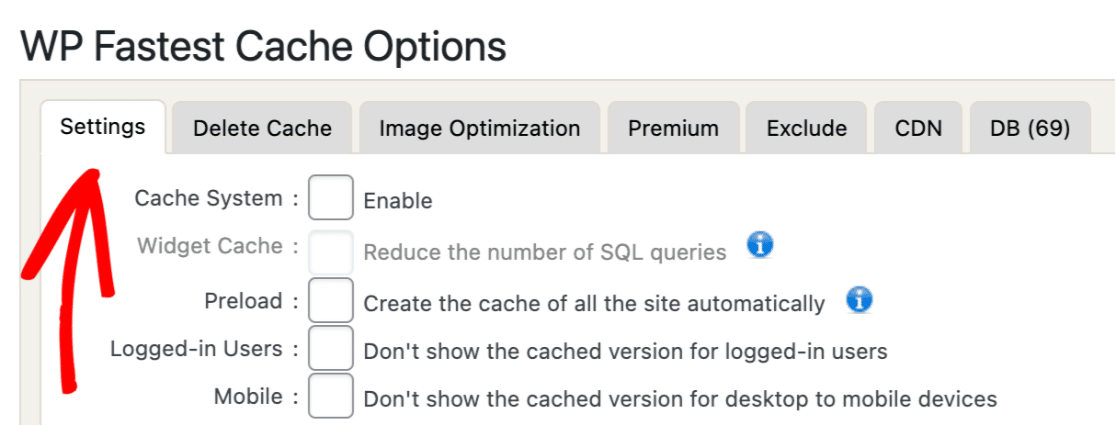Next, make sure the **Minify JS** and **Combine JS** options aren’t enabled. If they are enabled, uncheck the boxes next to each option to disable them.
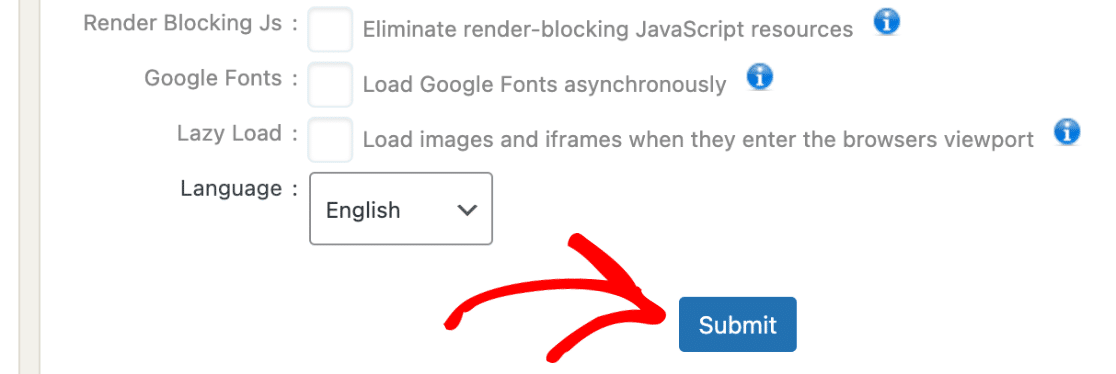
Once, you’ve disabled these options, click the **Submit** button located at the bottom of the page.
That’s it! Now you know how to adjust WP Fastest Cache settings to prevent conflicts with WPForms.
Next, would you like to learn more about troubleshooting JavaScript errors in WPForms? Be sure to check out our [troubleshooting JavaScript errors](https://wpforms.com/docs/how-to-troubleshoot-javascript-issues-in-wpforms/) guide for more details.
**Categories:** Troubleshooting, Troubleshooting and Support
---