### [Configuring Optimization Settings for WPForms in SiteGround Optimizer](https://wpforms.com/docs/configuring-optimization-settings-for-wpforms-in-siteground-optimizer/)
**Published:** June 17, 2024
**Author:** Umair Majeed
**Excerpt:** Learn how to adjust SiteGround Optimizer settings to prevent conflicts with WPForms.
**Content:**
Are you experiencing issues with WPForms due to SiteGround Optimizer’s settings? SiteGround Optimizer is a powerful tool for enhancing site performance, but its JavaScript optimization features can sometimes interfere with WPForms.
This guide will help you troubleshoot and adjust SiteGround Optimizer settings to ensure WPForms functions properly.
---
### Adjusting SiteGround Optimizer Settings
The [SiteGround Optimizer](https://wordpress.org/plugins/sg-cachepress/) plugin has several options for JavaScript optimization within the **Frontend Optimization Settings**. If you have [identified a JavaScript issue](https://wpforms.com/docs/how-to-troubleshoot-javascript-issues-in-wpforms/#identifying-js-issues) on your site, and you’re using this plugin, then follow the steps below to help troubleshoot the issue.
#### Frontend Optimization Settings
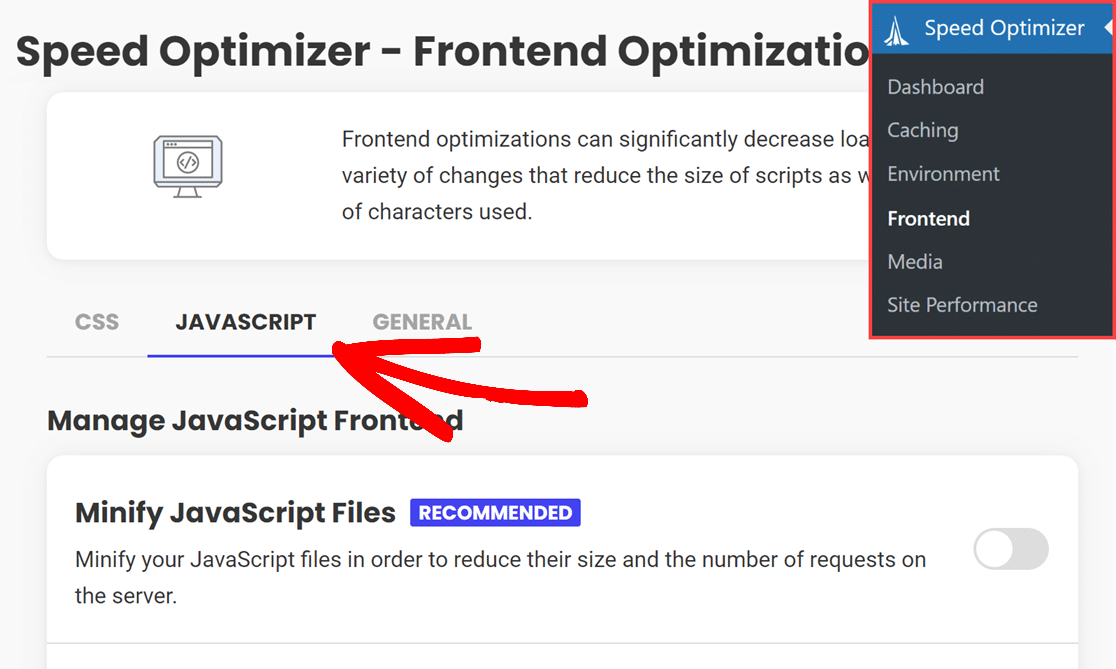
First, you’ll need to access the minification settings by navigating to **Speed Optimizer » Frontend**, then clicking on the **JAVASCRIPT** tab.
From here, check to see if either the **Minify JavaScript Files** or the **Combine JavaScript Files** options are enabled. If they are, disable them by toggling the switches to the off position.
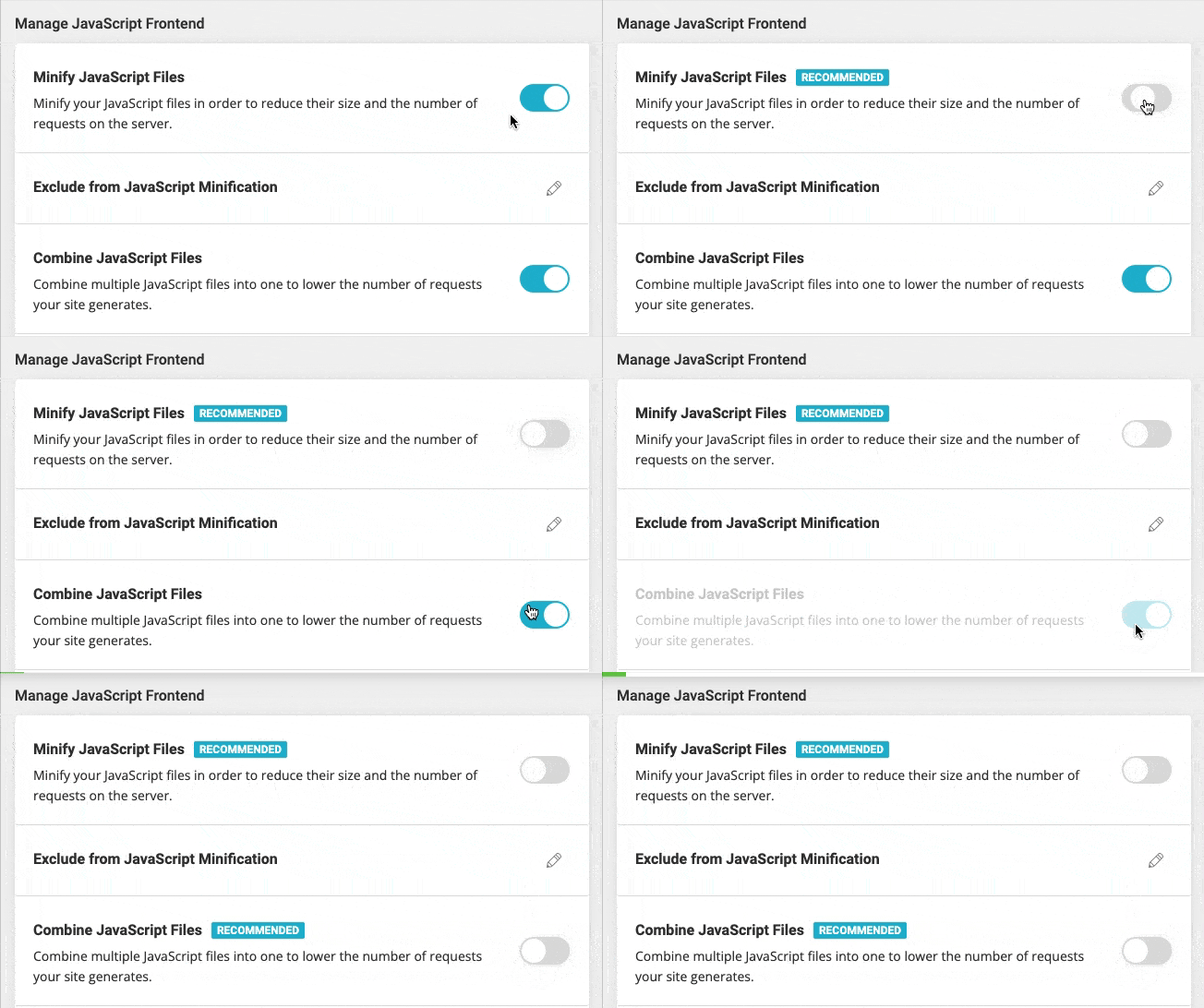
After you make any changes, SiteGround will automatically save them for you.
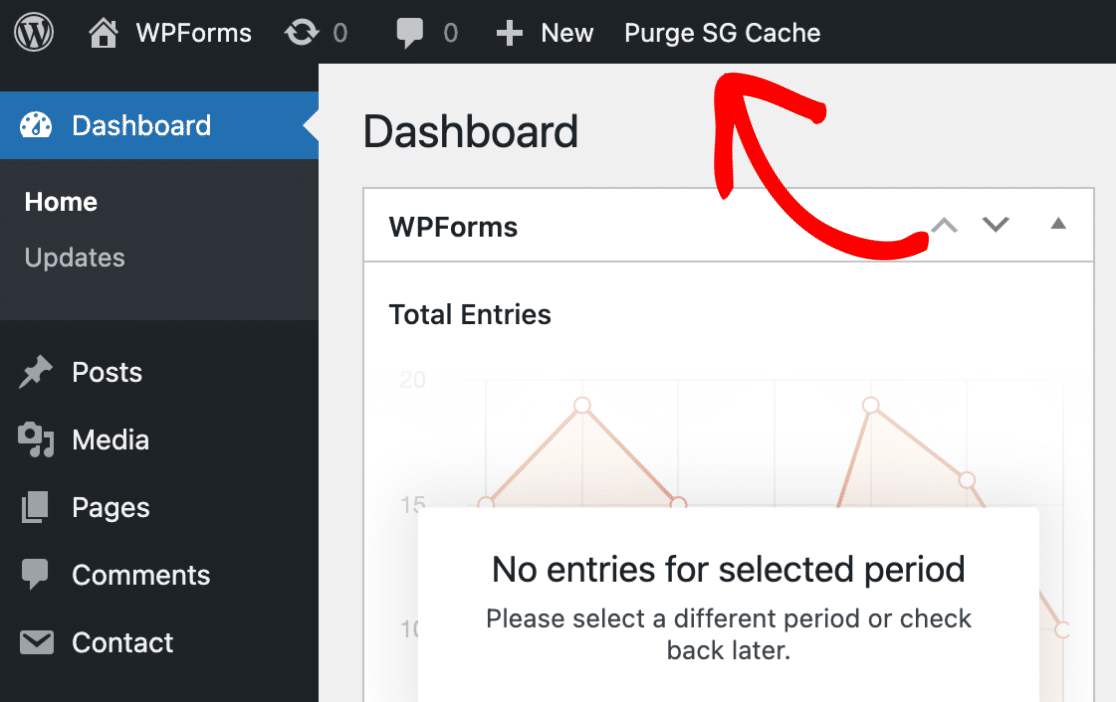
Before checking to see if you’ve resolved the issue, be sure to clear your cache. You can do this from the WordPress admin dashboard by clicking on **Purge SG Cache** at the top of the page.
**Note:** For more specific information on SiteGround Optimizer settings, please refer to their [documentation](https://www.siteground.com/tutorials/wordpress/speed-optimizer/).
That’s it! Now you know how to adjust SiteGround Optimizer settings to prevent conflicts with WPForms.
Next, would you like to learn more about troubleshooting JavaScript errors in WPForms? Be sure to check out our [troubleshooting JavaScript errors](https://wpforms.com/docs/how-to-troubleshoot-javascript-issues-in-wpforms/) guide for more details.
**Categories:** Troubleshooting, Troubleshooting and Support
---