### [Configuring Optimization Settings for WPForms in LiteSpeed Cache](https://wpforms.com/docs/configuring-optimization-settings-for-wpforms-in-litespeed-cache/)
**Published:** June 17, 2024
**Author:** Umair Majeed
**Excerpt:** Learn how to adjust LiteSpeed Cache settings to prevent conflicts with WPForms.
**Content:**
Are you facing issues with WPForms due to LiteSpeed Cache settings? LiteSpeed Cache is a popular plugin for optimizing site performance on LiteSpeed servers, but its JavaScript optimization features can sometimes interfere with WPForms.
This guide will show you how to adjust LiteSpeed Cache settings to ensure WPForms runs smoothly.
- [Adjusting LiteSpeed Cache Settings](#litespeed-cache)
- [Excluding a Page or Post](#exclude-page-post)
- [Excluding WPForms Assets](#exclude-assets)
- [Disabling JavaScript Optimization](#disable-javascript)
---
## Adjusting LiteSpeed Cache Settings
[LiteSpeed Cache](https://wordpress.org/plugins/litespeed-cache/) is a plugin commonly used on LiteSpeed servers. If this plugin is active on your site, and you’ve [identified a JavaScript issue](https://wpforms.com/docs/how-to-troubleshoot-javascript-issues-in-wpforms/#identifying-js-issues), please try the following steps:
#### Excluding a Page or Post
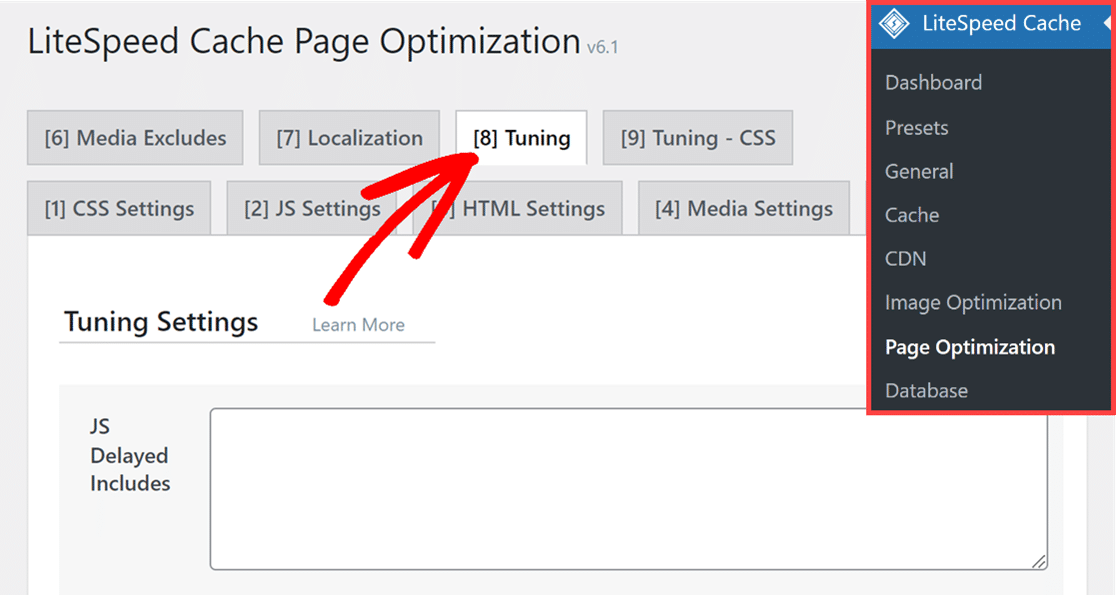
If you’re only experiencing a JavaScript issue on a certain page or post where you’re using WPForms, you can choose to exclude it from JavaScript optimization. To do this, go to **LiteSpeed Cache » Page Optimization**, and click the **Tuning** tab.
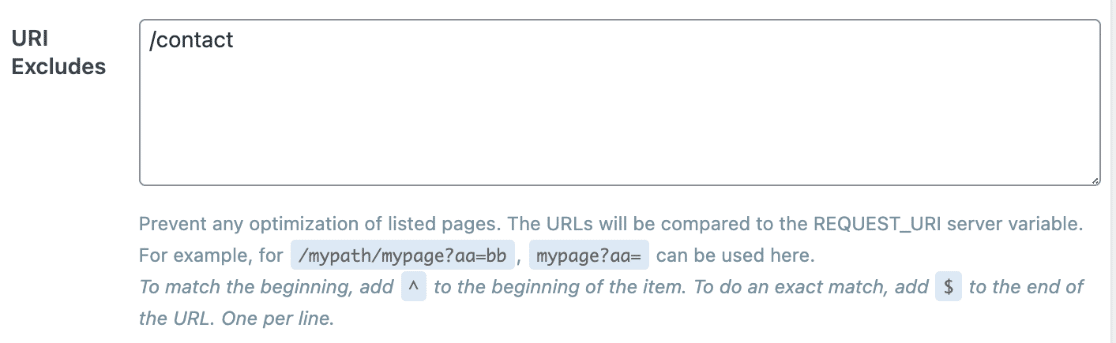
Then, scroll to the **URI Excludes** section, and enter the path to your post or page. For our example, we’ll add our contact page.
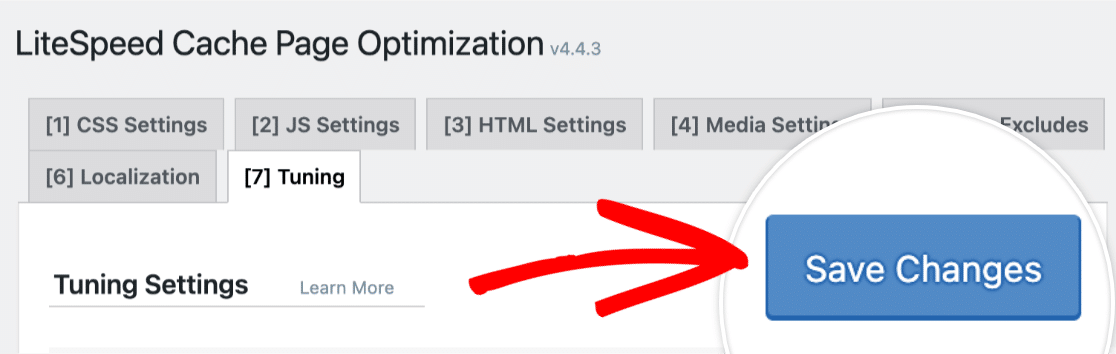
Now that you’ve added the path to your post or page, go ahead and click the **Save Changes** button at the top-right of the page.
#### Excluding WPForms Assets
To exclude WPForms assets from LiteSpeed Cache, go to **LiteSpeed Cache » Page Optimization**, and click the **Tuning** tab.
From here, locate the **JS Excludes** field, and input the following script:
`/wp-content/plugins/wpforms/assets/js/frontend/wpforms.min.js`
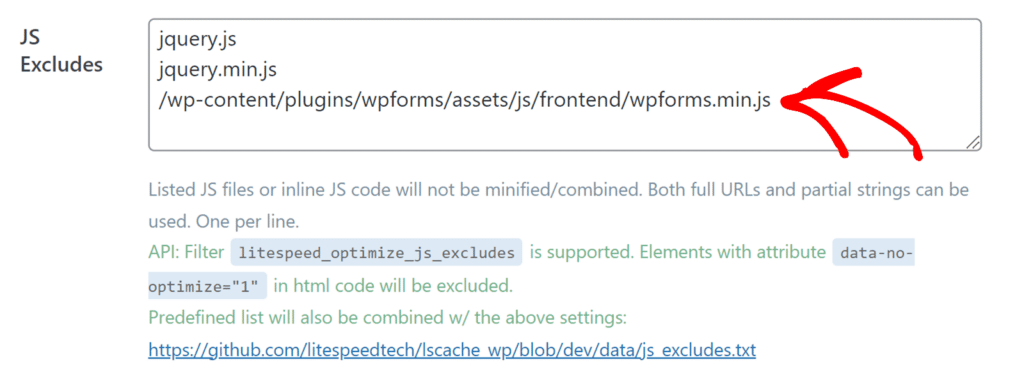Once, you’ve added the script, click the **Save Changes** button located at the top-right of the page.
If you’re still experiencing JavaScript issues after completing the steps above, proceed to the next section.
#### Disabling JavaScript Optimization
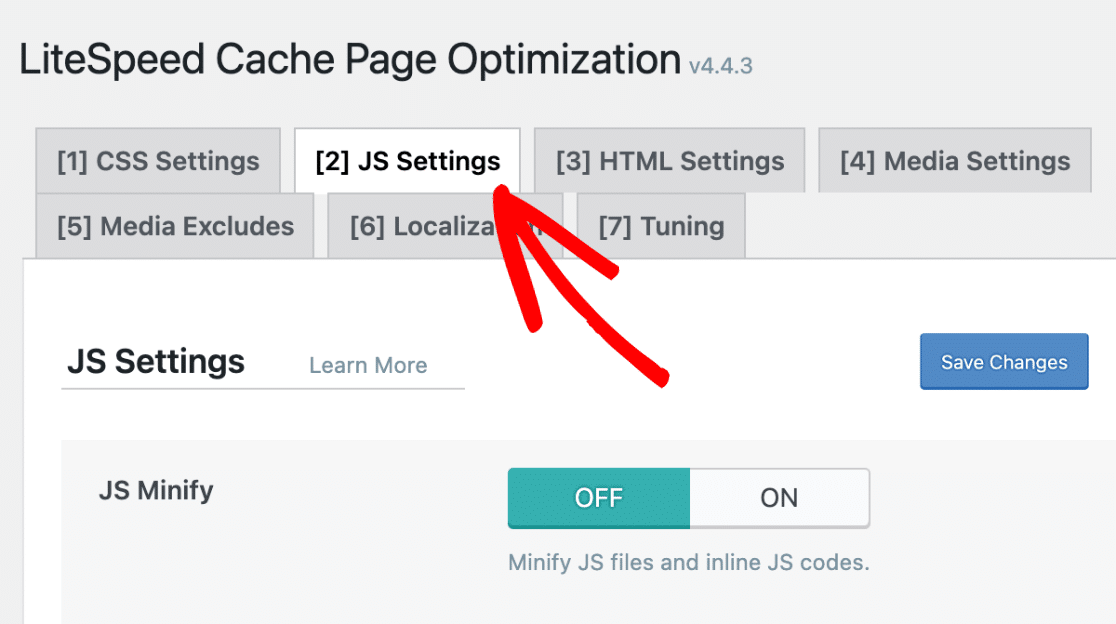
To get to the JavaScript optimization settings, click on the **JS Settings** tab.
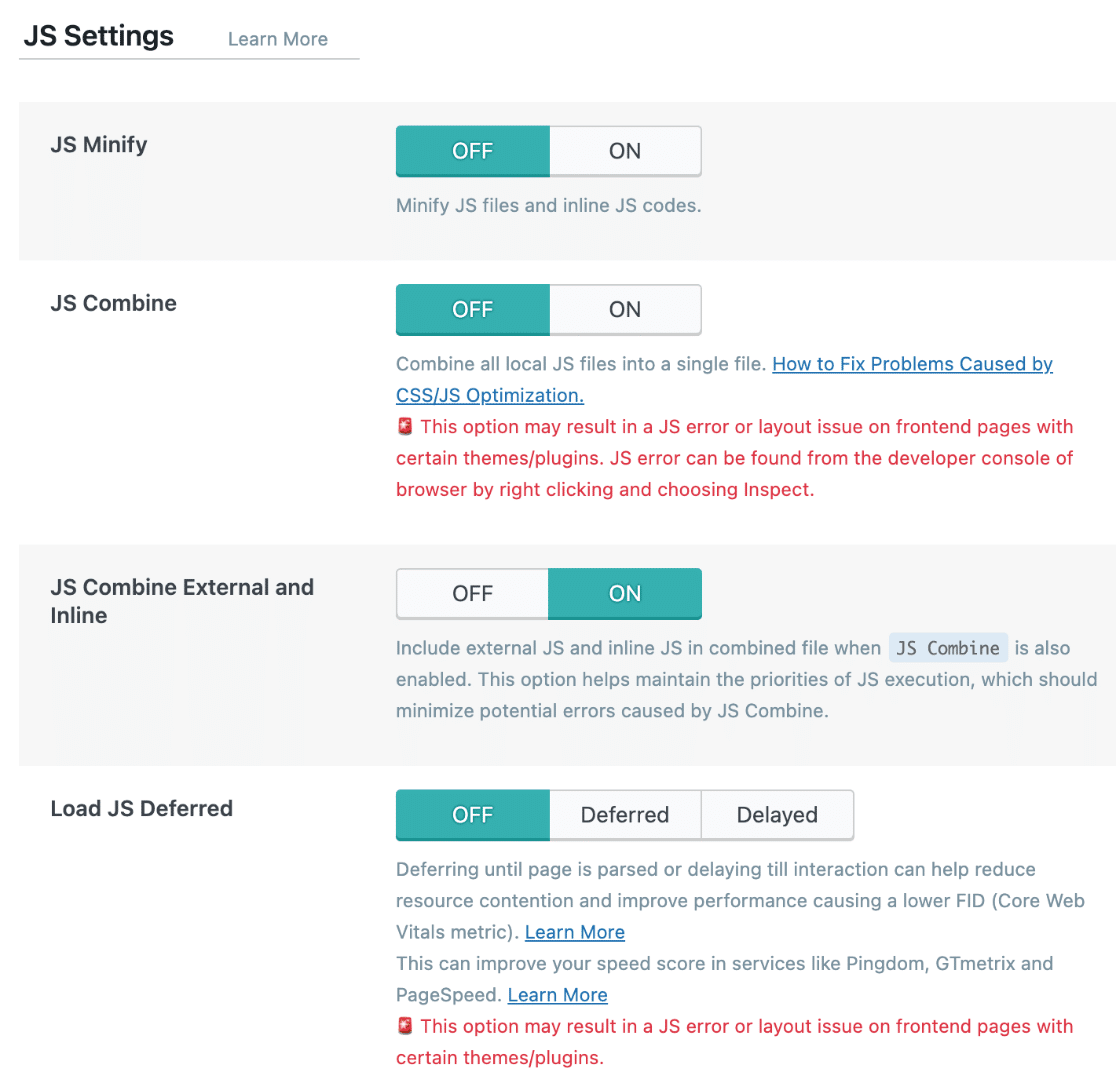
Next, if the **JS Minify**, **JS Combine,** and **Load JS Deferred** options are toggled **ON**, be sure to toggle them to the **OFF** position.
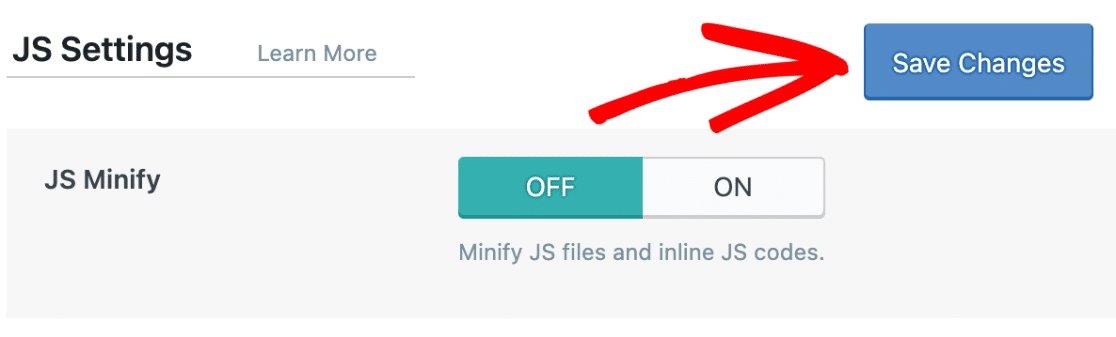
Once, you’ve made your changes, click the **Save Changes** button located at the top-right of the page.
**Note:** For more specific information on LiteSpeed Cache settings, please refer to their [documentation](https://docs.litespeedtech.com/lscache/).
That’s it! Now you know how to adjust LiteSpeed Cache settings to prevent conflicts with WPForms.
Next, would you like to learn more about troubleshooting JavaScript errors in WPForms? Be sure to check out our [troubleshooting JavaScript errors](https://wpforms.com/docs/how-to-troubleshoot-javascript-issues-in-wpforms/) guide for more tips.
**Categories:** Troubleshooting, Troubleshooting and Support
---