### [Configuring Optimization Settings for WPForms in Async JavaScript](https://wpforms.com/docs/configuring-optimization-settings-for-wpforms-in-async-javascript/)
**Published:** June 17, 2024
**Author:** Umair Majeed
**Excerpt:** Learn how to adjust Async JavaScript settings to prevent conflicts with WPForms.
**Content:**
Are you encountering issues with WPForms due to the Async JavaScript plugin’s optimization settings? While this plugin is great for improving site performance by optimizing JavaScript loading, it can sometimes interfere with WPForms functionality.
This guide will help you adjust Async JavaScript settings to ensure WPForms works correctly.
- [Async JavaScript](#async-javascript)
- [Deactivating Async JavaScript](#disable-async-javascript)
- [Excluding WPForms Assets](#exclude-assets-async-javascript)
---
## Async JavaScript
The [Async JavaScript](https://wordpress.org/plugins/async-javascript/) plugin is used to optimize a site’s JavaScript by adding either **async** or **defer** attributes to JS scripts.
Here is the difference between the **async** and **defer** attributes:
- **Async:** downloads JavaScript while still parsing HTML, but pauses the HTML parsing to execute the JavaScript.
- **Defer:** downloads JavaScript while still parsing HTML, but waits to execute it until after HTML parsing is finished.
If either of these attributes is added, it can cause some WPForms scripts to load differently, resulting in an error.
If your forms aren’t working with Async JavaScript enabled, and you’ve [identified a JavaScript issue](https://wpforms.com/docs/how-to-troubleshoot-javascript-issues-in-wpforms/#identifying-js-issues), please proceed with the following steps:
#### Deactivating Async JavaScript
The first step is to [deactivate](https://www.wpbeginner.com/beginners-guide/how-to-easily-deactivate-wordpress-plugins/) the Async JavaScript plugin, then check if the issue is resolved. If deactivating the plugin helped, you can reactivate it, then move on to the next step.
#### Excluding WPForms Assets
Within the Async JavaScript settings, WPForms assets can be excluded from JavaScript optimization in two different ways: **Script Exclusion** or **Plugin Exclusion**. We’ll go over each of these options below:
##### Script Exclusion
To exclude WPForms scripts from Async JavaScript, you’ll need to navigate to **Settings » Async JavaScript**.
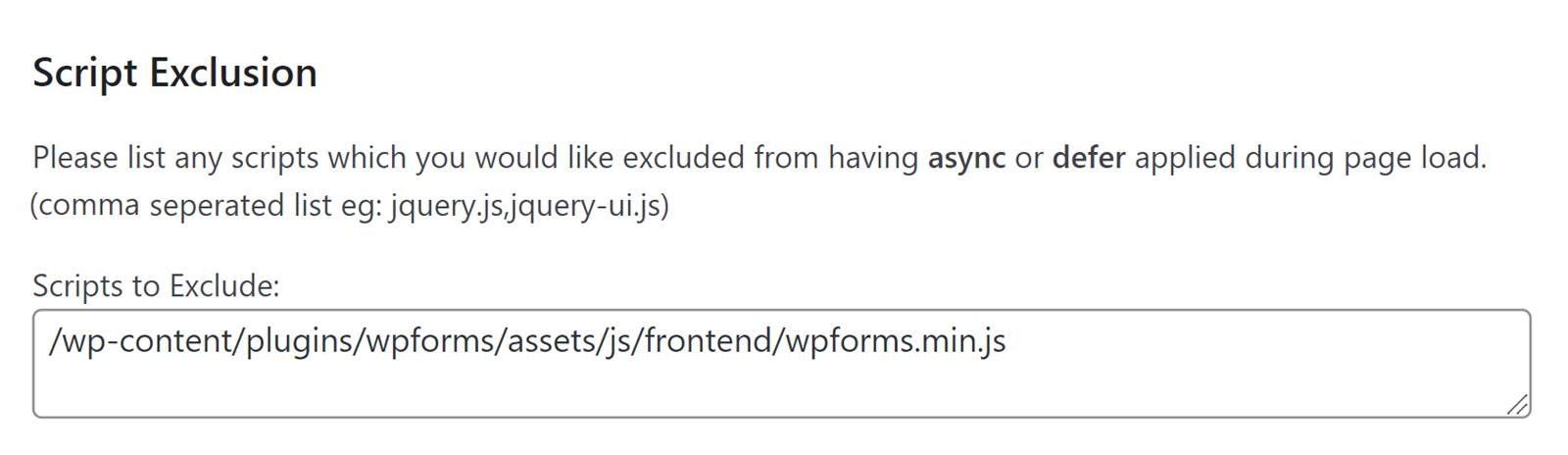
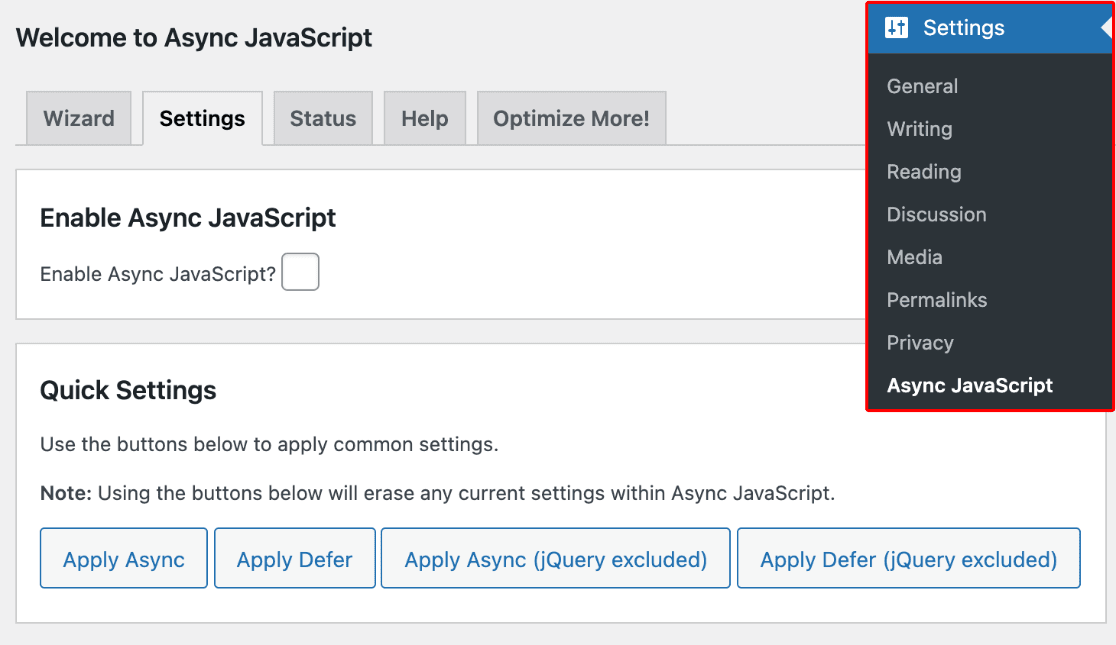Then, scroll to the **Script Exclusion** section. In the **Scripts to Exclude** field, input the following script:
`/wp-content/plugins/wpforms/assets/js/frontend/wpforms.min.js`
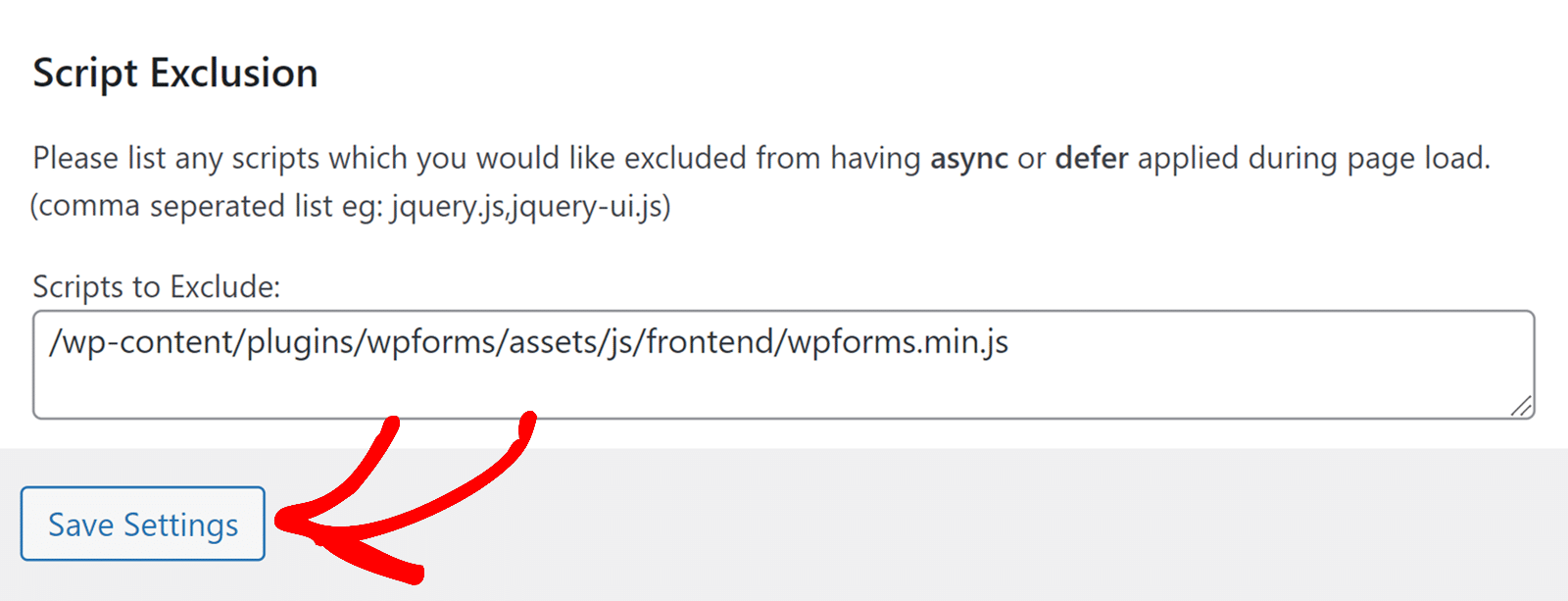
Once you’ve added the script, be sure to save your settings by clicking the **Save Settings** button at the bottom of the page.
##### Plugin Exclusion
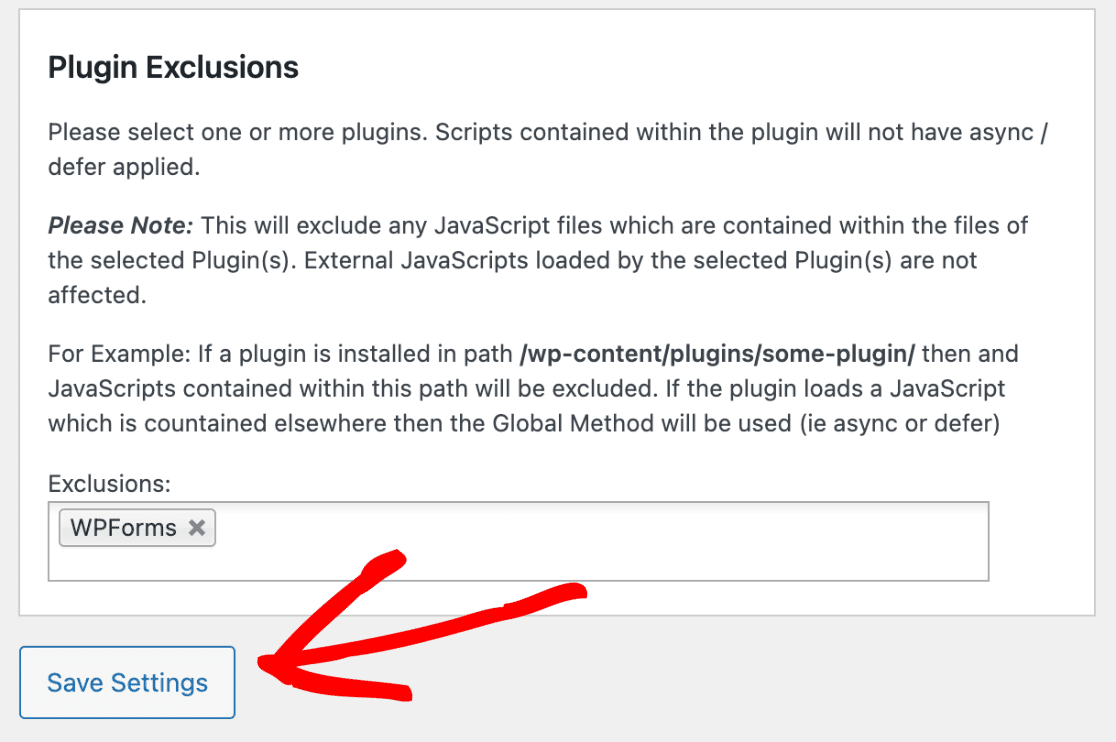
To exclude any JavaScript files that are contained within the WPForms plugin, scroll to the **Plugin Exclusion** section, and click on the **Exclusions** field. Then, select **WPForms**.
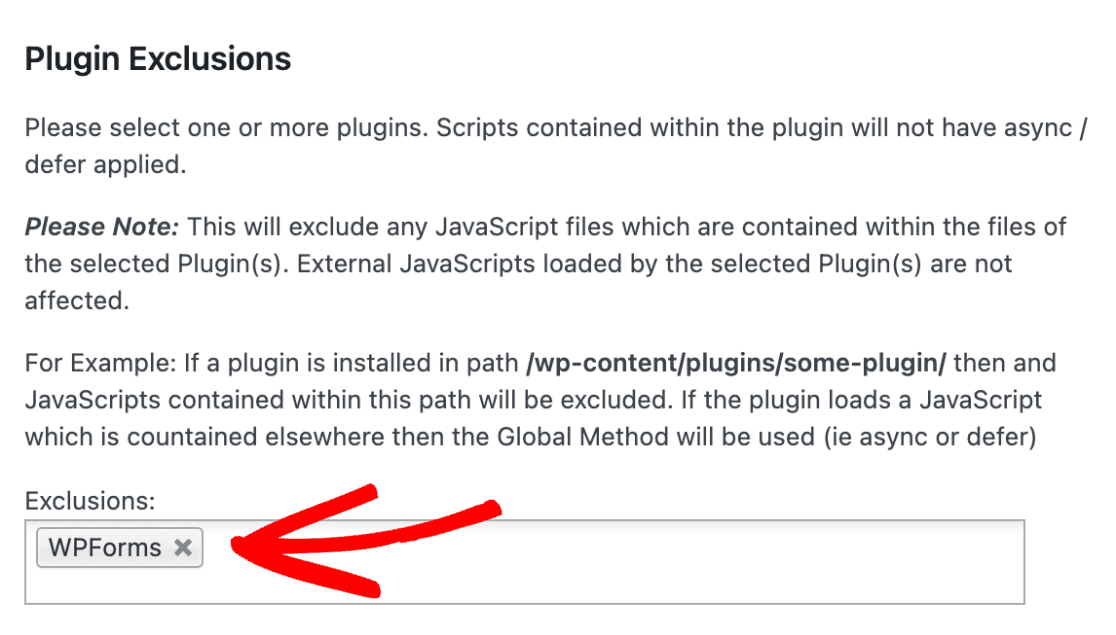Next, click the **Save Settings** button to save your changes.
That’s it! Now you know how to adjust Async JavaScript settings to prevent conflicts with WPForms.
Next, would you like to learn more about troubleshooting JavaScript errors in WPForms? Be sure to check out our [troubleshooting JavaScript errors](https://wpforms.com/docs/how-to-troubleshoot-javascript-issues-in-wpforms/) guide for more details.
**Categories:** Troubleshooting, Troubleshooting and Support
---