### [Sending Geolocation Data Through Webhooks](https://wpforms.com/developers/how-to-send-geolocation-through-webhooks/)
**Published:** August 5, 2021
**Author:** David Ozokoye
**Excerpt:** This tutorial will show you how to send the geolocation through webhooks using a small PHP snippet.
**Content:**
Would you like to send geolocation through webhooks? Geolocation data can be a valuable addition to your webhook payload, providing location-specific information about your form submissions.
In this tutorial, we’ll guide you through the process of including geolocation data in your webhooks using a PHP snippet.
---
Before getting started, make sure WPForms is [installed and activated](https://wpforms.com/docs/install-wpforms-plugin/ "Installing the WPForms Plugin") on your WordPress website and that you’ve [verified your license](https://wpforms.com/docs/verify-wpforms-license/ "Verifying Your License").
## Creating the Form
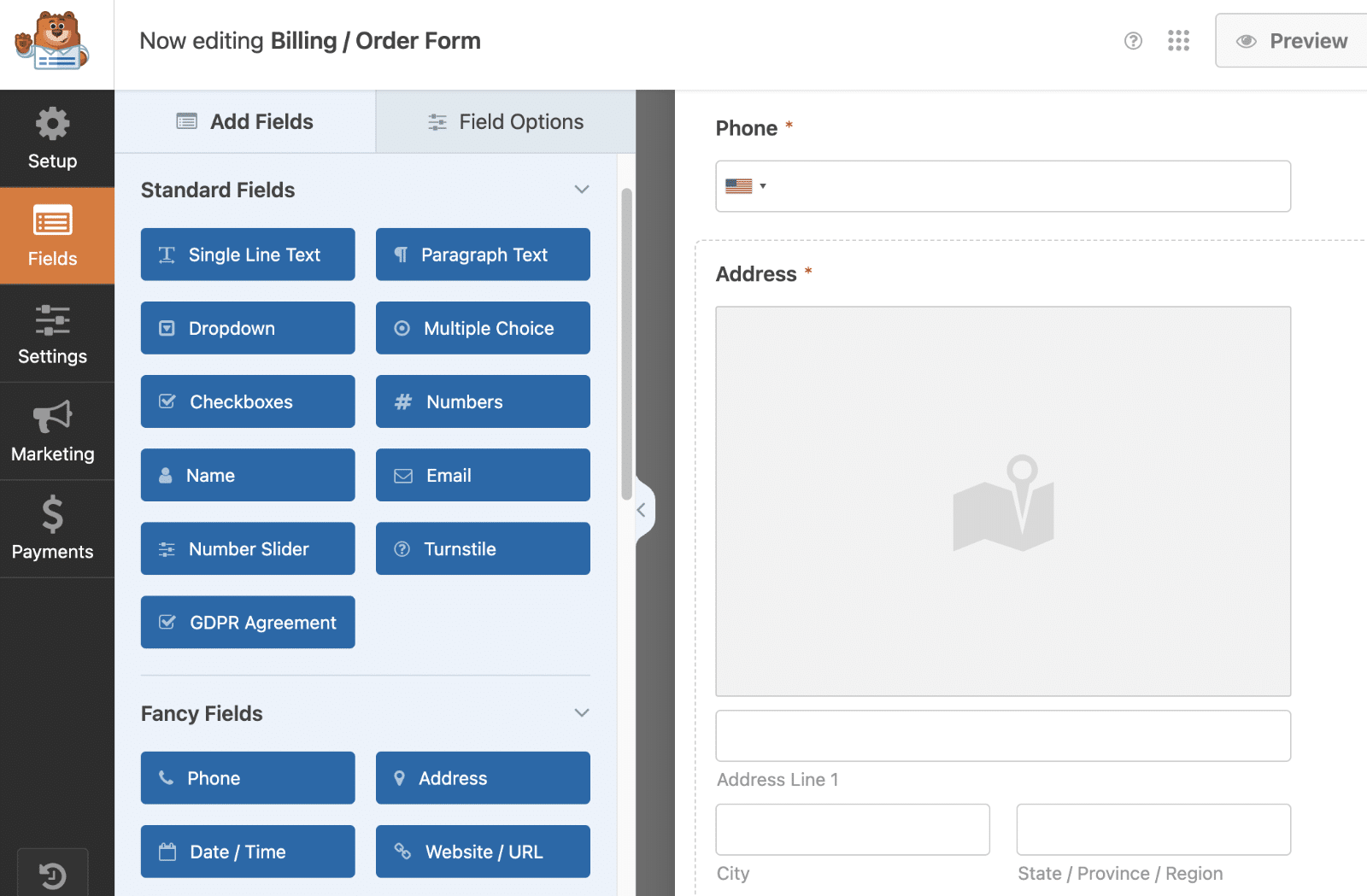
First, you’ll need to [create a form](https://wpforms.com/docs/creating-first-form/) or edit an existing one to access the form builder. In the form builder, go ahead and add an [Address field](https://wpforms.com/docs/how-to-customize-the-address-field/ "Customizing the Address Field") and enable geolocation. If you need help creating a form with geolocation enabled, [please review this documentation.](https://wpforms.com/docs/how-to-install-and-use-the-geolocation-addon-with-wpforms/ "Geolocation Addon")
## Setting Up the Webhook
After configuring the Geolocation addon and using it in your form, you’ll need to configure webhooks for the form.
In the form builder, navigate to **Settings » Webhooks**. Once here, toggle on the **Enable Webhooks** option.
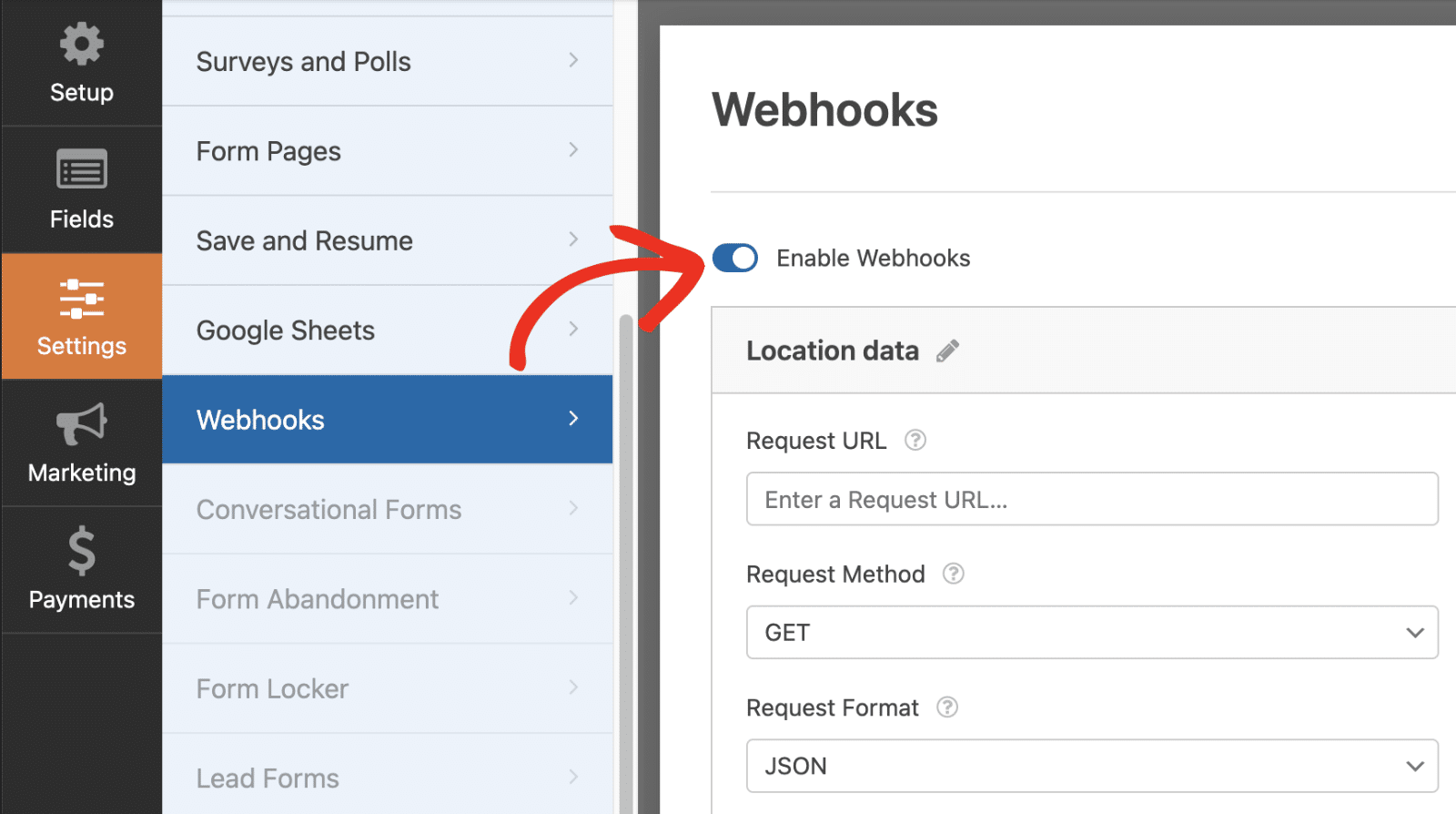You can then proceed to input your webhook URL in the **Request URL** field. In the **Request Body** section, you’ll need to define the information you intend to send via the webhook, including mapping the relevant fields from your form.
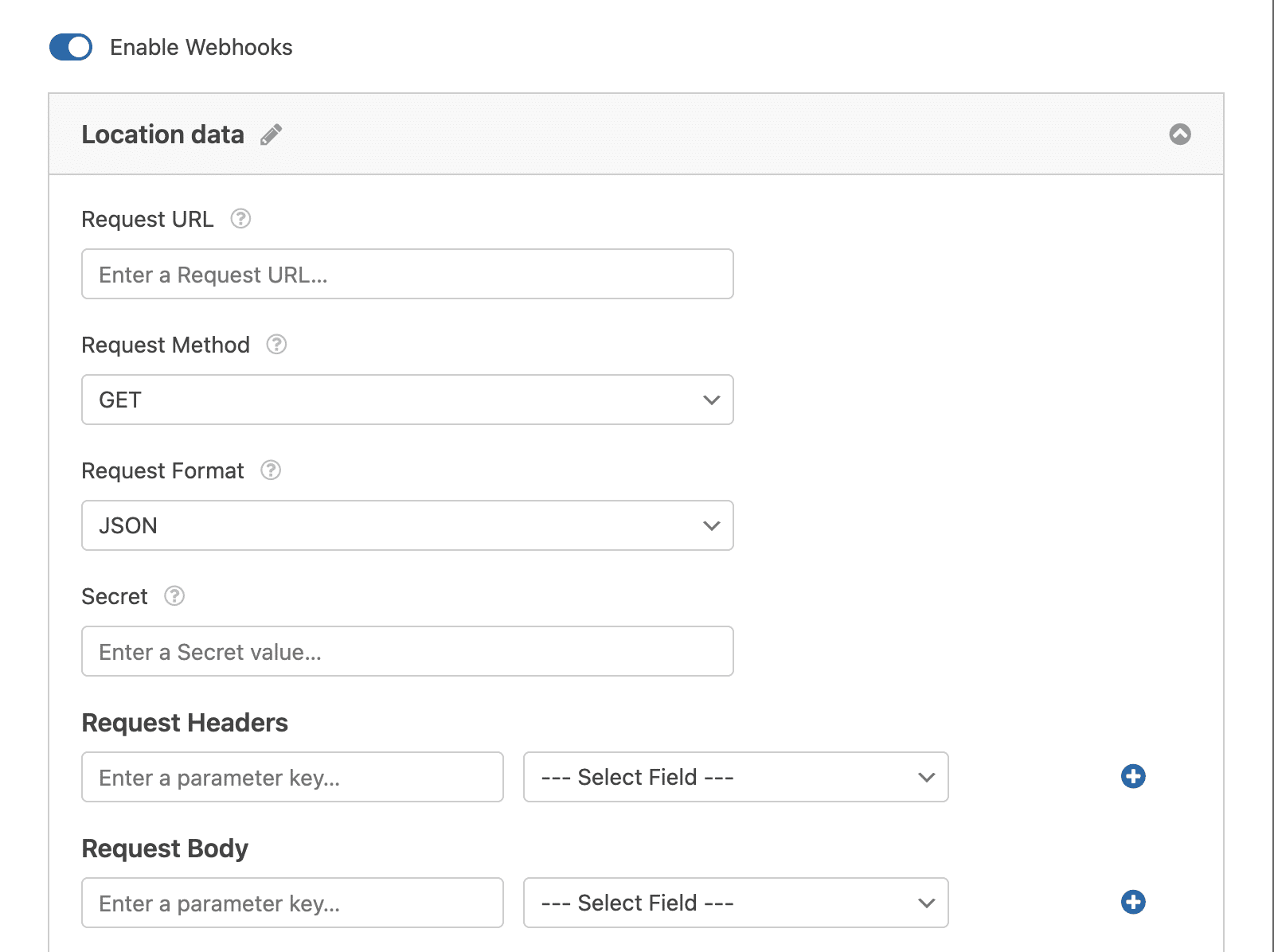**Note:** For more details on setting up and using the Webhooks Addon in WPForms, be sure to check our [Webhooks Addon](https://wpforms.com/docs/how-to-install-and-use-the-webhooks-addon-with-wpforms/) tutorial.
For the purpose of this tutorial, we’re using the [Webhook.site](https://webhook.site/) to test that our information is being sent through our webhook. When you’re setting up your webhook, you would use the webhook URL to the external source you’re posting to and assign your variables.
It’s important to remember that each external source that accepts incoming webhooks may have different ways of setting up variables to send the information. You’ll need to research this external source to make sure you don’t need to manually create your variables inside that source to make sure the variable names match what you’re assigning in the form builder.
## Adding the Snippet
Now it’s time to add the snippet. For any assistance on how and where to add snippets to your site, [please see this tutorial](https://wpforms.com/developers/how-to-add-custom-php-or-javascript-for-wpforms/ "How to Add Custom PHP or JavaScript for WPForms").
With this snippet, we’re going to add an additional variable to the webhook called **entry\_id** and assign this ID number that is created from WPForms when the form is submitted but only for the form ID **1899**, you’ll need to update this form ID number to match your own ID. If you’re not sure where to find your form ID number, [please review this tutorial](https://wpforms.com/developers/how-to-locate-form-id-and-field-id/ "How to Locate Form ID and Field ID").
Now when you see the information sent from the webhook, you’ll notice not only your mapped field names are there, but also the location as well.
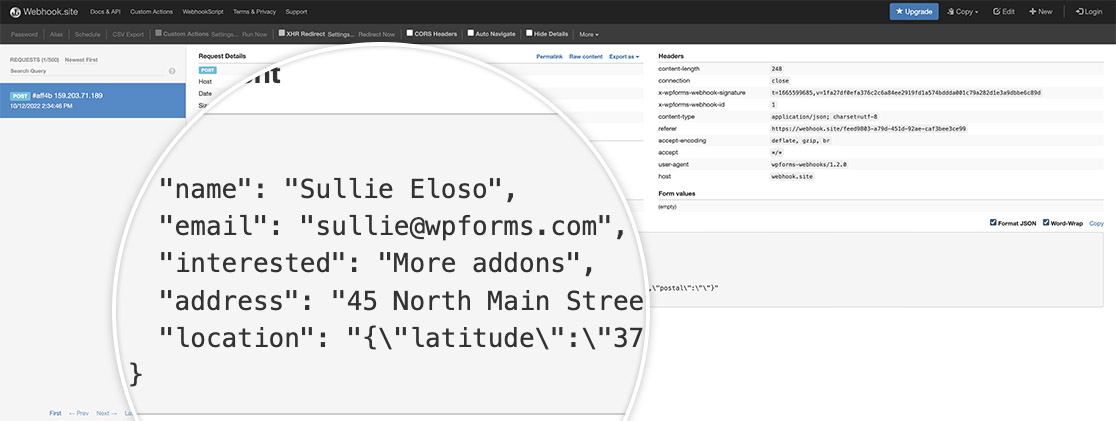That’s all you need to send the location value using a webhook.
Next, would you like to also send through field values from a **Checkbox**, **Dropdown** or **Multiple Choice**? See our tutorial to learn [how to send field values with webhooks](https://wpforms.com/developers/how-to-send-field-values-with-webhooks/ "How to Send Field Values with Webhooks").
**Categories:** Tutorials
**Tags:** PHP, Webhooks
---