### [How to Send Email Notification on Post Submission Publish](https://wpforms.com/developers/how-to-send-email-notification-on-post-submission-publish/)
**Published:** March 29, 2021
**Author:** David Ozokoye
**Content:**
## Introduction
Would you like to send an email notification to the authors who submit a post submission article when their post is published? When you create a form for the **Post Submissions** addon, you can set the status of this post to **Draft** or **Pending Review** when it’s submitted. This allows the site administrator to review the article before it’s published. When the article is published, the author doesn’t receive any notification, however, by adding a small snippet to your site you can easily send a notification to the author to let them know their post was just published.
In this tutorial, we’ll walk you through each step on how to achieve this!
## Creating a Post Submission form
For the purpose of this tutorial, we’ve already created our guest post form. But if you need any assistance in setting up a form with the **Post Submissions** addon, [please visit this documentation](https://wpforms.com/docs/how-to-install-and-use-the-post-submissions-addon-in-wpforms/ "How to Install and Use the Post Submissions Addon in WPForms") and it will give you detailed steps on how to create this form.
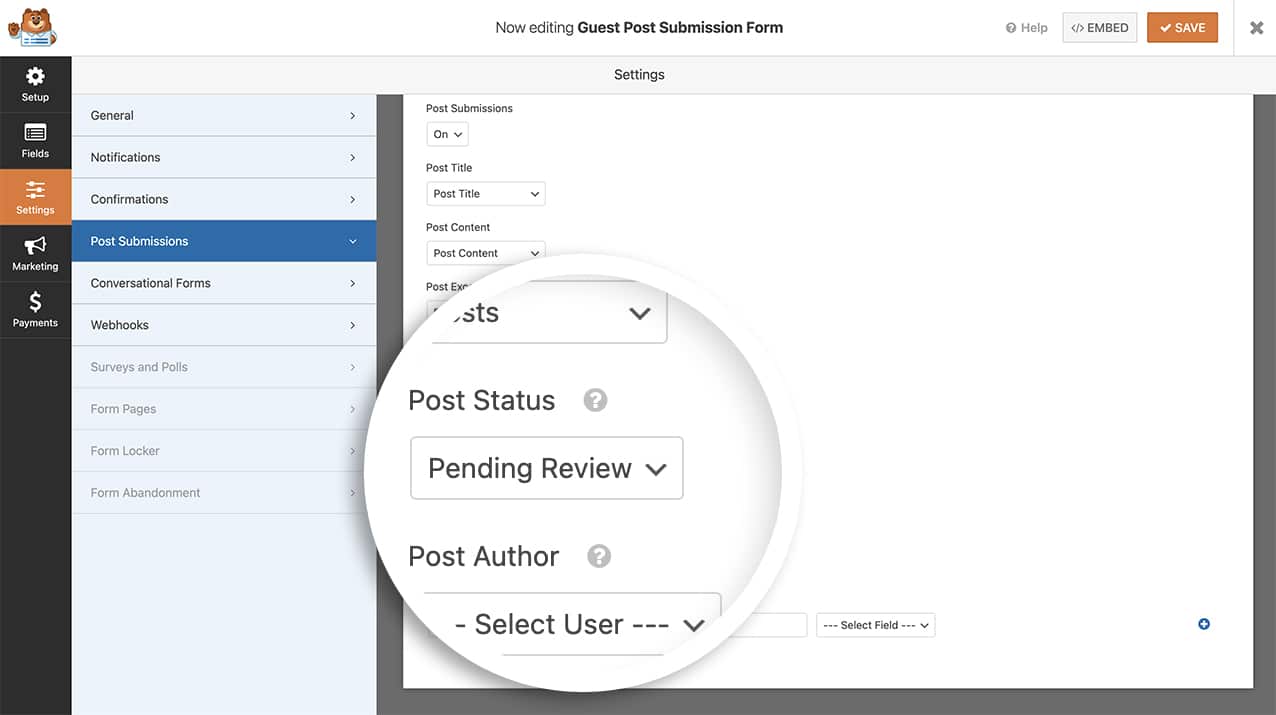
Once you’ve created your form, you’ll need to adjust the settings. While inside the form builder, click on **Settings** and then click the **Post Submissions** tab to edit these settings.
We’re going to map the fields such as the **Post Title**, **Featured Image**, etc but we’re also going to change the **Post Status** to **Pending Review** when a submission is received so that we can review the post before publishing it.
## Setting the email notification for post submissions
Next, it’s time to add the code snippet that will email the author when the post is published. To do this, you’ll need to add a code snippet to your site.
If you need help in adding code snippets to your site, [please see this tutorial](https://wpforms.com/developers/how-to-add-custom-php-or-javascript-for-wpforms/ "How to Add Custom PHP or JavaScript for WPForms").
```
/**
* Notify author when post-submission article is published
*
* @link https://wpforms.com/developers/how-to-send-email-notification-on-post-submission-publish/
*/
function notifyauthor($post_id) {
global $wpdb;
$post = get_post($post_id); // Get the Post info
$table_name = $wpdb->prefix . 'wpforms_entries'; // Our entries table
$wpf_entry_fields = $wpdb->get_col( $wpdb->prepare( "SELECT fields FROM {$table_name} WHERE post_id = %d;", $post_id ) ); // Query the table based on Post ID
$wpf_entry_data = json_decode( $wpf_entry_fields[0] ); // Decode the data
// Set these to false now. They will be set to true if an email and name are found.
//
$name_found = false;
$email_found = false;
// Look for the author's email address and name.
foreach ( $wpf_entry_data as $item ) {
// Find the name, only use the first
if ( "name" == $item->type && false == $name_found ) {
$author_name = $item->first;
$name_found = true;
}
//Find the email address
if ( "email" == $item->type ) {
if( is_email( $item->value ) ){
$author_email = $item->value;
$email_found = true;
break;
}
}
}
// Email address found, so send the notification
if( true == $email_found ){
$subject = "Post Published: ".$post->post_title."";
$message = "
Hi there, " . esc_attr( $author_name ) . "!,
Your post, \"" . $post->post_title . "\" has just been published.
View post: " . get_permalink( $post_id ) . "
Thanks";
wp_mail( $author_email, $subject, $message );
}
}
add_action( 'publish_post', 'notifyauthor' );
```
What this snippet will do is as the **Published** status is updated on the post, it will look for the author with that **Name**, if it’s found it will get the **Email Address** associated with that user and send out the message that is entered into the snippet.
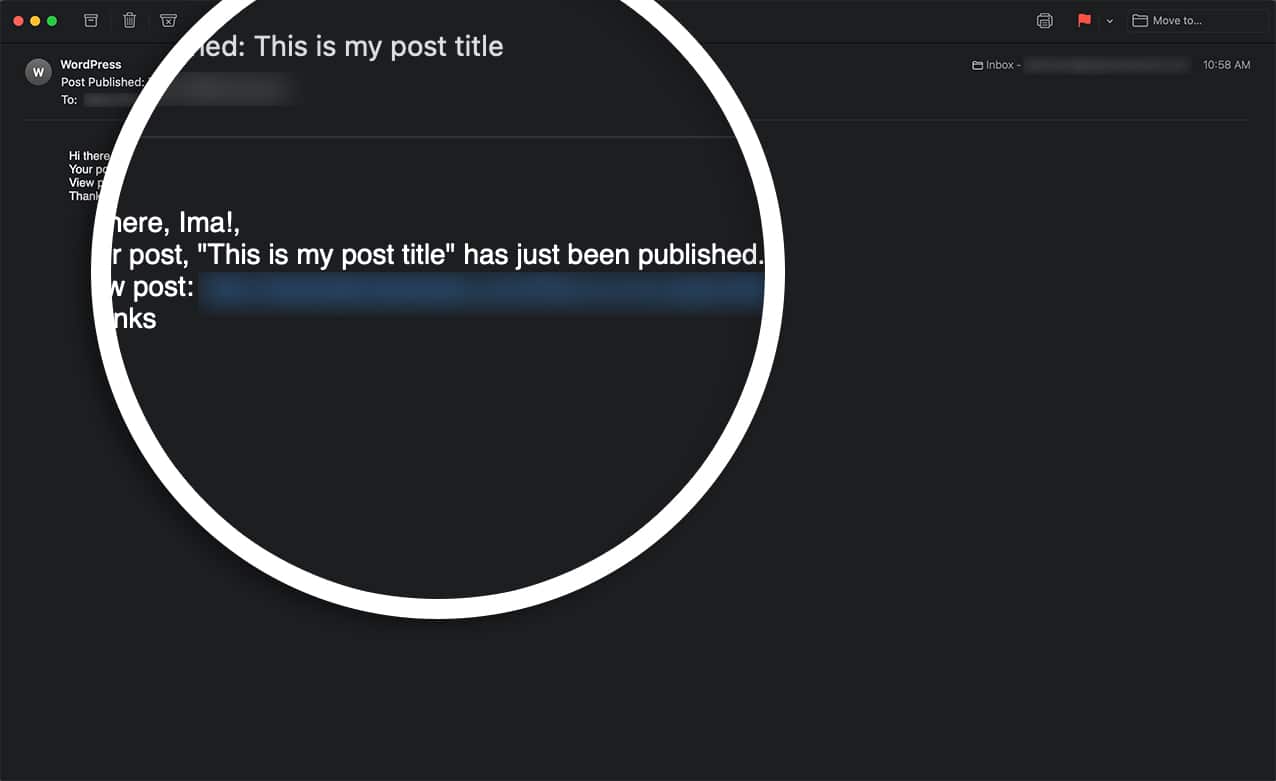
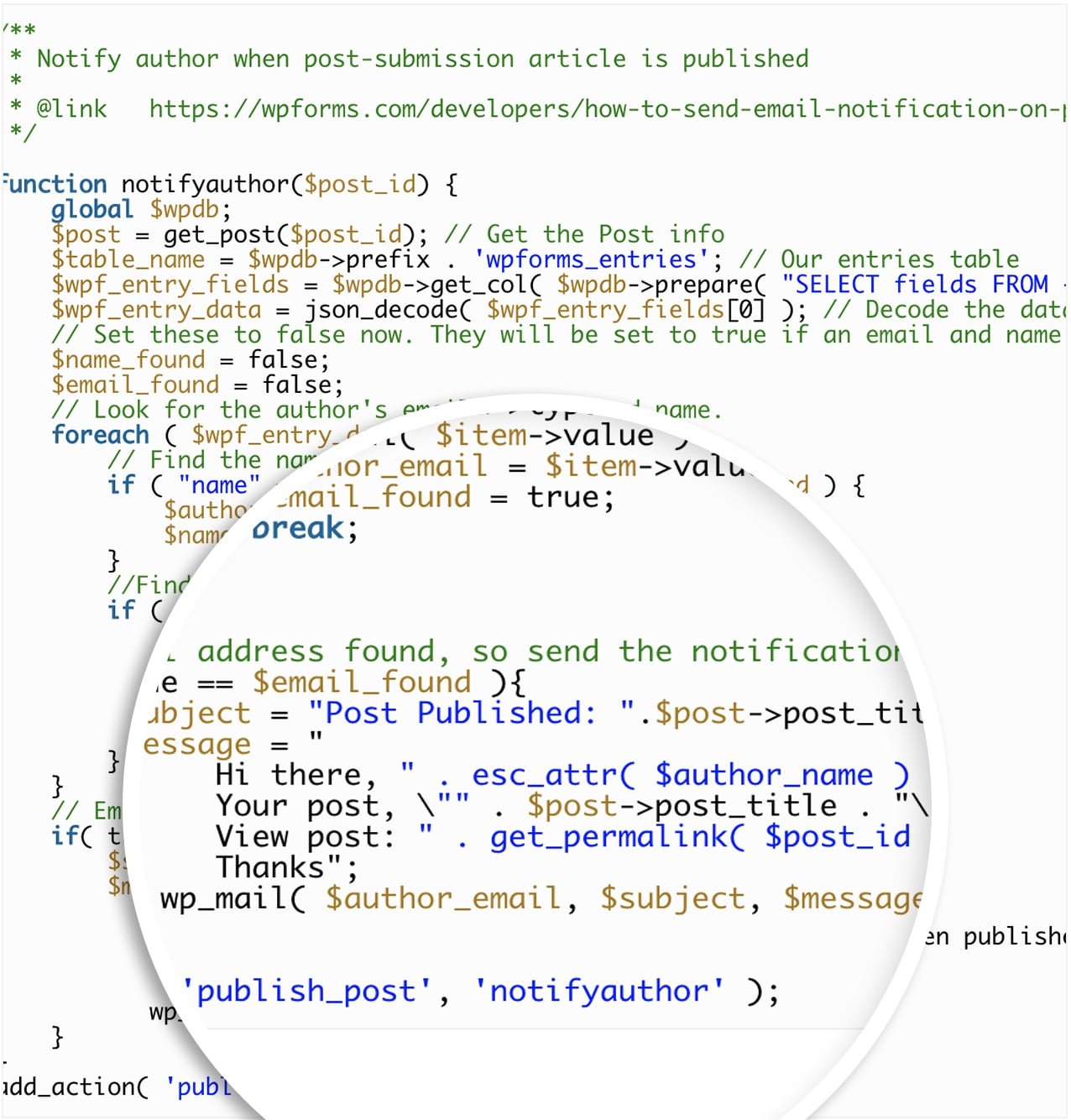You can update this message that will go to the author to whatever you’d like. In this example, we’re setting the **Subject** of the email to the post title as well as including that post title and its permalink inside the email notification.
**Note:** If multiple authors are using the same name, this snippet will go with the first name it finds.
And that’s it when the post is published the author will receive an email notification on their post submission!
Would you like to have the **Post Submission** addon create a user profile for you? Take a look at our tutorial on [How to Build a Profile Form Using Post Submissions](https://wpforms.com/developers/how-to-build-an-profile-form-using-post-submissions/ "How to Build a Profile Form Using Post Submissions").
**Categories:** Tutorials, Notifications
---