### [Displaying the Total Number of Entries](https://wpforms.com/developers/how-to-display-the-total-number-of-entries/)
**Published:** October 29, 2020
**Author:** David Ozokoye
**Excerpt:** This tutorial will show you how to create a shortcode that would display the total number of entries for your form based on the form ID.
**Content:**
Do you want to showcase the total number of entries for your forms? You can easily achieve this by creating a custom shortcode with a small PHP snippet.
In this tutorial, we’ll show you how to display the total number of entries in WPForms.
---
## Creating the Form
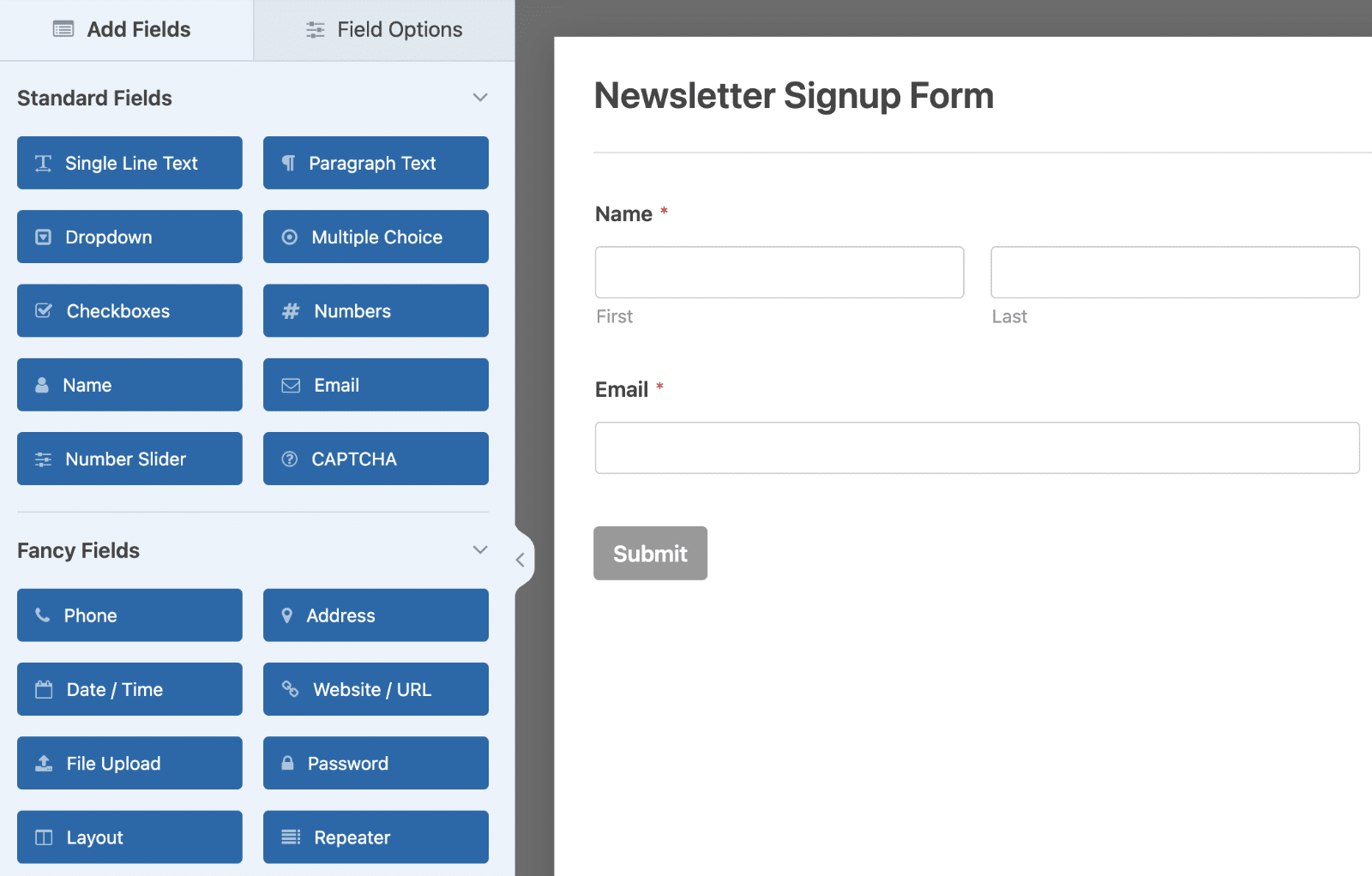
In our example, we aim to display the newsletter form along with the count of users who have signed up right underneath it. To get started, [create a new form](https://wpforms.com/docs/creating-first-form/) or edit an existing one to access the form builder.
## Adding the Code Snippet to Your Site
After copying the provided code snippet, you can easily add it to your site to enable the shortcode. If you’re unsure about adding snippets, [you can find guidance in this tutorial](https://wpforms.com/developers/how-to-add-custom-php-or-javascript-for-wpforms/ "How to Add Custom PHP or JavaScript for WPForms").
Let’s delve into the code explanation. The shortcode attributes are set using `$atts = shortcode_atts(['id' => '','type' => 'all', ],`.
The `id` attribute is crucial as it expects the form ID. This is how the shortcode determines which form it should count the entries for. If you’re unsure about your form ID, [you can refer to this tutorial for guidance](https://wpforms.com/developers/how-to-locate-form-id-and-field-id/ "How to Locate Form ID and Field ID").
The second attribute, `type`, is optional. By default, the shortcode counts all entries and displays the total number. If you don’t include this attribute, it automatically includes every entry for the form. However, if you want to specify which type of entry to count and display the total for, you can use one of the following attributes:
- `all`: Displays all entries for the form.
- `unread`: Counts and displays only the entries that haven’t been viewed from your Entries screen.
- `read`: Counts and displays only the entries that have been viewed from your Entries screen.
- `starred`: Counts and displays only the entries that have been starred from your Entries screen.
## Using the Shortcode
In our demonstration, we’ve already crafted a basic newsletter subscription form and integrated it into a WordPress page.
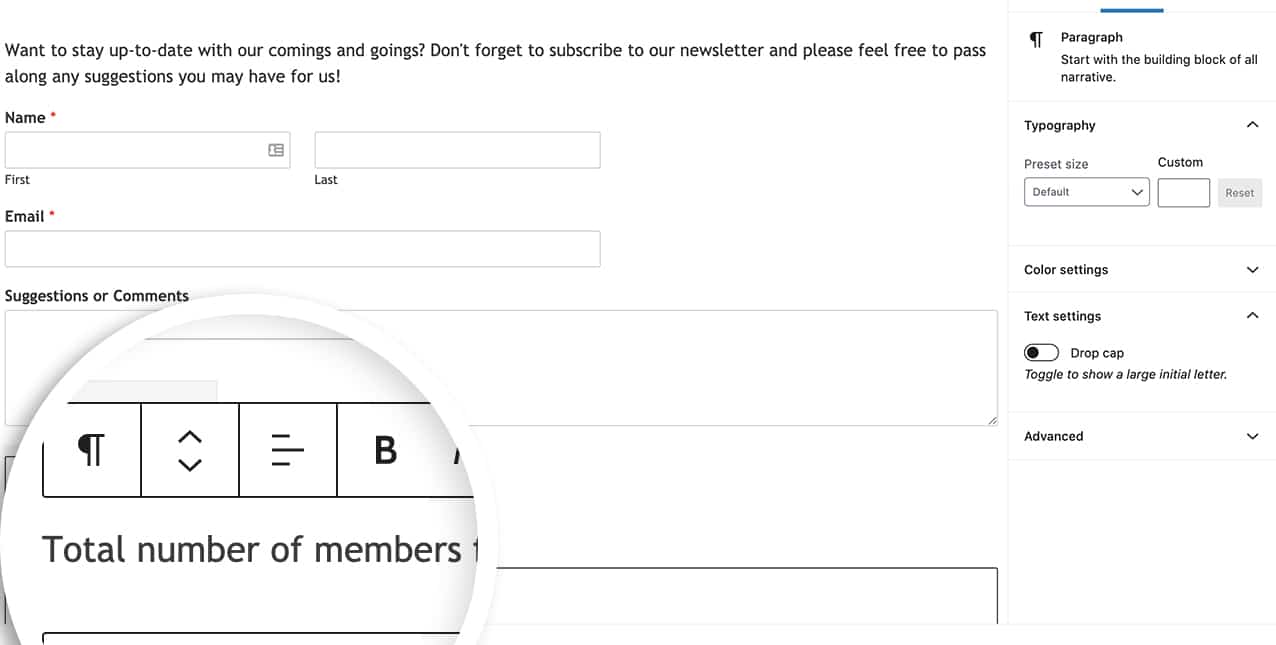
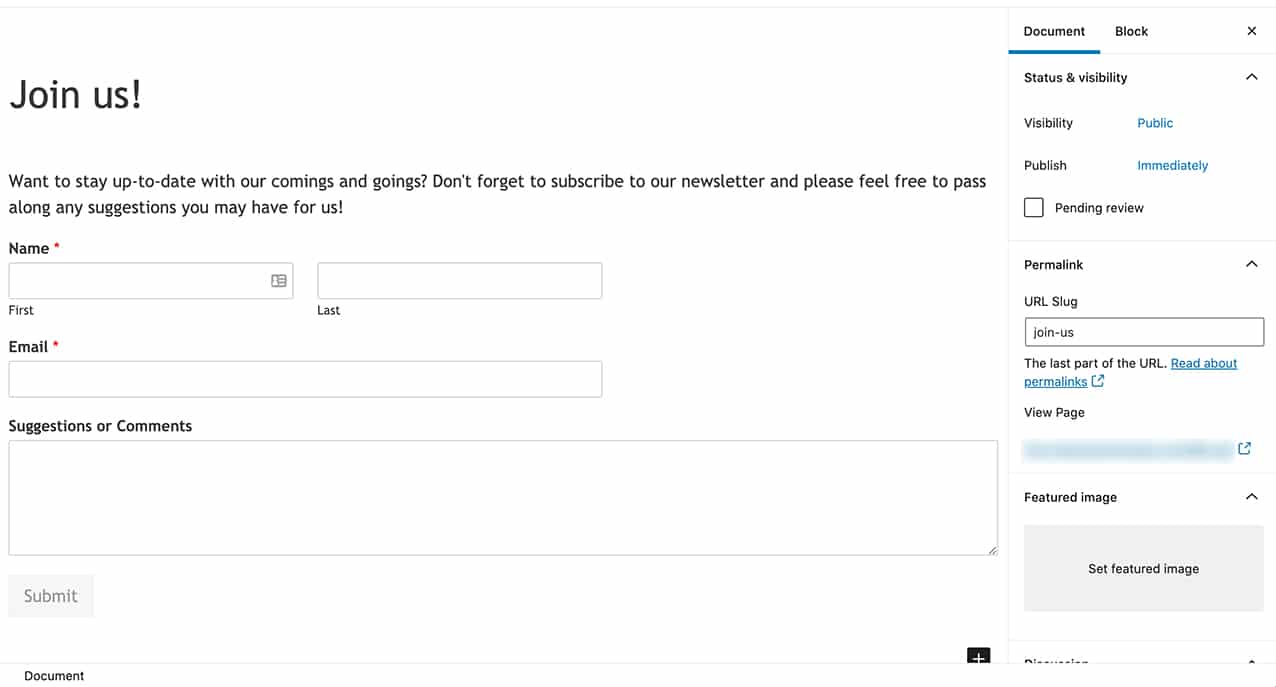Prior to incorporating the shortcode into our page, we aim to provide some context to our visitors regarding the significance of the number they’ll encounter. Therefore, we’ll include explanatory text before the shortcode.
Now, let’s integrate our shortcode into the page. Utilizing a **Shortcode** block, we’ve incorporated our custom shortcode to show the total number of entries for our newsletter form (form ID **25**). The shortcode is:
`[wpf_entries_count id="25" type="all"]`
**Note:** Real-time updates for the counts may experience delays due to any caching configurations on your site or hosting server.
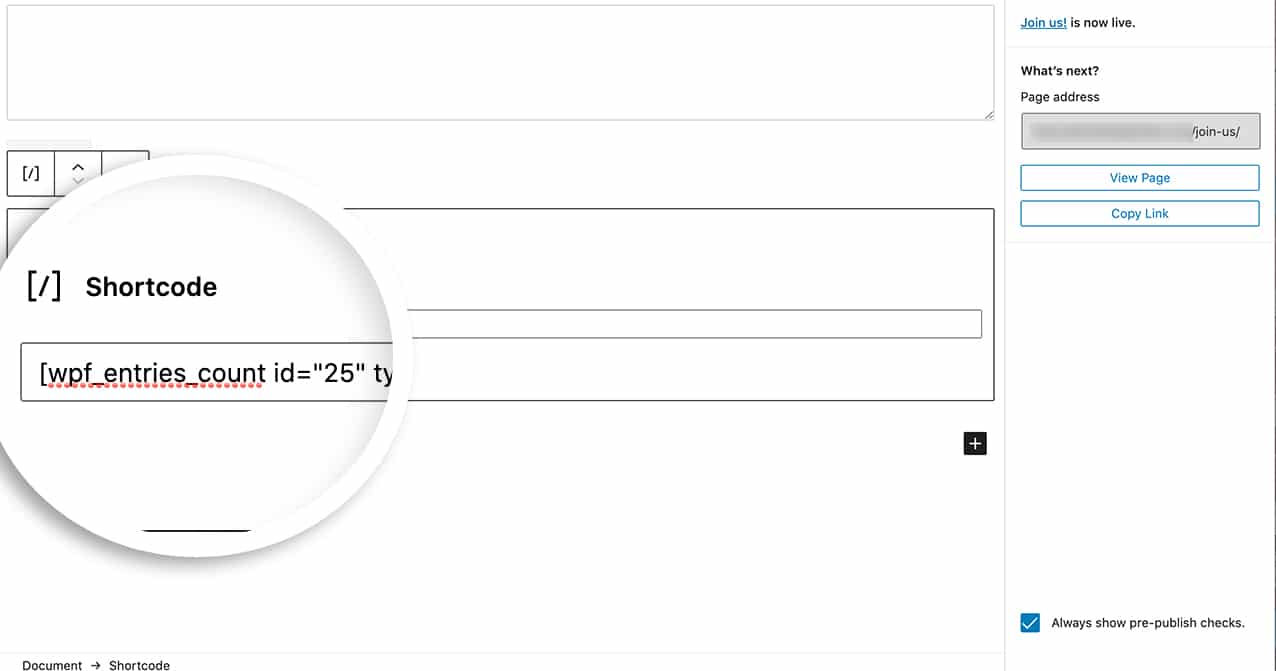The type parameter lets you customize which entries to show. For example, passing starred as the value for the type parameter will only show starred entries. Here’s how the shortcode would look.
`[wpf_entries_count id="25" type="starred"]`
Now, when you visit the page, you’ll see the total number of entries below the form.
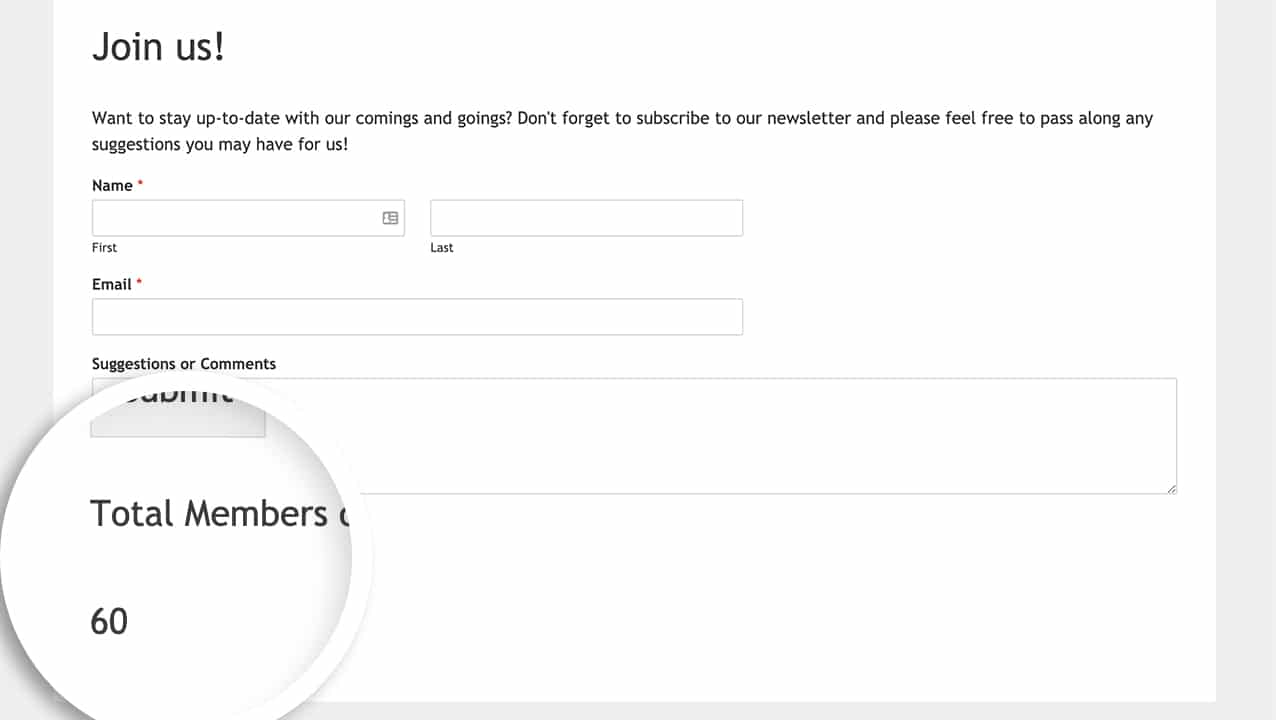That’s it! You’ve successfully added a custom shortcode to your site to display the total number of entries for forms on your site!
Would you like to also create a custom shortcode to display all of your forms on the frontend of your site? See our tutorial on [How to Display a List of WPForms Using a Shortcode](https://wpforms.com/developers/how-to-display-a-list-of-wpforms-using-a-shortcode/ "How to Display a List of WPForms Using a Shortcode") to learn how.
**Categories:** Tutorials
**Tags:** PHP
---