### [How to Customize the Authorize.net Placeholder](https://wpforms.com/developers/how-to-customize-the-authorize-net-placeholder/)
**Published:** July 7, 2021
**Author:** Editorial Team
**Excerpt:** This tutorial will show you how to use CSS to style your Authorize.net placeholder.
**Content:**
## Introduction
Would you like to customize the Authorize.net placeholder you see on the **Credit Card Number** field? Using CSS you can easily style not only the number field but also the **Security Code** field. In this tutorial, we’ll show you the CSS needed to style these two fields.
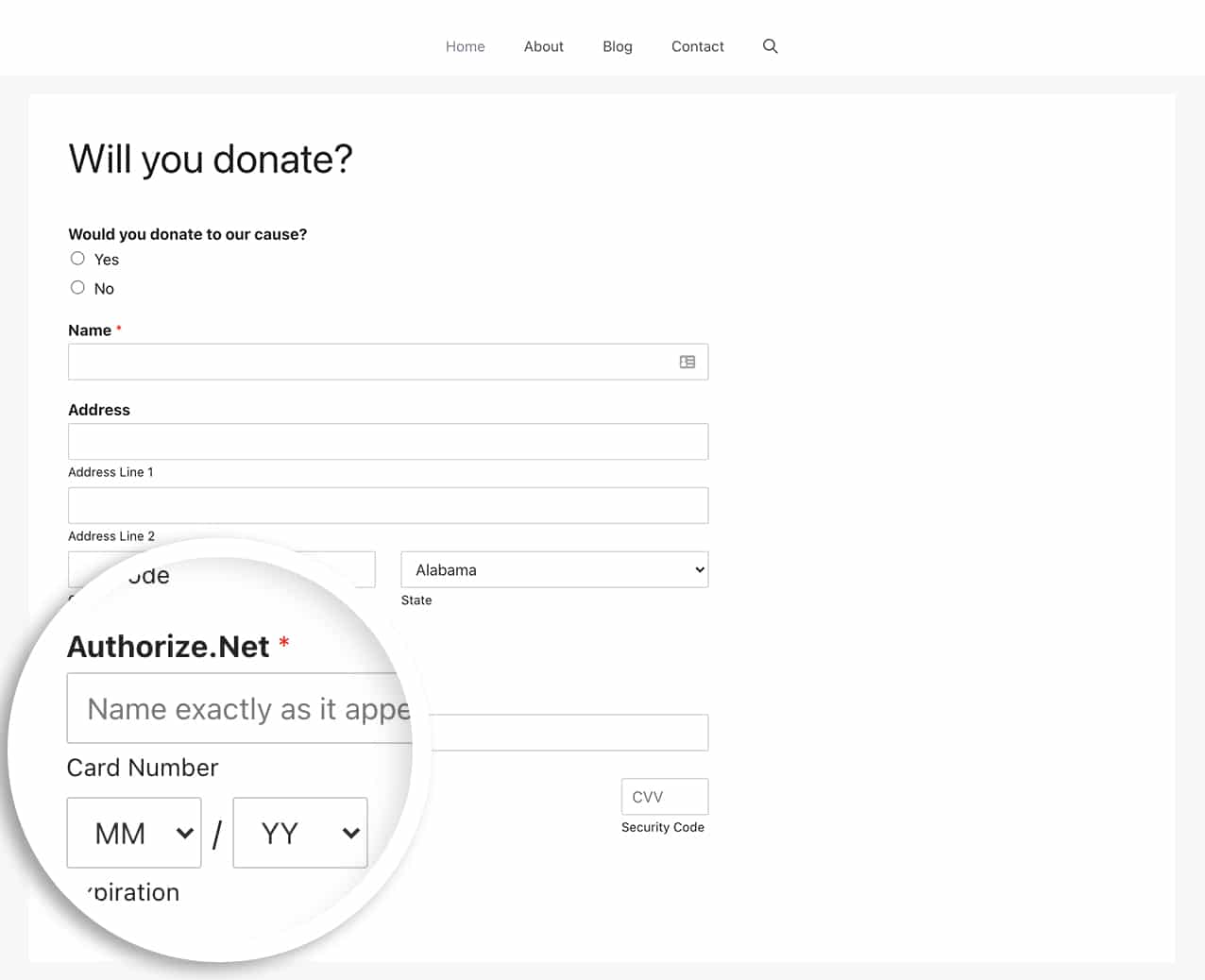
By default, the field that you enter your credit card with is styled with some default styling.
## Creating the form
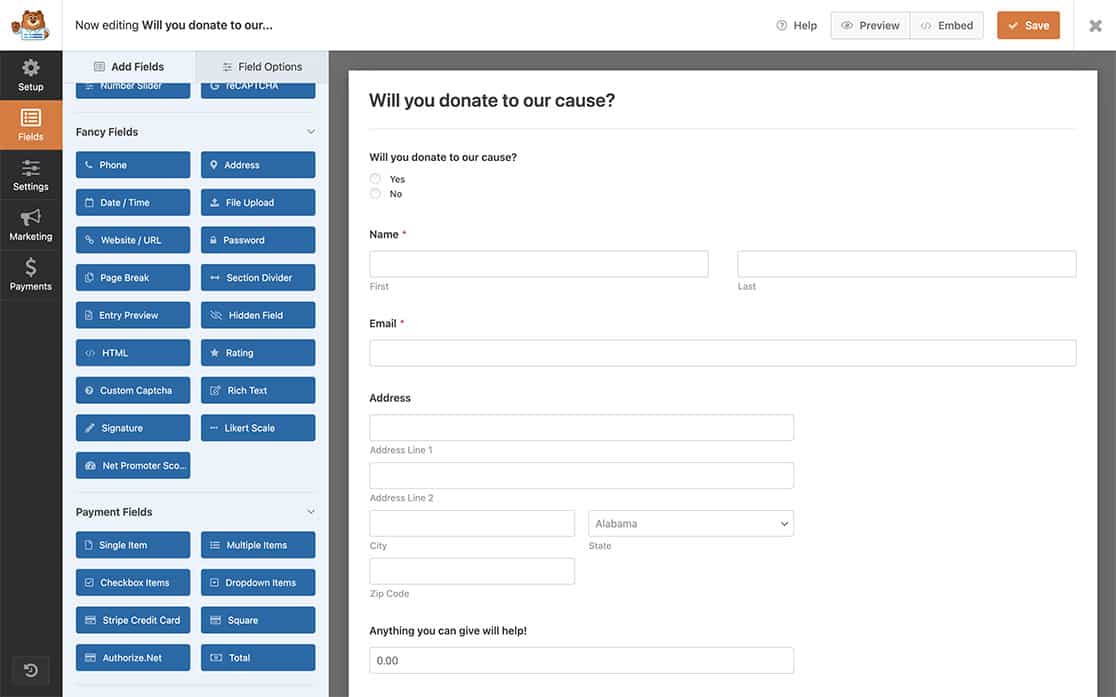
First, we’ll start by creating a simple donation form and adding the Authorize.net Credit Card field. If you need any assistance in how to create this type of form, [please check out this documentation](https://wpforms.com/docs/how-to-install-and-use-the-authorize-net-addon-with-wpforms/ "How to Install and Use the Authorize.Net Addon with WPForms").
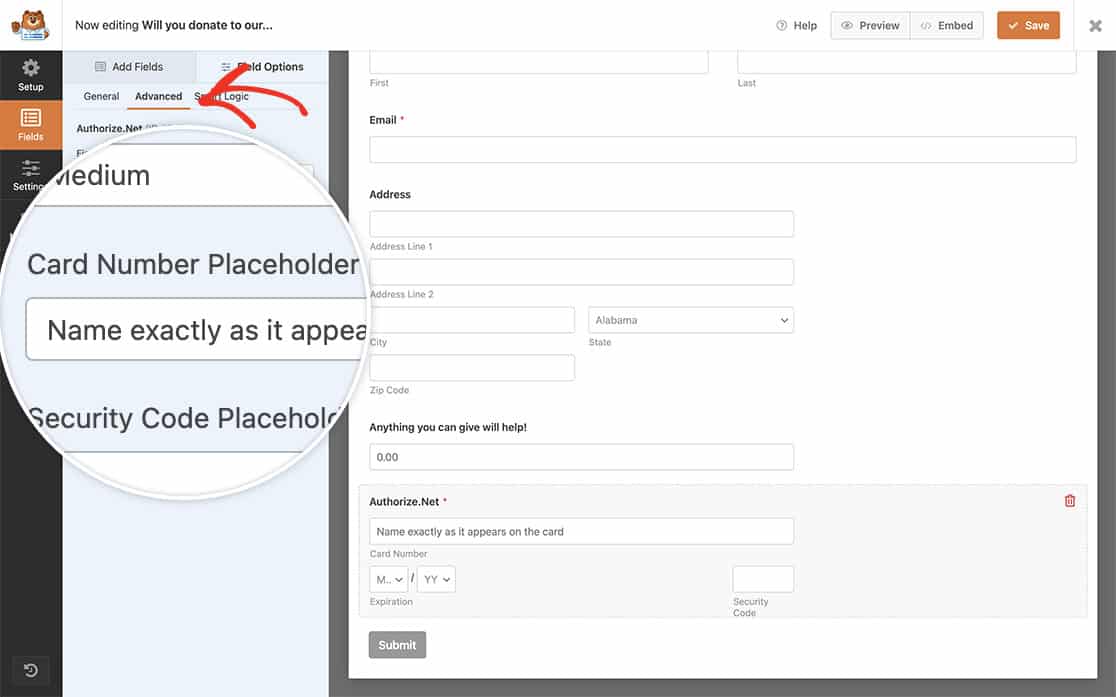
Once you’ve added the Authorize.net form field, navigate to the **Field Options** and click the **Advanced** tab. From there, you can add your **Placeholder** text.
## Adding the CSS
Now it’s time to add the CSS to your site.
If you need assistance in adding CSS to your site, [please see this tutorial](https://wpforms.com/developers/how-to-add-custom-css-styles-for-wpforms/ "How to Add Custom CSS Styles for WPForms").
```
input.wpforms-field-authorize_net-cardnumber::-webkit-input-placeholder,
input.wpforms-field-authorize_net-cardcvc::-webkit-input-placeholder {
/* Chrome/Opera/Safari */
color: #333333;
font-weight: 500;
font-family: "Roboto";
font-size: 18px;
background-color: #f6f6f6;
}
input.wpforms-field-authorize_net-cardnumber::-webkit-input-placeholder,
input.wpforms-field-authorize_net-cardcvc::-webkit-input-placeholder {
/* Firefox 19+ */
color: #333333;
font-weight: 500;
font-family: "Roboto";
font-size: 18px;
background-color: #f6f6f6;
}
input.wpforms-field-authorize_net-cardnumber::-webkit-input-placeholder,
input.wpforms-field-authorize_net-cardcvc::-webkit-input-placeholder {
/* IE 10+ */
color: #333333;
font-weight: 500;
font-family: "Roboto";
font-size: 18px;
background-color: #f6f6f6;
}
input.wpforms-field-authorize_net-cardnumber::-webkit-input-placeholder,
input.wpforms-field-authorize_net-cardcvc::-webkit-input-placeholder {
/* Firefox 18- */
color: #333333;
font-weight: 500;
font-family: "Roboto";
font-size: 18px;
background-color: #f6f6f6;
}
```
The CSS class name **input.wpforms-field-authorize\_net-cardnumber** will style only the **Card Number** field whereas the **input.wpforms-field-authorize\_net-cardcvc** class name will only style the **Security Code** field.
The above CSS will style all card number and security code fields for Authorize.net for all forms.
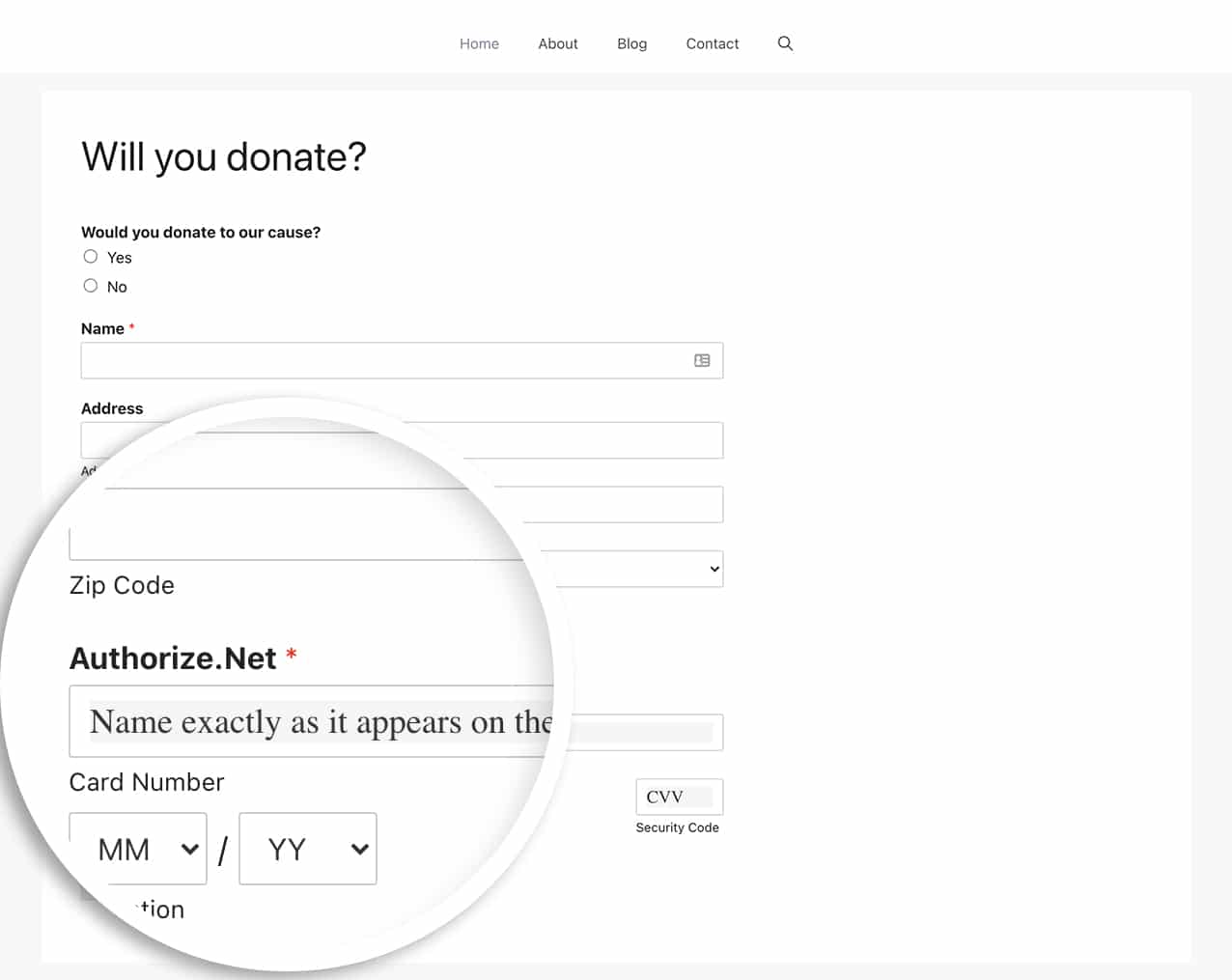
And that’s all you need to customize the Authorize.net placeholder fields. Would you like to also send through an invoice number? Take a look at this article on [How to Send an Invoice Number Through to Authorize.net Payments](https://wpforms.com/developers/how-to-send-an-invoice-number-through-to-authorize-net-payments/ "How to Send an Invoice Number Through to Authorize.net Payments").
**Categories:** Tutorials
**Tags:** CSS
---