### [How to Customize Checkbox and Radio Fields to Look Like Buttons](https://wpforms.com/developers/how-to-customize-checkbox-and-radio-fields-to-look-like-buttons/)
**Published:** October 30, 2020
**Author:** Umair Majeed
**Excerpt:** In this article we'll show you how to use CSS to style the checkbox and radio fields to appear like buttons.
**Content:**
Would you like to customize **Checkbox** and **Radio** fields to look like buttons? Using [CSS](https://www.wpbeginner.com/glossary/css/ "What is: CSS") you can easily change the display of these inputs to buttons that are colors matched to your specific branding and even pop off the page when the user hovers over each selection and for any and all active selections. In this tutorial, we’re going to walk you through each step on how to achieve this.
By default, **Checkbox** form fields appear with a box in front of the label to be checked. **Radio** form fields also have the same default form styling.
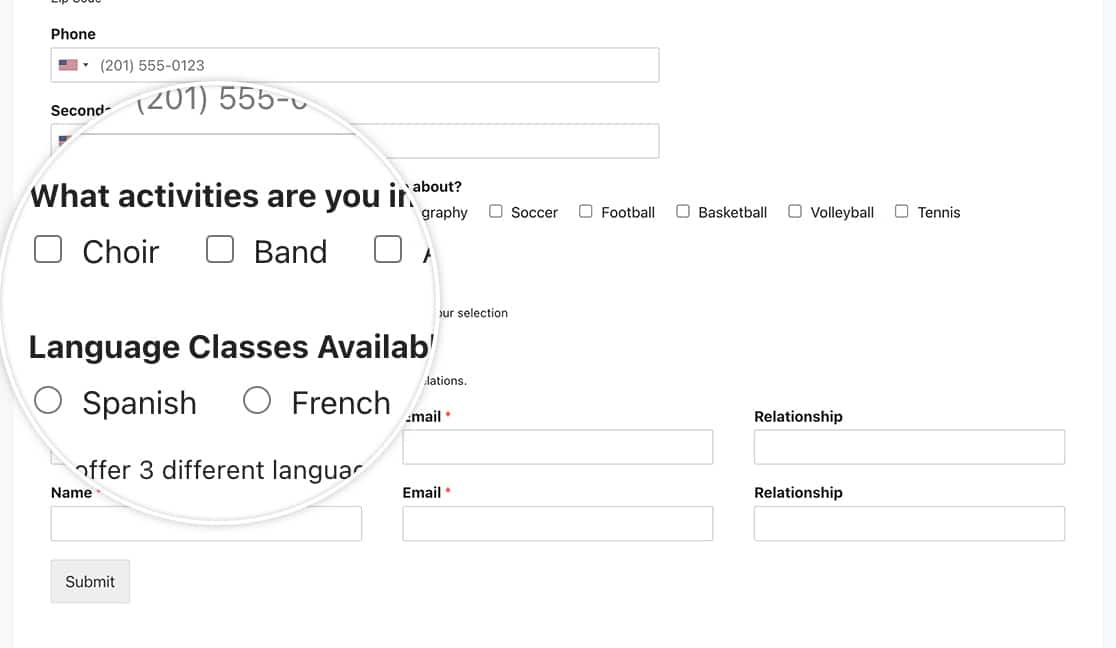However, with the magic of CSS, you can easily style these fields to look like buttons instead of just boxes to be checked. In this tutorial, we’ll give you the CSS needed to make this styling change.
## Creating the form
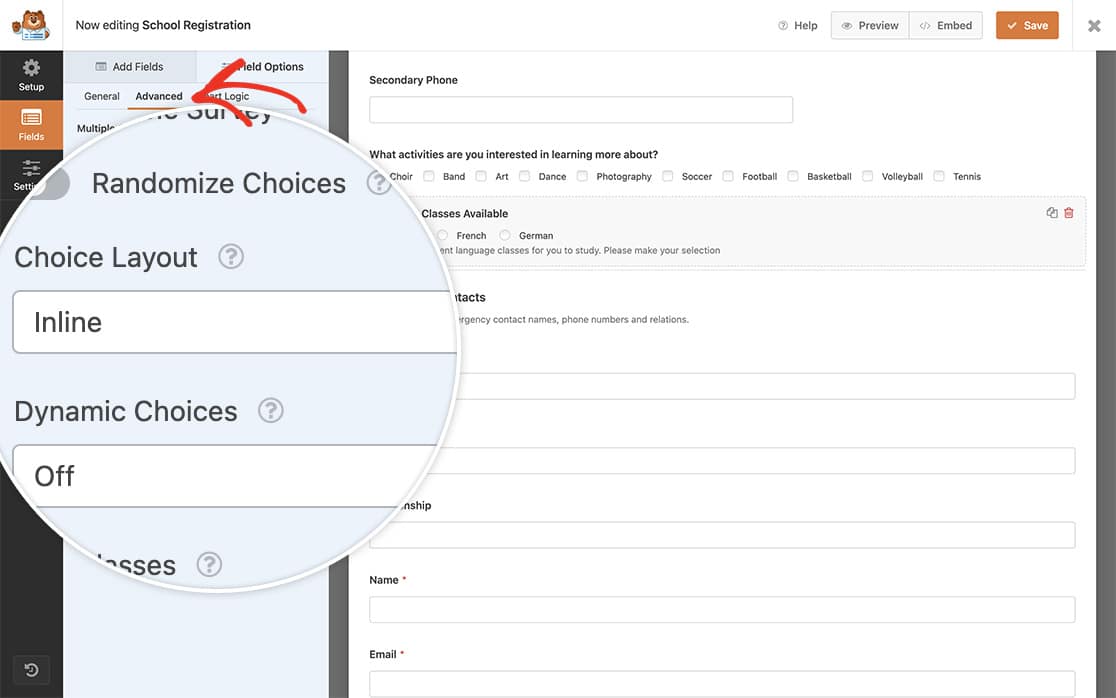
To begin, we’ll create a new form and add our fields. Our form will contain a single **Checkbox** field as well as a single **Multiple Choice** field.
As each of these fields are added, click on the **Advanced** tab and from the **Choice Layout** dropdown, select **Inline**.
## Adding the CSS
Now it’s time to add our CSS magic. Simply copy and paste this CSS to your site.
If you need help on how and where to add CSS to your site, [please check out this tutorial](https://wpforms.com/developers/how-to-add-custom-css-styles-for-wpforms/ "How to Add Custom CSS Styles for WPForms").
#### Checkbox and Multiple Choice fields for a specific form
Please remember to change the `form#wpforms-form-1000` to match you’re own form ID. For assistance in how to find your specific form ID, [please review this tutorial](https://wpforms.com/developers/how-to-locate-form-id-and-field-id/).
#### All Checkbox and Multiple Choice fields for all forms
Alternatively, you could change all of your **Checkbox** and **Multiple Choice** fields for all forms using this CSS.
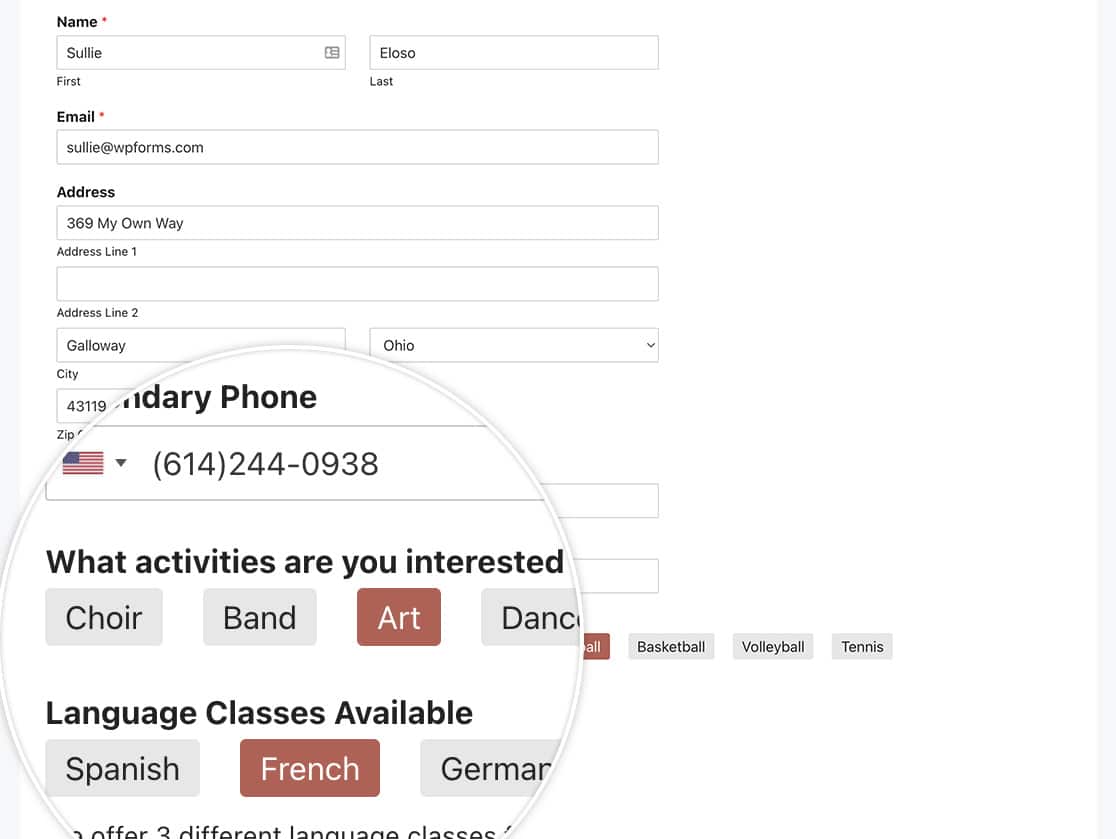Just remember to update any color references in any of the CSS to match the colors you wish to use.
And that’s all you need to customize **Checkbox** and **Radio** fields. Would you like to also customize the **Numbers** field? Take a look at our tutorial on [How to Remove the Arrows on the Numbers Field](https://wpforms.com/developers/how-to-remove-the-arrows-on-the-numbers-field/ "How to Remove the Arrows on the Numbers Field").
**Categories:** Fields
**Tags:** CSS
---