### [Creating a Form With Floating Labels](https://wpforms.com/developers/how-to-create-a-form-with-floating-labels/)
**Published:** August 31, 2020
**Author:** Umair Majeed
**Excerpt:** This tutorial will walk you through the steps of using PHP and CSS to customize your form to use floating labels for your form fields.
**Content:**
Would you like to give your forms a modern, interactive look with floating labels? Floating labels provide an elegant way to show field labels that animate when users interact with your form fields.
This guide will show you how to implement this feature using WPForms.
For inspiration on floating label designs, you can review [Material Design’s documentation](https://material.io/develop/web/supporting/floating-label) on text fields.
## Creating Your Form
We’ll begin by creating a simple contact form. If you need any assistance with creating a form, [please review this documentation](https://wpforms.com/docs/creating-first-form/ "Creating Your First Form").
If there is a **Phone** field on the form, you’ll need to set the format to either **US** or **International**. This snippet will not work on the **Smart** format.
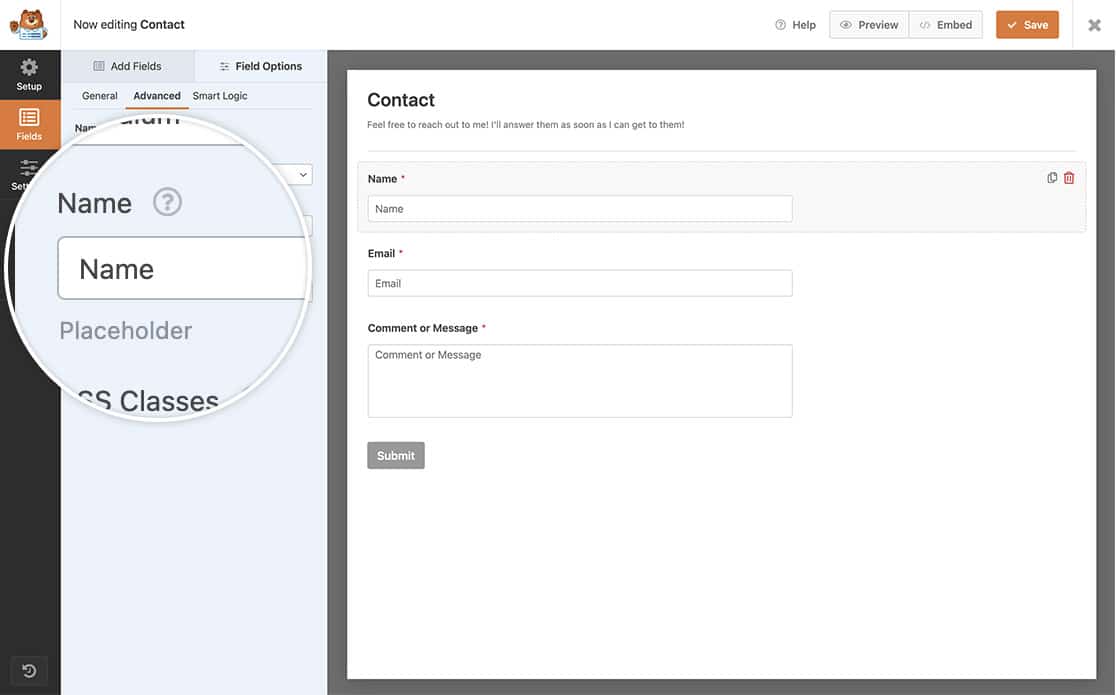
You’ll also need to add **Placeholder** text to each field as well. This text can be added by selecting the field and clicking on the **Advanced** tab to add the text.
If you need help on how to do this, check out our guide on [adding placeholder text to a field](https://wpforms.com/docs/how-to-add-placeholder-text-to-a-form-field/).
## Adding CSS Classes
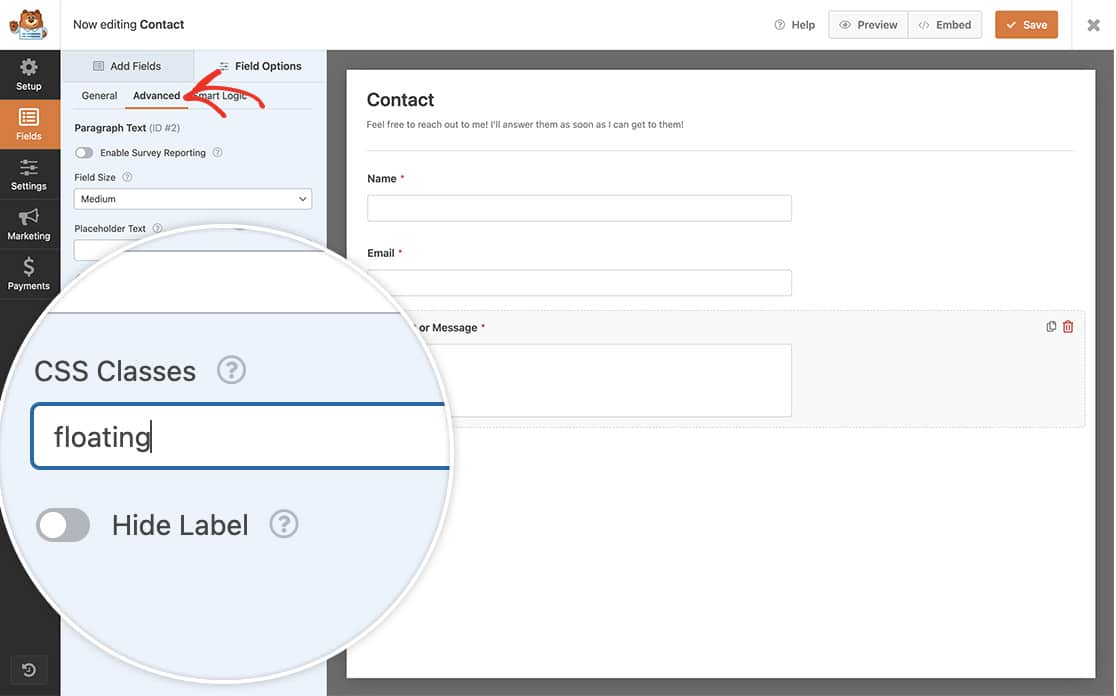
Next, we’re going to add a CSS class of `floating` to the fields we wish to have floating labels for.
Select each field one by one and click the **Advanced** tab and add `floating` inside the **CSS Classes** field.
If using more than one CSS class for a field, just be sure to put a space between each class name.
## Floating Labels – PHP snippet
We’re going to add a couple of small PHP snippets that will remove the label from being on top of the form fields to being just below the form fields.
Replace **1289** on **line 10** and **line 28** with your form ID.
If you need assistance on how and where to add snippets to your site, [please review this tutorial](https://wpforms.com/developers/how-to-add-custom-php-or-javascript-for-wpforms/ "How to Add Custom PHP or JavaScript for WPForms").
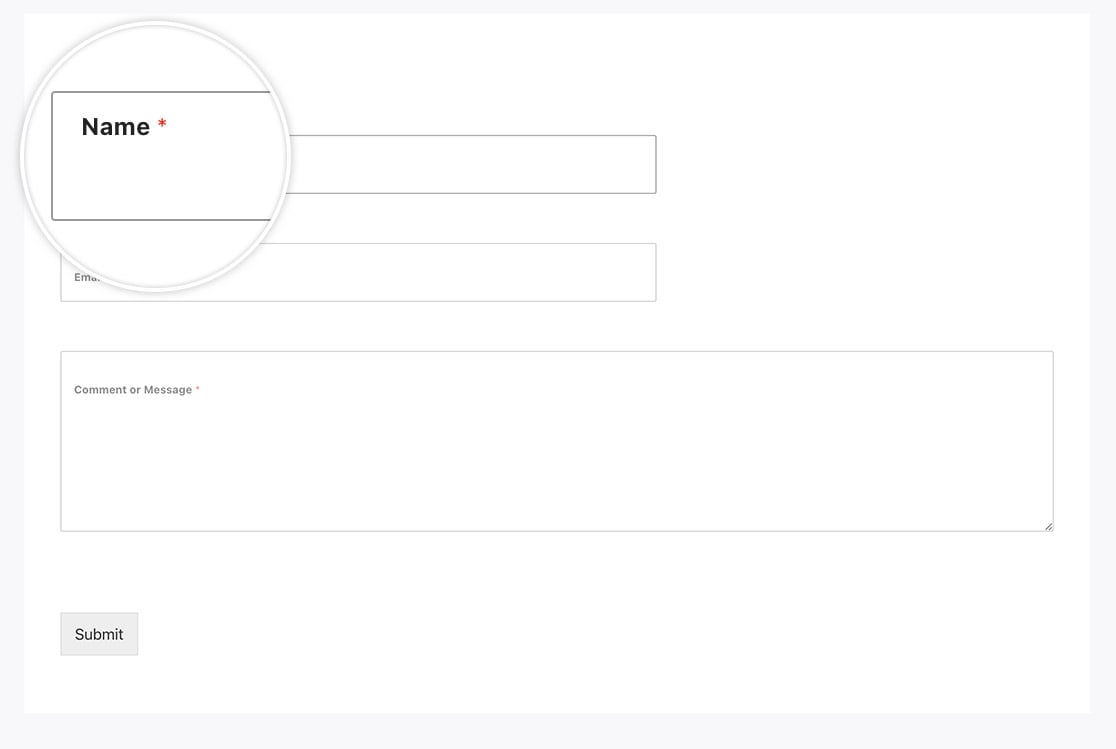
What this snippet is doing is removing the position of the field label from being displayed **before** the field and placing it **after** the field.
## Floating Labels – CSS snippet
Now that our form is created and our snippets are in place, we need to add the custom CSS to our site to pull this all together.
For assistance in how and where to add custom CSS, [please review this tutorial](https://wpforms.com/developers/how-to-add-custom-css-styles-for-wpforms/ "How to Add Custom CSS Styles for WPForms").
Replace **1682** on **line 1** and **line 4** with your form ID.
## FAQ
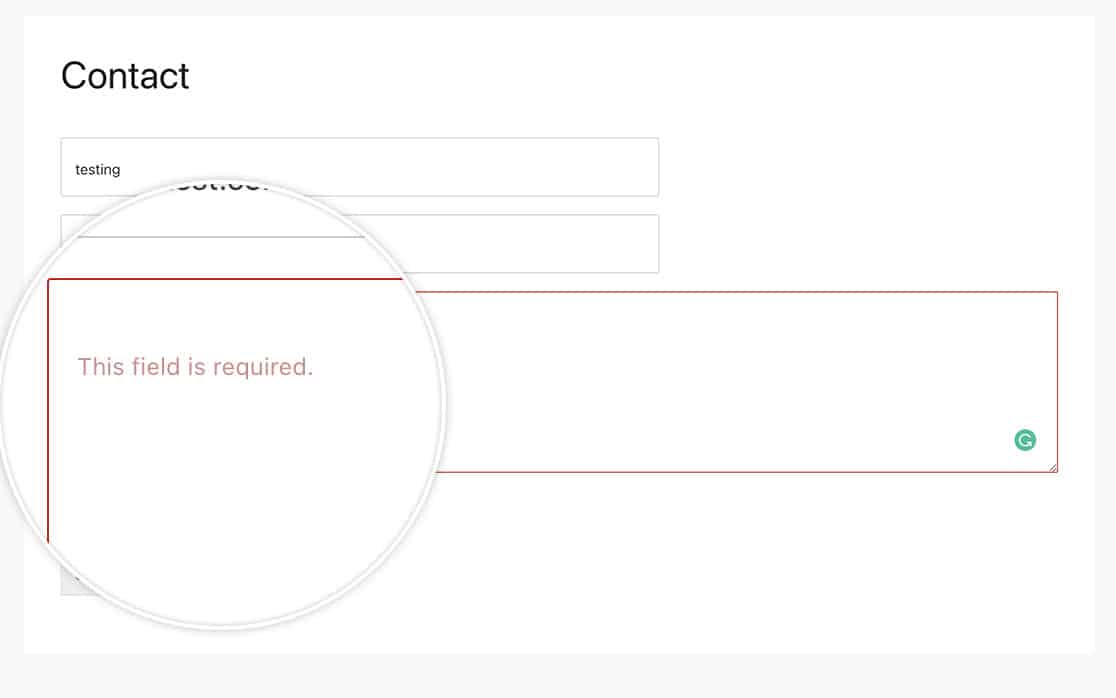
#### Q: Will the field validation still display?
**A:** Absolutely! The validation errors will keep the same style.
#### Q: Why isn’t this working for me?
**A:** Be sure to run back through the steps above, if you missed placing the **Placeholder** text in the fields, the labels wouldn’t appear to have the floating effect when a user clicks inside the field.
And that’s it! You’ve now created a form with floating labels that float up when the user starts to type in the field. Next, would you like to change the color of the confirmation message or just completely remove it? Take a look at our article on [How to Remove Confirmation Message Box Styling](https://wpforms.com/developers/how-to-remove-confirmation-message-box-styling/ "How to Remove Confirmation Message Box Styling").
## Reference Actions
- [wpforms\_display\_field\_after](https://wpforms.com/developers/wpforms_display_field_after/ "Using the wpforms_display_field_after action")
- [wpforms\_display\_field\_before](https://wpforms.com/developers/wpforms_display_field_before/ "Using the wpforms_display_field_before action")
**Categories:** Tutorials
**Tags:** CSS, PHP
---