### [How to Change the Payment Delimiter Inside Email Notifications](https://wpforms.com/developers/how-to-change-the-payment-delimiter-inside-email-notifications/)
**Published:** July 2, 2020
**Author:** Umair Majeed
**Excerpt:** This article will show you how to change the payment delimiter in email notifications from a hyphen to a colon.
**Content:**
Would you like to customize how payment amounts appear in your email notifications? By default, WPForms uses a hyphen (-) to separate payment details in emails. However, you might want to use a different separator for better readability or to match your organization’s formatting standards.
This guide will show you how to change this delimiter to any character you prefer.
## Understanding Payment Delimiters
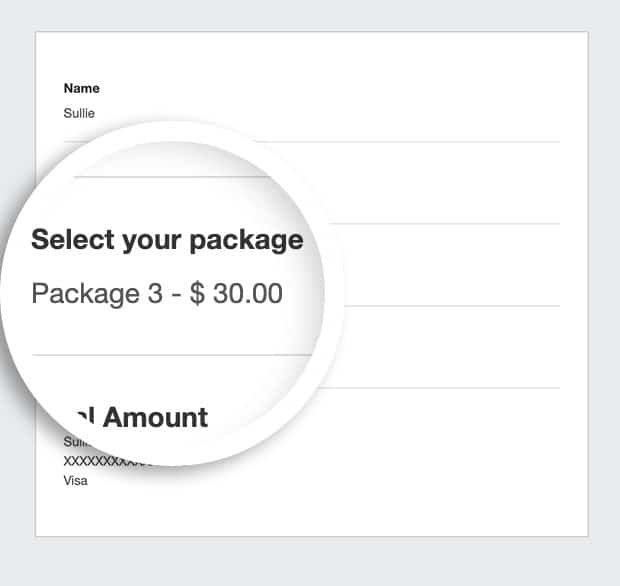
In email notifications, payment field values are displayed with a delimiter between the selected option and its amount.
For example:
- Default format: Premium Package – $99.00
- Custom format: Premium Package : $99.00
## Customizing the Delimiter
To change the delimiter, you’ll need to add a code snippet to your site. If you’re not sure how to add custom code, please see our guide on [adding custom code snippets to your site](https://wpforms.com/developers/how-to-add-custom-php-or-javascript-for-wpforms/).
## Customizing Your Code
To use this code effectively, you’ll need to make two changes:
1. On **line 8**, replace **310** with your form ID. If you need help finding your form ID, check out our guide on [finding form and field IDs](https://wpforms.com/developers/how-to-locate-form-id-and-field-id/).
2. On **line 18**, replace ‘ **:** ‘ with your preferred delimiter. You can use any character or string. Some common options include:
- Space + Colon + Space: **:**
- Double Colon: **::**
- Arrow: **→**
- Vertical Bar: **|**
- Equal Sign: **=**
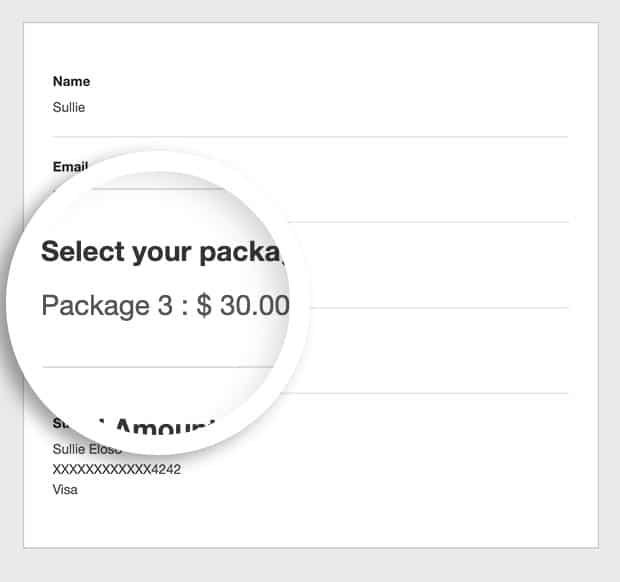And that’s it! You’ve successfully changed the delimiter. Next, would you like to also change this when viewing the form? Check out our guide on [customizing payment form labels](https://wpforms.com/developers/how-to-customize-payment-form-labels/) for more details.
## Reference Filter
[wpforms\_entry\_email\_data](https://wpforms.com/developers/wpforms_entry_email_data/ "Using the wpforms_entry_email_data filter")
**Categories:** Notifications
**Tags:** PHP
---