### [How to Center a Form](https://wpforms.com/developers/how-to-center-a-form/)
**Published:** November 6, 2020
**Author:** Umair Majeed
**Excerpt:** This tutorial will show you how to use CSS to center a form with WPForms.
**Content:**
Would you like to center your forms on your WordPress pages? While WPForms forms default to 100% width of their container, you can easily center them using custom CSS.
This guide will show you how to perfectly center your forms and their elements.
## Setting Up the Form
First, you’ll need to create your form. If you need any help with this, you can always [review this documentation for assistance](https://wpforms.com/docs/creating-first-form/ "Creating Your First Form").
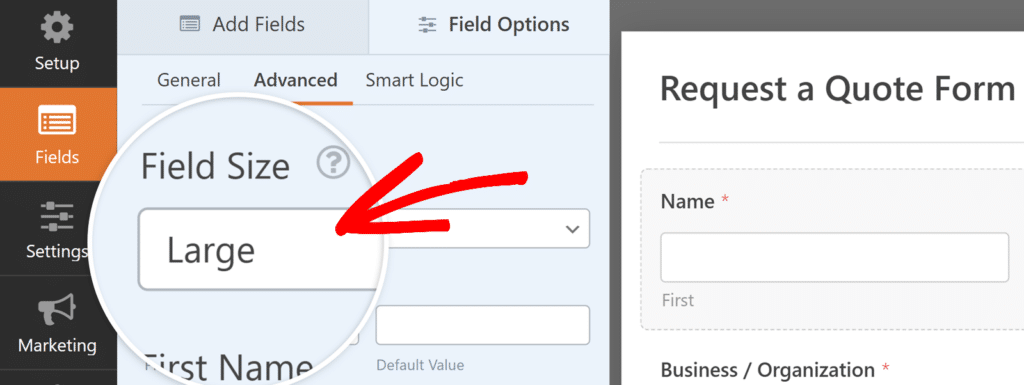
Once you’ve created your form and added your fields, you’ll need to set each **Field Size** to **Large**.
To do so, click the **Advanced** tab and select **Large** from the **Field Size** dropdown.
### Adding the CSS Class
After setting the field size to Large, next you’ll need to add a special CSS class. To do so, open the form builder, and go to **Settings » General**. Then scroll down to the **Advanced** section and locate the **Form CSS Class** field. Enter `wpf-center` in this field.
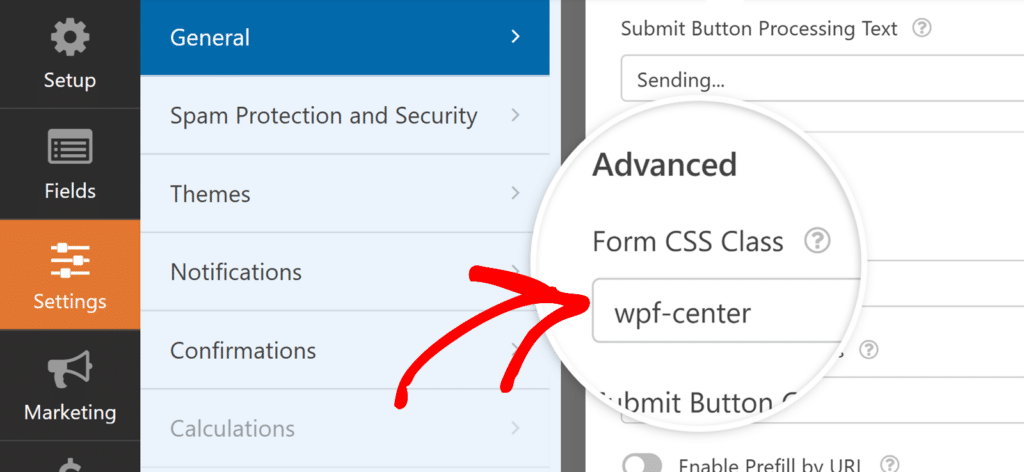**Note:** The CSS class step is crucial – without it, the centering CSS won’t work. Make sure to enter the class name exactly as shown.
## Adding the CSS Code
Here’s the basic CSS code to center your form:
Note: For help adding CSS to your site, [please have a look at this tutorial.](https://wpforms.com/developers/how-to-add-custom-css-styles-for-wpforms/ "How to Add Custom CSS Styles for WPForms")
This code:
- Centers the form using `margin: 0 auto`
- Sets a maximum width of 500px. You can play with this amount until you find the one that meets your needs
- Ensures mobile responsiveness by adjusting the width on smaller screens
## Centering All Form Elements
If you want to center everything inside the form (labels, descriptions, buttons), use this extended version:
## Customizing the Width
To adjust the form’s width, modify these two lines in the CSS:
```
max-width: 500px !important;
width: 500px !important;
```
Replace `500px` with your desired width. For example, for a wider form:
```
max-width: 800px !important;
width: 800px !important;
```
## Frequently Asked Questions
#### Q: Why is the CSS not working for me?
**A:** First, verify you’ve added the `wpf-center` class name in your form’s **Settings » General** page. This is the most common reason for the CSS not working. If still not working, clear your browser’s cache and refresh the page.
#### Q: How do I center just the Submit button?
**A:** Use this simplified CSS and add the class `wpf-center-button` (instead of `wpf-center`) to your form’s CSS Class field:
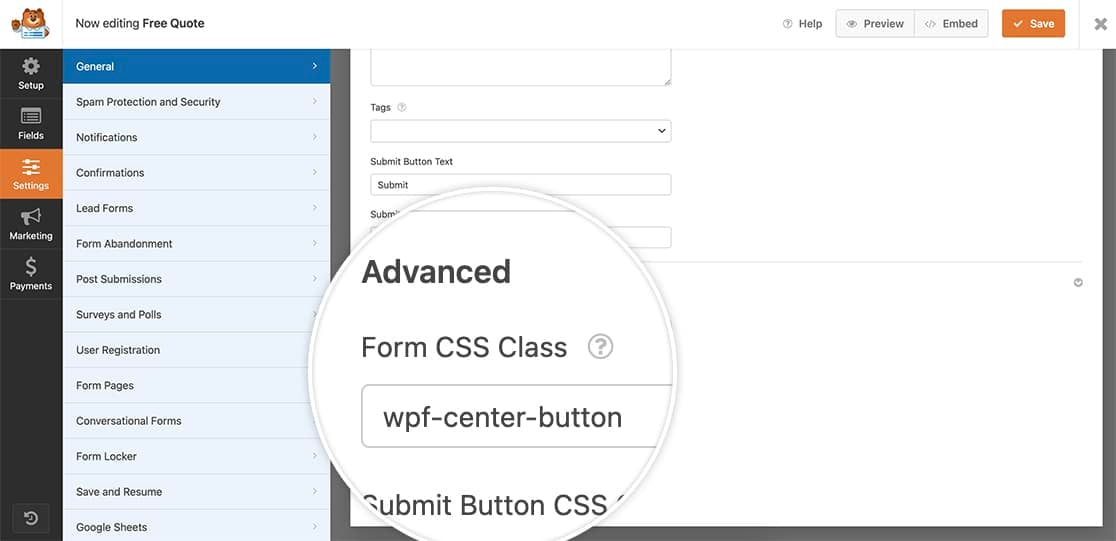Next, add this CSS to your site.
```
.wpforms-container.wpf-center-button .wpforms-submit-container {
text-align: center;
}
```
And that’s all you need to center your form. Next, would you like to be able to change the submit button color on your forms? Take a look at our article on [changing the color of submit button](https://wpforms.com/developers/how-to-change-the-submit-button-color/).
**Categories:** Styling
**Tags:** CSS
---