### [How to Add Address Field Validation For Authorize.net](https://wpforms.com/developers/how-to-add-address-field-validation-for-authorize-net/)
**Published:** March 8, 2022
**Author:** Umair Majeed
**Excerpt:** This tutorial will walk you through how to add address validation when using the Address form field on an Authorize.net payment form using JavaScript.
**Content:**
Would you like to improve the address validation experience for your Authorize.net payment forms? By default, Authorize.net limits address fields to 60 characters but only shows a technical error message after form submission.
This guide will show you how to add user-friendly validation that catches address length issues before submission.
## Understanding the Problem
When an **Address** exceeds 60 characters, Authorize.net displays this cryptic error:
```
Payment was declined by Authorize.Net.
API: (E00003) The 'AnetApi/xml/v1/schema/AnetApiSchema.xsd:address'
element is invalid – The value XXXXXXXXXXXXXXXXXXXXXXXXXXXXXXXXXXXXXXXXXXXXXXXXXXXXXXXXXXXX
is invalid according to its datatype 'String' –
The actual length is greater than the MaxLength value.
```
We’ll replace this with a clear, user-friendly message that appears immediately during form entry.
## Setting Up Your Form
First, we’ll need to create a form using the [Authorize.net addon](https://wpforms.com/addons/authorize-net-addon/ "Authorize.Net Addon"). If you need help creating an Authorize.net payment form, check out our guide on [setting up Authorize.net payments](https://wpforms.com/docs/how-to-install-and-use-the-authorize-net-addon-with-wpforms/).
Make sure to add an **Address** field to your form. You’ll need this to capture the shipping or billing address for the transaction.
## Mapping Address Fields
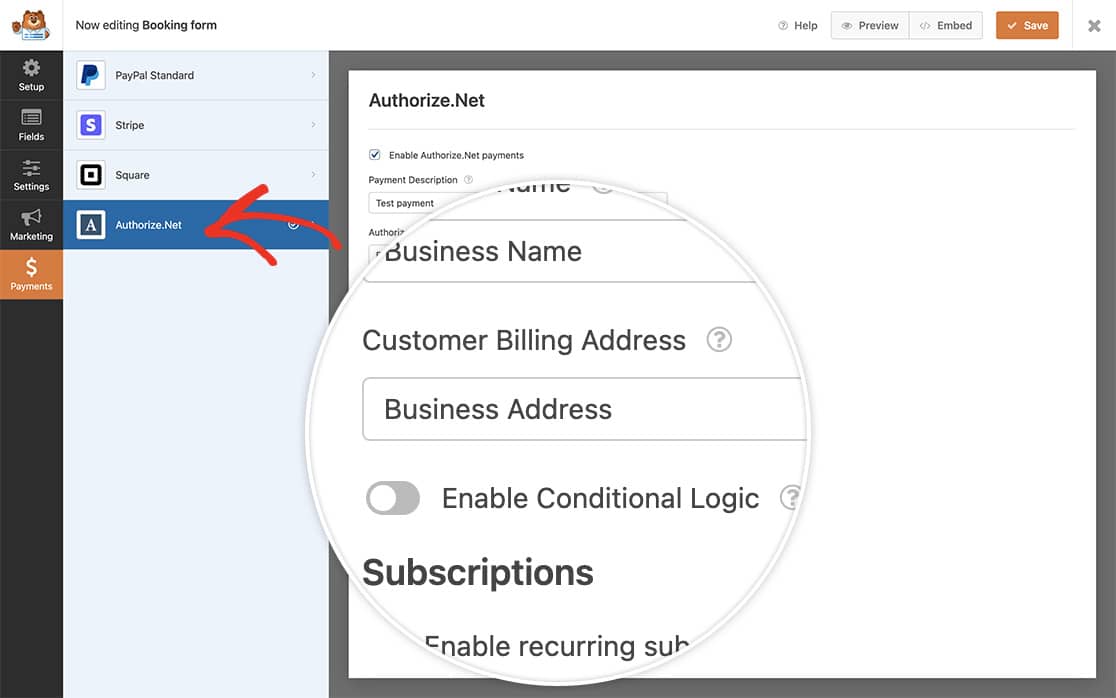
Navigate to the **Payments** tab in your form builder and select the **Authorize.net** tab. Map your form’s address fields to the corresponding Authorize.net transaction fields. This ensures the address data is properly transmitted with the payment.
## Adding Validation Code
Add this code to your site to enable address validation. If you’re not sure how to add custom code, please review our [guide on adding code snippets to WordPress](https://wpforms.com/developers/how-to-add-custom-php-or-javascript-for-wpforms/).
Customizing the Code:
- On **line 11**: Replace **1000** with your form ID
- On **line 16**: Replace **25** with your Address field ID
- On **line 19**: Replace **25** with your Address field ID again
If you need help finding your form and field IDs, check out our [guide on how to find form and field IDs](https://wpforms.com/developers/how-to-locate-form-id-and-field-id/).
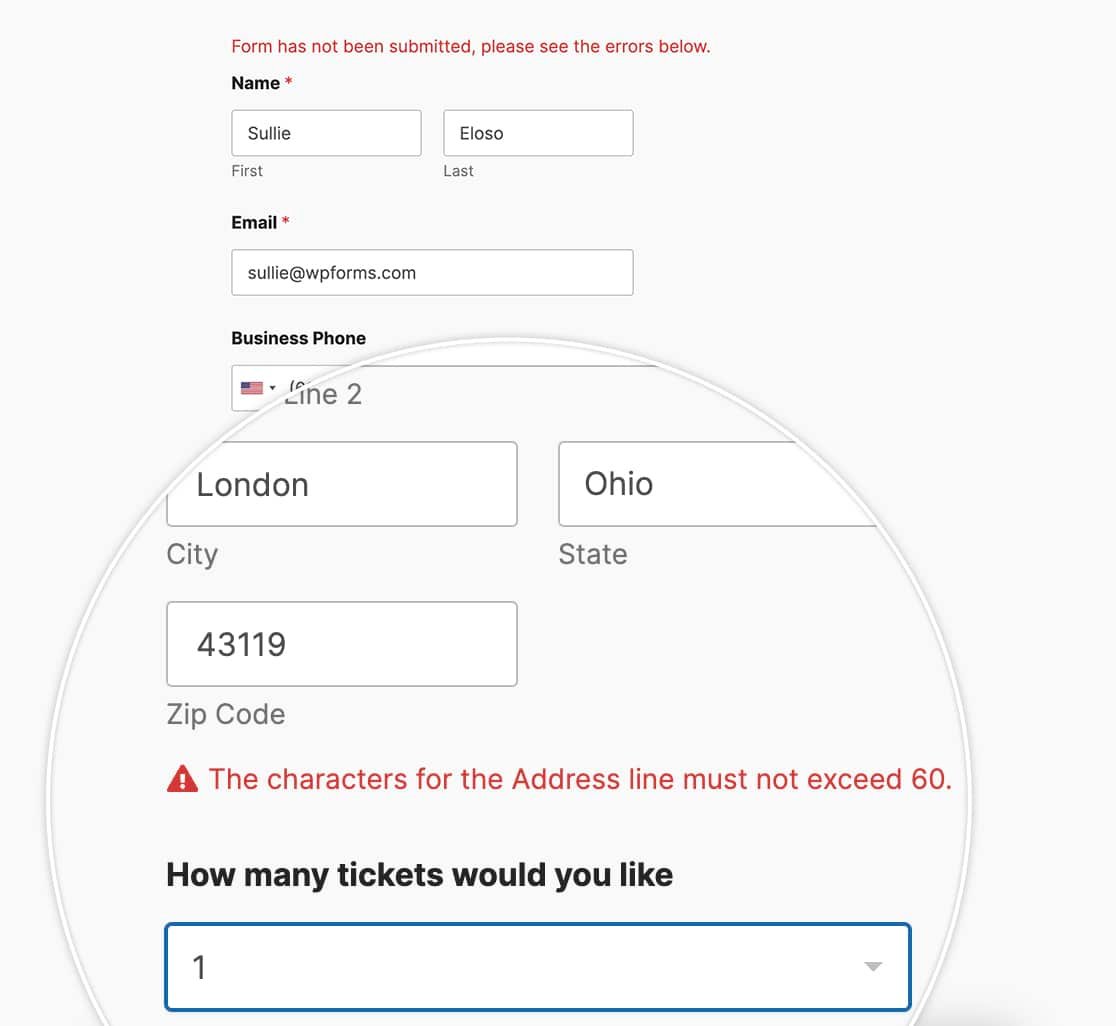
Now when the users enter their address they will see an immediate address validation message if any line in the **Address** exceeds 60 characters.
And that’s all you need! Next, would you like to also send an invoice number to Authorize.net? Check out our tutorial on [sending an invoice number through to Authorize.net payments](https://wpforms.com/developers/how-to-send-an-invoice-number-through-to-authorize-net-payments/ "How to Send an Invoice Number Through to Authorize.net Payments").
## Reference Action
[wpforms\_process](https://wpforms.com/developers/wpforms_process/ "Using the wpforms_process action")
**Categories:** Addons
**Tags:** Authorize.net, Javascript, JS
---