### [Customizing Multiple Choice Field Columns on Mobile Devices](https://wpforms.com/developers/customizing-multiple-choice-field-columns-on-mobile-devices/)
**Published:** August 25, 2024
**Author:** David Ozokoye
**Content:**
## Introduction
Would you like to customize the number of columns displayed on mobile view for multiple-choice fields? By default, multiple-choice fields in WPForms display as single columns. However, you’ll be able to customize it with a custom CSS snippet.
In this tutorial, we’ll show you how to use a 2-column display on mobile view for WPForms multi-choice (Checkboxes and Multiple Choice) fields.
## Creating Your Form
To follow along with this tutorial, you’ll need to [create a new form](https://wpforms.com/docs/creating-first-form/ "Creating Your First Form") or edit an existing one to access the form builder. In the form builder, be sure to add either the [Checkboxes](https://wpforms.com/developers/how-to-customize-the-checkbox-field-styles/ "How to Customize the Checkbox Field Styles") or [Multiple Choice](https://wpforms.com/developers/how-to-customize-the-multiple-choice-field-styles/ "How to Customize the Multiple Choice Field Styles") field to your form.
After that, click on the multiple-choice field to access its Field Options panel. Then, navigate to the **Advanced** tab.
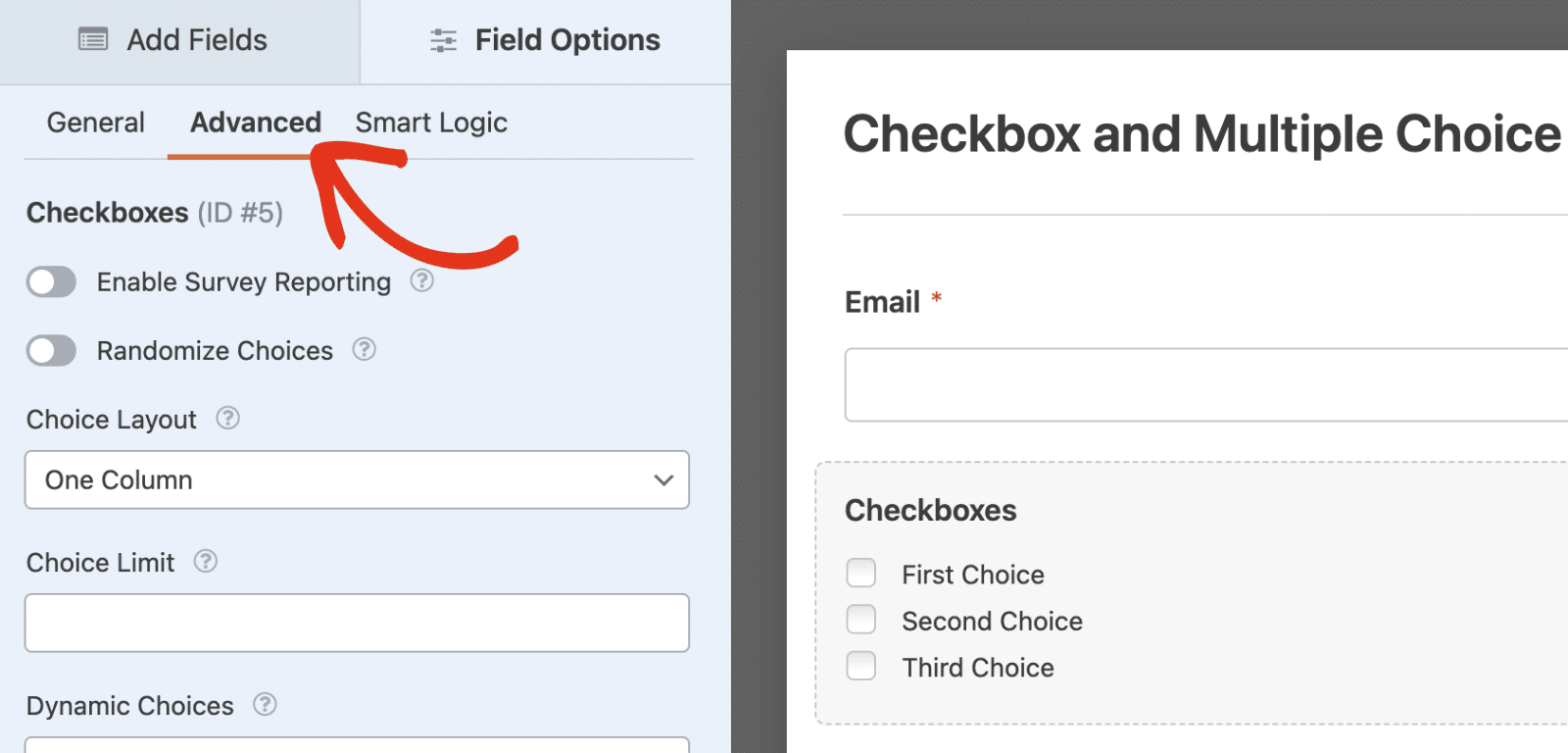Here, select the **Choice Layout** option and choose the **Two Columns** option.
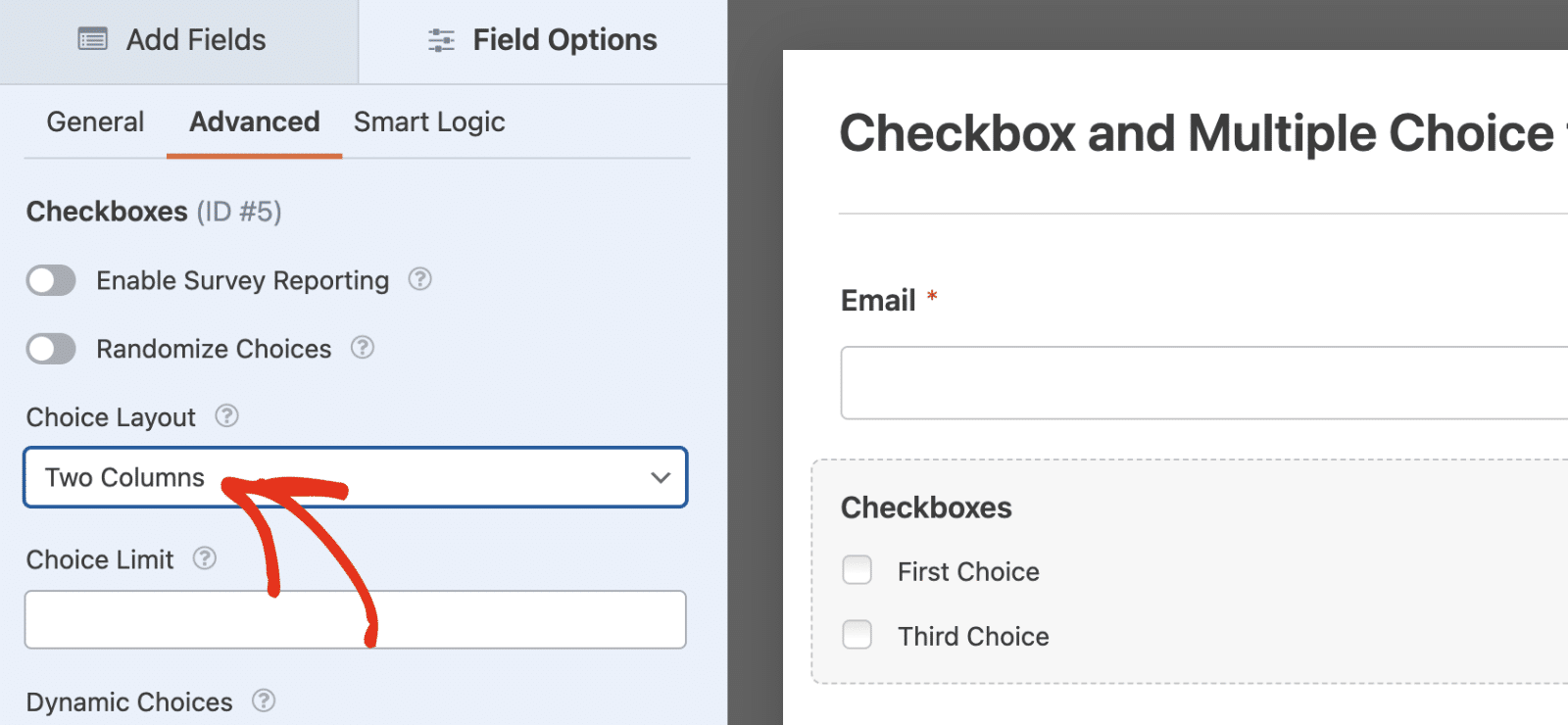When you view your form, it’ll display 2-columns for the Checkboxes or Multiple Choice field. However, on mobile devices, it will display each choice in a single column.
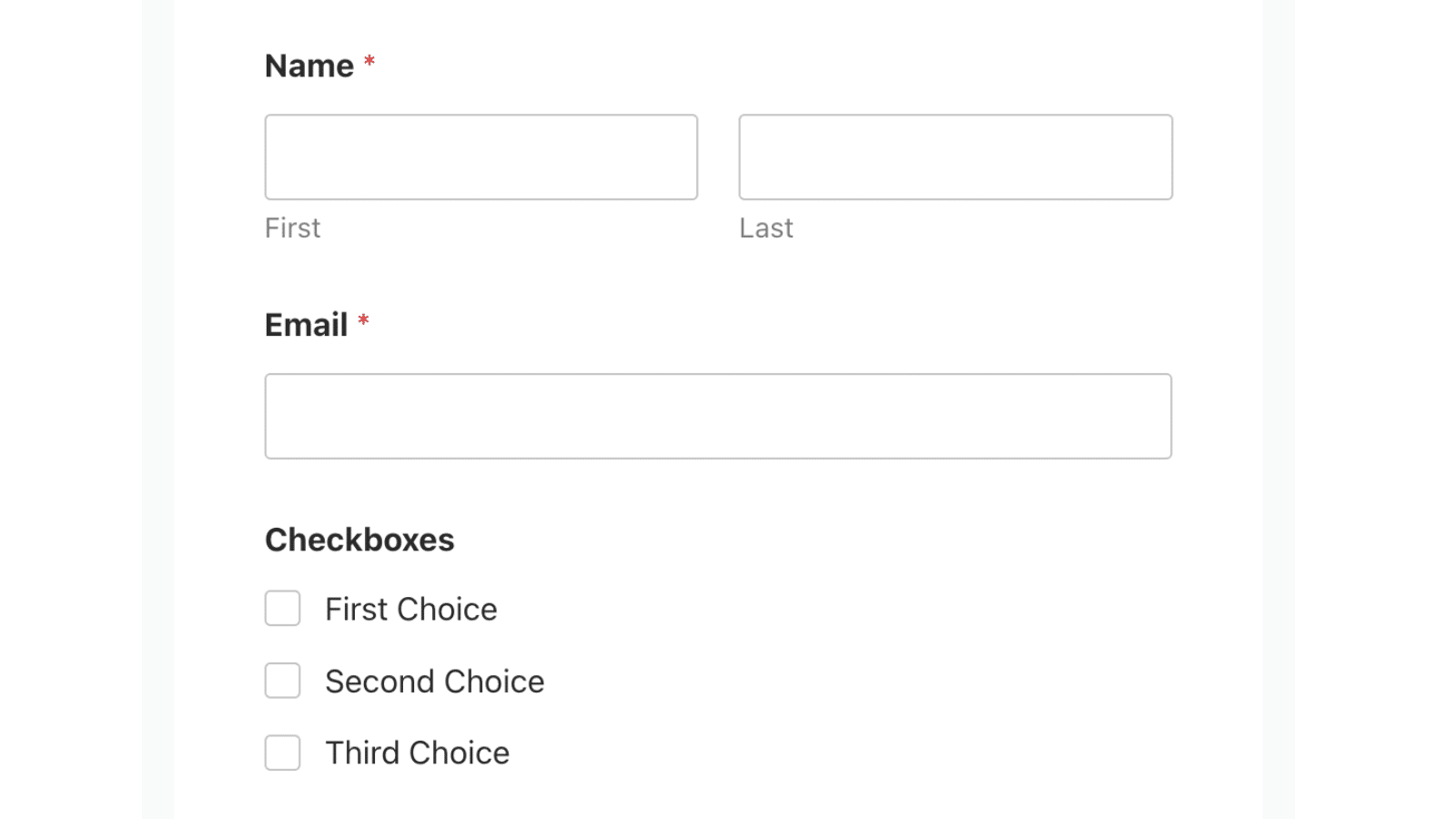In this tutorial, we’ll show you how to use custom CSS to force Multiple Choice and Checkboxes fields to retain column layout on a mobile display.
## Adding the Snippet
To begin, we’re going to add the snippet to the site first. If you need any help with how and where to add snippets, [please be sure to review this helpful documentation](https://wpforms.com/developers/how-to-add-custom-php-or-javascript-for-wpforms/).
```
/**
* Customizing Multiple Choice Field Column on Mobile Display
*
* @link https://wpforms.com/developers/customizing-multiple-choice-field-columns-on-mobile-devices/
*/
/* Checkboxes and Radio Buttons */
@media screen and (max-width: 600px) {
/* Target both checkbox and radio fields */
#wpforms-form-2525 .wpforms-field-checkbox ul,
#wpforms-form-2525 .wpforms-field-radio ul {
display: flex;
flex-wrap: wrap;
margin: 0; /* Reset any default margins */
padding: 0; /* Reset any default padding */
}
/* Target list items in 2-column layouts */
#wpforms-form-2525 .wpforms-list-2-columns ul li {
width: calc(50% - var(--wpforms-field-size-input-spacing));
margin-right: var(--wpforms-field-size-input-spacing);
box-sizing: border-box; /* Ensure padding doesn't affect width */
}
/* Remove margin from every second item to prevent overflow */
#wpforms-form-2525 .wpforms-list-2-columns ul li:nth-child(2n) {
margin-right: 0;
}
}
```
Be sure to replace `#wpforms-form-2525` with the ID of the specific form to which you wish to apply these changes. See our tutorial to learn [how to retrieve Form ID and Field ID](https://wpforms.com/developers/how-to-locate-form-id-and-field-id/ "how to retrieve Form ID and Field ID") if you need help with it.
This snippet will ensure that Checkboxes and Multiple Choice fields that use the 2-column layout retain the layout on mobile view.
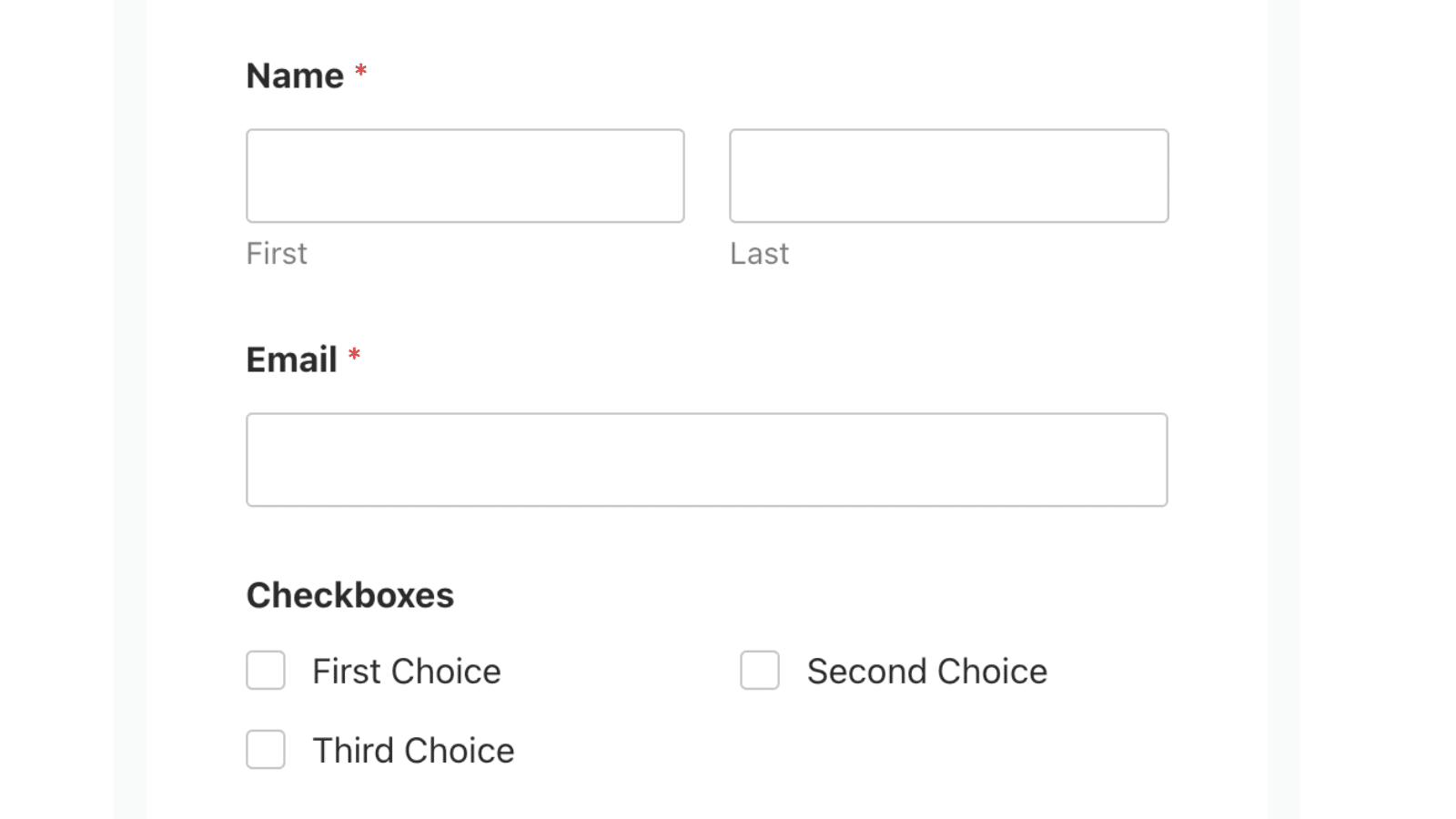That’s it! Now you’ve learned how to customize column layout for multi-choice (Checkboxes and Multiple Choice) fields on mobile view.
Want to learn more ways to customize WPForms fields? Check out our tutorial on [adding a Select All option to Checkboxes field in WPForms](https://wpforms.com/developers/how-to-add-a-select-all-option-to-a-checkbox-form-field/ "adding a Select All option to Checkboxes field in WPForms").
**Categories:** Tutorials
**Tags:** CSS, fields
---